> ## Documentation Index
> Fetch the complete documentation index at: https://academy.pathfindr.ai/llms.txt
> Use this file to discover all available pages before exploring further.

# Reading Material

> Learn to work with ChatGPT across your daily tasks

export const FlipCard = ({emoji, image, title, oneLiner, bestFor = [], starterPrompt}) => {
  const [flipped, setFlipped] = useState(false);
  return <div className="relative min-h-[280px] rounded-2xl border border-zinc-200 dark:border-zinc-800 bg-white dark:bg-zinc-900 shadow-sm overflow-hidden">
      <button type="button" onClick={() => setFlipped(!flipped)} className="absolute top-3 right-3 z-10 rounded-full border border-zinc-300 dark:border-zinc-600 bg-white dark:bg-zinc-800 px-3 py-1 text-xs font-medium text-zinc-700 dark:text-zinc-200 hover:bg-zinc-100 dark:hover:bg-zinc-700">
        {flipped ? "← Back" : "Flip →"}
      </button>

      {!flipped && <div className="p-6 pt-12 flex flex-col h-full">
          {image ? <div className="mb-3">
              <img src={image} alt={title} className="w-16 h-16 object-contain" />
            </div> : <div className="text-4xl mb-3">{emoji}</div>}
          <div className="text-xl font-bold text-zinc-900 dark:text-white mb-2">{title}</div>
          <p className="text-zinc-600 dark:text-zinc-300 text-sm">{oneLiner}</p>
          <p className="mt-auto pt-4 text-xs text-zinc-400 dark:text-zinc-500">Click "Flip" to see the starter prompt</p>
        </div>}

      {flipped && <div className="p-6 pt-12 flex flex-col h-full">
          <div className="text-sm font-semibold text-zinc-900 dark:text-white mb-2">Best for:</div>
          <ul className="text-zinc-600 dark:text-zinc-300 text-sm space-y-1 mb-4">
            {bestFor.map((item, i) => <li key={i}>{item}</li>)}
          </ul>
          {starterPrompt && <div>
              <div className="text-sm font-semibold text-zinc-900 dark:text-white mb-2">Starter prompt:</div>
              <div className="rounded-lg bg-zinc-100 dark:bg-zinc-800 p-3 text-sm text-zinc-700 dark:text-zinc-200 whitespace-pre-wrap">{starterPrompt}</div>
            </div>}
          <p className="mt-auto pt-4 text-xs text-zinc-400 dark:text-zinc-500">Click "Back" to return</p>
        </div>}
    </div>;
};

<iframe src="https://drive.google.com/file/d/1w-a0bhAsYixP-Kx_z8vzmLsp5IqbpzIm/preview" className="w-full aspect-video rounded-xl" frameborder="0" allow="autoplay" frameBorder="0" />

## Use ChatGPT for your work

Think of ChatGPT as a new team member who can help with writing, brainstorming, problem-solving, and creative tasks. You can ask it to draft content, suggest ideas, work through questions step by step, or explain complex topics in simple terms. It handles file uploads and maintains conversation context as you work.

This page will show you how to:

<CardGroup cols={4}>
  <Card title="Assign roles" icon="square-1">
    Direct ChatGPT with focused personas
  </Card>

  <Card title="Choose models" icon="square-2">
    Add documents to conversations
  </Card>

  <Card title="Connect tools" icon="square-3">
    Interact hands-free
  </Card>

  <Card title="Refine outputs" icon="square-4">
    Use follow-ups to improve results
  </Card>
</CardGroup>

***

## Direct ChatGPT with roles

Give ChatGPT a clear role to focus its response. Pick one of these three starting points based on your task.

<div className="grid gap-4 grid-cols-1 md:grid-cols-3">
  <FlipCard image="https://mintcdn.com/pathfindr/I3XbhzOlK6BeuXVO/images/assistantIcon.webp?fit=max&auto=format&n=I3XbhzOlK6BeuXVO&q=85&s=84490634e74ab5287061758af9c1eb54" title="Assistant" oneLiner="You've got a job. It gets it done." bestFor={["Summaries", "Drafting replies", "Turning notes into actions"]} starterPrompt="You're my Assistant. Turn this into a punchy action list with owners and due dates. Keep it short." width="426" height="426" data-path="images/assistantIcon.webp" />

  <FlipCard image="https://mintcdn.com/pathfindr/vxED2dxssEHZg3yn/images/thinkerIcon.webp?fit=max&auto=format&n=vxED2dxssEHZg3yn&q=85&s=5fbd5406d58970da1c1e7acaba9b26be" title="Thinker" oneLiner="You've got a decision. It helps you choose." bestFor={["Comparing options", "Risks + trade-offs", "Planning next steps"]} starterPrompt="You're my Thinker. Give me 3 options, a pros/cons table, then recommend one and explain why." width="426" height="426" data-path="images/thinkerIcon.webp" />

  <FlipCard image="https://mintcdn.com/pathfindr/0Og7YOK8gX91P7mj/images/creatorIcon.webp?fit=max&auto=format&n=0Og7YOK8gX91P7mj&q=85&s=9f9ed2ceb17f361a9dbfbe1a494ca83b" title="Creator" oneLiner="You've got a blank page. It gets you moving." bestFor={["First drafts", "Ideas + outlines", "Rewrites with a new tone"]} starterPrompt="You're my Creator. Draft a first version with headings and bullets. Friendly, professional, and not too long." width="426" height="426" data-path="images/creatorIcon.webp" />
</div>

<Tip>
  Role + format + word limit = you’re 80% of the way to a great output.
</Tip>

***

## Context in ChatGPT (what it’s really working from)

ChatGPT doesn’t magically know your work situation unless you give it something to work with.\
For beginners, “context” usually means:

* what you pasted into the chat
* any files you attached
* your saved preferences (optional)
* any tools you turned on (also optional)

### Adding Context to Your Conversation

<Columns cols={3}>
  <Card title="Paste / Add Files" icon="plus">
    <img src="https://mintcdn.com/pathfindr/I3XbhzOlK6BeuXVO/images/chatgptGuidePlusIcon.webp?fit=max&auto=format&n=I3XbhzOlK6BeuXVO&q=85&s=6a9d8c2b9fabce41e4518cf89ecc90be" alt="Chatgpt Guide Plus Icon" width="1920" height="1080" data-path="images/chatgptGuidePlusIcon.webp" />

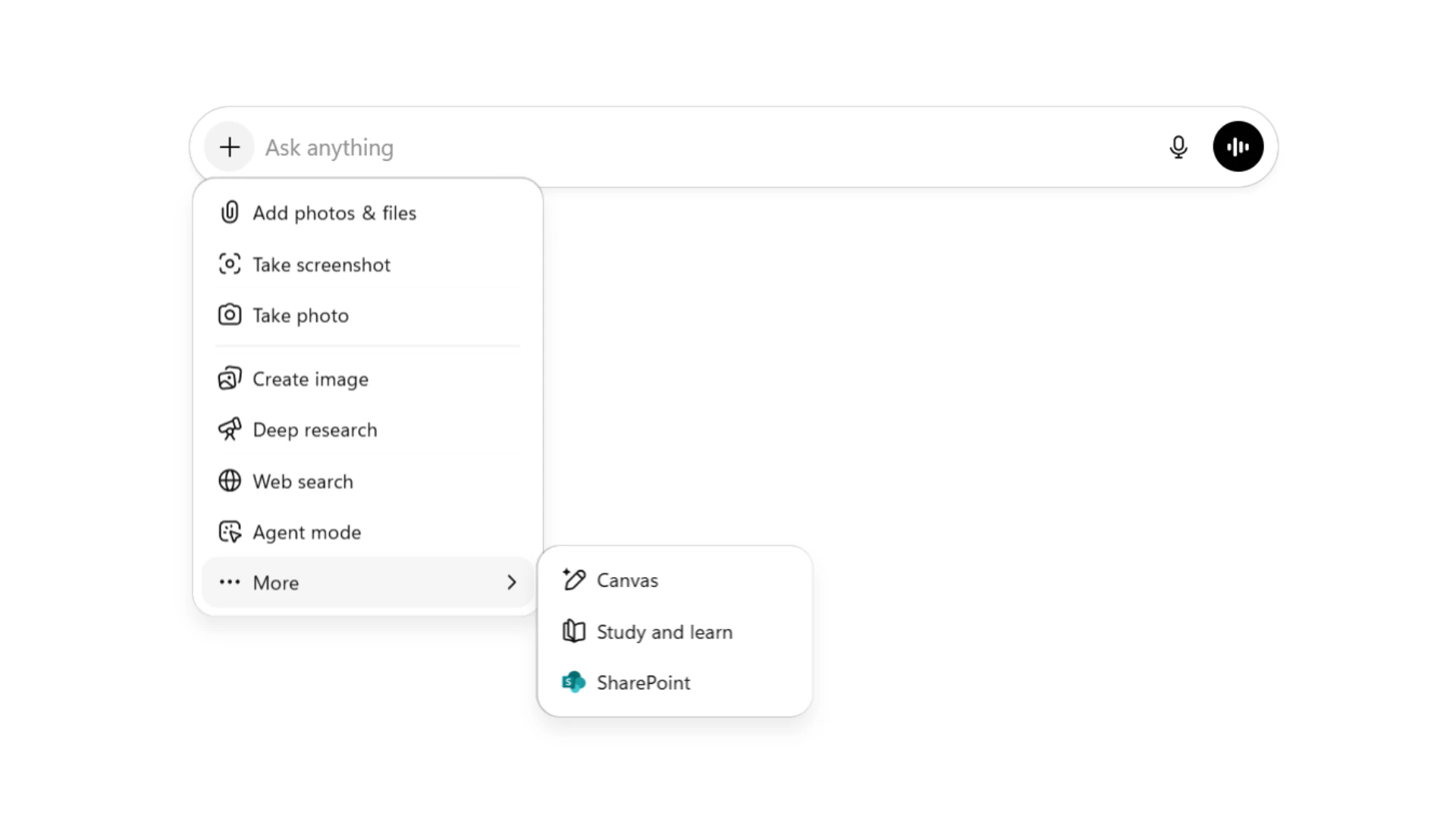
    Click the "+" icon in the chat to access multiple options for adding context:

    * Add photos & files
    * Deep research
    * Agent mode
    * Create image
    * Web search
    * Canvas
    * Study and learn

    These features let you enhance conversations with documents, images, or specialized modes for different tasks.
  </Card>

  <Card title="Custom Instructions" icon="sliders">
    <img src="https://mintcdn.com/pathfindr/I3XbhzOlK6BeuXVO/images/chatgptGuideCustomInstructions.webp?fit=max&auto=format&n=I3XbhzOlK6BeuXVO&q=85&s=e1e9da333e18dad6ba6eeceb58f4d783" alt="Chatgpt Guide Custom Instructions" width="1920" height="1080" data-path="images/chatgptGuideCustomInstructions.webp" />

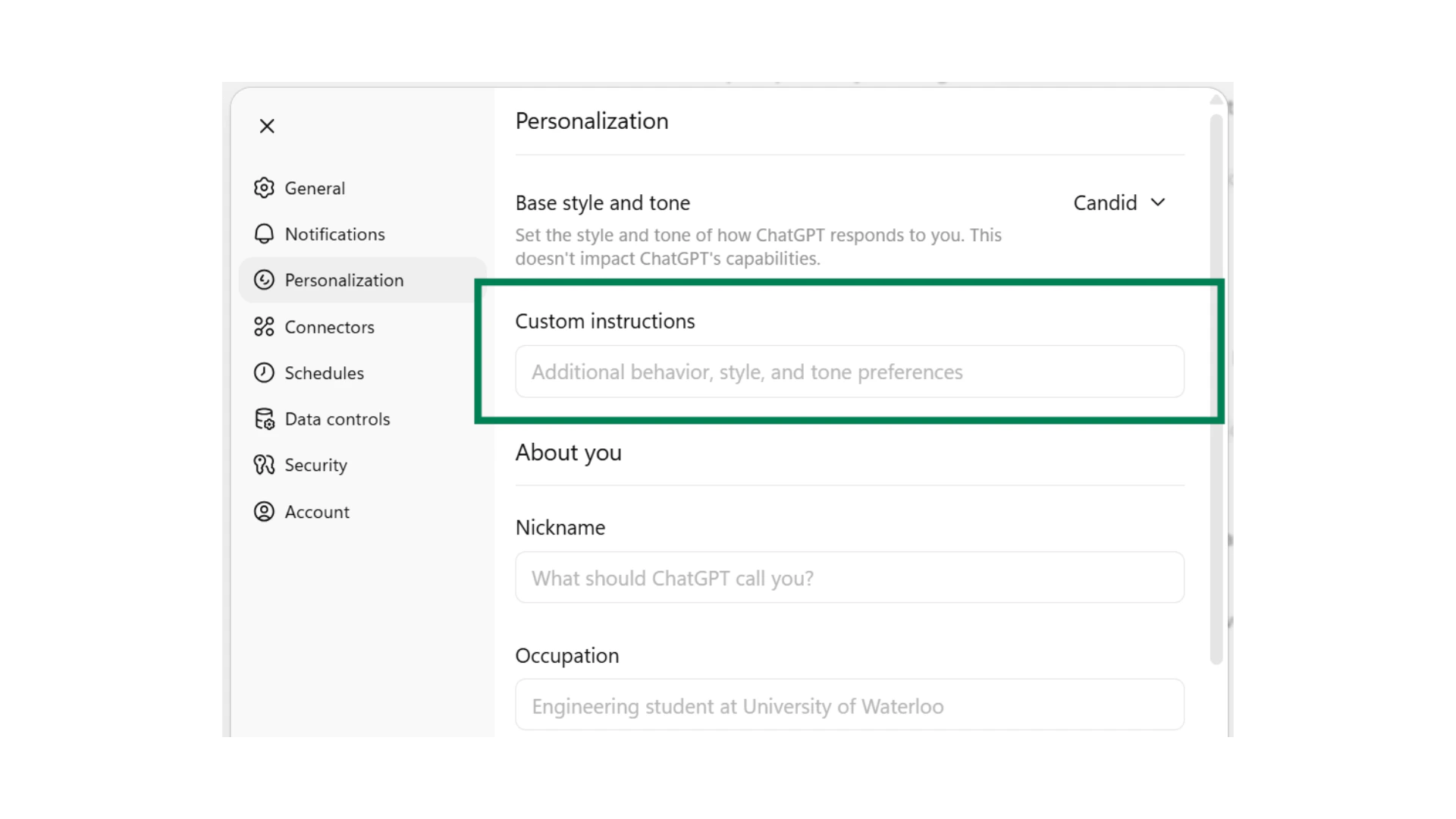
    Custom instructions serve as the foundation for personalising your ChatGPT experience. To access this feature, ensure that "Enable Customization" is activated in your settings.

    Within the Custom instructions box, you can specify the behaviour, style, and tone you want ChatGPT to emulate when it responds to you. Some examples include:

    * "Use concise, action-oriented responses"
    * "Be brutally honest and critical when responding"
    * "Be a supportive brainstorming and thinking partner"
  </Card>

  <Card title="Voice Mode" icon="microphone-lines">
    <img src="https://mintcdn.com/pathfindr/I3XbhzOlK6BeuXVO/images/chatgptGuideVoiceMode.webp?fit=max&auto=format&n=I3XbhzOlK6BeuXVO&q=85&s=882b20d0aa9a0c544adf2dded3dc4faa" alt="Chatgpt Guide Voice Mode" width="1920" height="1080" data-path="images/chatgptGuideVoiceMode.webp" />

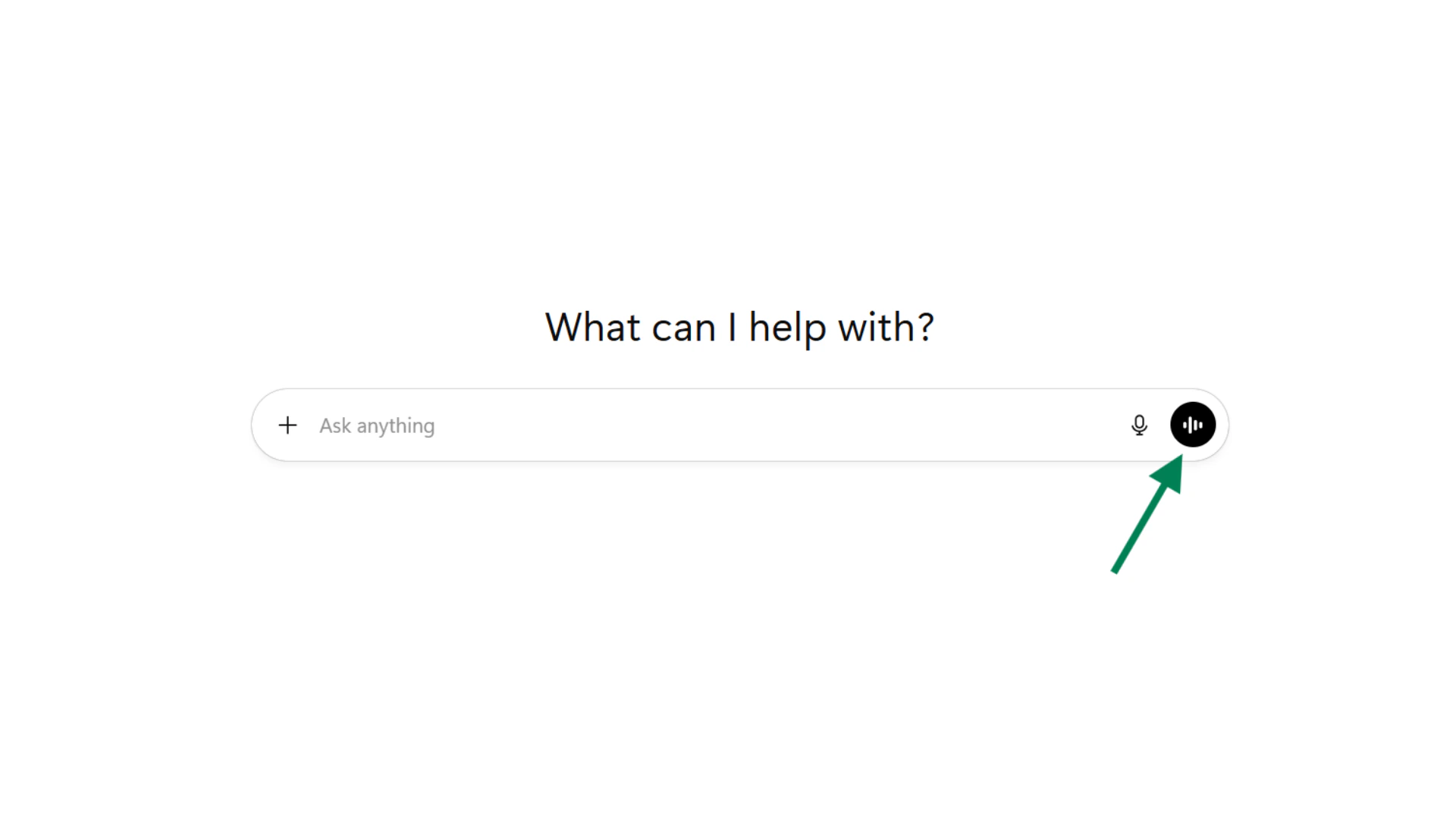
    Speak directly to ChatGPT in a natural, conversational way.

    Voice Mode listens to your words, pauses, and tone, making interactions feel more human than text alone.

    The button changes to a "breathing" animation when actively listening, and the AI responds out loud while transcribing your conversation.
    <Tip>
      Simply talk as you would with a colleague—no need for perfect prompts.
    </Tip>
  </Card>
</Columns>

### Enabling & managing memories

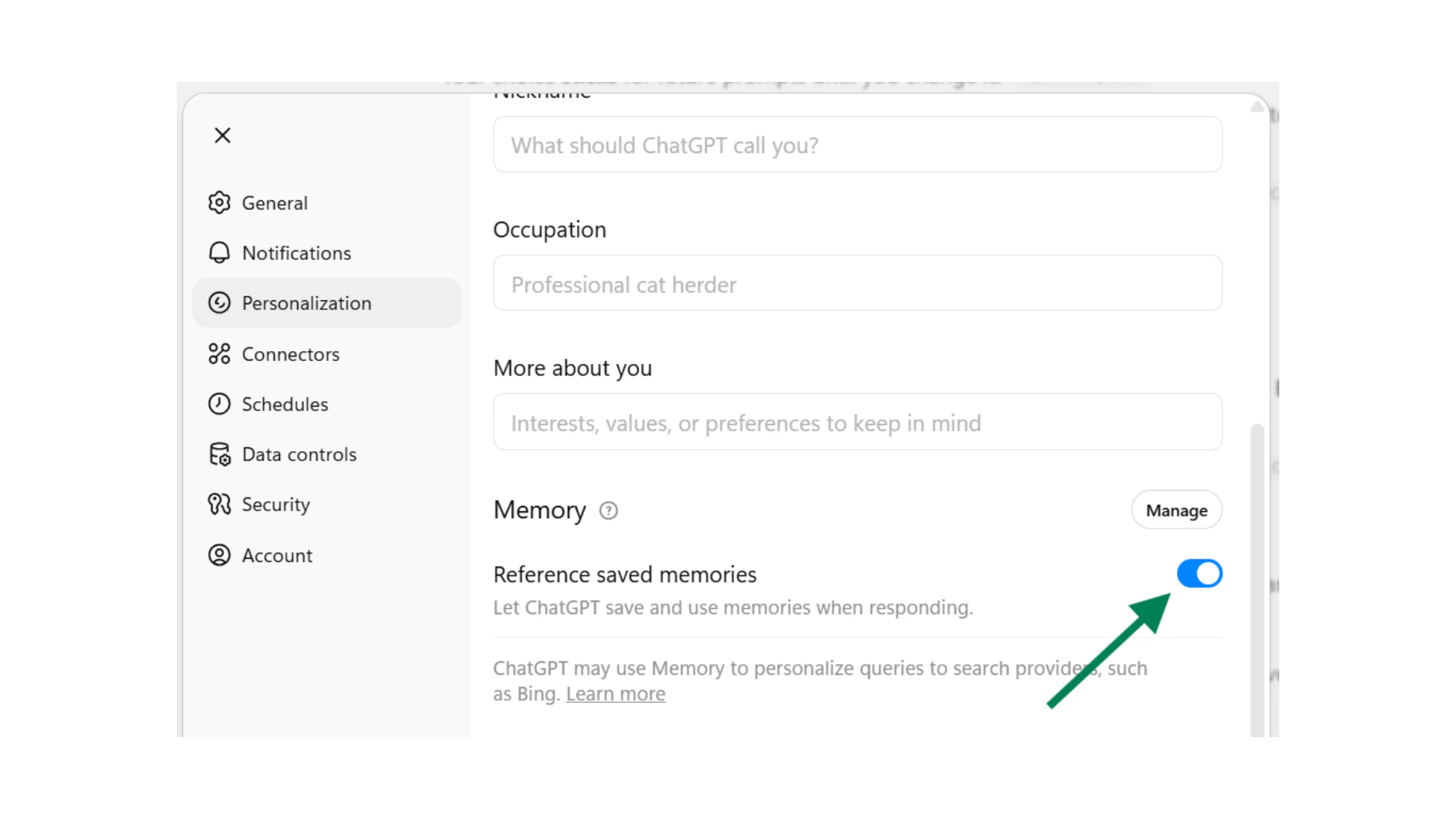
Once "Reference saved memories" is enabled in settings, ChatGPT will retain important information from your interactions. This allows ChatGPT to build an ongoing knowledge base of the information you have shared in conversations.

<img src="https://mintcdn.com/pathfindr/I3XbhzOlK6BeuXVO/images/chatgptGuideMemory.webp?fit=max&auto=format&n=I3XbhzOlK6BeuXVO&q=85&s=693f9e1a65b2151eb93ba253ed556f16" alt="Chatgpt Guide Memory" width="1920" height="1080" data-path="images/chatgptGuideMemory.webp" />

### Adding Memories

There are two ways to create or add a saved memory:

<Columns cols={2}>
  <Card title="Automatic Memory">
    <img src="https://mintcdn.com/pathfindr/I3XbhzOlK6BeuXVO/images/addingMemory1.webp?fit=max&auto=format&n=I3XbhzOlK6BeuXVO&q=85&s=81e2230e2a113bc99dfd7afa9da311ad" alt="Adding Memory 1" width="940" height="186" data-path="images/addingMemory1.webp" />

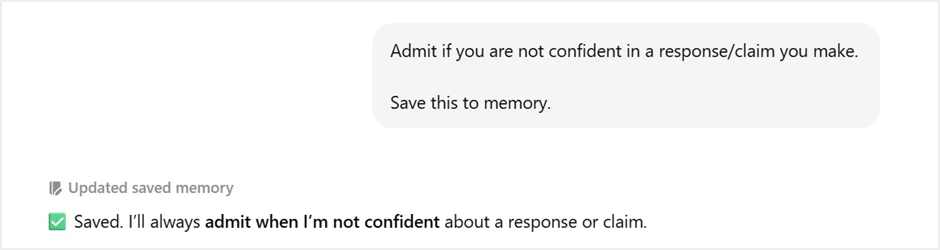
    You can share information or a personal preference with ChatGPT. If the model feels this information will be useful in future chats, it shows the "Updated saved memory" notification to identify that this information has been stored.
  </Card>

  <Card title="Manual Memory">
    <img src="https://mintcdn.com/pathfindr/I3XbhzOlK6BeuXVO/images/addingMemory2.webp?fit=max&auto=format&n=I3XbhzOlK6BeuXVO&q=85&s=b33dfbf14a1fc942acd4bd3852792f88" alt="Adding Memory 2" width="940" height="250" data-path="images/addingMemory2.webp" />

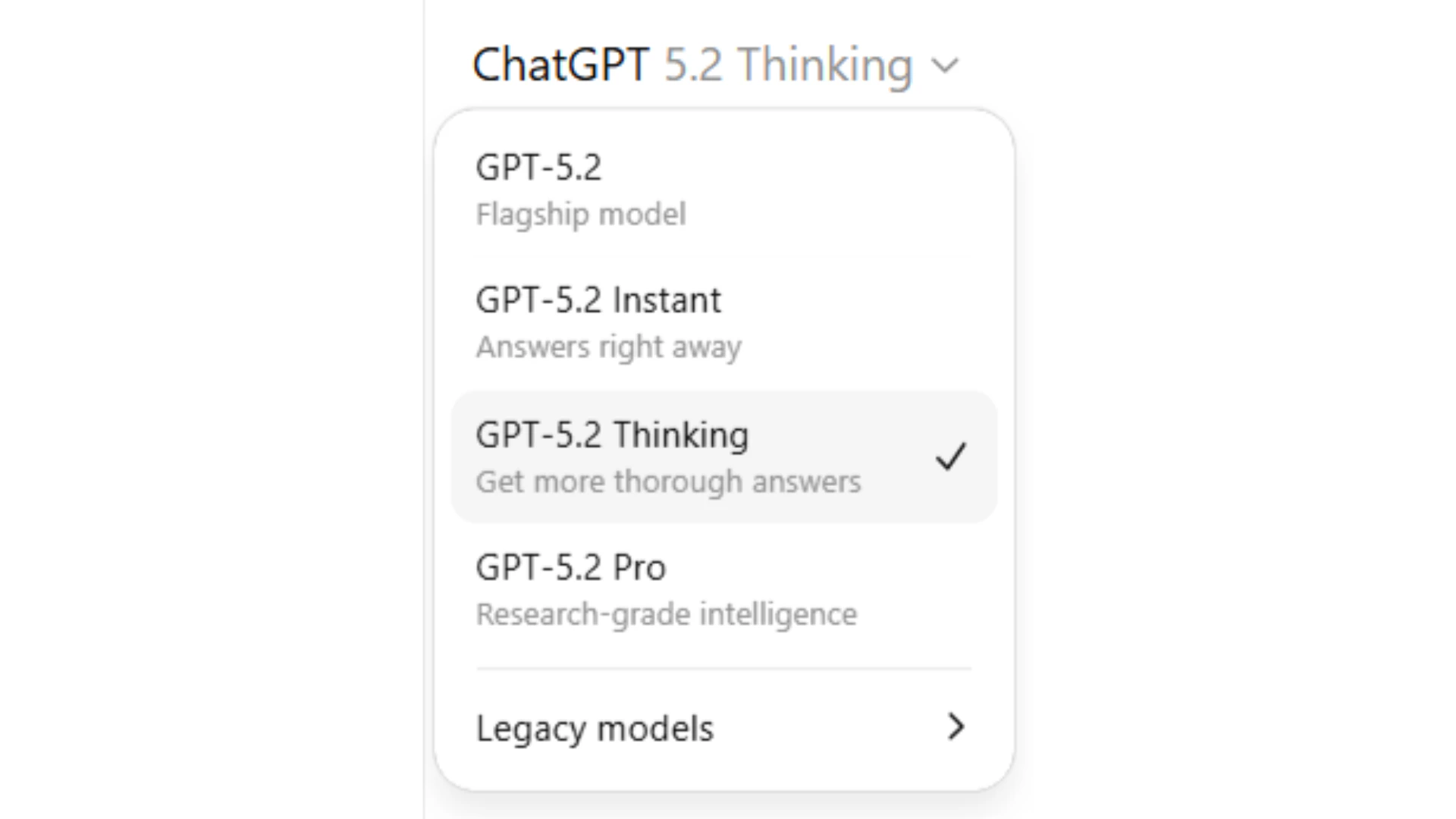
    Ask ChatGPT to manually "save this to memory" after sharing information within a chat. This will also show the "Updated saved memory" notification to identify that this information has been saved.
  </Card>
</Columns>

***

## Choosing your AI model

### Model switching

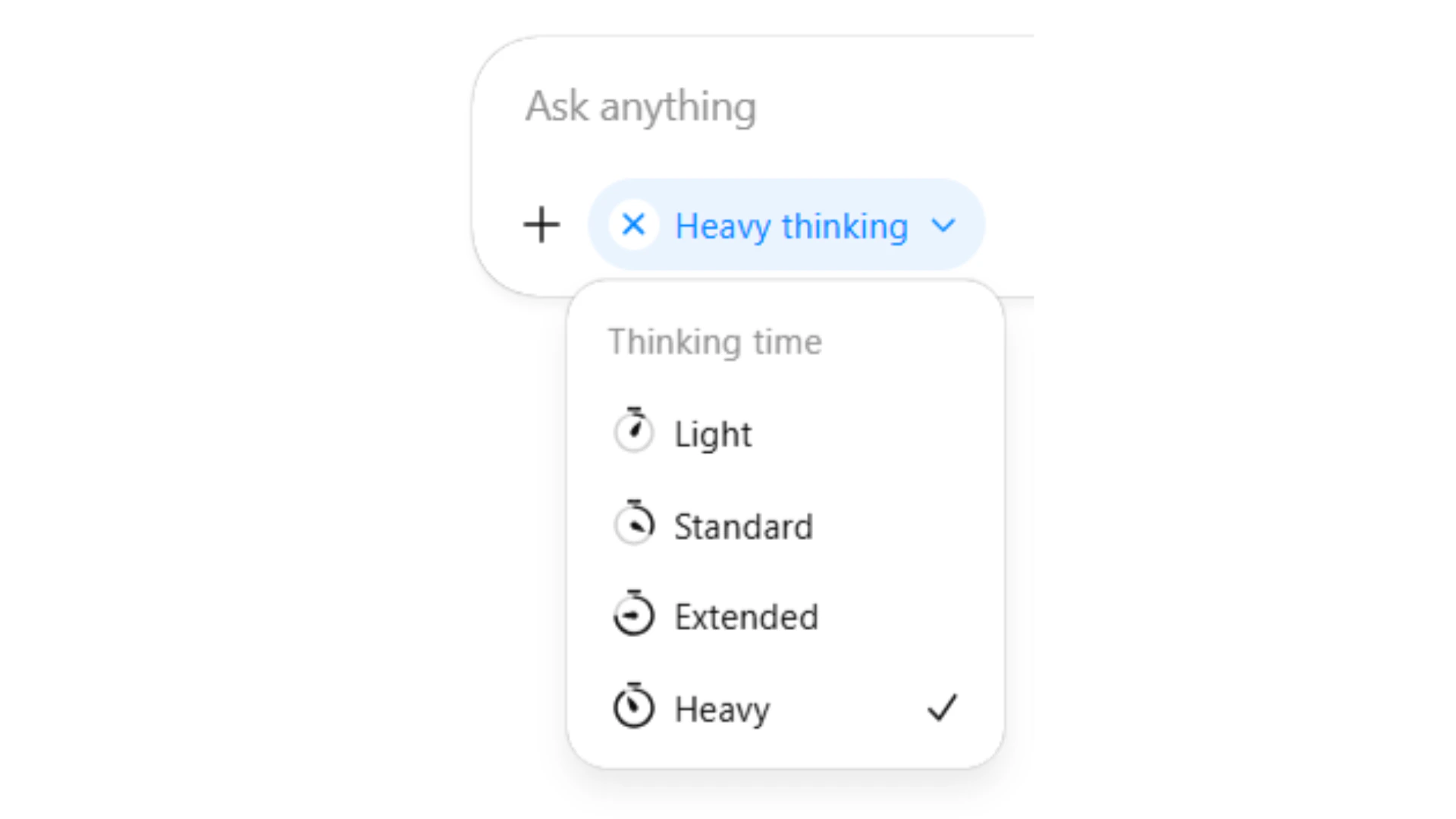
The different models within ChatGPT represent the different brains or capabilities available to you. You can allow selection to take place automatically or you can opt to select a particular model yourself.

<Columns cols={2}>
  <Card title="GPT-5.2 Flagship Model" horizontal>
    <img src="https://mintcdn.com/pathfindr/I3XbhzOlK6BeuXVO/images/chatgptGuideChoosingModel.webp?fit=max&auto=format&n=I3XbhzOlK6BeuXVO&q=85&s=259e9577b382cb8fb8851068549fac0e" alt="Chatgpt Guide Choosing Model" width="1920" height="1080" data-path="images/chatgptGuideChoosingModel.webp" />

    GPT-5.2 is the current flagship model (released December 2025). Compared to the older GPT-5 versions, it spends a longer time reasoning and planning its response. This delivers substantially better output, with greater depth and accuracy.
  </Card>

  <Card title="GPT-5.2 Thinking Toggle">
    <img src="https://mintcdn.com/pathfindr/I3XbhzOlK6BeuXVO/images/chatgptGuideModelToggle1.webp?fit=max&auto=format&n=I3XbhzOlK6BeuXVO&q=85&s=af470d505d39d369e6cb3b16270f38c8" alt="Chatgpt Guide Model Toggle1" width="1920" height="1080" data-path="images/chatgptGuideModelToggle1.webp" />

    When you select the Thinking or Pro mode, there is an option to pick a default reasoning time. Which model or time to use depends on how deliberate you need the reasoning process to be. A query could take upwards of 30-60 minutes to load.
  </Card>
</Columns>

### When to use reasoning models

Think of reasoning models as turning your ChatGPT into a senior advisor, or expert consultant in any field. The responses you receive from reasoning models will be far more considered and accurate compared to using other foundation models.

In ChatGPT, your reasoning models are **GPT-5.2 Thinking** and **GPT-5.2 Pro**. Use these when solving particularly complex problems, or analysing large data sets. These models can be thought of as the standard go-to choices when we need to conduct complex research, analysis or problem solving.

***

## What file types can I upload?

| Variable                         | File Upload Details                                                                                                                                                                       |
| -------------------------------- | ----------------------------------------------------------------------------------------------------------------------------------------------------------------------------------------- |
| **Supported File Formats**       | • PDF<br />• TXT<br />• Word documents (.docx)<br />• Excel spreadsheets (CSV, XLSX)<br />• Data files (JSON, HTML)<br />• Images (JPEG, PNG, non-animated GIF)<br />• PowerPoint (.pptx) |
| **Not Supported**                | • Google Doc links<br />• MP4 videos<br />• MP3 audio files                                                                                                                               |
| **File Size Limits**             | • Standard files: 512 MB limit<br />• Spreadsheets: 50 MB limit<br />• Images: 20 MB limit                                                                                                |
| **Upload Quantity Limits**       | • Free tier: \~ 3 files per day<br />• Paid tiers: \~ 80 files per 3-hour window (resets after 3 hours)                                                                                   |
| **Enterprise Exclusive Feature** | • Non-enterprise (Business, Pro, Plus, free) accounts cannot analyse images embedded within PDFs.<br />• Enterprise accounts can analyse images embedded within PDFs.                     |

<Note>
  Please note limits and capabilities continuously change and may differ from those stated above.
</Note>

***

## Quick checkpoint (you're done when…)

<CardGroup cols={4}>
  <Card title="Assign roles" icon="circle-check">
    You can explain role assignment in one sentence
  </Card>

  <Card title="Upload files" icon="circle-check">
    You added documents to your conversation
  </Card>

  <Card title="Use voice mode" icon="circle-check">
    You tried voice input or Voice Mode for interaction
  </Card>

  <Card title="Refine outputs" icon="circle-check">
    You used follow-ups to improve ChatGPT's output
  </Card>
</CardGroup>

<div className="mt-8" />

<Card title="Ready to practice?" icon="hat-wizard" href="/learning-paths/chat-gpt/modules/m1-meet-your-digital-assistant/challenge">
  Complete the mini challenge by constructing a propmt with our tool
</Card>