> ## Documentation Index
> Fetch the complete documentation index at: https://academy.pathfindr.ai/llms.txt
> Use this file to discover all available pages before exploring further.

# Reading Material

> Learn to work with Claude across your daily tasks

export const FlipCard = ({emoji, image, title, oneLiner, bestFor = [], starterPrompt}) => {
  const [flipped, setFlipped] = useState(false);
  return <div className="relative min-h-[280px] rounded-2xl border border-zinc-200 dark:border-zinc-800 bg-white dark:bg-zinc-900 shadow-sm overflow-hidden">
      <button type="button" onClick={() => setFlipped(!flipped)} className="absolute top-3 right-3 z-10 rounded-full border border-zinc-300 dark:border-zinc-600 bg-white dark:bg-zinc-800 px-3 py-1 text-xs font-medium text-zinc-700 dark:text-zinc-200 hover:bg-zinc-100 dark:hover:bg-zinc-700">
        {flipped ? "← Back" : "Flip →"}
      </button>

      {!flipped && <div className="p-6 pt-12 flex flex-col h-full">
          {image ? <div className="mb-3">
              <img src={image} alt={title} className="w-16 h-16 object-contain" />
            </div> : <div className="text-4xl mb-3">{emoji}</div>}
          <div className="text-xl font-bold text-zinc-900 dark:text-white mb-2">{title}</div>
          <p className="text-zinc-600 dark:text-zinc-300 text-sm">{oneLiner}</p>
          <p className="mt-auto pt-4 text-xs text-zinc-400 dark:text-zinc-500">Click "Flip" to see the starter prompt</p>
        </div>}

      {flipped && <div className="p-6 pt-12 flex flex-col h-full">
          <div className="text-sm font-semibold text-zinc-900 dark:text-white mb-2">Best for:</div>
          <ul className="text-zinc-600 dark:text-zinc-300 text-sm space-y-1 mb-4">
            {bestFor.map((item, i) => <li key={i}>{item}</li>)}
          </ul>
          {starterPrompt && <div>
              <div className="text-sm font-semibold text-zinc-900 dark:text-white mb-2">Starter prompt:</div>
              <div className="rounded-lg bg-zinc-100 dark:bg-zinc-800 p-3 text-sm text-zinc-700 dark:text-zinc-200 whitespace-pre-wrap">{starterPrompt}</div>
            </div>}
          <p className="mt-auto pt-4 text-xs text-zinc-400 dark:text-zinc-500">Click "Back" to return</p>
        </div>}
    </div>;
};

export const Quiz = ({question, options, correctIndex, explanation}) => {
  const [selected, setSelected] = useState(null);
  const [showResult, setShowResult] = useState(false);
  const handleSelect = index => {
    if (showResult) return;
    setSelected(index);
    setShowResult(true);
  };
  const isCorrect = selected === correctIndex;
  return <div className="my-8 p-6 rounded-2xl border border-zinc-200 dark:border-zinc-700 bg-gradient-to-br from-zinc-50 to-white dark:from-zinc-900 dark:to-zinc-800 shadow-sm">
      <div className="flex items-center gap-3 mb-4">
        <div className="flex items-center justify-center w-10 h-10 rounded-xl bg-blue-100 dark:bg-blue-900/40">
          <span className="text-xl">📝</span>
        </div>
        <div className="flex flex-col">
          <p className="font-semibold text-zinc-800 dark:text-zinc-100 m-0">Knowledge Check</p>
          <p className="text-xs text-zinc-500 dark:text-zinc-400 mt-0.5 m-0">Select the best answer</p>
      </div>
      </div>
      
      <p className="text-zinc-700 dark:text-zinc-200 font-medium mb-5 text-lg leading-relaxed">{question}</p>
      
      <div className="space-y-3">
        {options.map((option, index) => {
    const isSelected = selected === index;
    const isCorrectOption = index === correctIndex;
    let optionStyles = "border-zinc-200 dark:border-zinc-600 hover:border-blue-400 hover:bg-blue-50 dark:hover:bg-blue-900/20";
    if (showResult) {
      if (isCorrectOption) {
        optionStyles = "border-green-500 bg-green-50 dark:bg-green-900/30";
      } else if (isSelected && !isCorrectOption) {
        optionStyles = "border-red-500 bg-red-50 dark:bg-red-900/30";
      } else {
        optionStyles = "border-zinc-200 dark:border-zinc-700 opacity-60";
      }
    }
    return <button key={index} onClick={() => handleSelect(index)} disabled={showResult} className={`w-full text-left p-4 rounded-xl border-2 transition-all duration-200 ${optionStyles} ${!showResult && 'cursor-pointer'} ${showResult && 'cursor-default'}`}>
              <div className="flex items-start gap-3">
                <div className={`flex-shrink-0 w-6 h-6 rounded-full border-2 flex items-center justify-center text-xs font-bold ${showResult && isCorrectOption ? 'border-green-500 bg-green-500 text-white' : showResult && isSelected && !isCorrectOption ? 'border-red-500 bg-red-500 text-white' : 'border-zinc-300 dark:border-zinc-500 text-zinc-500 dark:text-zinc-400'}`}>
                  {showResult && isCorrectOption ? '✓' : showResult && isSelected ? '✗' : String.fromCharCode(65 + index)}
                </div>
                <span className="text-sm text-zinc-700 dark:text-zinc-200 leading-relaxed">{option}</span>
              </div>
            </button>;
  })}
      </div>
      
      {showResult && <div className={`mt-5 p-4 rounded-xl ${isCorrect ? 'bg-green-100 dark:bg-green-900/40 border border-green-200 dark:border-green-800' : 'bg-amber-100 dark:bg-amber-900/40 border border-amber-200 dark:border-amber-800'}`}>
          <div className="flex items-start gap-3">
            <span className="text-xl">{isCorrect ? '🎉' : '💡'}</span>
            <div className="flex flex-col">
              <p className={`text-sm font-semibold m-0 mb-1 ${isCorrect ? 'text-green-800 dark:text-green-200' : 'text-amber-800 dark:text-amber-200'}`}>
                {isCorrect ? 'Correct!' : 'Not quite right'}
              </p>
              <p className="text-sm text-zinc-600 dark:text-zinc-300 m-0 leading-relaxed">{explanation}</p>
          </div>
          </div>
        </div>}
    </div>;
};

## Use Claude for your work

Think of Claude as a new team member who can help with writing, research, analysis, and project work. You can ask it to draft documents, pull together information, process data, or work through decisions with you.

This page will show you how to:

<CardGroup cols={4}>
  <Card title="Assign roles" icon="square-1">
    Direct Claude with focused personas
  </Card>

  <Card title="Choose models" icon="square-2">
    Pick the right thinking mode
  </Card>

  <Card title="Connect tools" icon="square-3">
    Link files and integrations
  </Card>

  <Card title="Refine outputs" icon="square-4">
    Use follow-ups to improve results
  </Card>
</CardGroup>

***

## Direct Claude with roles

Claude responds well when you give it clear direction. Give Claude a clear role to focus its response. Pick one of these three starting points based on your task.

<div className="grid gap-4 grid-cols-1 md:grid-cols-3">
  <FlipCard image="https://mintcdn.com/pathfindr/I3XbhzOlK6BeuXVO/images/assistantIcon.webp?fit=max&auto=format&n=I3XbhzOlK6BeuXVO&q=85&s=84490634e74ab5287061758af9c1eb54" title="Assistant" oneLiner="You've got a job. It gets it done." bestFor={["Summaries", "Drafting replies", "Turning notes into actions"]} starterPrompt="You're my Assistant. Turn this into a punchy action list with owners and due dates. Keep it short." width="426" height="426" data-path="images/assistantIcon.webp" />

  <FlipCard image="https://mintcdn.com/pathfindr/vxED2dxssEHZg3yn/images/thinkerIcon.webp?fit=max&auto=format&n=vxED2dxssEHZg3yn&q=85&s=5fbd5406d58970da1c1e7acaba9b26be" title="Thinker" oneLiner="You've got a decision. It helps you choose." bestFor={["Comparing options", "Risks + trade-offs", "Planning next steps"]} starterPrompt="You're my Thinker. Give me 3 options, a pros/cons table, then recommend one and explain why." width="426" height="426" data-path="images/thinkerIcon.webp" />

  <FlipCard image="https://mintcdn.com/pathfindr/0Og7YOK8gX91P7mj/images/creatorIcon.webp?fit=max&auto=format&n=0Og7YOK8gX91P7mj&q=85&s=9f9ed2ceb17f361a9dbfbe1a494ca83b" title="Creator" oneLiner="You've got a blank page. It gets you moving." bestFor={["First drafts", "Ideas + outlines", "Rewrites with a new tone"]} starterPrompt="You're my Creator. Draft a first version with headings and bullets. Friendly, professional, and not too long." width="426" height="426" data-path="images/creatorIcon.webp" />
</div>

<div className="mt-8" />

<Accordion title="🎯 Test your understanding">
  <Quiz
    question="You need to draft a project status update for your manager. Which role should you assign Claude?"
    options={[
  "Researcher — to gather background information",
  "Writer — to draft clear, structured content",
  "Analyst — to evaluate project metrics"
]}
    correctIndex={1}
    explanation="Writer is the best fit here. You're creating a document, so you want Claude focused on drafting clear, well-structured content for your audience."
  />
</Accordion>

***

## Choosing the right model and mode

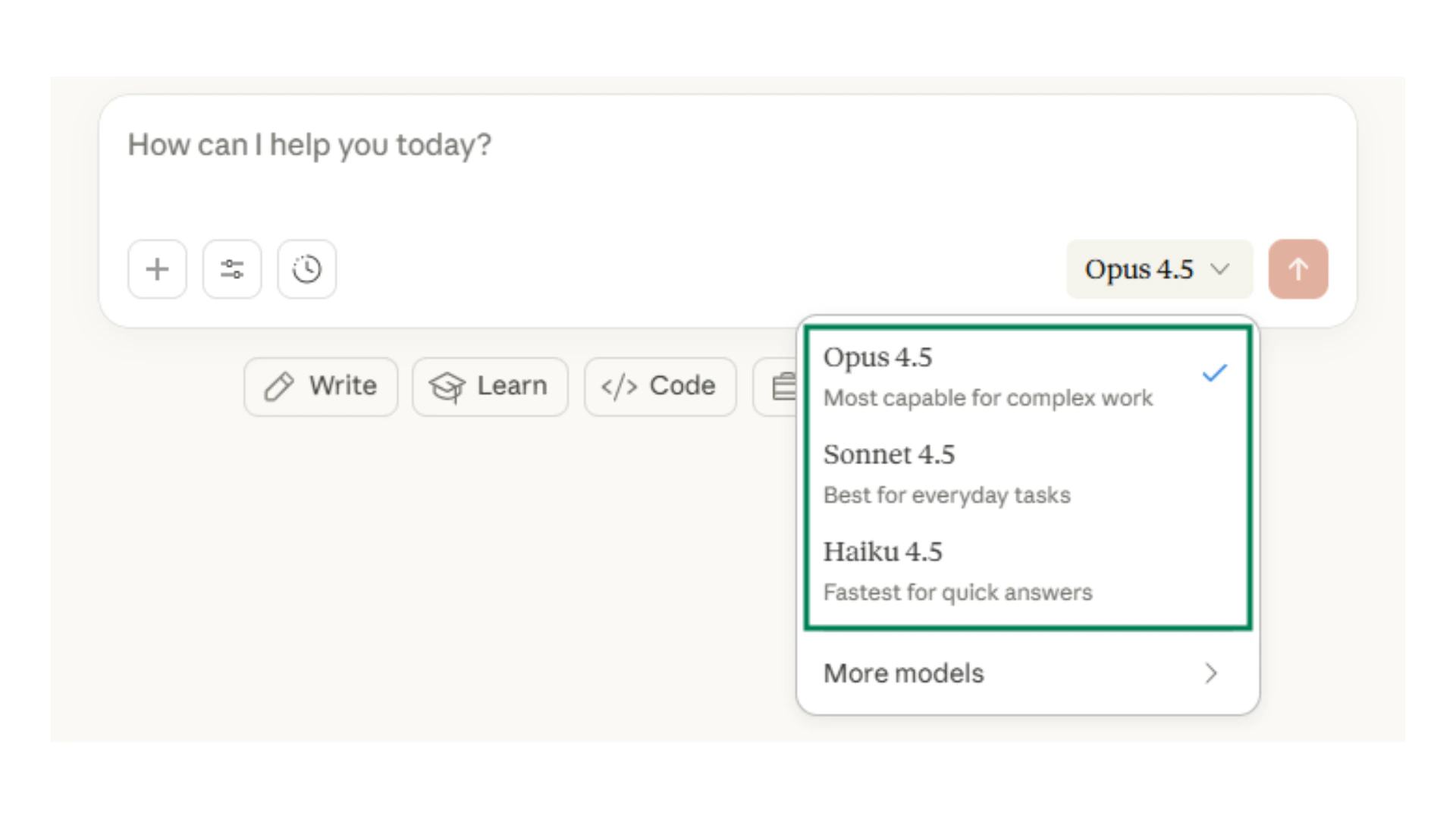
Claude offers different models and thinking modes. Selecting the right combination saves time on simple tasks and improves quality on complex ones.

| Model      | Best for                                              | Speed    | Reasoning depth |
| ---------- | ----------------------------------------------------- | -------- | --------------- |
| **Haiku**  | Quick questions, simple edits, fast lookups           | Fastest  | Good            |
| **Sonnet** | Everyday work, writing, analysis, coding              | Moderate | Better          |
| **Opus**   | Complex reasoning, multi-step projects, deep research | Slower   | Best            |

<Columns cols={2}>
  <Card title="When to use standard mode">
    <img src="https://mintcdn.com/pathfindr/I3XbhzOlK6BeuXVO/images/claudeChoosingYourModel.webp?fit=max&auto=format&n=I3XbhzOlK6BeuXVO&q=85&s=351f9d54e70839a55138ff65458d4f17" alt="Choosing your model" title="Claude model selection" style={{ width: "100%" }} width="1920" height="1080" data-path="images/claudeChoosingYourModel.webp" />

    Use standard mode for everyday tasks where speed matters more than deep analysis. This includes quick questions and lookups, simple writing tasks, routine edits and formatting, and general assistance. Standard mode handles most requests well.
  </Card>

  <Card title="When to use extended thinking">
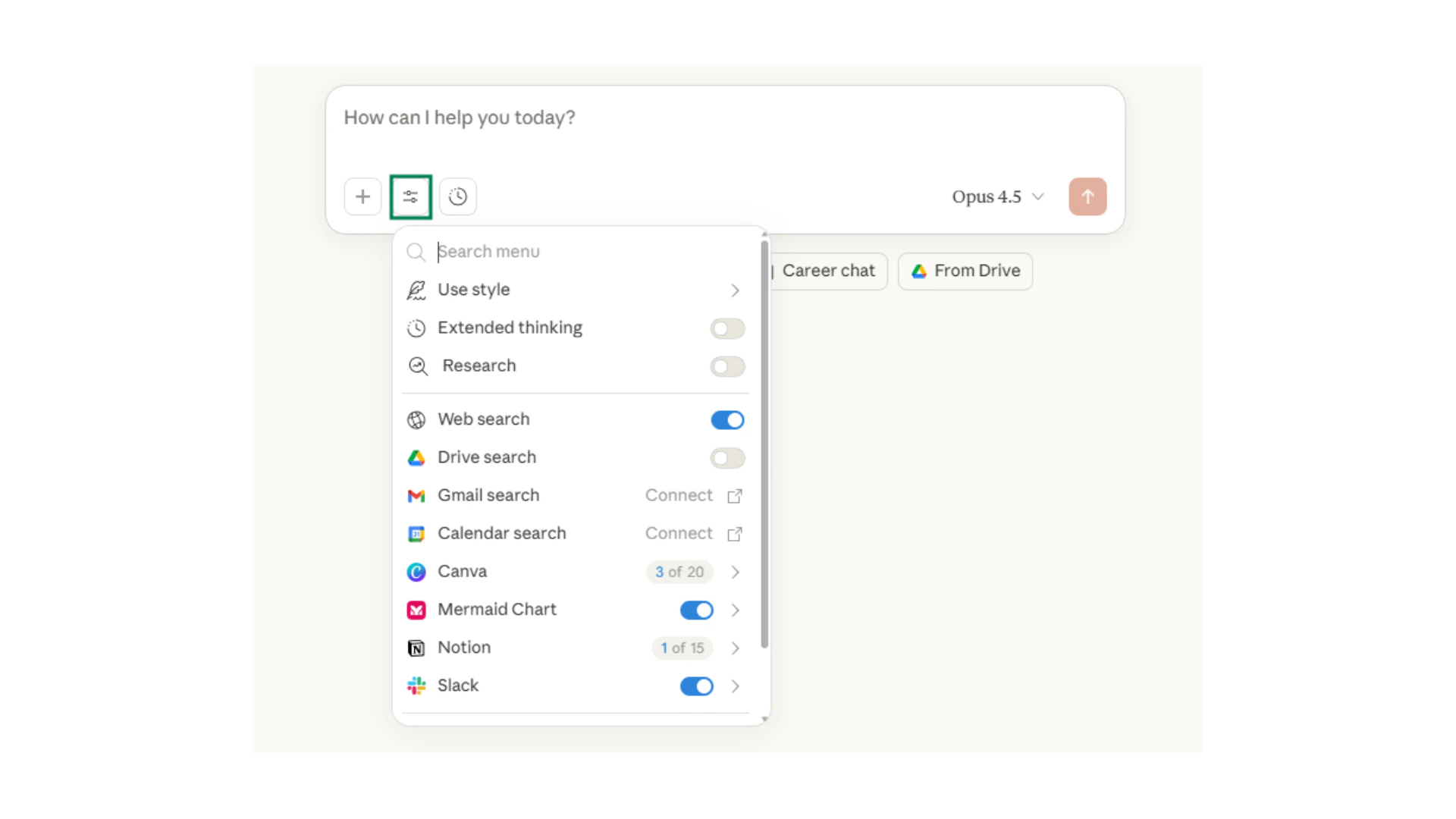
    <img src="https://mintcdn.com/pathfindr/I3XbhzOlK6BeuXVO/images/claudeSearchAndTools.webp?fit=max&auto=format&n=I3XbhzOlK6BeuXVO&q=85&s=29226fa5f80443af46cbe748956f5d50" alt="Search and tools" title="Claude extended thinking" style={{ width: "100%" }} width="1920" height="1080" data-path="images/claudeSearchAndTools.webp" />

    Switch to extended thinking when you need deeper reasoning. This includes multi-step reasoning tasks, complex code debugging, research requiring synthesis across sources, and strategic planning and analysis. Extended thinking takes longer but provides more thorough responses.
  </Card>
</Columns>

<div className="mt-8" />

<Accordion title="🎯 Test your understanding">
  <Quiz
    question="You need to quickly check the correct spelling of a colleague's name before sending an email. Which approach makes sense?"
    options={[
"Use Opus with extended thinking for maximum accuracy",
"Use Haiku or Sonnet in standard mode for a fast answer",
"Upload a document and ask Claude to search it"
]}
    correctIndex={1}
    explanation="For a simple lookup, Haiku or Sonnet in standard mode gives you a fast answer without waiting for extended processing."
  />
</Accordion>

***

## Giving Claude context

Claude becomes more useful when you provide context. There are several ways to give Claude the information it needs to help you effectively.

<Columns cols={3}>
  <Card title="Projects">
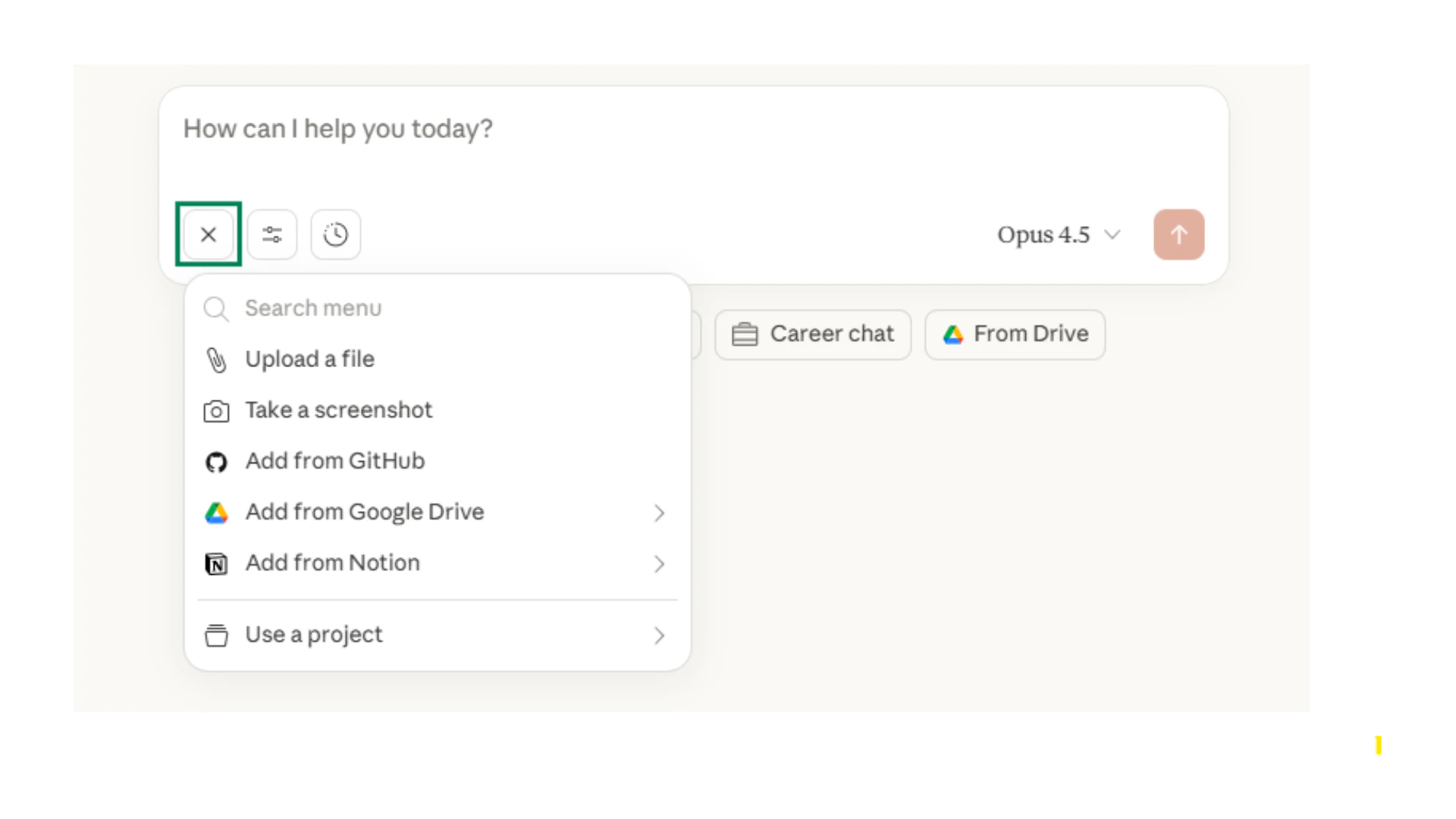
    <img src="https://mintcdn.com/pathfindr/I3XbhzOlK6BeuXVO/images/claudeThePlusIcon.webp?fit=max&auto=format&n=I3XbhzOlK6BeuXVO&q=85&s=11a56987d8a4894b5e571208778bb396" alt="The plus icon" title="Claude Projects" style={{ width: "100%" }} width="1920" height="1080" data-path="images/claudeThePlusIcon.webp" />

    Create a Project to store instructions and documents Claude can reference across conversations. Upload brand guidelines, templates, or reference materials once and reuse them. Claude uses retrieval-based reasoning to pull only the relevant sections.
  </Card>

  <Card title="Connectors">
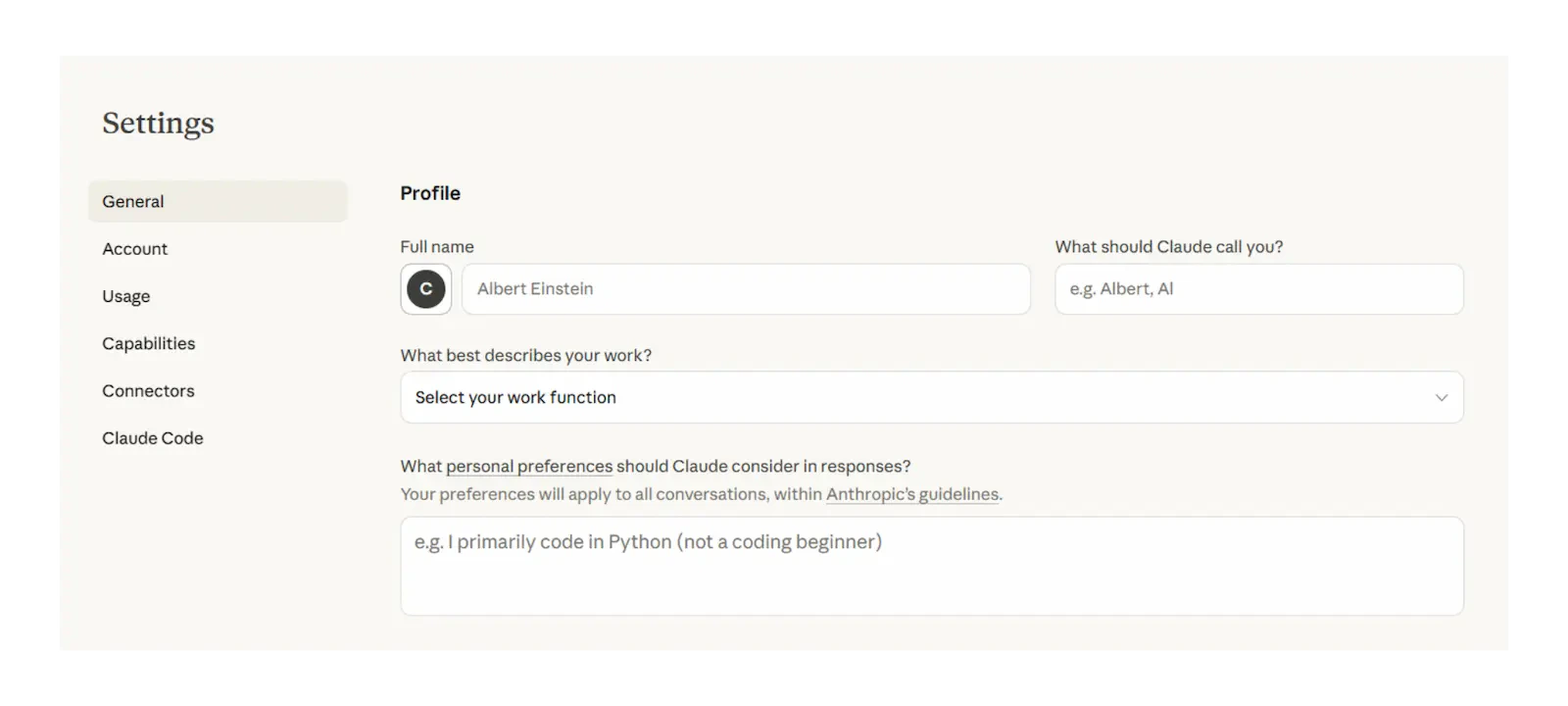
    <img src="https://mintcdn.com/pathfindr/I3XbhzOlK6BeuXVO/images/claudePersonalisation.webp?fit=max&auto=format&n=I3XbhzOlK6BeuXVO&q=85&s=8220c46e13cc70a66b400a235e60edef" alt="Personalisation settings" title="Claude Connectors" style={{ width: "100%" }} width="1600" height="720" data-path="images/claudePersonalisation.webp" />

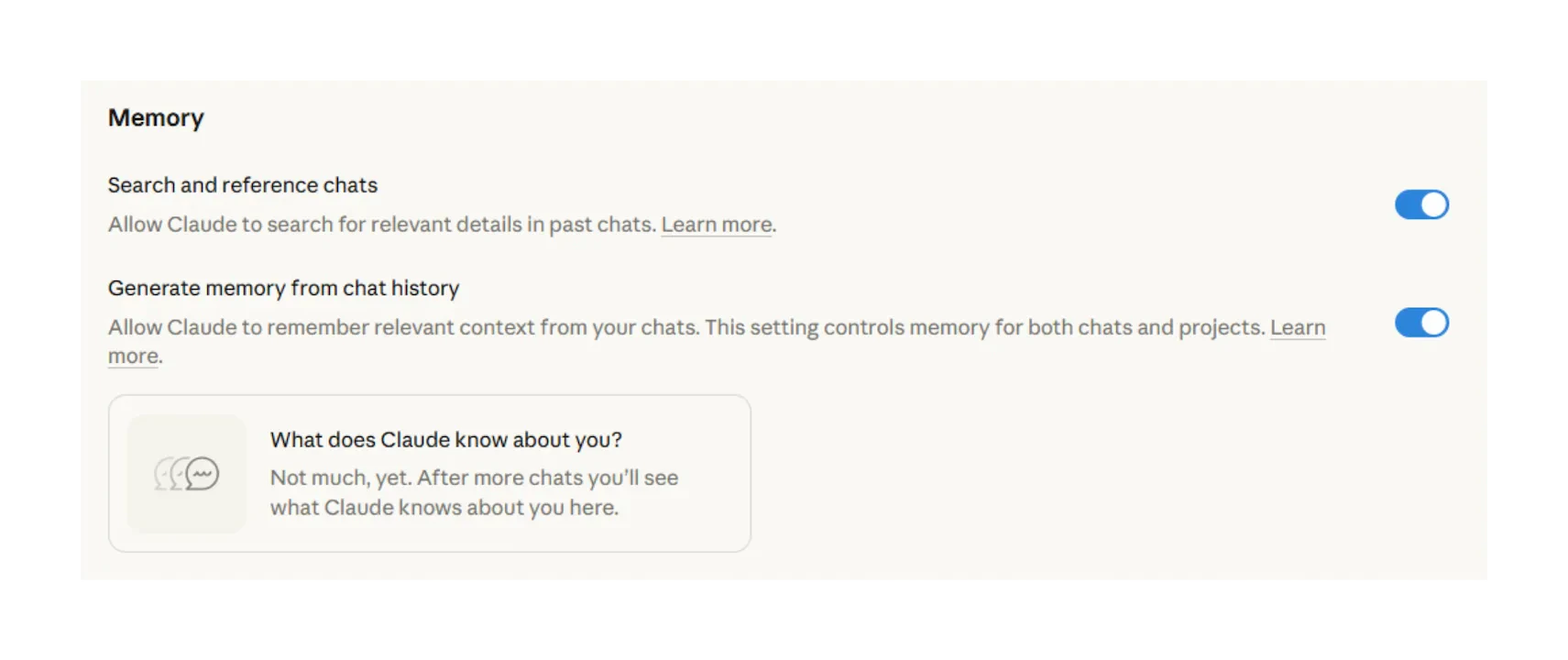
    Link Claude to tools like Google Drive, Slack, Notion, and more. Claude can search your documents and pull relevant context without manual copying. Your data remains private and is not used to train models.
  </Card>

  <Card title="File uploads">
    <img src="https://mintcdn.com/pathfindr/I3XbhzOlK6BeuXVO/images/claudeMemory.webp?fit=max&auto=format&n=I3XbhzOlK6BeuXVO&q=85&s=658c026a43c347617bf94869b7adba41" alt="Memory settings" title="Claude file uploads" style={{ width: "100%" }} width="1711" height="720" data-path="images/claudeMemory.webp" />

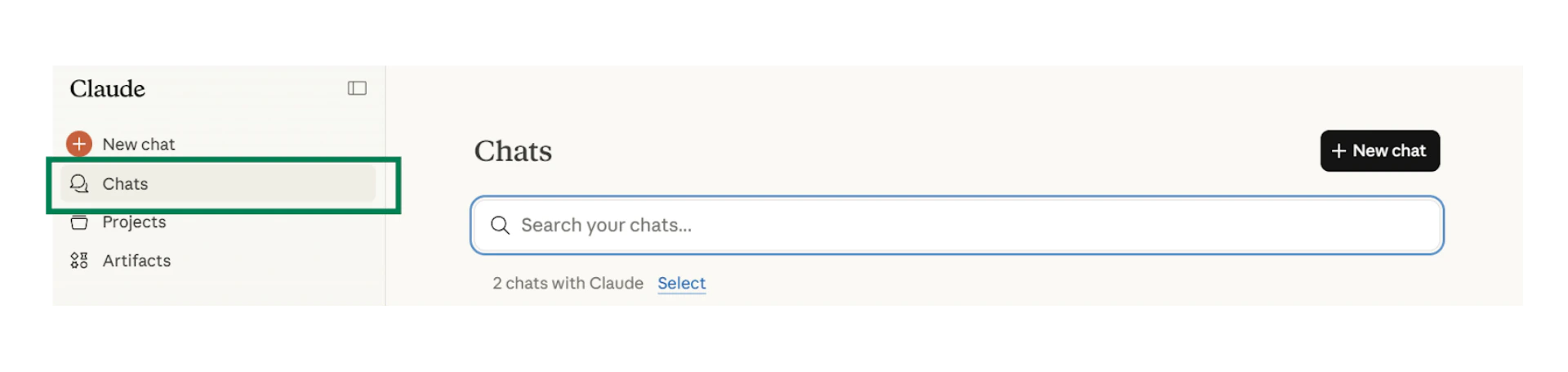
    Upload files directly in chat for one-off analysis. Claude handles PDFs, images, spreadsheets, code files, and more. Click the attachment icon to upload, then reference the file in your prompt.
  </Card>
</Columns>

<Tip>
  For large document sets, use Projects. Claude can store more than fits in a single context window and retrieves only what's relevant for each conversation.
</Tip>

### File upload limits

| Item               | Limit                              |
| ------------------ | ---------------------------------- |
| Files per chat     | Up to 20                           |
| File size          | Up to 30 MB each                   |
| Context window     | 200K tokens (\~500 pages) standard |
| Enterprise context | Up to 500K tokens with Sonnet 4    |

***

## Research and web search

Claude can search the web and conduct deep research when you need current information or comprehensive analysis.

| Feature           | What it does                                                        | When to use                                               |
| ----------------- | ------------------------------------------------------------------- | --------------------------------------------------------- |
| **Web search**    | Searches the web and returns results in conversation                | Current events, recent data, fact-checking                |
| **Research mode** | Conducts multiple searches, explores angles, produces cited reports | Complex questions requiring synthesis across many sources |

<Columns cols={2}>
  <Card title="Web search">
    <img src="https://mintcdn.com/pathfindr/I3XbhzOlK6BeuXVO/images/claudeChatSearchAndHistory.webp?fit=max&auto=format&n=I3XbhzOlK6BeuXVO&q=85&s=3085ad4841422907a7c23dbe1296b31b" alt="Chat search and history" title="Claude web search" style={{ width: "100%" }} width="1920" height="455" data-path="images/claudeChatSearchAndHistory.webp" />

    Enable web search for questions requiring current information. Claude searches the web and incorporates results directly into responses. Useful for recent news, updated statistics, and verifying facts.

  </Card>

  <Card title="Research mode">
    <img src="https://mintcdn.com/pathfindr/I3XbhzOlK6BeuXVO/images/claudeEditingChats.webp?fit=max&auto=format&n=I3XbhzOlK6BeuXVO&q=85&s=6fc9c95d06a5abe5b4eb7ccf74df78a0" alt="Editing chats" title="Claude research mode" style={{ width: "100%" }} width="1920" height="370" data-path="images/claudeEditingChats.webp" />

    Use Research mode for deeper investigation. Claude conducts multiple searches, explores different angles, and produces structured reports with citations. Best for complex questions requiring synthesis across many sources.
  </Card>
</Columns>

<Note>
  To enable: Click <b>Search and tools</b> → toggle <b>Web search</b> on. For deeper investigation, click the <b>Research</b> button.
</Note>

***

## Quick checkpoint (you're done when…)

<CardGroup cols={4}>
  <Card title="Assign roles" icon="circle-check">
    You can explain role assignment in one sentence
  </Card>

  <Card title="Choose models" icon="circle-check">
    You know when to use extended thinking vs standard mode
  </Card>

  <Card title="Connect tools" icon="circle-check">
    You added context using Projects, connectors, or file uploads
  </Card>

  <Card title="Refine outputs" icon="circle-check">
    You used follow-ups to improve Claude's output
  </Card>
</CardGroup>

<div className="mt-8" />

<Card title="Ready to practice?" icon="hat-wizard" href="/learning-paths/claude/modules/m1-meet-your-digital-assistant/challenge">
  Complete the mini challenges of the module
</Card>