> ## Documentation Index
> Fetch the complete documentation index at: https://academy.pathfindr.ai/llms.txt
> Use this file to discover all available pages before exploring further.

# Reading Material

> Learn to work with Copilot across your daily tasks

export const FlipCard = ({emoji, image, title, oneLiner, bestFor = [], starterPrompt}) => {
  const [flipped, setFlipped] = useState(false);
  return <div className="relative min-h-[280px] rounded-2xl border border-zinc-200 dark:border-zinc-800 bg-white dark:bg-zinc-900 shadow-sm overflow-hidden">
      <button type="button" onClick={() => setFlipped(!flipped)} className="absolute top-3 right-3 z-10 rounded-full border border-zinc-300 dark:border-zinc-600 bg-white dark:bg-zinc-800 px-3 py-1 text-xs font-medium text-zinc-700 dark:text-zinc-200 hover:bg-zinc-100 dark:hover:bg-zinc-700">
        {flipped ? "← Back" : "Flip →"}
      </button>

      {!flipped && <div className="p-6 pt-12 flex flex-col h-full">
          {image ? <div className="mb-3">
              <img src={image} alt={title} className="w-16 h-16 object-contain" />
            </div> : <div className="text-4xl mb-3">{emoji}</div>}
          <div className="text-xl font-bold text-zinc-900 dark:text-white mb-2">{title}</div>
          <p className="text-zinc-600 dark:text-zinc-300 text-sm">{oneLiner}</p>
          <p className="mt-auto pt-4 text-xs text-zinc-400 dark:text-zinc-500">Click "Flip" to see the starter prompt</p>
        </div>}

      {flipped && <div className="p-6 pt-12 flex flex-col h-full">
          <div className="text-sm font-semibold text-zinc-900 dark:text-white mb-2">Best for:</div>
          <ul className="text-zinc-600 dark:text-zinc-300 text-sm space-y-1 mb-4">
            {bestFor.map((item, i) => <li key={i}>{item}</li>)}
          </ul>
          {starterPrompt && <div>
              <div className="text-sm font-semibold text-zinc-900 dark:text-white mb-2">Starter prompt:</div>
              <div className="rounded-lg bg-zinc-100 dark:bg-zinc-800 p-3 text-sm text-zinc-700 dark:text-zinc-200 whitespace-pre-wrap">{starterPrompt}</div>
            </div>}
          <p className="mt-auto pt-4 text-xs text-zinc-400 dark:text-zinc-500">Click "Back" to return</p>
        </div>}
    </div>;
};

<iframe title="vimeo-player" src="https://player.vimeo.com/video/1127793036?h=5a86f4d422" className="w-full aspect-video rounded-xl" frameborder="0" referrerpolicy="strict-origin-when-cross-origin" allow="autoplay; fullscreen; picture-in-picture; clipboard-write; encrypted-media; web-share" allowfullscreen />

## Use Copilot for your work

Think of Copilot as a new team member who works alongside you in Microsoft 365. It helps with summaries, drafts, meeting notes, and quick research. You can ask it to review documents, write emails, pull key points from long threads, or generate content based on your work files.

This page will show you how to:

<CardGroup cols={4}>
  <Card title="Assign roles" icon="square-1">
    Direct Copilot with focused personas
  </Card>

  <Card title="Choose models" icon="square-2">
    Choose Work or Web data sources
  </Card>

  <Card title="Connect tools" icon="square-3">
    Access Copilot in your apps
  </Card>

  <Card title="Refine outputs" icon="square-4">
    Use follow-ups to improve results
  </Card>
</CardGroup>

<Tip>
  You don’t need to learn everything today. Aim for one win: <b>summarise</b>, <b>draft</b>, or <b>action list</b>.
</Tip>

***

## Direct Copilot with roles

Give Copilot a clear role to focus its response. Pick one of these three starting points based on your task.

<div className="grid gap-4 grid-cols-1 md:grid-cols-3">
  <FlipCard image="https://mintcdn.com/pathfindr/I3XbhzOlK6BeuXVO/images/assistantIcon.webp?fit=max&auto=format&n=I3XbhzOlK6BeuXVO&q=85&s=84490634e74ab5287061758af9c1eb54" title="Assistant" oneLiner="You've got a job. It gets it done." bestFor={["Summaries", "Drafting replies", "Turning notes into actions"]} starterPrompt="You're my Assistant. Turn this into a punchy action list with owners and due dates. Keep it short." width="426" height="426" data-path="images/assistantIcon.webp" />

  <FlipCard image="https://mintcdn.com/pathfindr/vxED2dxssEHZg3yn/images/thinkerIcon.webp?fit=max&auto=format&n=vxED2dxssEHZg3yn&q=85&s=5fbd5406d58970da1c1e7acaba9b26be" title="Thinker" oneLiner="You've got a decision. It helps you choose." bestFor={["Comparing options", "Risks + trade-offs", "Planning next steps"]} starterPrompt="You're my Thinker. Give me 3 options, a pros/cons table, then recommend one and explain why." width="426" height="426" data-path="images/thinkerIcon.webp" />

  <FlipCard image="https://mintcdn.com/pathfindr/0Og7YOK8gX91P7mj/images/creatorIcon.webp?fit=max&auto=format&n=0Og7YOK8gX91P7mj&q=85&s=9f9ed2ceb17f361a9dbfbe1a494ca83b" title="Creator" oneLiner="You've got a blank page. It gets you moving." bestFor={["First drafts", "Ideas + outlines", "Rewrites with a new tone"]} starterPrompt="You're my Creator. Draft a first version with headings and bullets. Friendly, professional, and not too long." width="426" height="426" data-path="images/creatorIcon.webp" />
</div>

<Tip>
  The secret sauce: tell Copilot the <b>hat</b>, the <b>output format</b>, and the <b>length</b>. That's most of "prompting" done.
</Tip>

***

## Learning about Copilot context

In Copilot, if you want a more precise answer, the answer usually lies in building “context” for Copilot. It usually boils down to four things:

* **Work/Web:** are you using Microsoft 365 data, or the internet?
* **App context:** are you in Word, Teams, Outlook, or Excel?
* **References:** did you point Copilot to the right doc/thread/section?
* **Permissions:** do you actually have access to that content?

### Work Tab vs Web Tab

This toggle is located at the top of the chat interface.

<img src="https://mintcdn.com/pathfindr/I3XbhzOlK6BeuXVO/images/copilotGuideWorkTab.webp?fit=max&auto=format&n=I3XbhzOlK6BeuXVO&q=85&s=5e7e3c25040b305940a84edccadb571a" alt="Copilot Guide Work Tab" width="1920" height="204" data-path="images/copilotGuideWorkTab.webp" />

<Columns cols={2}>
  <Card title="Work Tab" icon="briefcase">
    Your inside-the-business mode.

    It can use your Microsoft 365 world (files, email, calendar, Teams chats — apps  you're allowed to access).

    It's the pick for anything tied to your organisation or your day-to-day work.
  </Card>

  <Card title="Web Tab" icon="globe">
    Internet mode.

    It's great for external research, general explanations, and "what does this mean?" questions.

    It can't magically see your internal files or chats, so anything company-specific will feel vague unless you switch back to Work or attach the info.
  </Card>
</Columns>

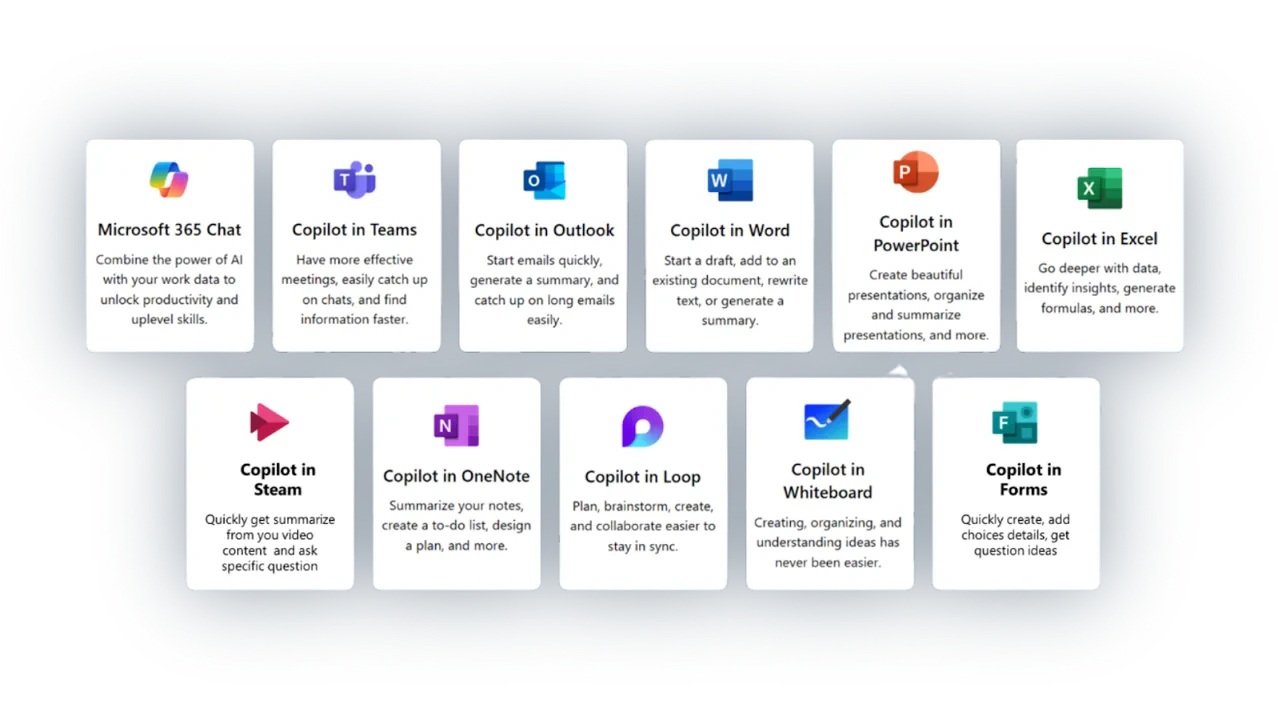
### Copilot inside Microsoft applications

Copilot also shows up inside apps like Word, Excel, PowerPoint, Outlook, and Teams.\
Think of it like this:

* **In-app Copilot** is best when you’re already working in a specific file (rewrite, summarise, improve). The button is usually found on the top right-hand corner of the ribbon.
* **Main Copilot chat** is best when you want a broader back-and-forth or multi-step thinking.

<Columns cols={2}>
  <Card title="Word / PowerPoint" icon="file-word">
    The open file is the context. Copilot is brilliant for drafts, rewrites, and structure when the doc is already there.
  </Card>

  <Card title="Outlook" icon="envelope">
    The email thread is the context. Great for drafting replies, summarising threads, and pulling out actions.
  </Card>

  <Card title="Teams" icon="comments">
    The chat or meeting is the context (when available). Perfect for recaps, decisions, and "what did we agree on?"
  </Card>

  <Card title="Excel" icon="table">
    The sheet (and especially tables) is the context. Best for explaining data, summarising patterns, and helping you decide what to do next.
  </Card>
</Columns>

>

<Frame>
  <img src="https://mintcdn.com/pathfindr/0Og7YOK8gX91P7mj/images/integrateCopilotInApps.webp?fit=max&auto=format&n=0Og7YOK8gX91P7mj&q=85&s=84503fa513b4a487349d975987c9c7a5" alt="Integrate Copilot In Apps Pn" width="1278" height="720" data-path="images/integrateCopilotInApps.webp" />
</Frame>

***

## A quick word on personalisation

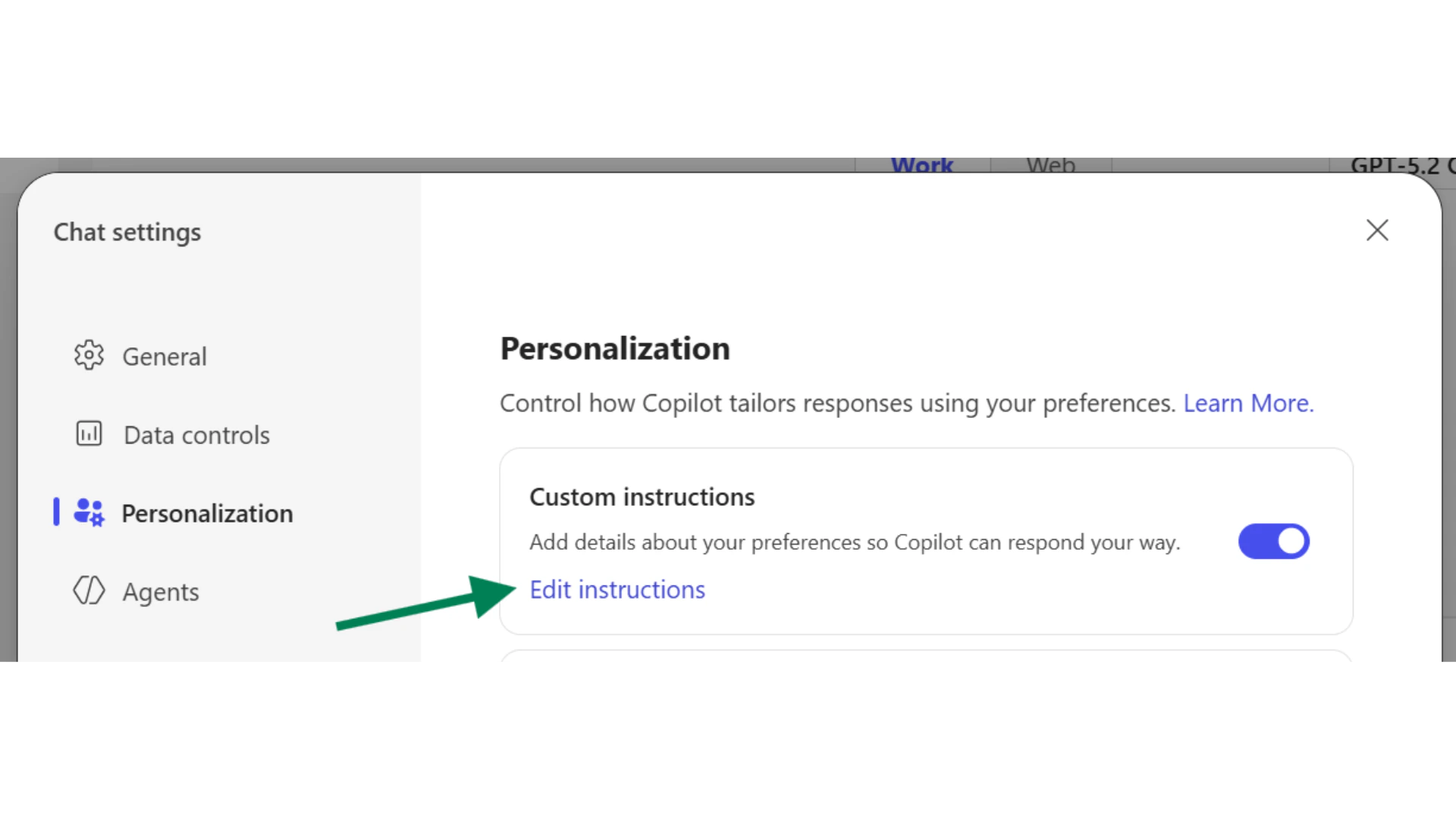
Some versions of Copilot let you set preferences (like tone, format, and how detailed you want answers).\
This is handy because it stops you repeating the same instructions every time.

You can access Copilot personalisation by clicking on the **triple dot icon on the top right hand corner of the interface → Select "Settings" → "Personalisation"**
<Columns cols={2}>
  <Card title="Custom Instructions">
    <img src="https://mintcdn.com/pathfindr/I3XbhzOlK6BeuXVO/images/copilotGuideCustomInstructions.webp?fit=max&auto=format&n=I3XbhzOlK6BeuXVO&q=85&s=b2ec4320f631bd9428747077df8f463f" alt="Copilot Guide Custom Instructions" width="1920" height="1080" data-path="images/copilotGuideCustomInstructions.webp" />

    You can customise Copilot's response styles. This includes, but not limited to information like: your role, job title, current focus areas, interests, and goals.

    Copilot can respond and interact with you in a certain way, for example, in shorter responses, bullet points, a friendly tone, and in concise manner.
  </Card>

  <Card title="Copilot Memory">
    <img src="https://mintcdn.com/pathfindr/I3XbhzOlK6BeuXVO/images/copilotGuideMemory.webp?fit=max&auto=format&n=I3XbhzOlK6BeuXVO&q=85&s=81eced03587bbe3d0047e44404e48546" alt="Copilot Guide Memory" title="Copilot Guide Memory" style={{ width: "100%" }} width="1280" height="720" data-path="images/copilotGuideMemory.webp" />

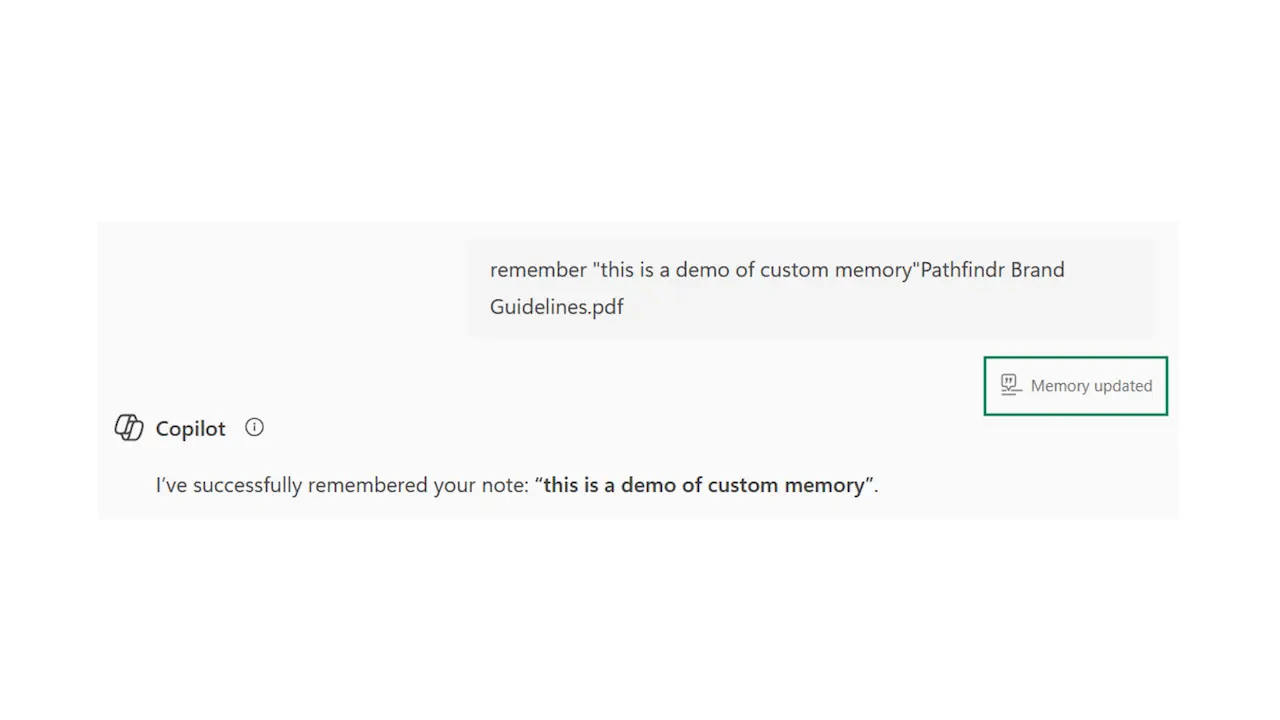
    You can directly ask Copilot to remember a certain message or conversation. The information will be stored and referenced in the future.

    To view, manage, or delete Copilot's memory, "Manage memories" option, deleting items you no longer want stored. Copilot may also automatically update its memory based on your interactions, which you can curate as needed.
  </Card>
</Columns>

***

## Quick checkpoint (you're done when…)

<CardGroup cols={4}>
  <Card title="Assign roles" icon="circle-check">
    You can explain role assignment in one sentence
  </Card>

  <Card title="Switch modes" icon="circle-check">
    You know the difference between Work and Web modes
  </Card>

  <Card title="Use side panel" icon="circle-check">
    You opened Copilot in at least one Microsoft 365 app
  </Card>

  <Card title="Refine outputs" icon="circle-check">
    You used follow-ups to improve Copilot's output
  </Card>
</CardGroup>

<div className="mt-8" />

<Card title="Ready to practice?" icon="hat-wizard" href="/learning-paths/copilot/modules/m1-meet-your-digital-assistant/challenge">
  Complete the mini challenges of the module
</Card>