> ## Documentation Index
> Fetch the complete documentation index at: https://academy.pathfindr.ai/llms.txt
> Use this file to discover all available pages before exploring further.

# Reading Material

> Learn to work with Gemini across your daily tasks

export const FlipCard = ({emoji, image, title, oneLiner, bestFor = [], starterPrompt}) => {
  const [flipped, setFlipped] = useState(false);
  return <div className="relative min-h-[280px] rounded-2xl border border-zinc-200 dark:border-zinc-800 bg-white dark:bg-zinc-900 shadow-sm overflow-hidden">
      <button type="button" onClick={() => setFlipped(!flipped)} className="absolute top-3 right-3 z-10 rounded-full border border-zinc-300 dark:border-zinc-600 bg-white dark:bg-zinc-800 px-3 py-1 text-xs font-medium text-zinc-700 dark:text-zinc-200 hover:bg-zinc-100 dark:hover:bg-zinc-700">
        {flipped ? "← Back" : "Flip →"}
      </button>

      {!flipped && <div className="p-6 pt-12 flex flex-col h-full">
          {image ? <div className="mb-3">
              <img src={image} alt={title} className="w-16 h-16 object-contain" />
            </div> : <div className="text-4xl mb-3">{emoji}</div>}
          <div className="text-xl font-bold text-zinc-900 dark:text-white mb-2">{title}</div>
          <p className="text-zinc-600 dark:text-zinc-300 text-sm">{oneLiner}</p>
          <p className="mt-auto pt-4 text-xs text-zinc-400 dark:text-zinc-500">Click "Flip" to see the starter prompt</p>
        </div>}

      {flipped && <div className="p-6 pt-12 flex flex-col h-full">
          <div className="text-sm font-semibold text-zinc-900 dark:text-white mb-2">Best for:</div>
          <ul className="text-zinc-600 dark:text-zinc-300 text-sm space-y-1 mb-4">
            {bestFor.map((item, i) => <li key={i}>{item}</li>)}
          </ul>
          {starterPrompt && <div>
              <div className="text-sm font-semibold text-zinc-900 dark:text-white mb-2">Starter prompt:</div>
              <div className="rounded-lg bg-zinc-100 dark:bg-zinc-800 p-3 text-sm text-zinc-700 dark:text-zinc-200 whitespace-pre-wrap">{starterPrompt}</div>
            </div>}
          <p className="mt-auto pt-4 text-xs text-zinc-400 dark:text-zinc-500">Click "Back" to return</p>
        </div>}
    </div>;
};

export const Quiz = ({question, options, correctIndex, explanation}) => {
  const [selected, setSelected] = useState(null);
  const [showResult, setShowResult] = useState(false);
  const handleSelect = index => {
    if (showResult) return;
    setSelected(index);
    setShowResult(true);
  };
  const isCorrect = selected === correctIndex;
  return <div className="my-8 p-6 rounded-2xl border border-zinc-200 dark:border-zinc-700 bg-gradient-to-br from-zinc-50 to-white dark:from-zinc-900 dark:to-zinc-800 shadow-sm">
      <div className="flex items-center gap-3 mb-4">
        <div className="flex items-center justify-center w-10 h-10 rounded-xl bg-blue-100 dark:bg-blue-900/40">
          <span className="text-xl">📝</span>
        </div>
        <div className="flex flex-col">
          <p className="font-semibold text-zinc-800 dark:text-zinc-100 m-0">Knowledge Check</p>
          <p className="text-xs text-zinc-500 dark:text-zinc-400 mt-0.5 m-0">Select the best answer</p>
      </div>
      </div>
      
      <p className="text-zinc-700 dark:text-zinc-200 font-medium mb-5 text-lg leading-relaxed">{question}</p>
      
      <div className="space-y-3">
        {options.map((option, index) => {
    const isSelected = selected === index;
    const isCorrectOption = index === correctIndex;
    let optionStyles = "border-zinc-200 dark:border-zinc-600 hover:border-blue-400 hover:bg-blue-50 dark:hover:bg-blue-900/20";
    if (showResult) {
      if (isCorrectOption) {
        optionStyles = "border-green-500 bg-green-50 dark:bg-green-900/30";
      } else if (isSelected && !isCorrectOption) {
        optionStyles = "border-red-500 bg-red-50 dark:bg-red-900/30";
      } else {
        optionStyles = "border-zinc-200 dark:border-zinc-700 opacity-60";
      }
    }
    return <button key={index} onClick={() => handleSelect(index)} disabled={showResult} className={`w-full text-left p-4 rounded-xl border-2 transition-all duration-200 ${optionStyles} ${!showResult && 'cursor-pointer'} ${showResult && 'cursor-default'}`}>
              <div className="flex items-start gap-3">
                <div className={`flex-shrink-0 w-6 h-6 rounded-full border-2 flex items-center justify-center text-xs font-bold ${showResult && isCorrectOption ? 'border-green-500 bg-green-500 text-white' : showResult && isSelected && !isCorrectOption ? 'border-red-500 bg-red-500 text-white' : 'border-zinc-300 dark:border-zinc-500 text-zinc-500 dark:text-zinc-400'}`}>
                  {showResult && isCorrectOption ? '✓' : showResult && isSelected ? '✗' : String.fromCharCode(65 + index)}
                </div>
                <span className="text-sm text-zinc-700 dark:text-zinc-200 leading-relaxed">{option}</span>
              </div>
            </button>;
  })}
      </div>
      
      {showResult && <div className={`mt-5 p-4 rounded-xl ${isCorrect ? 'bg-green-100 dark:bg-green-900/40 border border-green-200 dark:border-green-800' : 'bg-amber-100 dark:bg-amber-900/40 border border-amber-200 dark:border-amber-800'}`}>
          <div className="flex items-start gap-3">
            <span className="text-xl">{isCorrect ? '🎉' : '💡'}</span>
            <div className="flex flex-col">
              <p className={`text-sm font-semibold m-0 mb-1 ${isCorrect ? 'text-green-800 dark:text-green-200' : 'text-amber-800 dark:text-amber-200'}`}>
                {isCorrect ? 'Correct!' : 'Not quite right'}
              </p>
              <p className="text-sm text-zinc-600 dark:text-zinc-300 m-0 leading-relaxed">{explanation}</p>
          </div>
          </div>
        </div>}
    </div>;
};

## Use Gemini for your work

Think of Gemini as a new team member built into Google Workspace. It works directly in Gmail, Docs, Sheets, and Meet without switching apps. You can ask it to draft emails, summarise documents, analyse spreadsheet data, or generate visual content. It connects to your Drive files and email without manual uploads.

This page will help you:

<CardGroup cols={4}>
  <Card title="Assign roles" icon="square-1">
    Direct Gemini with focused personas
  </Card>

  <Card title="Choose models" icon="square-2">
    Use in Gmail, Docs, Sheets, Meet
  </Card>

  <Card title="Connect tools" icon="square-3">
    Pick the right Gemini version
  </Card>

  <Card title="Refine outputs" icon="square-4">
    Connect apps and upload files
  </Card>
</CardGroup>

***

## Direct Gemini with roles

Give Gemini a clear role to focus its response. Pick one of these three starting points based on your task.

<div className="grid gap-4 grid-cols-1 md:grid-cols-3">
  <FlipCard image="https://mintcdn.com/pathfindr/I3XbhzOlK6BeuXVO/images/assistantIcon.webp?fit=max&auto=format&n=I3XbhzOlK6BeuXVO&q=85&s=84490634e74ab5287061758af9c1eb54" title="Assistant" oneLiner="You've got a job. It gets it done." bestFor={["Summaries", "Drafting replies", "Turning notes into actions"]} starterPrompt="You're my Assistant. Turn this into a punchy action list with owners and due dates. Keep it short." width="426" height="426" data-path="images/assistantIcon.webp" />

  <FlipCard image="https://mintcdn.com/pathfindr/vxED2dxssEHZg3yn/images/thinkerIcon.webp?fit=max&auto=format&n=vxED2dxssEHZg3yn&q=85&s=5fbd5406d58970da1c1e7acaba9b26be" title="Thinker" oneLiner="You've got a decision. It helps you choose." bestFor={["Comparing options", "Risks + trade-offs", "Planning next steps"]} starterPrompt="You're my Thinker. Give me 3 options, a pros/cons table, then recommend one and explain why." width="426" height="426" data-path="images/thinkerIcon.webp" />

  <FlipCard image="https://mintcdn.com/pathfindr/0Og7YOK8gX91P7mj/images/creatorIcon.webp?fit=max&auto=format&n=0Og7YOK8gX91P7mj&q=85&s=9f9ed2ceb17f361a9dbfbe1a494ca83b" title="Creator" oneLiner="You've got a blank page. It gets you moving." bestFor={["First drafts", "Ideas + outlines", "Rewrites with a new tone"]} starterPrompt="You're my Creator. Draft a first version with headings and bullets. Friendly, professional, and not too long." width="426" height="426" data-path="images/creatorIcon.webp" />
</div>

<div className="mt-8" />

<Accordion title="🎯 Test your understanding">
  <Quiz
    question="Why is assigning Gemini a 'hat' or role helpful?"
    options={[
"It makes Gemini respond more slowly so you can read along",
"It focuses the response and reduces generic or overly broad output",
"It is mandatory for Gemini to process your request",
"It prevents Gemini from accessing external information"
]}
    correctIndex={1}
    explanation="Giving Gemini a clear role helps frame the task and produces more focused, relevant responses rather than overly broad or generic answers."
  />
</Accordion>

***

## Gemini in Google Workspace

Gemini integrates directly into the Workspace apps you use daily. Access it through the Gemini icon or side panel in each application.

<Columns cols={2}>
  <Card title="Gmail" icon="envelope">
    Click the Gemini icon in Gmail to open the side panel. Ask questions about your inbox, summarise long email threads, or draft replies with "Help me write". Gemini can search across your messages using natural language.
  </Card>

  <Card title="Google Docs" icon="file-lines">
    Open any document and click "Ask Gemini" in the top right. Generate new content from a prompt, summarise the current document, rewrite selected text, or reference other files from your Drive.
  </Card>

  <Card title="Google Sheets" icon="table">
    Click "Ask Gemini" while working in a spreadsheet. Generate tables and trackers from descriptions, create formulas based on what you need, analyse data patterns, or pull information from your Gmail.
  </Card>

  <Card title="Google Meet" icon="video">
    Gemini can take meeting notes automatically, summarise discussions, and capture action items. If you join late, ask Gemini to catch you up on what you missed. Translated captions are also available.
  </Card>
</Columns>

***

## Choosing the right Gemini model

Gemini offers different models suited to different tasks. Understanding when to use each helps you get better results.

| Model                  | Best for                                            | Speed    | Reasoning depth |
| ---------------------- | --------------------------------------------------- | -------- | --------------- |
| **Fast (3 Flash)**     | Quick answers, everyday tasks, summarisation        | Fastest  | Good            |
| **Thinking (3 Flash)** | Complex problems requiring step-by-step reasoning   | Moderate | Better          |
| **Pro (3 Pro)**        | Advanced analysis, coding, multimodal understanding | Slower   | Best            |

<Columns cols={2}>
  <Card title="When to use Fast" icon="bolt">
    Use the Fast model for everyday tasks where speed matters more than deep analysis. This includes quick summaries, simple questions, brainstorming ideas, and general assistance. Fast is the default model and handles most requests well.
  </Card>

  <Card title="When to use Thinking or Pro" icon="brain">
    Switch to Thinking or Pro when you need deeper reasoning. This includes complex analysis, detailed coding tasks, working with large documents, and problems requiring multiple steps to solve. These models take longer but provide more thorough responses.
  </Card>
</Columns>

<Note>
  You can select your model from the dropdown menu in the Gemini app. Google AI Pro and Ultra subscribers receive higher limits for Thinking and Pro models.
</Note>

<div className="mt-8" />

<Accordion title="🎯 Test your understanding">
  <Quiz
    question="Which Gemini model should you use for a quick summary of a meeting transcript?"
    options={[
"Pro, because summaries require the most advanced model",
"Thinking, because all summaries require step-by-step reasoning",
"Fast, because it handles everyday tasks like summarisation quickly",
"None of the above; you must use an external tool for summaries"
]}
    correctIndex={2}
    explanation="The Fast model (Gemini 3 Flash) is designed for everyday tasks like summarisation, brainstorming, and quick answers. It provides good results quickly without needing the deeper reasoning of Thinking or Pro models."
  />
</Accordion>

***

## Gemini with context

Gemini becomes more useful when you provide context. There are several ways to give Gemini the information it needs to help you effectively.

<Columns cols={3}>
  <Card title="Connected apps">
    <img src="https://mintcdn.com/pathfindr/EcGZUsb7xx8cJToQ/images/personalContext.webp?fit=max&auto=format&n=EcGZUsb7xx8cJToQ&q=85&s=0dbc2e04af3b3fbe9b198c4aff226956" alt="Connected apps" title="Gemini with Context" style={{ width: "100%" }} width="1920" height="1080" data-path="images/personalContext.webp" />

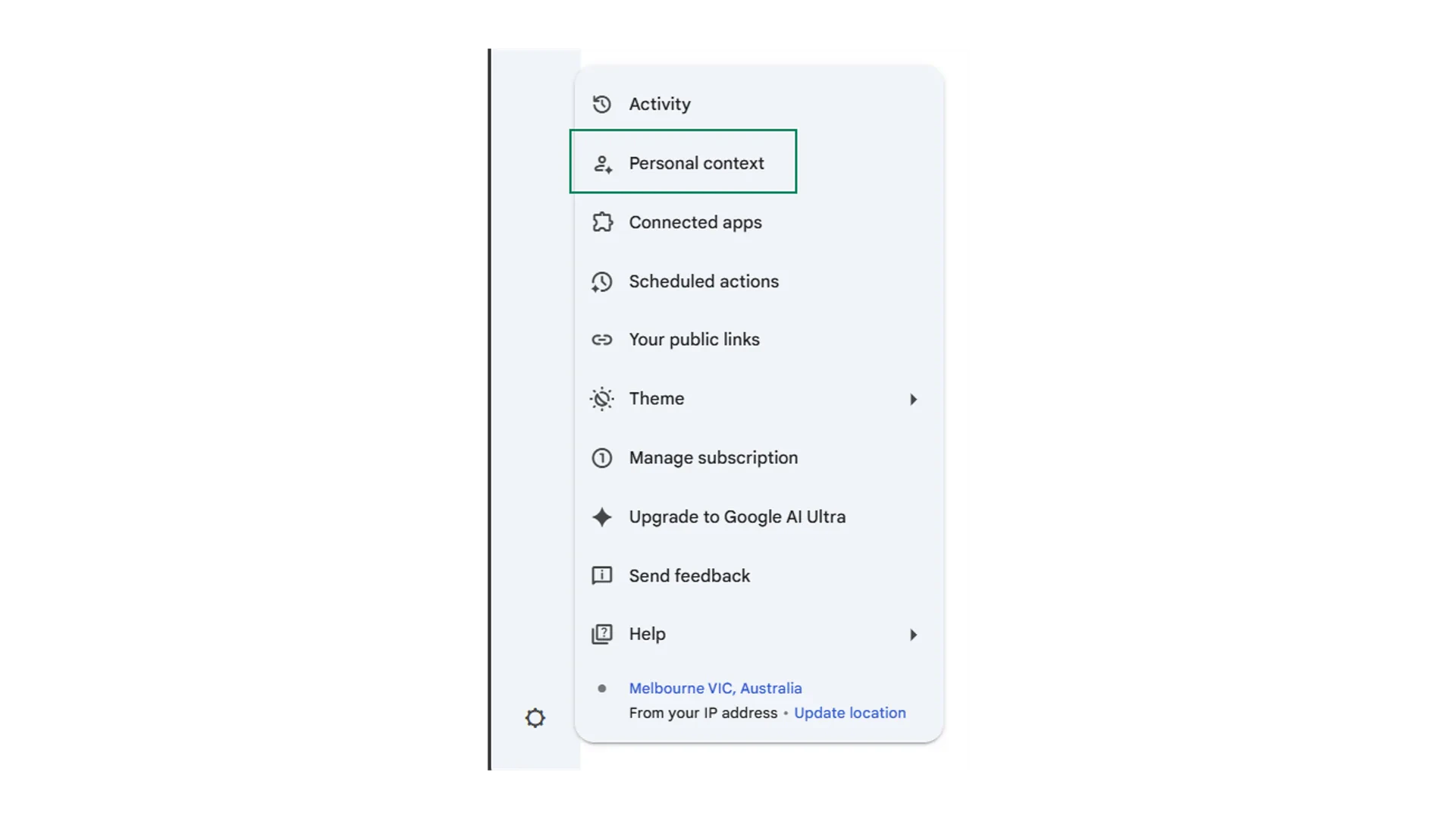
    With Personal Intelligence enabled, Gemini can connect to your Gmail, Drive, and Photos. This lets you ask questions like "What was the name of the restaurant from last month's team dinner?" and get answers from your own data.
  </Card>

  <Card title="Dictation tool">
    <img src="https://mintcdn.com/pathfindr/0Og7YOK8gX91P7mj/images/dictationToolGemini.webp?fit=max&auto=format&n=0Og7YOK8gX91P7mj&q=85&s=78ba1128efbf9e3a38448f356253526c" alt="Files from rrive or upload" title="Gemini with Context" style={{ width: "100%" }} width="1920" height="390" data-path="images/dictationToolGemini.webp" />

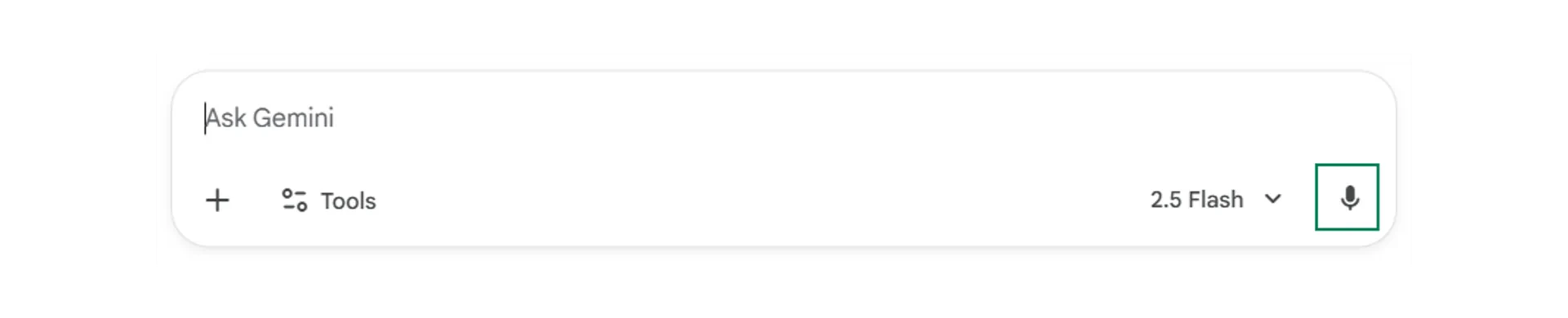
    Use the microphone icon for speech-to-text, or activate Gemini Live for a full voice conversation. Speak naturally, interrupt to ask follow-ups, and have Gemini respond aloud. Available in the mobile app and supported devices.
  </Card>

  <Card title="Files from rrive or upload">
    <img src="https://mintcdn.com/pathfindr/0Og7YOK8gX91P7mj/images/fileUploadGemini.webp?fit=max&auto=format&n=0Og7YOK8gX91P7mj&q=85&s=82a0f1336fed2fcf9ef90913129616bc" alt="Files from rrive or upload" title="Gemini with Context" style={{ width: "100%" }} width="1920" height="774" data-path="images/fileUploadGemini.webp" />

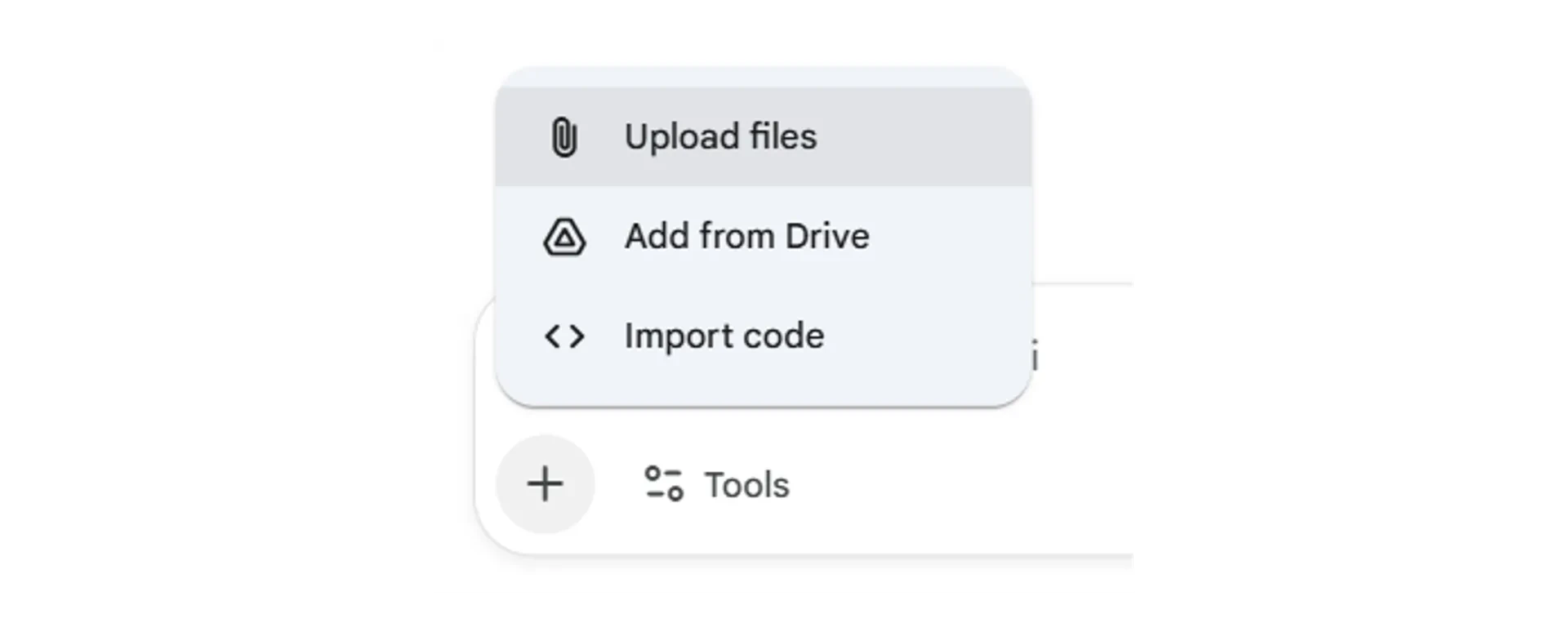
    Click the "+" icon to upload files directly or add documents from Google Drive. Gemini can analyse PDFs, spreadsheets, images, and more. Reference uploaded files in your prompt to get specific insights.
  </Card>
</Columns>

<Tip>
  When you connect Google Workspace apps, your data is not used to train models. Gemini references your information to generate responses, but your emails and files remain private.
</Tip>

### File upload

Gemini can analyse documents, images, and other files you upload. Here are the current limits to keep in mind.

| Upload type                        | Limit                                    |
| ---------------------------------- | ---------------------------------------- |
| **Files per prompt**               | Up to 10 files                           |
| **Video file size**                | Up to 2 GB per video                     |
| **Other file sizes**               | Up to 100 MB per file                    |
| **Total video length (Free)**      | Up to 5 minutes                          |
| **Total video length (Pro/Ultra)** | Up to 1 hour                             |
| **Context window (Free)**          | 32,000 tokens (\~50 pages of text)       |
| **Context window (Pro/Ultra)**     | 1 million tokens (\~1,500 pages of text) |

### Supported file types

| Category          | Formats                  |
| ----------------- | ------------------------ |
| **Documents**     | PDF, DOCX, DOC, TXT, RTF |
| **Spreadsheets**  | XLSX, CSV                |
| **Presentations** | PPTX                     |
| **Images**        | JPEG, PNG, WebP, HEIC    |
| **Data files**    | JSON, HTML               |

<Note>
  Limits may change as Google continues to develop Gemini. For the most current information, refer to Google's official documentation.
</Note>

***

## Quick checkpoint (you're done when…)

<CardGroup cols={4}>
  <Card title="Assign roles" icon="circle-check">
    You can explain role assignment in one sentence
  </Card>

  <Card title="Access across apps" icon="circle-check">
    You opened Gemini in at least one Workspace app
  </Card>

  <Card title="Choose models" icon="circle-check">
    You know which model to pick: Fast vs Thinking vs Pro
  </Card>

  <Card title="Add context" icon="circle-check">
    You added context using files, apps, or voice input
  </Card>
</CardGroup>

<div className="mt-8" />

<Card title="Ready to practice?" icon="hat-wizard" href="/learning-paths/gemini/modules/m1-meet-your-digital-assistant/challenge-1">
  Complete the mini challenges of the module
</Card>