> ## Documentation Index
> Fetch the complete documentation index at: https://academy.pathfindr.ai/llms.txt
> Use this file to discover all available pages before exploring further.

# Reading Material

> A practical guide for getting better results from Claude through effective prompting.

export const Quiz = ({question, options, correctIndex, explanation}) => {
  const [selected, setSelected] = useState(null);
  const [showResult, setShowResult] = useState(false);
  const handleSelect = index => {
    if (showResult) return;
    setSelected(index);
    setShowResult(true);
  };
  const isCorrect = selected === correctIndex;
  return <div className="my-8 p-6 rounded-2xl border border-zinc-200 dark:border-zinc-700 bg-gradient-to-br from-zinc-50 to-white dark:from-zinc-900 dark:to-zinc-800 shadow-sm">
      <div className="flex items-center gap-3 mb-4">
        <div className="flex items-center justify-center w-10 h-10 rounded-xl bg-blue-100 dark:bg-blue-900/40">
          <span className="text-xl">📝</span>
        </div>
        <div className="flex flex-col">
          <p className="font-semibold text-zinc-800 dark:text-zinc-100 m-0">Knowledge Check</p>
          <p className="text-xs text-zinc-500 dark:text-zinc-400 mt-0.5 m-0">Select the best answer</p>
      </div>
      </div>
      
      <p className="text-zinc-700 dark:text-zinc-200 font-medium mb-5 text-lg leading-relaxed">{question}</p>
      
      <div className="space-y-3">
        {options.map((option, index) => {
    const isSelected = selected === index;
    const isCorrectOption = index === correctIndex;
    let optionStyles = "border-zinc-200 dark:border-zinc-600 hover:border-blue-400 hover:bg-blue-50 dark:hover:bg-blue-900/20";
    if (showResult) {
      if (isCorrectOption) {
        optionStyles = "border-green-500 bg-green-50 dark:bg-green-900/30";
      } else if (isSelected && !isCorrectOption) {
        optionStyles = "border-red-500 bg-red-50 dark:bg-red-900/30";
      } else {
        optionStyles = "border-zinc-200 dark:border-zinc-700 opacity-60";
      }
    }
    return <button key={index} onClick={() => handleSelect(index)} disabled={showResult} className={`w-full text-left p-4 rounded-xl border-2 transition-all duration-200 ${optionStyles} ${!showResult && 'cursor-pointer'} ${showResult && 'cursor-default'}`}>
              <div className="flex items-start gap-3">
                <div className={`flex-shrink-0 w-6 h-6 rounded-full border-2 flex items-center justify-center text-xs font-bold ${showResult && isCorrectOption ? 'border-green-500 bg-green-500 text-white' : showResult && isSelected && !isCorrectOption ? 'border-red-500 bg-red-500 text-white' : 'border-zinc-300 dark:border-zinc-500 text-zinc-500 dark:text-zinc-400'}`}>
                  {showResult && isCorrectOption ? '✓' : showResult && isSelected ? '✗' : String.fromCharCode(65 + index)}
                </div>
                <span className="text-sm text-zinc-700 dark:text-zinc-200 leading-relaxed">{option}</span>
              </div>
            </button>;
  })}
      </div>
      
      {showResult && <div className={`mt-5 p-4 rounded-xl ${isCorrect ? 'bg-green-100 dark:bg-green-900/40 border border-green-200 dark:border-green-800' : 'bg-amber-100 dark:bg-amber-900/40 border border-amber-200 dark:border-amber-800'}`}>
          <div className="flex items-start gap-3">
            <span className="text-xl">{isCorrect ? '🎉' : '💡'}</span>
            <div className="flex flex-col">
              <p className={`text-sm font-semibold m-0 mb-1 ${isCorrect ? 'text-green-800 dark:text-green-200' : 'text-amber-800 dark:text-amber-200'}`}>
                {isCorrect ? 'Correct!' : 'Not quite right'}
              </p>
              <p className="text-sm text-zinc-600 dark:text-zinc-300 m-0 leading-relaxed">{explanation}</p>
          </div>
          </div>
        </div>}
    </div>;
};

export const GlossaryRow = ({title, description, children, flip = false, titleClassName = "text-2xl font-semibold tracking-tight text-zinc-950 dark:text-white", descriptionClassName = "mt-3 text-base leading-7 text-zinc-700 dark:text-zinc-300"}) => {
  return <div className="not-prose my-12">
      <div className="grid grid-cols-1 sm:grid-cols-[1fr_1.6fr] gap-10 items-start">
        {}
        <div className={flip ? "sm:order-2" : "sm:order-1"}>
          <div className={titleClassName}>{title}</div>
          {description ? <div className={descriptionClassName}>{description}</div> : null}
        </div>

        {}
        <div className={flip ? "sm:order-1" : "sm:order-2"}>
          <div className="rounded-2xl overflow-hidden bg-transparent pointer-events-auto">
            {children}
          </div>
        </div>
      </div>
    </div>;
};

## What you'll learn

A prompt is the instruction you give to Claude. The clearer your direction, the better the response. This module shows you how to structure prompts that get useful results on the first try.

<CardGroup cols={4}>
  <Card title="Structure prompts" icon="square-1">
    Use frameworks to organise your requests
  </Card>

  <Card title="Apply patterns" icon="square-2">
    Copy proven formats for common tasks
  </Card>

  <Card title="Enrich inputs" icon="square-3">
    Add files, Projects, and context to your prompts
  </Card>

  <Card title="Extend outputs" icon="square-4">
    Use Artifacts and extended thinking for complex work
  </Card>
</CardGroup>

***

## What is a prompt?

A prompt is the way you tell an AI what you want and how you want the result to look. A good prompt doesn't just say what to do. It often includes context, tone, format, or constraints to guide the result.

Think of it as having a conversation with a very knowledgeable assistant who needs clear directions to help you best.

The more precise you frame your request and prompt, the more accurate your responses can be.

***

## Essential prompting frameworks

These three frameworks cover most workplace prompting scenarios. Pick the one that matches your task type.

<AccordionGroup>
  <Accordion title="CLEAR Framework — Great for most interactions" icon="lightbulb">
    Use CLEAR when you need Claude to produce something specific, like a report, email, or summary.

    <Steps>
      <Step title="Context">
        What is the purpose or situation?

        <Info>
          Example: "Our sales team is struggling with quarterly targets"
        </Info>
      </Step>

      <Step title="Length">
        How long should the response be?

        <Info>
          Example: "I need a concise 2-page proposal for senior management"
        </Info>
      </Step>

      <Step title="Examples">
        What style or format should it follow?

        <Info>
          Example: "Follow our standard business case format with executive summary"
        </Info>
      </Step>

      <Step title="Audience">
        Who will read this?

        <Info>
          Example: "Sales director, regional managers, and C-suite executives"
        </Info>
      </Step>

      <Step title="Request">
        What exactly do you want as output?

        <Info>
          Example: "Create a competitive analysis and action plan to improve Q3 performance"
        </Info>
      </Step>
    </Steps>
  </Accordion>

  <Accordion title="PREP Framework — Great for creating content" icon="pen">
    Use PREP when you need Claude to write or create something from scratch.

    <Steps>
      <Step title="Purpose">
        What is the goal of this content?

        <Info>
          Example: "Train a new employee on workplace safety"
        </Info>
      </Step>

      <Step title="Role">
        Who should Claude act as?

        <Info>
          Example: "Act as a workplace safety trainer"
        </Info>
      </Step>

      <Step title="Expectations">
        What format or style should it follow?

        <Info>
          Example: "Create a checklist with explanations for each point"
        </Info>
      </Step>

      <Step title="Parameters">
        What constraints should it consider?

        <Info>
          Example: "Maximum 15 items, use simple language, include emergency procedures"
        </Info>
      </Step>
    </Steps>
  </Accordion>

  <Accordion title="STAR Framework — Great for problem-solving" icon="wrench">
    Use STAR when you need Claude to help you work through a challenge or make a decision.

    <Steps>
      <Step title="Situation">
        What is the current business challenge?

        <Info>
          Example: "Our customer support team is overwhelmed with 40% more tickets since product launch"
        </Info>
      </Step>

      <Step title="Task">
        What needs to be accomplished?

        <Info>
          Example: "Need to reduce response times to under 4 hours while maintaining quality scores above 85%"
        </Info>
      </Step>

      <Step title="Action">
        What options are you considering?

        <Info>
          Example: "Consider automation, staffing options, or process improvements"
        </Info>
      </Step>

      <Step title="Result">
        What outcomes define success?

        <Info>
          Example: "Want to achieve target response times within 8 weeks. Help me evaluate these options and create an implementation roadmap."
        </Info>
      </Step>
    </Steps>
  </Accordion>
</AccordionGroup>

<Accordion title="Test your understanding">
  <Quiz
    question="Which framework works best for making a business decision?"
    options={[
"CLEAR",
"PREP",
"STAR",
"Any framework works the same"
]}
    correctIndex={2}
    explanation="STAR is designed for problem-solving and decision-making. It helps you lay out the situation, task, possible actions, and desired results so Claude can give you practical recommendations."
  />
</Accordion>

***

## Common prompting patterns

These five patterns work across most business tasks. Copy the structure and swap in your own details.

<GlossaryRow title="Step-by-step request" description="Use this when you need Claude to break down a process into clear, followable instructions. Works well for onboarding guides, how-to documents, and training materials. You can adjust the audience to control the level of detail.">
  ```text theme={null}
    Create a 
    step-by-step 
    guide for [task] that 
    [audience] can follow easily.
  ```
</GlossaryRow>

<GlossaryRow title="Role-play prompt" description="Use this when you want Claude to respond from a specific perspective or expertise. Works well for getting advice, feedback, or content that sounds like it came from a specialist. You can combine roles for more nuanced responses.">
  ```text theme={null}
    Act as a [role] 
    and help me with [task] 
    for [context].
  ```
</GlossaryRow>

<GlossaryRow title="Compare and contrast" description="Use this when you need to evaluate options or make a decision between alternatives. Works well for vendor selection, strategy choices, and tool comparisons. You can add criteria to focus the analysis on what matters most.">
  ```text theme={null}
    Compare 
    [option A] and [option B] 
    for [specific use case], 
    focusing on [criteria].
  ```
</GlossaryRow>

<GlossaryRow title="Improvement request" description="Use this when you have existing content that needs refinement. Works well for drafts, presentations, and communications you want to polish. You can specify the aspect to improve so Claude focuses on what matters.">
  ```text theme={null}
    Review my 
    [content type] and 
    suggest improvements 
    for [specific aspect].
  ```
</GlossaryRow>

<GlossaryRow title="Template creator" description="Use this when you need a reusable format for recurring tasks. Works well for reports, meeting agendas, and standard communications. You can specify requirements to ensure the template captures everything you need.">
  ```text theme={null}
    Create 
    a template for [purpose] 
    that includes [requirements] 
    and can be used 
    for [context].
  ```
</GlossaryRow>

<div className="mt-8" />

<Accordion title="Test your understanding">
  <Quiz
    question="Your response is too long. What should you include in your prompt?"
    options={[
"Ask for 'a short response'",
"Specify length requirements like 'in 3 bullet points' or 'summarise in one paragraph'",
"Tell Claude to be concise",
"All of the above work equally well"
]}
    correctIndex={1}
    explanation="Specific length requirements give Claude a clear target. Vague instructions like 'short' or 'concise' are interpreted differently each time."
  />
</Accordion>

***

## Enriching your prompts

Text is not your only input. Claude can work with files, Projects, and memory to give you faster, more accurate results.

<Columns cols={2}>
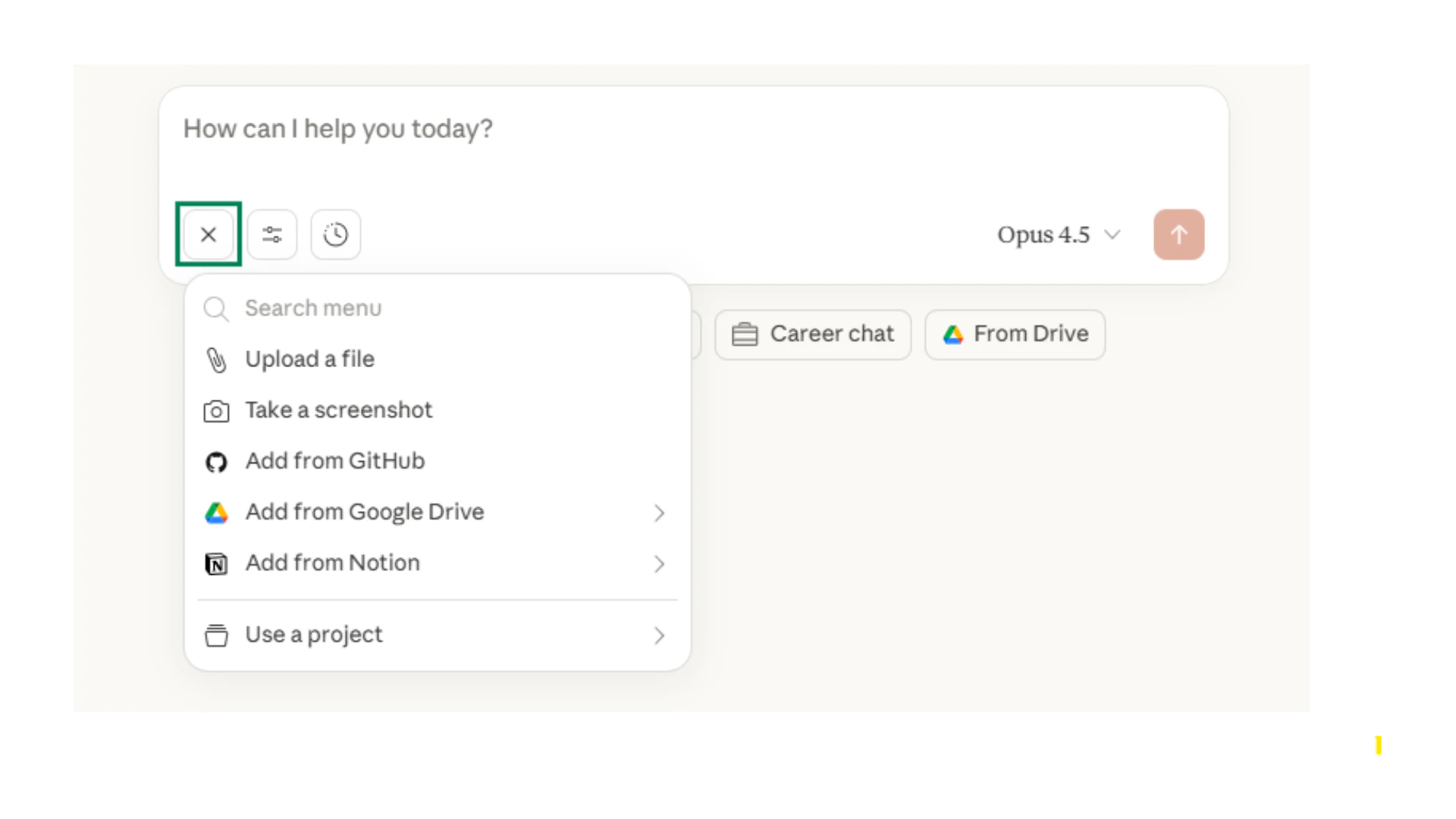
  <Card title="File uploads">
    <img src="https://mintcdn.com/pathfindr/I3XbhzOlK6BeuXVO/images/claudeThePlusIcon.webp?fit=max&auto=format&n=I3XbhzOlK6BeuXVO&q=85&s=11a56987d8a4894b5e571208778bb396" alt="Claude file upload" title="Claude file upload" style={{ width:"100%" }} width="1920" height="1080" data-path="images/claudeThePlusIcon.webp" />

    Upload documents, spreadsheets, images, or PDFs directly into your conversation.

    Claude can read and interpret file content, saving you from manually copying or describing information.

    *Try this:*

    Upload a meeting transcript and ask Claude to extract action items with owners and deadlines.
  </Card>

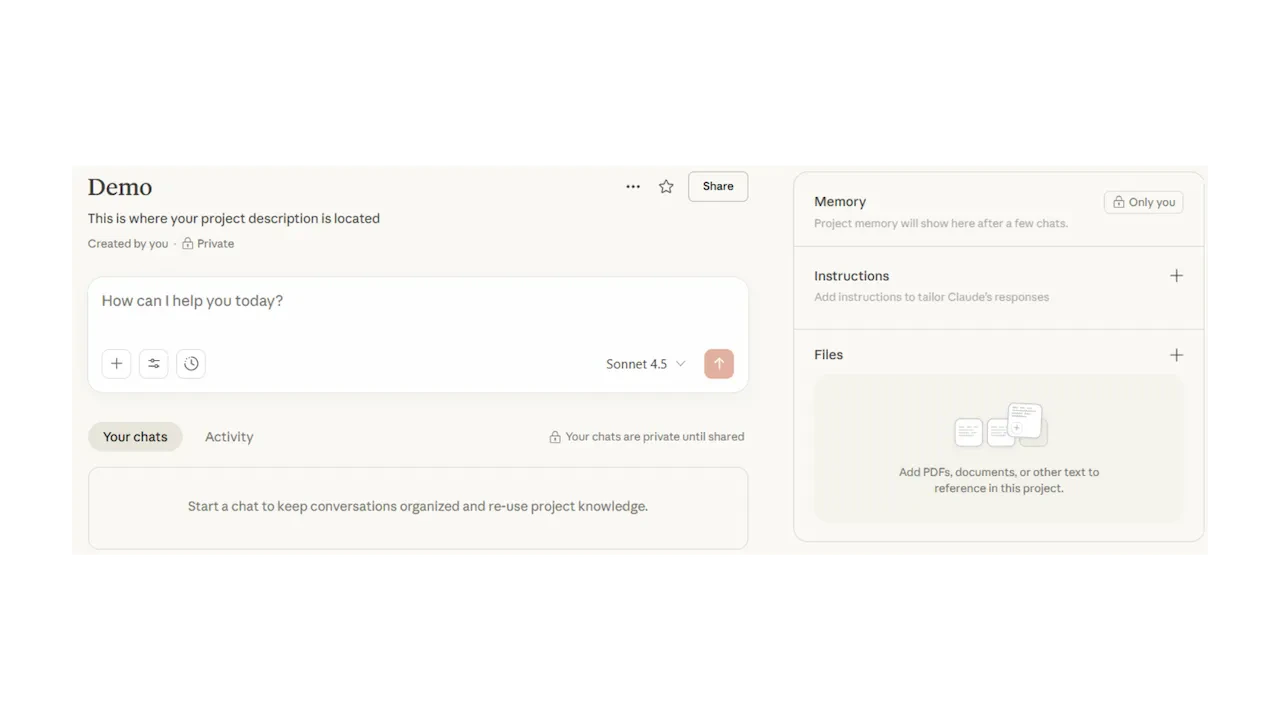
  <Card title="Projects">
    <img src="https://mintcdn.com/pathfindr/I3XbhzOlK6BeuXVO/images/claudeProjects.webp?fit=max&auto=format&n=I3XbhzOlK6BeuXVO&q=85&s=99dbf64222e2fc7e0421a8db12a34c83" alt="Claude Projects" title="Claude Projects" style={{ width:"100%" }} width="1280" height="720" data-path="images/claudeProjects.webp" />

    Use Projects to group related conversations and add persistent context.

    Upload reference documents, style guides, or templates that Claude remembers across all chats within that Project.

    *Try this:*

    Create a Project for your team, add your brand guidelines, and start drafting content that stays on-brand.
  </Card>
</Columns>

<Tip>
  Projects are ideal for recurring work. Add your company's tone guide, product specs, or standard templates once, and Claude applies them automatically.
</Tip>

<Accordion title="Test your understanding">
  <Quiz
    question="A response does not match your needs. What should you try first?"
    options={[
"Start a completely new conversation",
"Provide an example or template of what you want",
"Switch to extended thinking",
"Report the issue to Anthropic"
]}
    correctIndex={1}
    explanation="Examples and templates give Claude a clear reference point. Showing what you want is often more effective than describing it. Try saying 'Format this like a business email' or 'Use a structure similar to this example.'"
  />
</Accordion>

***

## Advanced techniques

Once you are comfortable with the basics, these techniques help you tackle more complex tasks.

<AccordionGroup>
  <Accordion title="Chain prompting" icon="link">
    Break complex tasks into smaller steps. Complete one step before moving to the next.

    <Steps>
      <Step title="First prompt">
        "Help me brainstorm topics for a presentation about climate change"
      </Step>

      <Step title="Second prompt">
        "Now help me create an outline for a presentation about renewable energy solutions"
      </Step>

      <Step title="Third prompt">
        "Create detailed content for the first three slides of this outline"
      </Step>
    </Steps>
  </Accordion>

  <Accordion title="Iterative refinement" icon="rotate">
    Start broad, then narrow down based on the response you receive.

    <Steps>
      <Step title="Initial">
        "Help me plan a team building event"
      </Step>

      <Step title="Refine">
        "Focus on indoor activities for 15 people with a budget of \$500"
      </Step>

      <Step title="Finalise">
        "Create a detailed timeline for a cooking class team building event"
      </Step>
    </Steps>
  </Accordion>

  <Accordion title="Constraint setting" icon="sliders">
    Add specific limitations to get focused results.

    ```text theme={null}
        Write a product description for wireless headphones with these constraints:
        - Maximum 100 words
        - Highlight 3 key features
        - Use conversational tone
        - Include a call-to-action
        - Target audience: fitness enthusiasts
    ```
  </Accordion>

  <Accordion title="Multi-perspective prompting" icon="users">
    Ask Claude to analyse from different viewpoints.

    ```text theme={null}
        Analyse the decision to work remotely from three perspectives:
        1. Employee benefits and challenges
        2. Employer costs and benefits
        3. Impact on team collaboration
        
        Provide balanced insights for each perspective.
    ```
  </Accordion>

  <Accordion title="Extended thinking" icon="brain">
    For complex problems, ask Claude to think through the problem step by step before answering.

    ```text theme={null}
        I need to restructure our sales compensation plan. 
        
        Think through this carefully:
        - Current challenges with our commission structure
        - Industry benchmarks for SaaS sales compensation
        - Potential unintended consequences of changes
        
        Then recommend a new structure with rationale.
    ```

    <Tip>
      Extended thinking is built into Claude. For particularly complex reasoning tasks, Claude will automatically spend more time thinking before responding.
    </Tip>
  </Accordion>
</AccordionGroup>

<Accordion title="Test your understanding">
  <Quiz
    question="When should you use chain prompting?"
    options={[
"When you need a quick one-line answer",
"When your task is complex and has multiple stages",
"When you want Claude to remember your preferences",
"When you need to compare two options"
]}
    correctIndex={1}
    explanation="Chain prompting breaks complex tasks into manageable steps. You complete one step, review the output, then move to the next. This approach gives you more control over the final result."
  />
</Accordion>

***

## Claude's unique capabilities

Claude has features that extend beyond basic chat. These help you create polished outputs and maintain context across your work.

<Columns cols={2}>
  <Card title="Artifacts" icon="file-code">
    When you ask Claude to create documents, code, or structured content, it can generate Artifacts. These are standalone files you can view, edit, and download.

    ```text theme={null}
        Create a React component 
        for a pricing table 
        with three tiers: 
        Basic, Pro, and Enterprise.
    ```

    <Note>
      **Artifact types:**

      Claude can create Markdown documents, HTML pages, React components, SVG graphics, Mermaid diagrams, and more.
    </Note>
  </Card>

  <Card title="Styles" icon="palette">
    Customise how Claude writes by selecting or creating a Style. Styles adjust tone, formality, and structure to match your preferences.

    ```text theme={null}
        Use a professional 
        but approachable tone. 
        Keep sentences short. 
        Avoid jargon.
    ```

    <Note>
      **Set your Style:**

      Go to Settings, then Styles to choose from presets or create your own custom writing style.
    </Note>
  </Card>
</Columns>

<Info>
  **Memory and context:**
  Claude can remember details from your conversations. If you want Claude to recall specific information, tell it what to remember. You can also manage saved memories in your Settings under Personalisation.
</Info>

***

## What file types can I upload?

| Variable                   | File Upload Details                                                                                                                                      |
| -------------------------- | -------------------------------------------------------------------------------------------------------------------------------------------------------- |
| **Supported File Formats** | PDF, TXT, Word documents (.docx), Excel spreadsheets (CSV, XLSX), Data files (JSON, HTML), Images (JPEG, PNG, GIF, WebP), PowerPoint (.pptx), Code files |
| **Not Supported**          | Video files (MP4), Audio files (MP3), Google Doc links (download first)                                                                                  |
| **File Size Limits**       | Individual files up to 30 MB, Images up to 20 MB                                                                                                         |
| **Upload Quantity**        | Multiple files per conversation supported                                                                                                                |
| **Image Analysis**         | Claude can read text in images, interpret charts and diagrams, and describe visual content                                                               |

<Note>
  Please note limits and capabilities continuously change and may differ from those stated above.
</Note>

***

## Quick checkpoint

Good prompting is like briefing a capable colleague. The clearer you are about what you need, the better Claude can help. Start with the frameworks, practise with different patterns, and refine your approach based on what works for your tasks.

You are done with this module when you can do the following:

<CardGroup cols={4}>
  <Card title="Structure prompts" icon="circle-check">
    You can apply at least one framework to a real task
  </Card>

  <Card title="Apply patterns" icon="circle-check">
    You have used a prompting pattern from this module
  </Card>

  <Card title="Enrich inputs" icon="circle-check">
    You have tried uploading files or using a Project
  </Card>

  <Card title="Refine outputs" icon="circle-check">
    You have used follow-up prompts to improve a response
  </Card>
</CardGroup>

<div className="mt-8" />

<Card title="Ready to practice?" icon="chess-knight-piece" href="/participant/promptYourWayToSuccess/challenge">
  Complete the challenge by building a prompt using what you have learned
</Card>