> ## Documentation Index
> Fetch the complete documentation index at: https://academy.pathfindr.ai/llms.txt
> Use this file to discover all available pages before exploring further.
# Reading Material
> A practical, easy-to-follow guide for getting the best results from prompting in Copilot.
export const Quiz = ({question, options, correctIndex, explanation}) => {
const [selected, setSelected] = useState(null);
const [showResult, setShowResult] = useState(false);
const handleSelect = index => {
if (showResult) return;
setSelected(index);
setShowResult(true);
};
const isCorrect = selected === correctIndex;
return
;
};
## What you'll learn
A prompt is the instruction you give to Copilot. The clearer your direction, the better the response. This module shows you how to structure prompts that get useful results on the first try.
Use frameworks to organise your requests
Copy proven formats for common tasks
Add files, references, and context to your prompts
Set up scheduled prompts and saved prompts
***
## What is a prompt?
A prompt is the way you tell an AI what you want and how you want the result to look. A good prompt doesn't just say what to do. It often includes context, tone, format, or constraints to guide the result.
Think of it as having a conversation with a very knowledgeable assistant who needs clear directions to help you best.
The more precise you frame your request and prompt, the more accurate your responses can be.
***
## Essential prompting frameworks
These four frameworks cover most workplace prompting scenarios. Pick the one that matches your task type.
Use this framework when you want to follow Microsoft's recommended structure for Copilot prompts.
What do you want from Copilot?
Example: "I want a list of 3-5 bullet points to prepare me..."
Why do you need it and who is involved?
Example: "...for an upcoming meeting with \[person], focusing on their current state and what they're looking to achieve."
How should Copilot respond to best fulfil your request?
Example: "Respond with a tone that is friendly but authoritative..."
What information or samples do you want Copilot to use?
Example: "...and focus on email and Teams chats with \[people] over the last two weeks."
Use CLEAR when you need Copilot to produce something specific, like a report, email, or summary.
What is the purpose or situation?
Example: "Our sales team is struggling with quarterly targets"
How long should the response be?
Example: "I need a concise 2-page proposal for senior management"
What style or format should it follow?
Example: "Follow our standard business case format with executive summary"
Who will read this?
Example: "Sales director, regional managers, and C-suite executives"
What exactly do you want as output?
Example: "Create a competitive analysis and action plan to improve Q3 performance"
Use PREP when you need Copilot to write or create something from scratch.
What is the goal of this content?
Example: "Train a new employee on workplace safety"
Who should Copilot act as?
Example: "Act as a workplace safety trainer"
What format or style should it follow?
Example: "Create a checklist with explanations for each point"
What constraints should it consider?
Example: "Maximum 15 items, use simple language, include emergency procedures"
Use STAR when you need Copilot to help you work through a challenge or make a decision.
What is the current business challenge?
Example: "Our customer support team is overwhelmed with 40% more tickets since product launch"
What needs to be accomplished?
Example: "Need to reduce response times to under 4 hours while maintaining quality scores above 85%"
What options are you considering?
Example: "Consider automation, staffing options, or process improvements"
What outcomes define success?
Example: "Want to achieve target response times within 8 weeks. Help me evaluate these options and create an implementation roadmap."
***
## Common prompting patterns
These five patterns work across most business tasks. Copy the structure and swap in your own details.
```text theme={null}
Create a
step-by-step
guide for [task] that
[audience] can follow easily.
```
```text theme={null}
Act as a [role]
and help me with [task]
for [context].
```
```text theme={null}
Compare
[option A] and [option B]
for [specific use case],
focusing on [criteria].
```
```text theme={null}
Review my
[content type] and
suggest improvements
for [specific aspect].
```
```text theme={null}
Create
a template for [purpose]
that includes [requirements]
and can be used
for [context].
```
***
## Enriching your prompts
Text is not your only input. Copilot can work with your Microsoft 365 data, files, and references to give you faster, more accurate results.
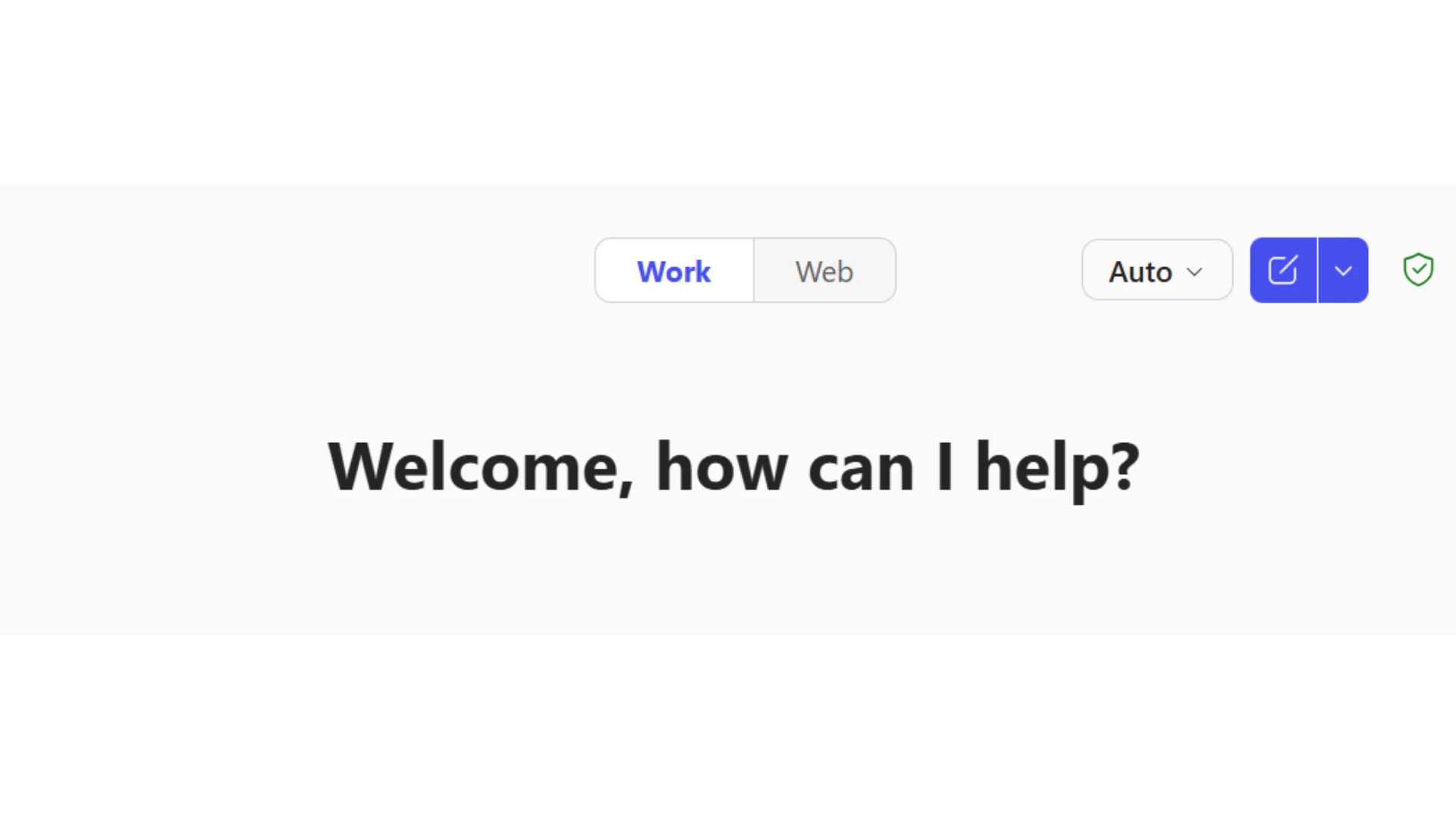
Switch between two data sources depending on your task.
*Work mode*
searches your Microsoft 365 data including emails, Teams chats, documents, and calendar events. Use this for internal tasks.
*Web mode*
searches the public internet for current information and general knowledge. Use this for external research.
*Try this:*
Toggle to Work mode and ask Copilot to summarise your recent emails from a specific colleague.
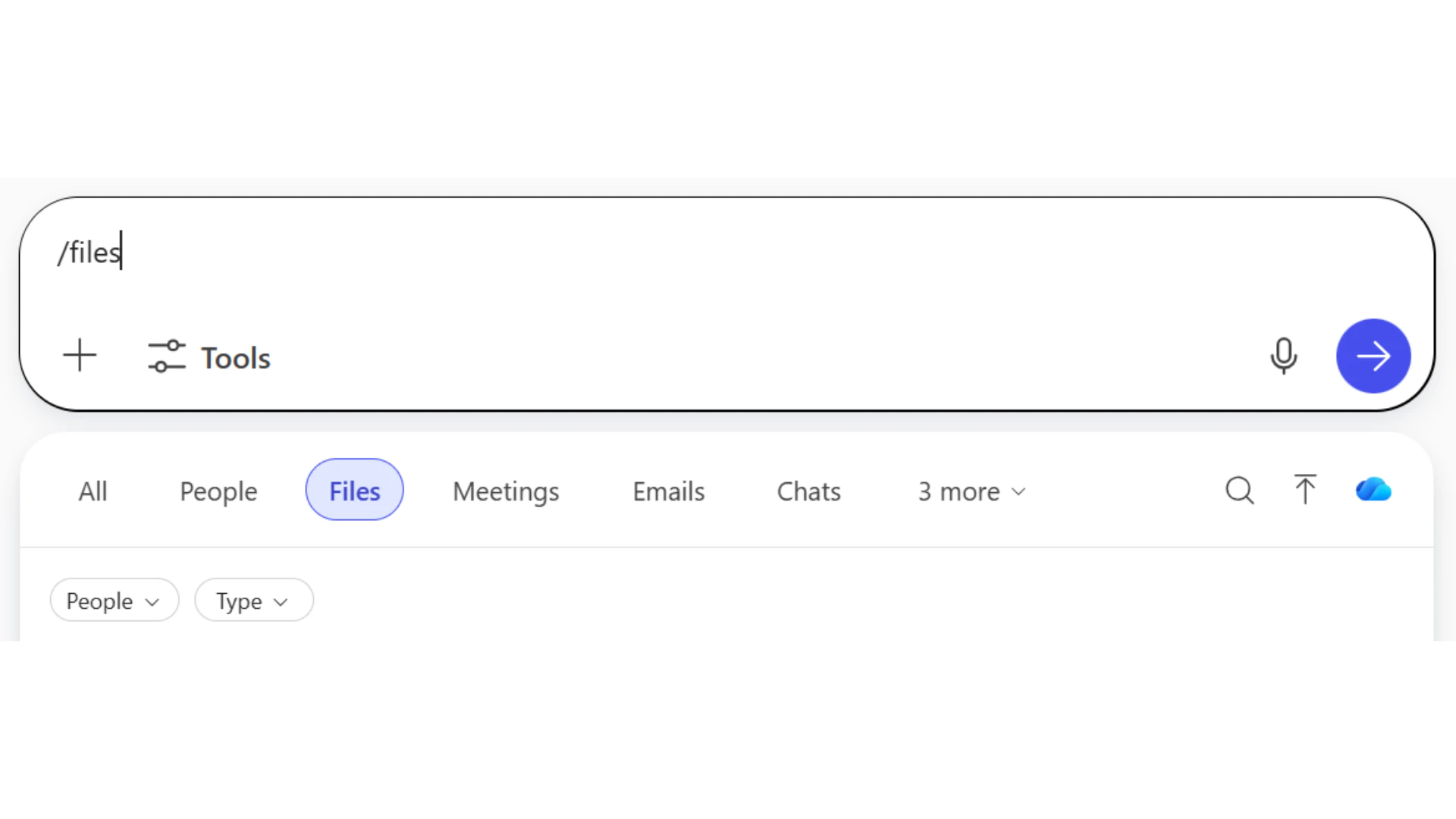
Use the '/' command to reference specific files, people, or meetings.
Type '/' followed by a file name, person's name, or meeting to attach context directly to your prompt.
Copilot can then search relevant emails, documents, and Teams messages.
*Try this:*
Type '/\[colleague name]' to prepare for a meeting by pulling recent communications with them.
Combine Work mode with slash commands for the most relevant results. Reference a specific document with "/" and Copilot will use it as context for your request.
***
## Advanced techniques
Once you are comfortable with the basics, these techniques help you tackle more complex tasks.
Break complex tasks into smaller steps. Complete one step before moving to the next.
"Help me brainstorm topics for a presentation about climate change"
"Now help me create an outline for a presentation about renewable energy solutions"
"Create detailed content for the first three slides of this outline"
Start broad, then narrow down based on the response you receive.
"Help me plan a team building event"
"Focus on indoor activities for 15 people with a budget of \$500"
"Create a detailed timeline for a cooking class team building event"
Add specific limitations to get focused results.
```text theme={null}
Write a product description for wireless headphones with these constraints:
- Maximum 100 words
- Highlight 3 key features
- Use conversational tone
- Include a call-to-action
- Target audience: fitness enthusiasts
```
Ask Copilot to analyse from different viewpoints.
```text theme={null}
Analyse the decision to work remotely from three perspectives:
1. Employee benefits and challenges
2. Employer costs and benefits
3. Impact on team collaboration
Provide balanced insights for each perspective.
```
Explore different possibilities before committing to a plan.
```text theme={null}
Help me plan for three scenarios for our product launch:
1. Best case: High demand, no technical issues
2. Worst case: Low demand, technical problems
3. Most likely: Moderate demand, minor issues
Provide action plans for each scenario.
```
***
## Automating your prompts
Copilot can run prompts automatically and save your favourite prompts for reuse. These features save time on repetitive tasks.
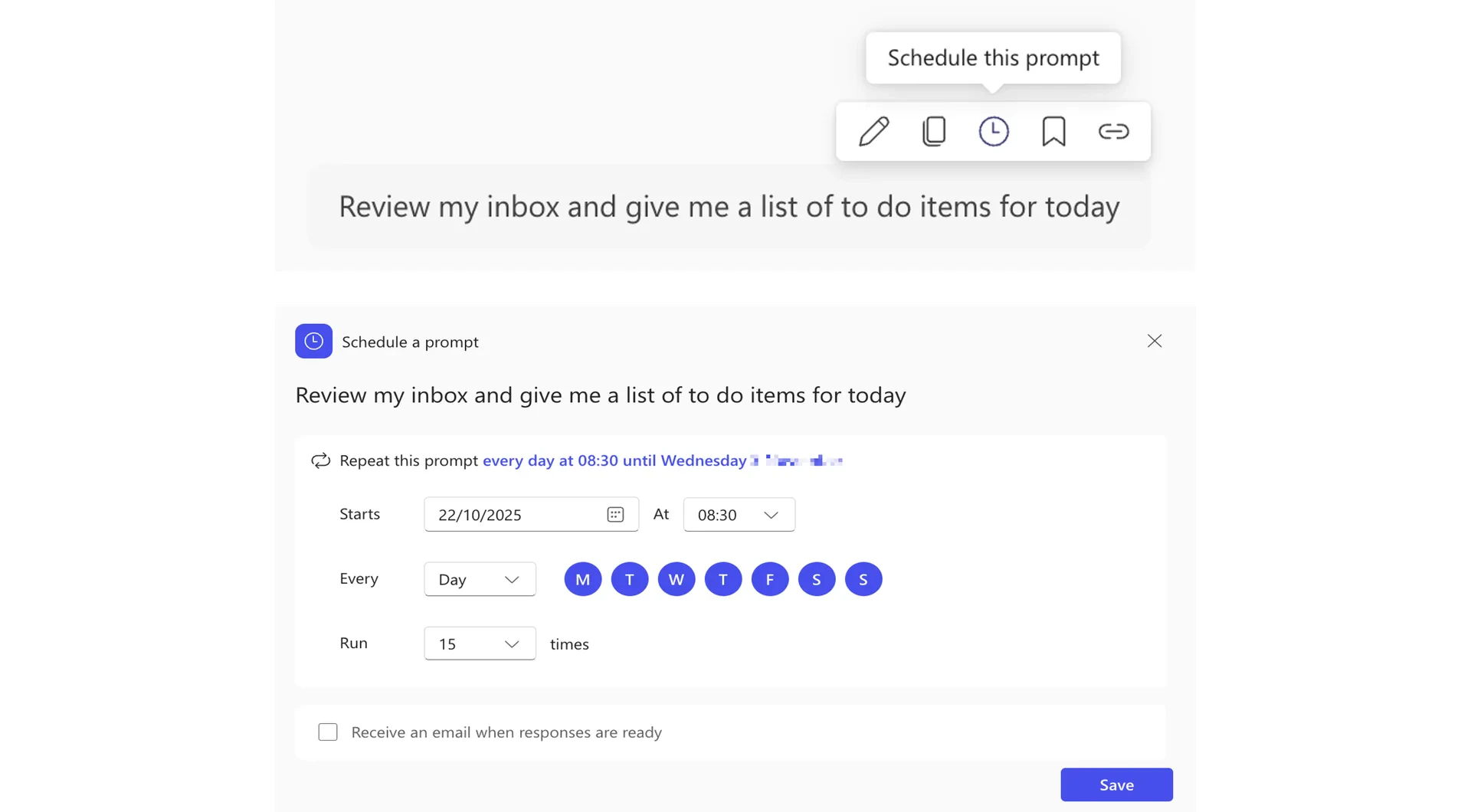
Run prompts daily, weekly, or monthly without manual input. Copilot sends you results when the task completes.
*Limitation:*
You can only schedule a prompt to run up to 15 times. After it reaches this limit, you will need to set it up again.
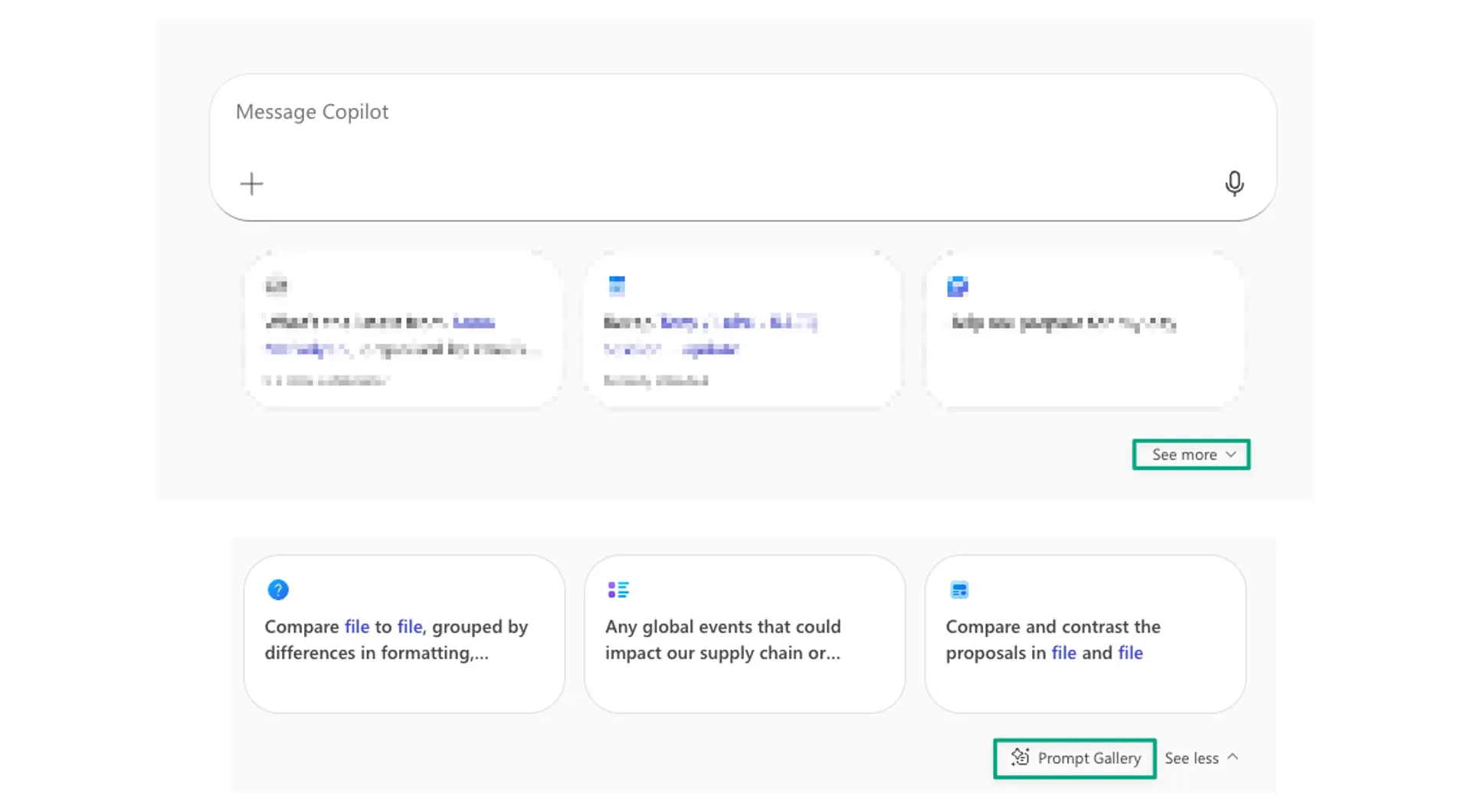
Save and organise your favourite prompts for quick access. Copilot provides a gallery filled with premade templates.
### Build your own gallery
Hover over your submitted prompts and select "Save Prompt". You can then edit, organise, and share them as needed.
To access the Prompt Gallery, select "See more" underneath the chat window and select "Prompt Gallery" to browse premade templates for common tasks.
***
## Quick checkpoint
Good prompting is like briefing a capable colleague. The clearer you are about what you need, the better Copilot can help. Start with the frameworks, practise with different patterns, and refine your approach based on what works for your tasks.
You are done with this module when you can do the following:
You can apply at least one framework to a real task
You have used a prompting pattern from this module
You have tried Work mode or slash commands
You have used follow-up prompts to improve a response
Complete the challenge by building a prompt using what you have learned
 Switch between two data sources depending on your task.
*Work mode*
searches your Microsoft 365 data including emails, Teams chats, documents, and calendar events. Use this for internal tasks.
*Web mode*
searches the public internet for current information and general knowledge. Use this for external research.
*Try this:*
Toggle to Work mode and ask Copilot to summarise your recent emails from a specific colleague.
Switch between two data sources depending on your task.
*Work mode*
searches your Microsoft 365 data including emails, Teams chats, documents, and calendar events. Use this for internal tasks.
*Web mode*
searches the public internet for current information and general knowledge. Use this for external research.
*Try this:*
Toggle to Work mode and ask Copilot to summarise your recent emails from a specific colleague.
 Use the '/' command to reference specific files, people, or meetings.
Type '/' followed by a file name, person's name, or meeting to attach context directly to your prompt.
Copilot can then search relevant emails, documents, and Teams messages.
*Try this:*
Type '/\[colleague name]' to prepare for a meeting by pulling recent communications with them.
Use the '/' command to reference specific files, people, or meetings.
Type '/' followed by a file name, person's name, or meeting to attach context directly to your prompt.
Copilot can then search relevant emails, documents, and Teams messages.
*Try this:*
Type '/\[colleague name]' to prepare for a meeting by pulling recent communications with them.
 Run prompts daily, weekly, or monthly without manual input. Copilot sends you results when the task completes.
 Save and organise your favourite prompts for quick access. Copilot provides a gallery filled with premade templates.
 To access the Prompt Gallery, select "See more" underneath the chat window and select "Prompt Gallery" to browse premade templates for common tasks.
***
## Quick checkpoint
Good prompting is like briefing a capable colleague. The clearer you are about what you need, the better Copilot can help. Start with the frameworks, practise with different patterns, and refine your approach based on what works for your tasks.
You are done with this module when you can do the following:
To access the Prompt Gallery, select "See more" underneath the chat window and select "Prompt Gallery" to browse premade templates for common tasks.
***
## Quick checkpoint
Good prompting is like briefing a capable colleague. The clearer you are about what you need, the better Copilot can help. Start with the frameworks, practise with different patterns, and refine your approach based on what works for your tasks.
You are done with this module when you can do the following: