> ## Documentation Index
> Fetch the complete documentation index at: https://academy.pathfindr.ai/llms.txt
> Use this file to discover all available pages before exploring further.
# Start Building With Claude
> A practical guide to building your first Claude Project — a persistent, shareable AI workspace for your team's most important recurring tasks.
export const Quiz = ({question, options, correctIndex, explanation}) => {
const [selected, setSelected] = useState(null);
const [showResult, setShowResult] = useState(false);
const handleSelect = index => {
if (showResult) return;
setSelected(index);
setShowResult(true);
};
const isCorrect = selected === correctIndex;
return
;
};
## What you'll learn
Claude Projects are persistent AI workspaces. You give them instructions, a knowledge base, and optionally team access — and every conversation inside the Project starts with full context, every time.
What Projects are and when to use them
Define scope, instructions, and knowledge
Set up your Project with files and web search
Invite your team and scale the workflow
***
## What is a Claude Project?
A Claude Project is a dedicated workspace inside Claude where your instructions, uploaded documents, and conversation history live together — persistently, across every session.
Unlike a regular Claude conversation that resets each time, a Project remembers your context. Every new conversation you start inside it inherits your instructions and knowledge automatically.
| Regular Claude conversation | Claude Project |
| --------------------------------- | ------------------------------- |
| Context resets every session | Instructions are always active |
| You re-upload documents each time | Knowledge files are persistent |
| Personal only | Shareable with your whole team |
| One-off tasks | Recurring, consistent workflows |
**2026 update:** Claude Projects were originally available to paying users only. As of February 2026, **free users** now have access to Projects too. Enterprise plans include team sharing, Jira and Confluence integrations, and a collaboration model where multiple team members can contribute to the same Project.
***
## What Projects are good for
***
## Where to find Projects
In Claude, click **Projects** in the left sidebar. You will see all Projects you have created or been invited to. Click **Create Project** to start a new one.
Give your Project a clear, task-specific name. The name appears in the sidebar and in any shared workspace — make it obvious what the Project does.
Inside the Project, you will see a **Project instructions** section at the top and a **Knowledge** section below it. These are the two main configuration areas. Every conversation you start inside the Project inherits both automatically.
***
## Planning your Project
Answer these three questions before you open Claude. Projects built without clear planning are vague to use and hard to share with colleagues.
Write what this Project does. Example: "This Project helps the leadership team interpret board papers by answering questions grounded in the uploaded documents."
If you cannot say it in one sentence, the scope is too broad — narrow it first.
List the documents and reference material your Project should draw from. Supported formats: PDF, Word (.docx), plain text. Claude will search these automatically in every conversation inside the Project. You do not need to name the documents in each chat.
If it is just for you, keep it private. If your team will use it collaboratively, plan for sharing upfront — Claude Team and Enterprise plans allow you to invite colleagues who can then start their own conversations inside the same Project, with the same instructions and knowledge.
***
## Writing your Project instructions
Click **Set project instructions** inside your Project. This is your persistent system prompt — it shapes every conversation, every time.
*Example instruction structure:*
```text theme={null}
You are a governance adviser for the Risk and Compliance team
at [Company]. When asked, interpret our policies and regulatory
framework based on the uploaded documents.
Always cite the specific section or document you are drawing from.
If a question falls outside the uploaded documents, say so —
do not speculate. Keep responses under 300 words unless
the user asks for a detailed analysis.
```
In addition to Project instructions, you can set a **custom writing style** for your responses. Options include concise, formal, technical, or you can define your own.
Use this for Projects that produce written content — reports, emails, briefings — where tone consistency matters across multiple users.
***
## Adding knowledge and tools
Click **Add content** inside the Project and upload your reference documents. Claude will search these whenever a conversation is relevant — you do not need to mention the document by name.
**Tips:**
* Keep documents focused — don't upload your entire intranet
* PDFs and Word documents work best
* For long documents, Claude uses its 1M-token context window to process the full content
**New in 2026:** Claude can now perform **web search inside a Project conversation**. This is useful for Projects where you want Claude to combine your uploaded documents with current, real-world information.
To enable web search, start a conversation inside the Project and click the **Search** tool icon in the input bar. Claude will cite its sources alongside your document references.
For enterprise users on Jira or Confluence integrations: Claude can connect to your Atlassian workspace directly, pulling in tickets, docs, and project status without you needing to copy and paste.
***
## Team collaboration
On Claude **Team or Enterprise plans**, click the share icon inside your Project and invite colleagues by email. They will see the Project in their sidebar and can start their own conversations inside it — with the same instructions and knowledge you have configured.
Each team member's conversations are separate — they do not see each other's chats, but they all benefit from the same underlying Project setup.
**New in 2026 (paid plans):** The **Claude in Chrome** extension lets users invoke Claude Projects directly from their browser — without switching to a separate tab. Highlight text on any webpage, right-click, and send it to a specific Project.
This is particularly useful for research-heavy roles where users constantly move between sources and need Claude's analysis in context.
**Enterprise data policy:** Claude for Work (Team and Enterprise plans) is excluded from Anthropic's consumer data training policy. Your documents, conversations, and Project instructions are **not used to train Claude**. This is confirmed in Anthropic's enterprise terms and is a key point for IT and legal stakeholders in your organisation.
***
## Reviewing and refining
Ask the Project something you would genuinely ask in your work. A specific, realistic question tests whether the instructions and knowledge are working together correctly.
If you asked Claude to cite sources, does it? Does it reference the right documents? If not, tighten the instruction: "Always cite the specific document and section you are drawing from."
Ask something the Project should not answer. Does it stay within scope or go off-topic? If it drifts, add a constraint to the instructions: "If a question is outside the uploaded documents, say so clearly and suggest the user contact \[team]."
Before sharing broadly, ask one person who was not involved in building it to test it. Fresh eyes find gaps faster than the builder.
***
## Quick checkpoint
You are done with this module when you can do the following:
You can describe your Project in one clear sentence
You have written instructions that define task, citations, format, and constraints
You have connected at least one reference document
You have shared the Project with at least one colleague or tested a real task
Complete the challenge to build and test your first Claude Project
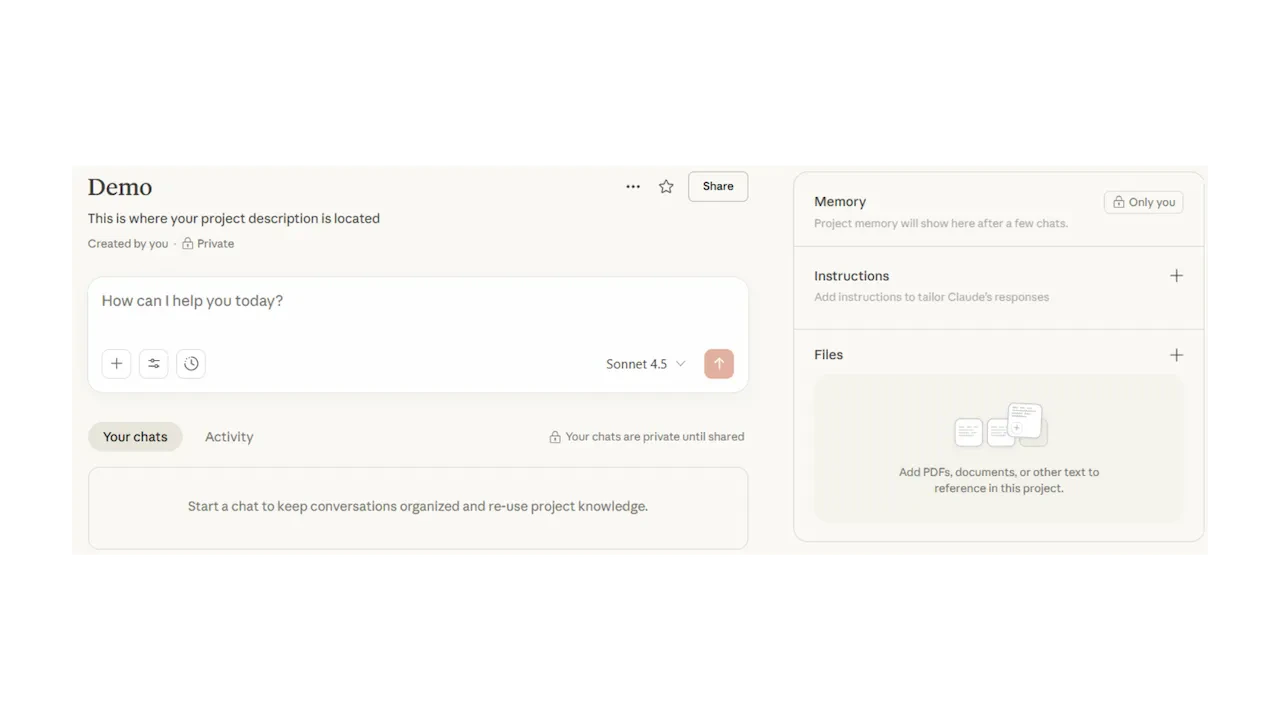 In Claude, click **Projects** in the left sidebar. You will see all Projects you have created or been invited to. Click **Create Project** to start a new one.
Give your Project a clear, task-specific name. The name appears in the sidebar and in any shared workspace — make it obvious what the Project does.
In Claude, click **Projects** in the left sidebar. You will see all Projects you have created or been invited to. Click **Create Project** to start a new one.
Give your Project a clear, task-specific name. The name appears in the sidebar and in any shared workspace — make it obvious what the Project does.
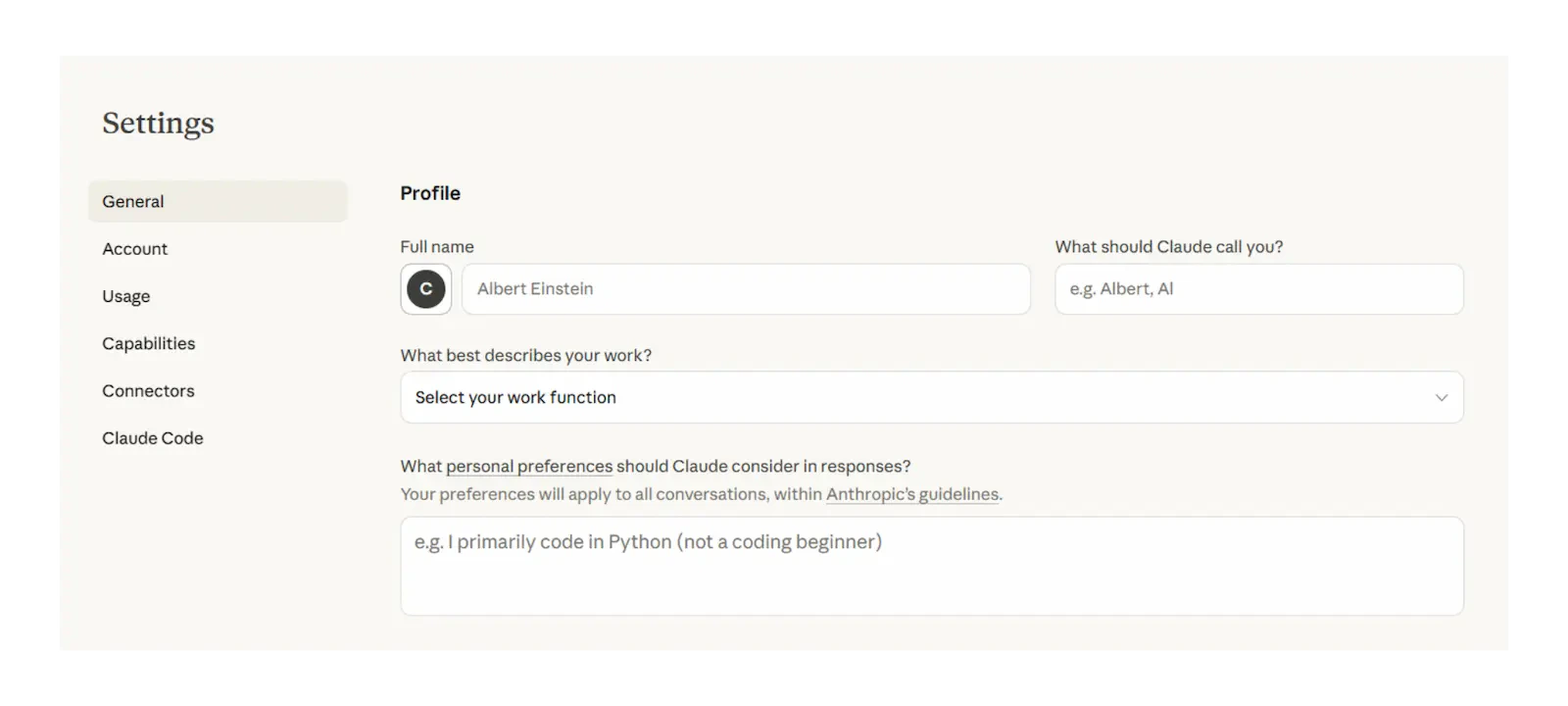 Inside the Project, you will see a **Project instructions** section at the top and a **Knowledge** section below it. These are the two main configuration areas. Every conversation you start inside the Project inherits both automatically.
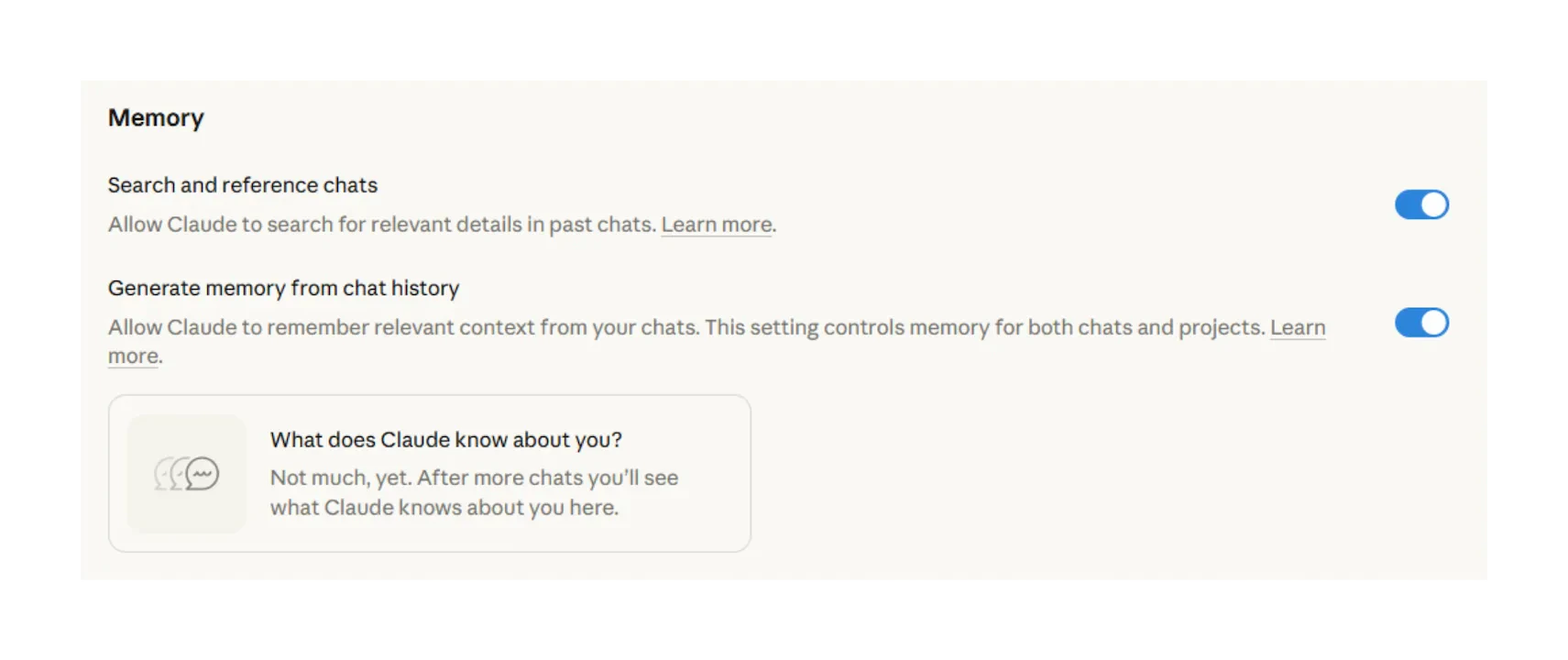 Click **Set project instructions** inside your Project. This is your persistent system prompt — it shapes every conversation, every time.
*Example instruction structure:*
```text theme={null}
You are a governance adviser for the Risk and Compliance team
at [Company]. When asked, interpret our policies and regulatory
framework based on the uploaded documents.
Always cite the specific section or document you are drawing from.
If a question falls outside the uploaded documents, say so —
do not speculate. Keep responses under 300 words unless
the user asks for a detailed analysis.
```
Click **Set project instructions** inside your Project. This is your persistent system prompt — it shapes every conversation, every time.
*Example instruction structure:*
```text theme={null}
You are a governance adviser for the Risk and Compliance team
at [Company]. When asked, interpret our policies and regulatory
framework based on the uploaded documents.
Always cite the specific section or document you are drawing from.
If a question falls outside the uploaded documents, say so —
do not speculate. Keep responses under 300 words unless
the user asks for a detailed analysis.
```
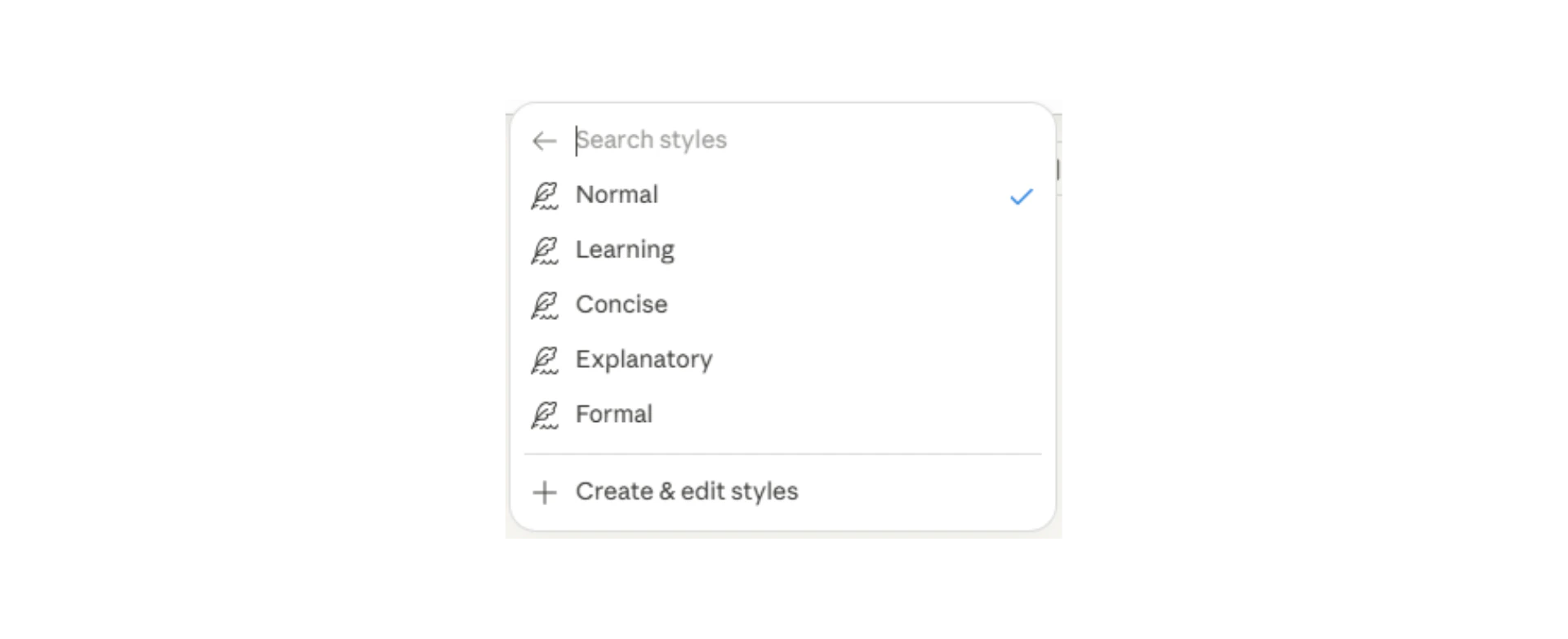 In addition to Project instructions, you can set a **custom writing style** for your responses. Options include concise, formal, technical, or you can define your own.
Use this for Projects that produce written content — reports, emails, briefings — where tone consistency matters across multiple users.
In addition to Project instructions, you can set a **custom writing style** for your responses. Options include concise, formal, technical, or you can define your own.
Use this for Projects that produce written content — reports, emails, briefings — where tone consistency matters across multiple users.
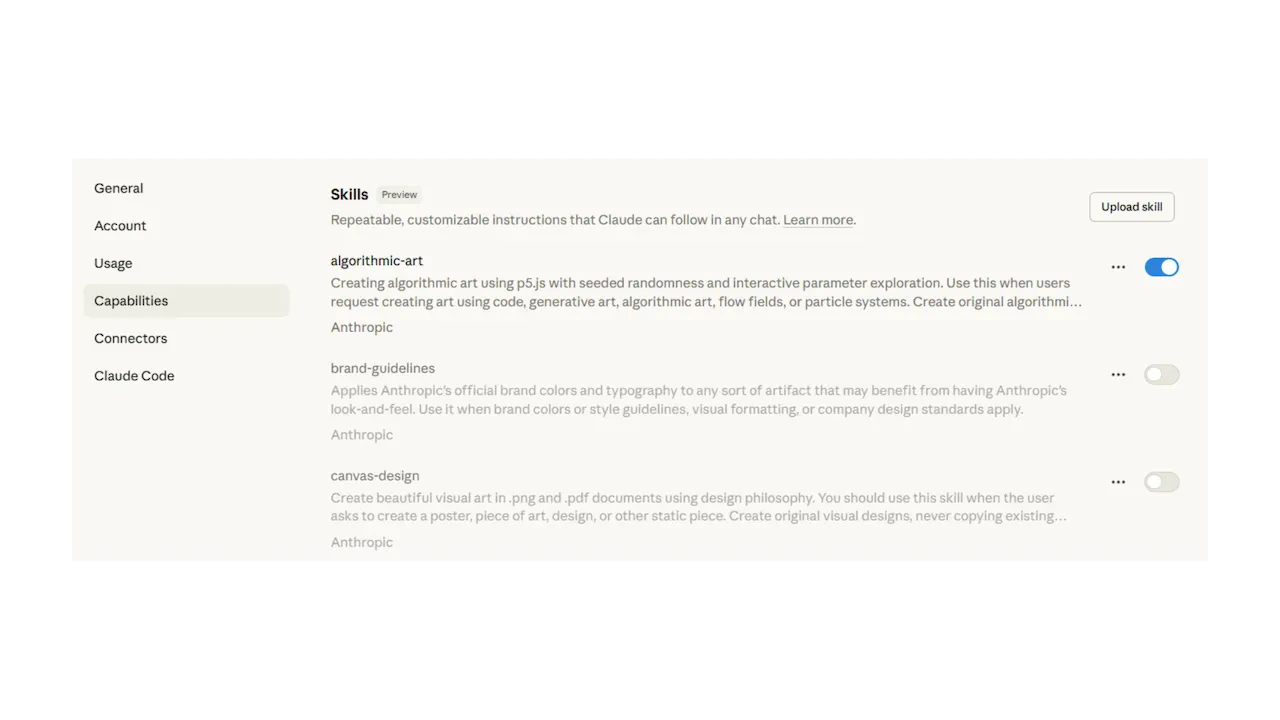 Click **Add content** inside the Project and upload your reference documents. Claude will search these whenever a conversation is relevant — you do not need to mention the document by name.
**Tips:**
* Keep documents focused — don't upload your entire intranet
* PDFs and Word documents work best
* For long documents, Claude uses its 1M-token context window to process the full content
Click **Add content** inside the Project and upload your reference documents. Claude will search these whenever a conversation is relevant — you do not need to mention the document by name.
**Tips:**
* Keep documents focused — don't upload your entire intranet
* PDFs and Word documents work best
* For long documents, Claude uses its 1M-token context window to process the full content
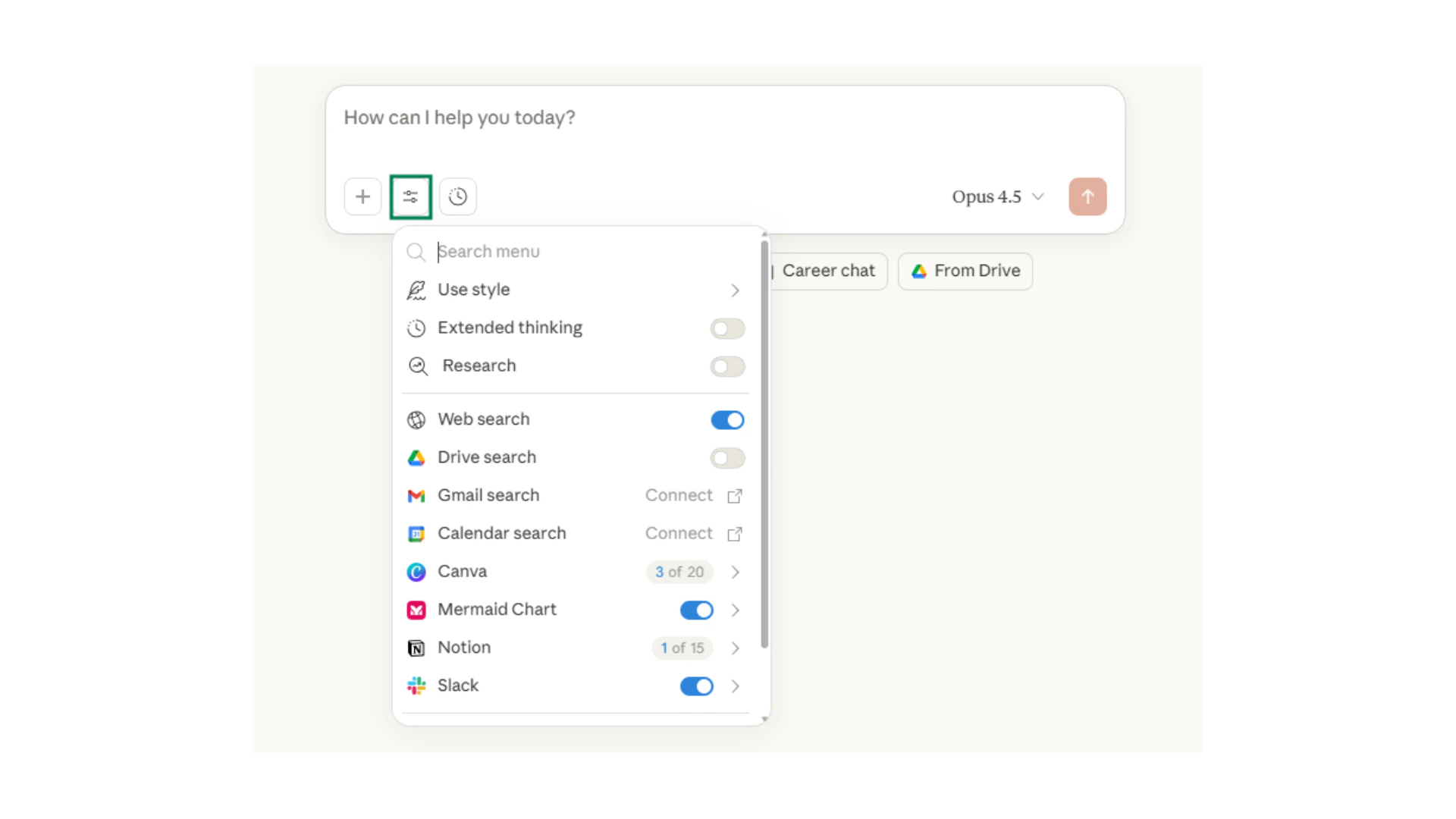 **New in 2026:** Claude can now perform **web search inside a Project conversation**. This is useful for Projects where you want Claude to combine your uploaded documents with current, real-world information.
To enable web search, start a conversation inside the Project and click the **Search** tool icon in the input bar. Claude will cite its sources alongside your document references.
**New in 2026:** Claude can now perform **web search inside a Project conversation**. This is useful for Projects where you want Claude to combine your uploaded documents with current, real-world information.
To enable web search, start a conversation inside the Project and click the **Search** tool icon in the input bar. Claude will cite its sources alongside your document references.
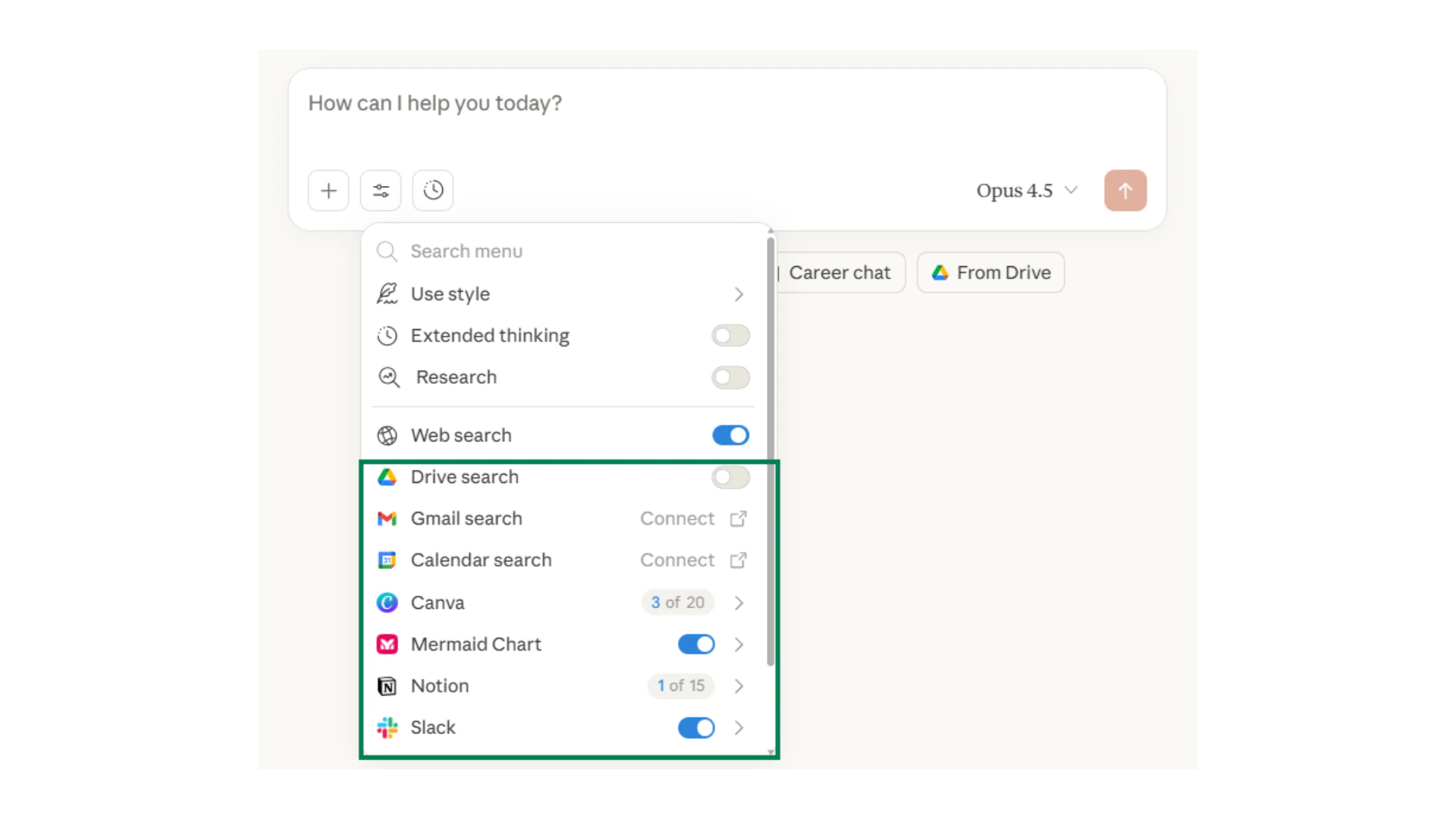 On Claude **Team or Enterprise plans**, click the share icon inside your Project and invite colleagues by email. They will see the Project in their sidebar and can start their own conversations inside it — with the same instructions and knowledge you have configured.
Each team member's conversations are separate — they do not see each other's chats, but they all benefit from the same underlying Project setup.
On Claude **Team or Enterprise plans**, click the share icon inside your Project and invite colleagues by email. They will see the Project in their sidebar and can start their own conversations inside it — with the same instructions and knowledge you have configured.
Each team member's conversations are separate — they do not see each other's chats, but they all benefit from the same underlying Project setup.
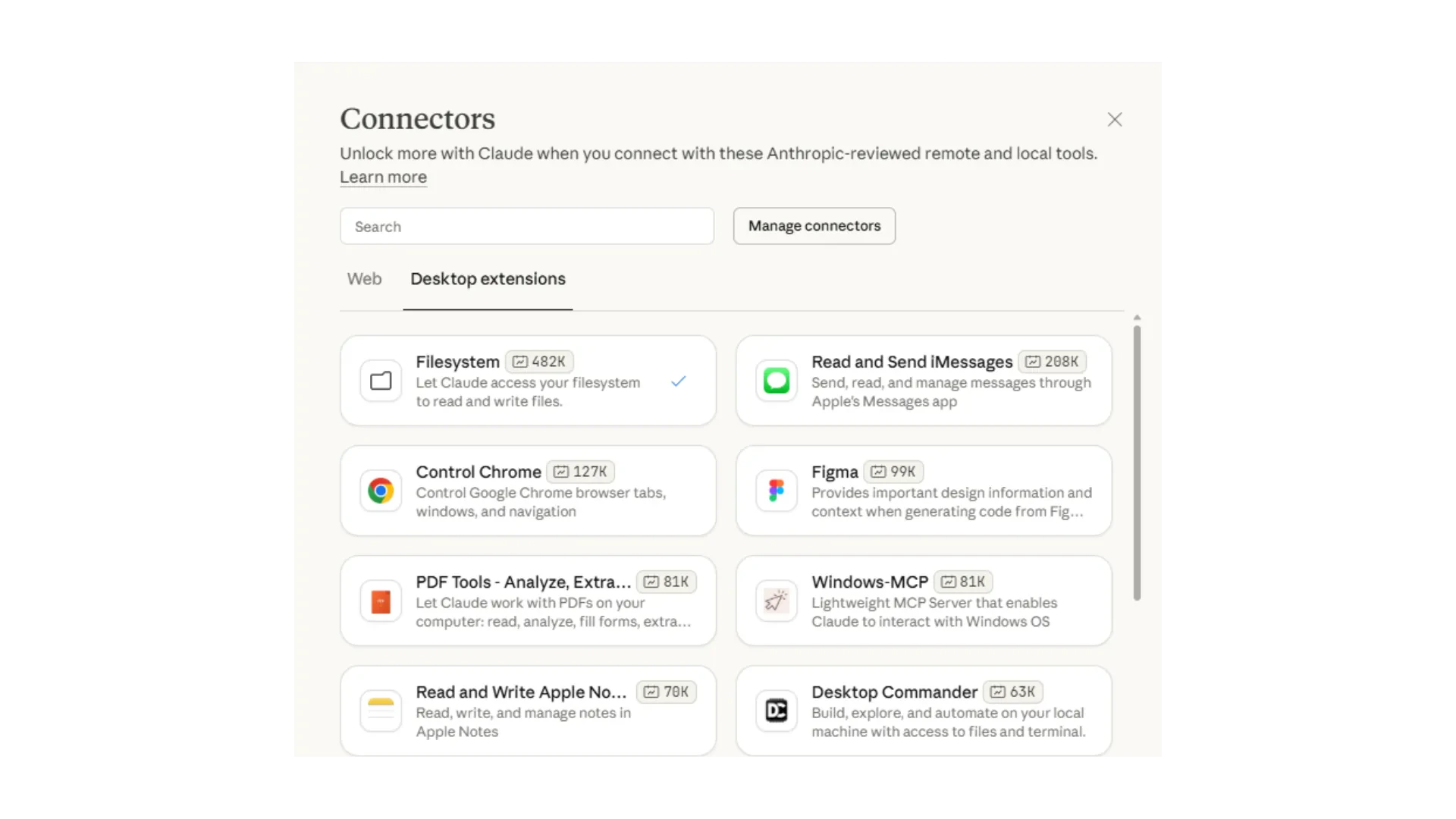 **New in 2026 (paid plans):** The **Claude in Chrome** extension lets users invoke Claude Projects directly from their browser — without switching to a separate tab. Highlight text on any webpage, right-click, and send it to a specific Project.
This is particularly useful for research-heavy roles where users constantly move between sources and need Claude's analysis in context.
**New in 2026 (paid plans):** The **Claude in Chrome** extension lets users invoke Claude Projects directly from their browser — without switching to a separate tab. Highlight text on any webpage, right-click, and send it to a specific Project.
This is particularly useful for research-heavy roles where users constantly move between sources and need Claude's analysis in context.