> ## Documentation Index
> Fetch the complete documentation index at: https://academy.pathfindr.ai/llms.txt
> Use this file to discover all available pages before exploring further.
# Reading Material
> Learn how to build custom Gems, use NotebookLM as a knowledge agent, and leverage Deep Research for in-depth analysis.
## Introduction
While Gemini's browser chat and in-app side panels are great for day-to-day tasks, repetitive workflows benefit from a more structured approach. This is where custom Gems come in. Think of Gems as specialist helpers you design to do one task really well, grounded in specific instructions and knowledge.
Google also provides NotebookLM, a dedicated workspace where every response is grounded in your uploaded sources, and Deep Research, which analyses hundreds of web pages to produce structured reports. Together, these tools let you move from using Gemini as a general assistant to building targeted, reusable AI solutions.
***
## Understanding Gems
Gems are custom AI experts that live inside Gemini. Each Gem has its own instructions, personality, and focus area. Once created, a Gem appears across your Google Workspace apps, ready to help whenever you need it.
The underlying Gemini model that powers understanding and reasoning
The custom instructions you write that guide the Gem's behaviour, tone, and scope
The files, documents, and information you reference or describe in the instructions
Built-in abilities like search, code execution, and image generation that the Gem can use
 ### Premade vs custom Gems
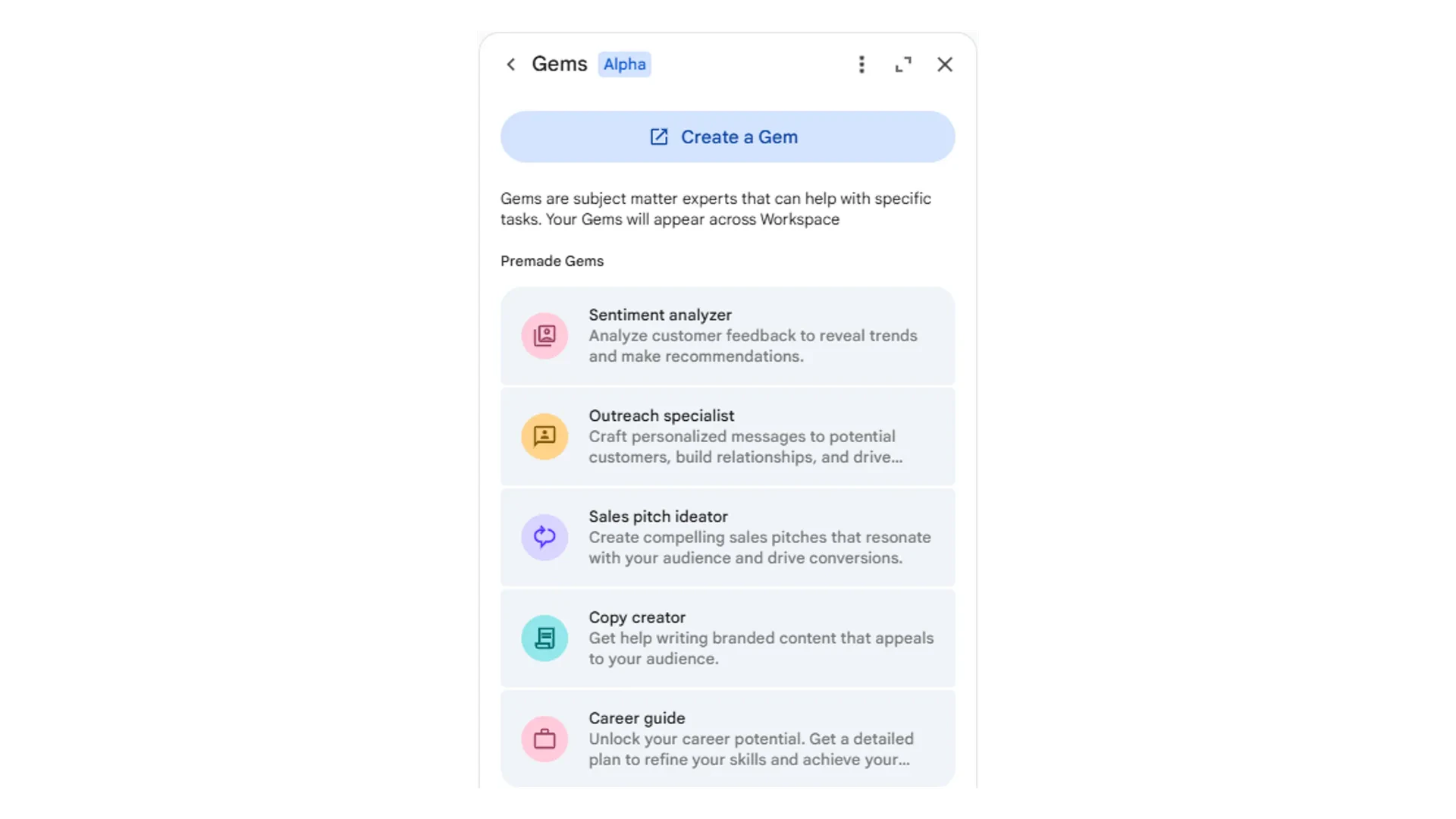
Google provides specialist Gems like Sentiment Analyser, Outreach Specialist, Sales Pitch Ideator, and Copy Creator. These appear automatically in your Gems panel and are tailored to common business tasks.
Build your own Gem from scratch. Define its name, purpose, instructions, and behaviour. Custom Gems are ideal for repetitive workflows specific to your role or team.
***
## Building custom Gems
Custom Gems allow you to create reusable AI assistants tailored to your specific workflows. The process is straightforward: define what your Gem does, how it should behave, and what knowledge it should draw from.
* A meeting prep Gem that summarises relevant docs and generates talking points before each meeting
* A content reviewer Gem that checks drafts against your brand guidelines and tone of voice
* A data interpreter Gem that analyses spreadsheet uploads and highlights key trends
* An onboarding Gem that answers new starter questions using your internal handbooks
### Step 1: Plan your Gem
Before creating your Gem, answer three key questions:
| Element | Question to Answer | Example |
| :----------- | :----------------------------------------------- | :------------------------------------------------------------------------------------------------ |
| Purpose | What problem will your Gem solve? | "Our team gets repetitive questions about project status that could be answered from shared docs" |
| User | Who will interact with this Gem? | "Project managers who need quick status updates without digging through multiple documents" |
| Instructions | How should the Gem behave and what should it do? | "Summarise project status from referenced docs, highlight risks, and list next actions" |
### Step 2: Create the Gem
Navigate to the Gems panel in Gemini (via Gem manager in the left sidebar) and click Create a Gem. You will see two fields:
Give your Gem a clear, descriptive name that reflects its purpose. For example: "Project Status Summariser" or "Brand Voice Checker."
This is where you define how your Gem behaves. Include the Gem's role, what it should do, any constraints, and the format you want responses in. Be specific about tone, structure, and scope.
Use the chat preview on the right side to test your Gem with real prompts. Refine the instructions based on the responses you get.
Once satisfied, click Save. Your Gem will appear in the Gems panel across your Workspace apps, ready to use whenever you need it.
### Step 3: Gem instruction template
Get started by filling in the template below. Copy and paste this into the instructions field when creating your Gem.
```text Gem Instruction Template theme={null}
# Gem Name: [Name]
# Role:
You are a [Role] helping [Describe user] to [Task description].
# Core behaviour:
1. [First step the Gem should take when prompted]
2. [Second step]
3. [Third step]
4. Continue...
# Tone and style:
- Respond in a [professional/casual/technical] tone
- Keep responses [concise/detailed]
- Use [bullet points/paragraphs/tables] for structure
# Constraints:
- Only reference information from [specified sources]
- Do not [describe limitations]
- Always [specific requirement]
# Output format:
[Describe the expected output structure]
```
Start simple. A Gem with clear, focused instructions on one task will outperform a Gem that tries to do everything. You can always refine and expand later.
***
## NotebookLM as a knowledge agent
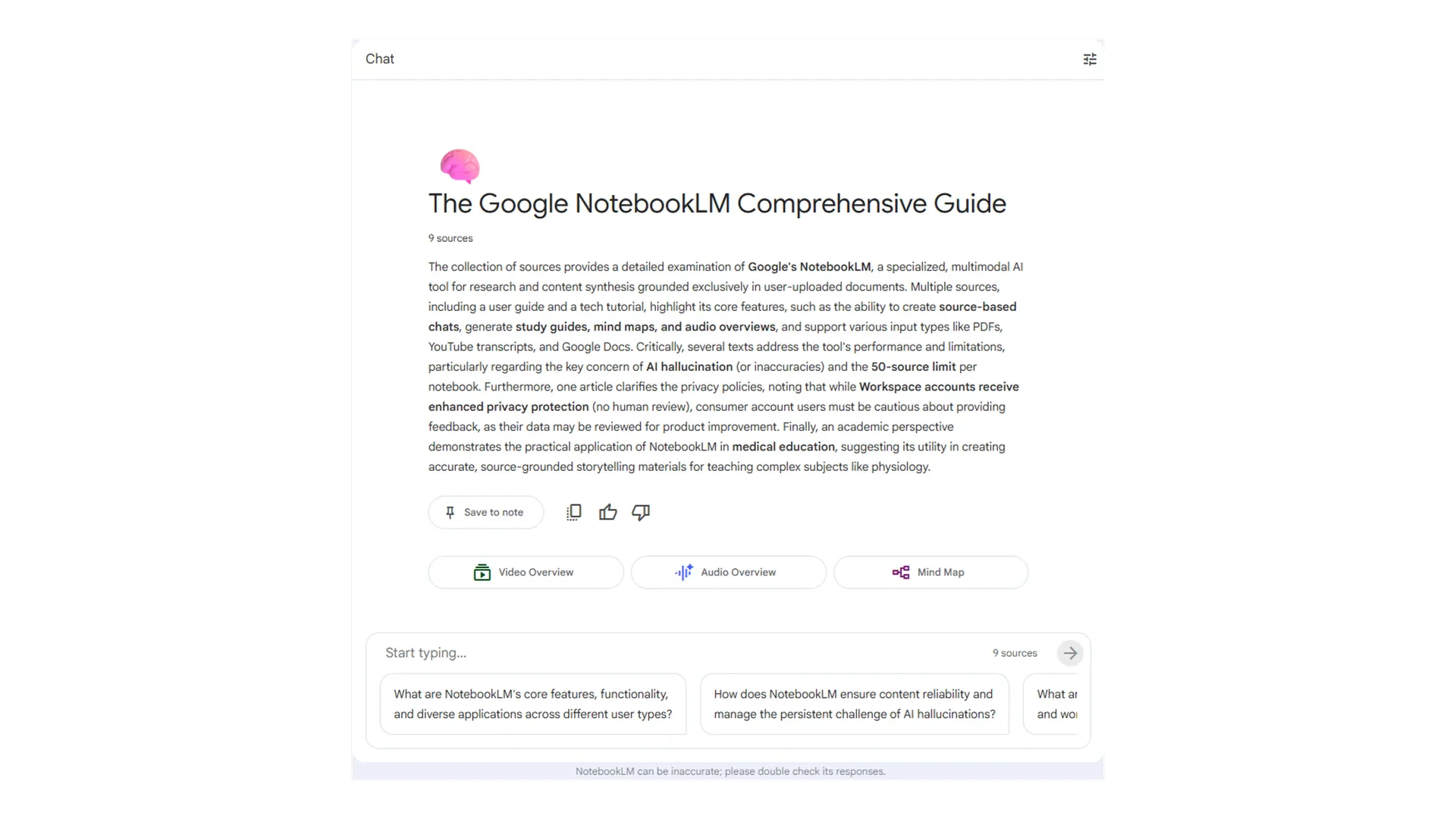
NotebookLM is a separate workspace where every response is grounded in your uploaded source material. Unlike a standard Gemini chat, NotebookLM does not generate fabricated information. It provides direct citations linked back to your documents, making it easy to verify any claim.
### Premade vs custom Gems
Google provides specialist Gems like Sentiment Analyser, Outreach Specialist, Sales Pitch Ideator, and Copy Creator. These appear automatically in your Gems panel and are tailored to common business tasks.
Build your own Gem from scratch. Define its name, purpose, instructions, and behaviour. Custom Gems are ideal for repetitive workflows specific to your role or team.
***
## Building custom Gems
Custom Gems allow you to create reusable AI assistants tailored to your specific workflows. The process is straightforward: define what your Gem does, how it should behave, and what knowledge it should draw from.
* A meeting prep Gem that summarises relevant docs and generates talking points before each meeting
* A content reviewer Gem that checks drafts against your brand guidelines and tone of voice
* A data interpreter Gem that analyses spreadsheet uploads and highlights key trends
* An onboarding Gem that answers new starter questions using your internal handbooks
### Step 1: Plan your Gem
Before creating your Gem, answer three key questions:
| Element | Question to Answer | Example |
| :----------- | :----------------------------------------------- | :------------------------------------------------------------------------------------------------ |
| Purpose | What problem will your Gem solve? | "Our team gets repetitive questions about project status that could be answered from shared docs" |
| User | Who will interact with this Gem? | "Project managers who need quick status updates without digging through multiple documents" |
| Instructions | How should the Gem behave and what should it do? | "Summarise project status from referenced docs, highlight risks, and list next actions" |
### Step 2: Create the Gem
Navigate to the Gems panel in Gemini (via Gem manager in the left sidebar) and click Create a Gem. You will see two fields:
Give your Gem a clear, descriptive name that reflects its purpose. For example: "Project Status Summariser" or "Brand Voice Checker."
This is where you define how your Gem behaves. Include the Gem's role, what it should do, any constraints, and the format you want responses in. Be specific about tone, structure, and scope.
Use the chat preview on the right side to test your Gem with real prompts. Refine the instructions based on the responses you get.
Once satisfied, click Save. Your Gem will appear in the Gems panel across your Workspace apps, ready to use whenever you need it.
### Step 3: Gem instruction template
Get started by filling in the template below. Copy and paste this into the instructions field when creating your Gem.
```text Gem Instruction Template theme={null}
# Gem Name: [Name]
# Role:
You are a [Role] helping [Describe user] to [Task description].
# Core behaviour:
1. [First step the Gem should take when prompted]
2. [Second step]
3. [Third step]
4. Continue...
# Tone and style:
- Respond in a [professional/casual/technical] tone
- Keep responses [concise/detailed]
- Use [bullet points/paragraphs/tables] for structure
# Constraints:
- Only reference information from [specified sources]
- Do not [describe limitations]
- Always [specific requirement]
# Output format:
[Describe the expected output structure]
```
Start simple. A Gem with clear, focused instructions on one task will outperform a Gem that tries to do everything. You can always refine and expand later.
***
## NotebookLM as a knowledge agent
NotebookLM is a separate workspace where every response is grounded in your uploaded source material. Unlike a standard Gemini chat, NotebookLM does not generate fabricated information. It provides direct citations linked back to your documents, making it easy to verify any claim.
 ### Three core panels
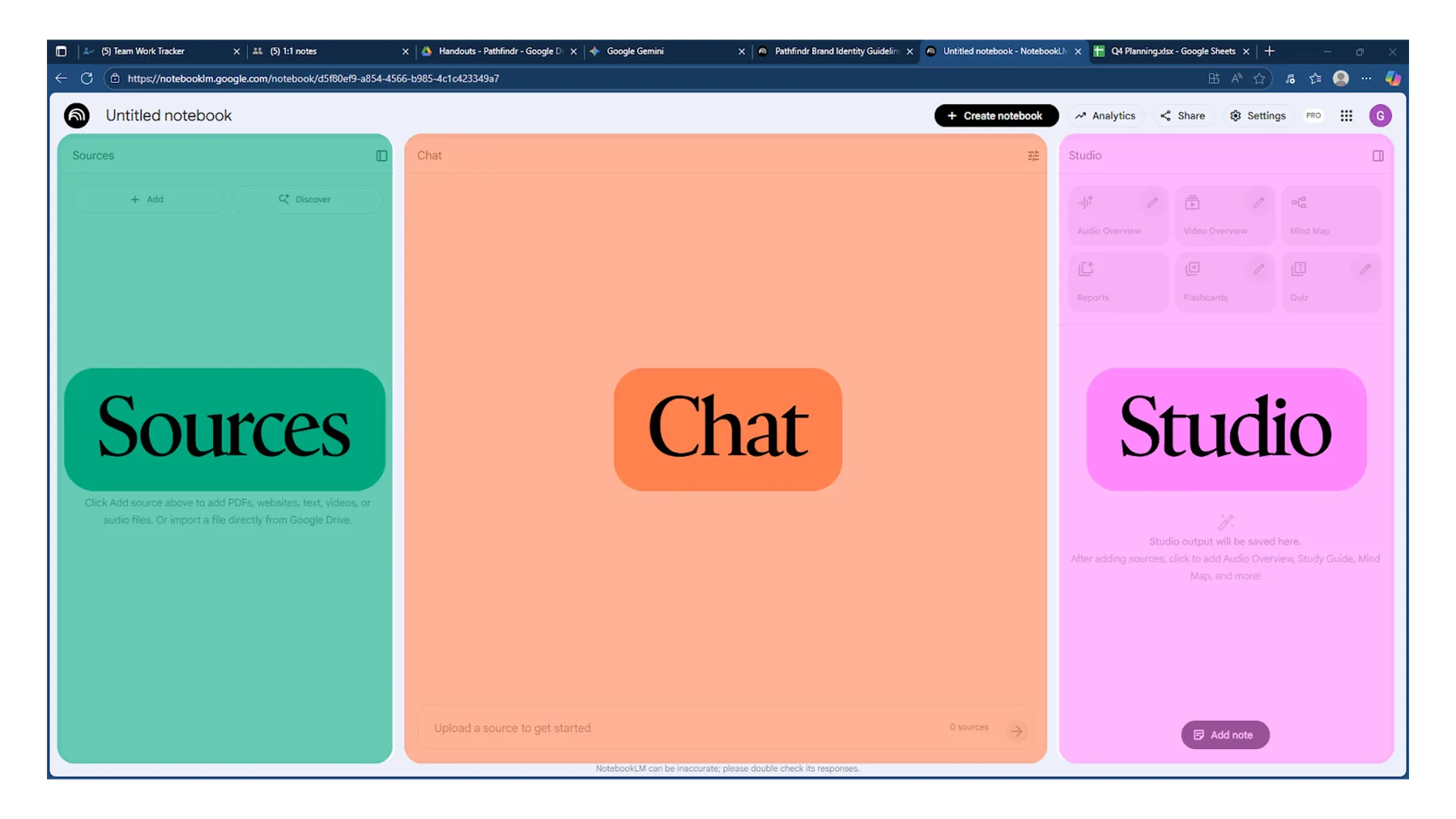
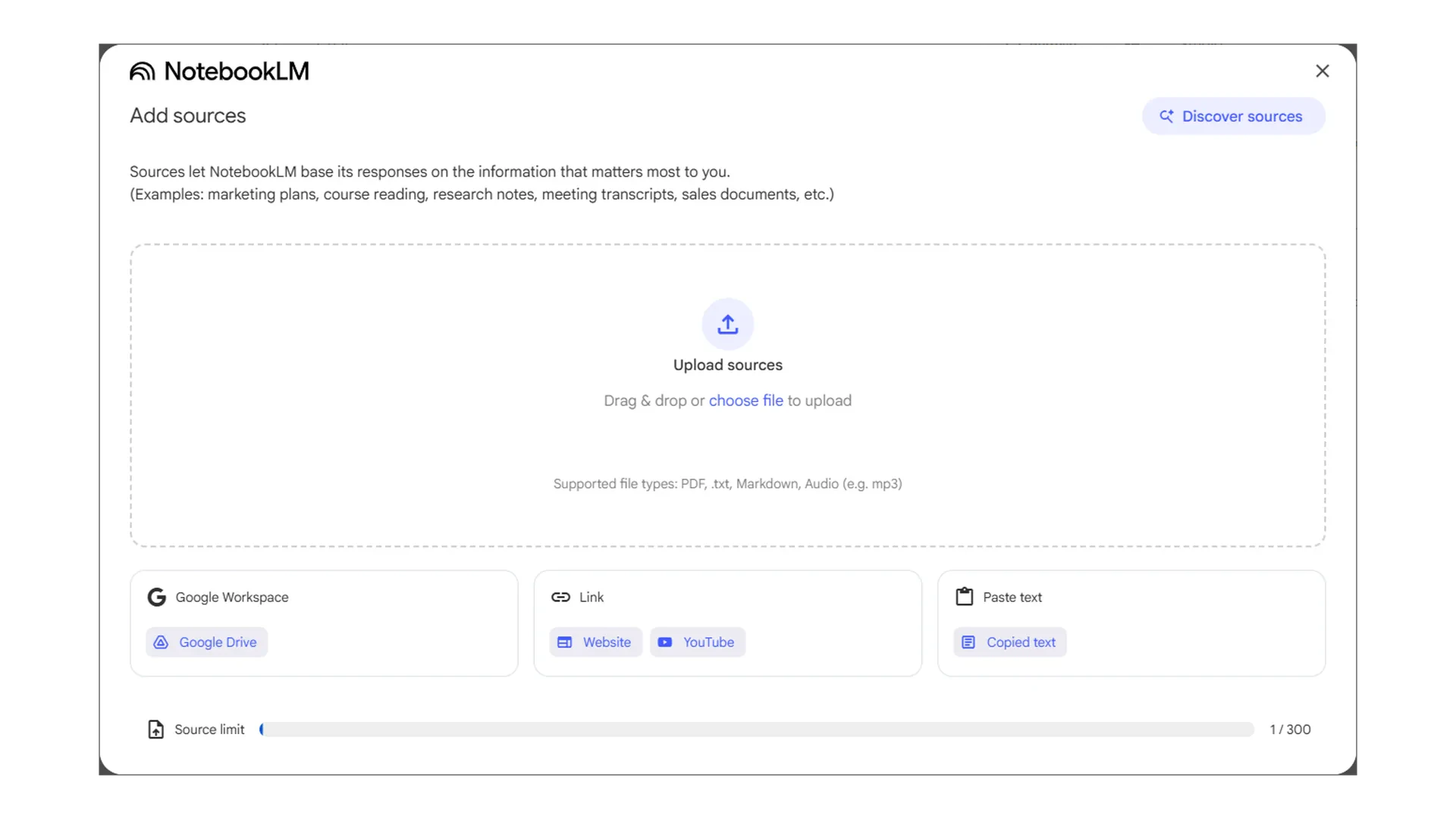
Upload documents, add web links, or connect files from Google Drive. You can attach up to 300 source files and selectively include or exclude materials before asking questions.
Ask questions about your sources. Customise the AI's persona for each notebook by choosing from options like "Default" or "Learning Guide," or define a custom role and response length.
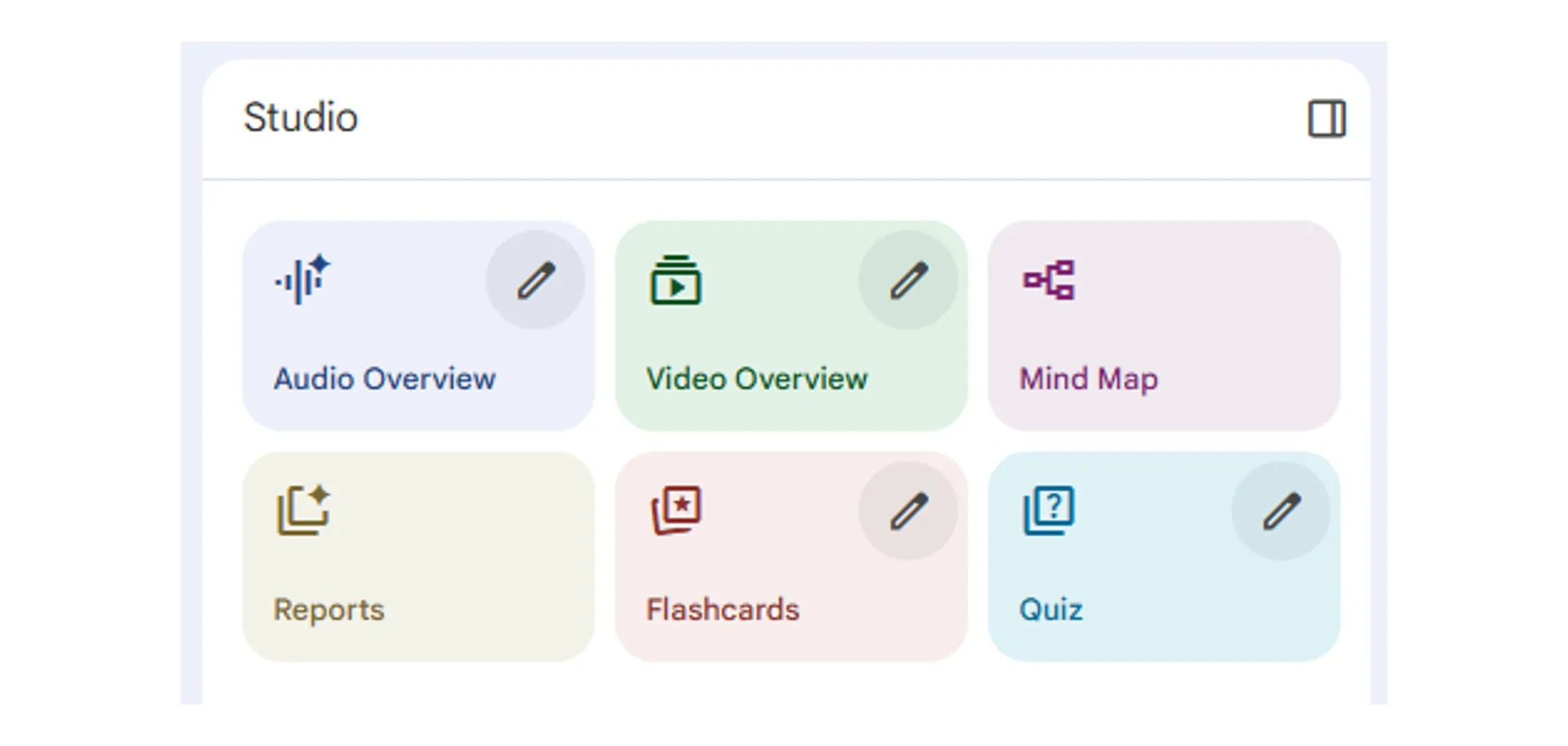
Transform your source materials into structured outputs with one click: Audio Overview, Video Overview, Flashcards, Quiz, Mind Maps, and Reports.
### Three core panels
Upload documents, add web links, or connect files from Google Drive. You can attach up to 300 source files and selectively include or exclude materials before asking questions.
Ask questions about your sources. Customise the AI's persona for each notebook by choosing from options like "Default" or "Learning Guide," or define a custom role and response length.
Transform your source materials into structured outputs with one click: Audio Overview, Video Overview, Flashcards, Quiz, Mind Maps, and Reports.
 ### When to use NotebookLM
Upload your organisation's policies and handbooks. Ask NotebookLM to answer specific questions with cited references to the exact document and section.
Upload multiple reports, articles, or papers. Ask NotebookLM to compare findings, identify themes, or generate a summary across all sources.
Upload training materials and use the Studio tab to generate quizzes, flashcards, or audio overviews for new team members.
Upload agendas, previous minutes, and relevant documents. Ask NotebookLM to generate briefing notes with key discussion points.
NotebookLM is best when you need responses grounded strictly in your own documents. For tasks that require web search or general knowledge, use Gemini chat or Deep Research instead.
***
## Quick reference
### Key building tools in Google's ecosystem
Reusable AI specialists you create with custom instructions. Available across Workspace.
Google's pre-built specialists for common tasks like sentiment analysis and content creation.
Source-grounded workspace with citations. Best for policy, research, and training content.
5 to 30 minute research sessions that analyse hundreds of sources and produce structured reports.
### Workflow for building custom Gems
* Purpose: what problem it solves
* User: who will use it
* Instructions: how it should behave
Open Gem manager, click Create a Gem, add a name and detailed instructions using the template provided.
Use the preview chat to test with real prompts. Adjust instructions based on responses until the Gem performs consistently.
Save the Gem. It appears across your Workspace apps. Share the Gem name with team members so they can access it.
***
Complete the challenge to build your first custom Gem and explore NotebookLM
### When to use NotebookLM
Upload your organisation's policies and handbooks. Ask NotebookLM to answer specific questions with cited references to the exact document and section.
Upload multiple reports, articles, or papers. Ask NotebookLM to compare findings, identify themes, or generate a summary across all sources.
Upload training materials and use the Studio tab to generate quizzes, flashcards, or audio overviews for new team members.
Upload agendas, previous minutes, and relevant documents. Ask NotebookLM to generate briefing notes with key discussion points.
NotebookLM is best when you need responses grounded strictly in your own documents. For tasks that require web search or general knowledge, use Gemini chat or Deep Research instead.
***
## Quick reference
### Key building tools in Google's ecosystem
Reusable AI specialists you create with custom instructions. Available across Workspace.
Google's pre-built specialists for common tasks like sentiment analysis and content creation.
Source-grounded workspace with citations. Best for policy, research, and training content.
5 to 30 minute research sessions that analyse hundreds of sources and produce structured reports.
### Workflow for building custom Gems
* Purpose: what problem it solves
* User: who will use it
* Instructions: how it should behave
Open Gem manager, click Create a Gem, add a name and detailed instructions using the template provided.
Use the preview chat to test with real prompts. Adjust instructions based on responses until the Gem performs consistently.
Save the Gem. It appears across your Workspace apps. Share the Gem name with team members so they can access it.
***
Complete the challenge to build your first custom Gem and explore NotebookLM