> ## Documentation Index
> Fetch the complete documentation index at: https://academy.pathfindr.ai/llms.txt
> Use this file to discover all available pages before exploring further.
# Reading Material
> Learn how to give ChatGPT the right context for better, more relevant outputs
## Give ChatGPT context so it works for you
Every time you start a new chat, ChatGPT starts from scratch. It does not know your role, your team, your preferred writing style, or what you are working on. Without that background, it gives you a generic response that needs rounds of editing.
Context is the information you give ChatGPT so it can respond in a way that fits your situation. The more relevant detail you provide, the less time you spend going back and forth. We will show you how to use specific ChatGPT features to build in context automatically, so you can do less setup and more of the work that matters.
This page will show you how to:
Learn what context means and why it changes your output
Use files, instructions, and memory to enrich conversations
Work with Canvas, Deep Research, spreadsheets, and Company Knowledge
Pick the model that fits the complexity of your task
***
## What counts as "context"?
Think of context like briefing a new colleague before they start a task. You would not hand someone a vague request and expect a perfect result. You would tell them who you are, what you need, and how you like things done.
In ChatGPT, context comes from several places:
The text in your message, including any background, examples, or reference material you include directly in the chat.
Documents, spreadsheets, images, and PDFs you upload using the "+" button. ChatGPT reads these and uses them to shape its response.
Persistent preferences you set once in Settings. These apply to every new conversation automatically.
Details ChatGPT saves from your past conversations, like your role, team size, or preferred format.
Connected platforms like Google Drive, SharePoint, and Slack that ChatGPT can search to find your organisation's files and information.
A research mode that reads through hundreds of web pages and documents to build a comprehensive answer for complex questions.
You do not need all of these at once. Start with one or two and build from there. Even a single sentence of context, like "I'm a project manager writing for my leadership team", changes the output significantly.
***
## The what, when, how of giving context
When you brief a colleague, you naturally explain what you need, when it applies, and how you want it done. The same framework works for ChatGPT.
Tell ChatGPT the task and include background. Paste in meeting notes, a brief, or a document for it to reference.
Set the situation. Is this for an executive summary due Friday? A client email response? A brainstorm with no wrong answers?
Describe the format and tone. Should it be a bullet list, a two-paragraph summary, or a formal report? Friendly or direct?
This is the same "what, when, how" structure used to brief any team member, human or AI. If you can explain the task to a colleague, you can explain it to ChatGPT.
***
## How to add context in your conversation
There are several ways to give ChatGPT more to work with during a chat. Here is what each one does.
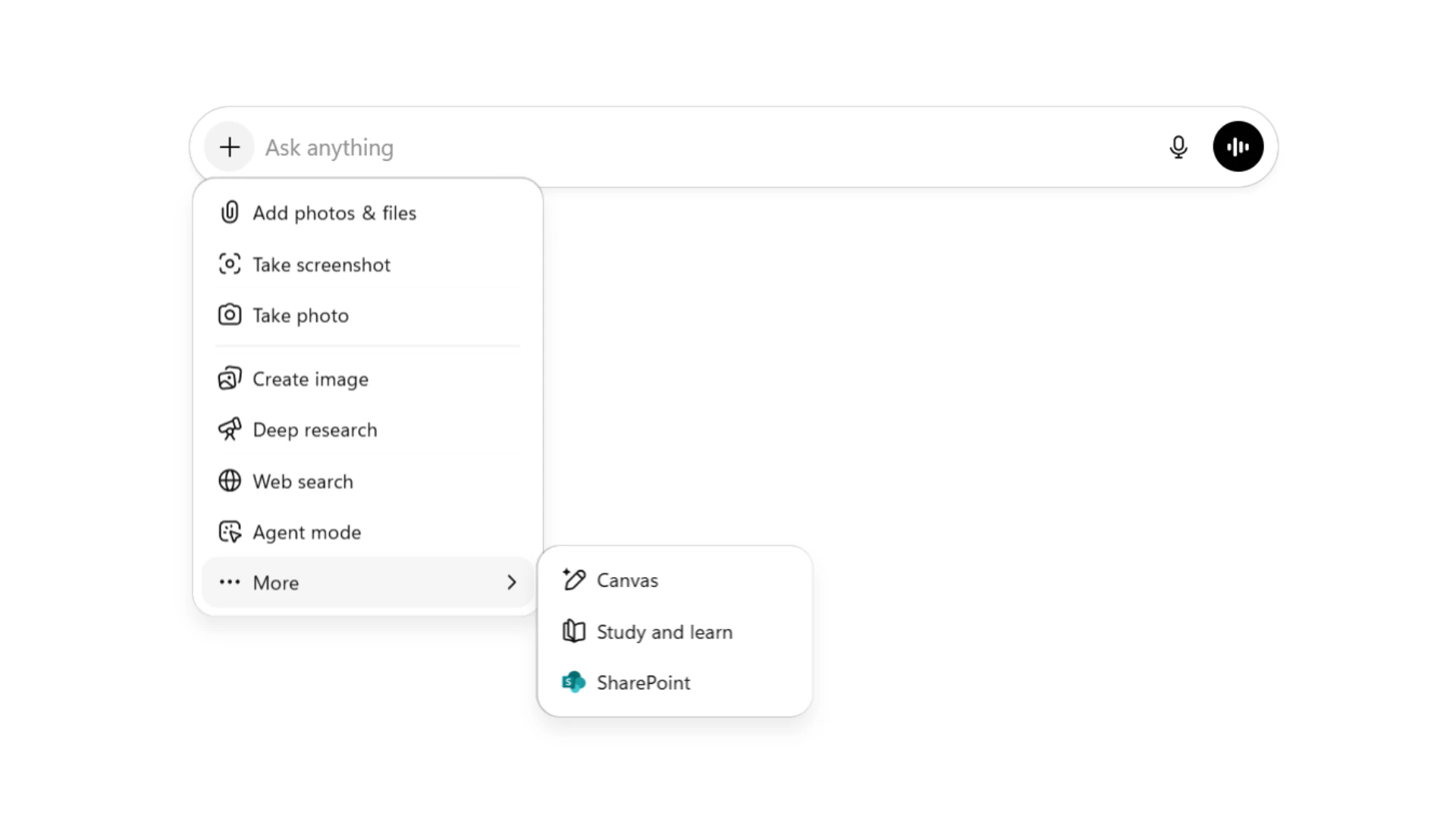 Click the "+" icon in the chat bar to access options for adding context:
* Add photos and files
* Deep research
* Agent mode
* Create image
* Web search
* Canvas
* Study and learn
These options let you bring in documents, images, or specialised modes depending on what your task requires.
Click the "+" icon in the chat bar to access options for adding context:
* Add photos and files
* Deep research
* Agent mode
* Create image
* Web search
* Canvas
* Study and learn
These options let you bring in documents, images, or specialised modes depending on what your task requires.
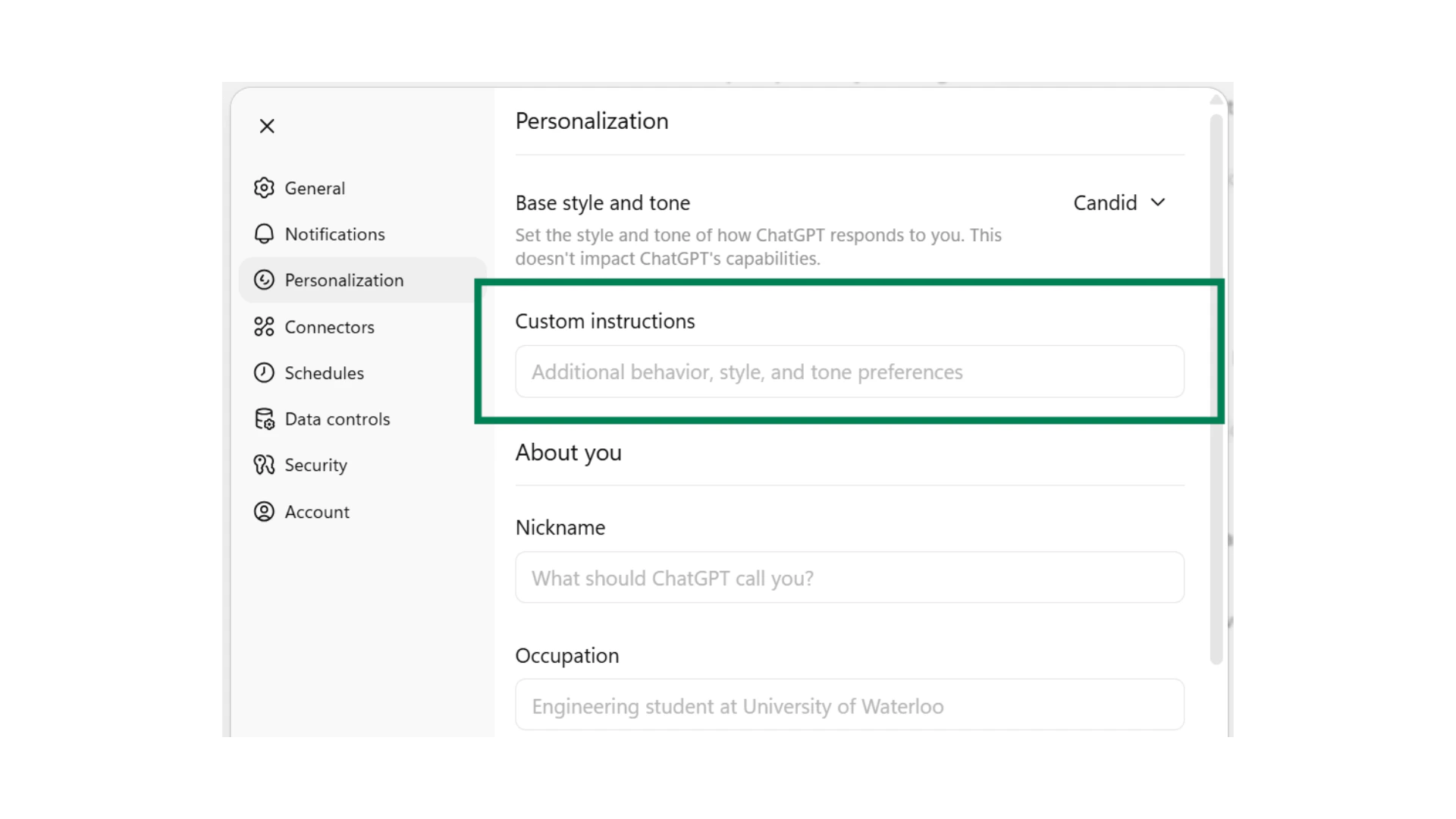 Custom Instructions act as a permanent briefing that ChatGPT reads before every response. Go to Settings, then Personalization, and make sure "Enable Customization" is turned on.
In the Custom Instructions box, describe the behaviour, style, and tone you want. For example:
* "Use concise, action-oriented responses"
* "Be brutally honest and critical when responding"
* "Be a supportive brainstorming and thinking partner"
Custom Instructions act as a permanent briefing that ChatGPT reads before every response. Go to Settings, then Personalization, and make sure "Enable Customization" is turned on.
In the Custom Instructions box, describe the behaviour, style, and tone you want. For example:
* "Use concise, action-oriented responses"
* "Be brutally honest and critical when responding"
* "Be a supportive brainstorming and thinking partner"
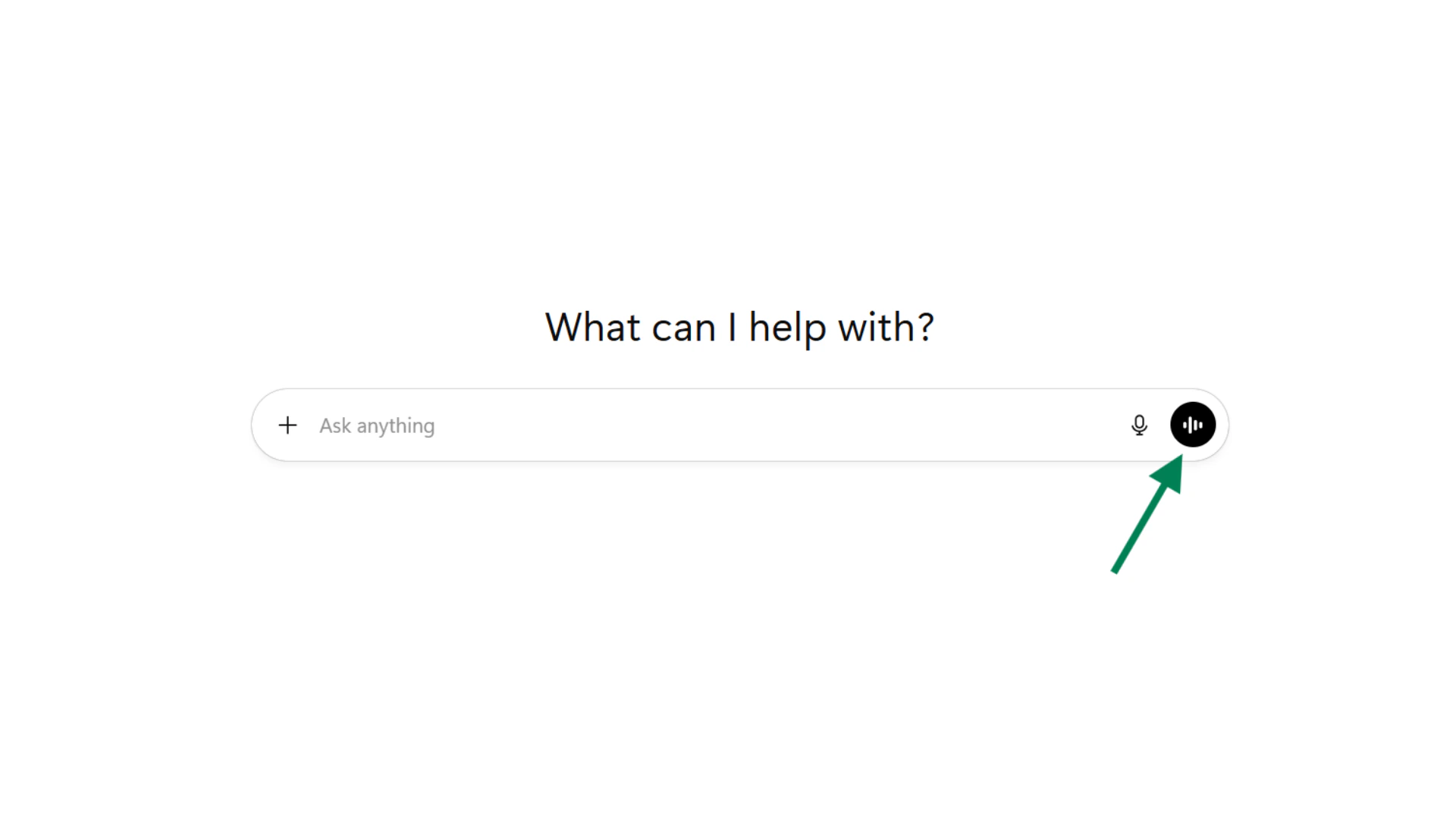 Speak directly to ChatGPT in a natural, conversational way.
Voice Mode listens to your words, pauses, and tone, making interactions feel more natural than text alone.
The button changes to a "breathing" animation when actively listening, and the AI responds out loud while transcribing your conversation.
Talk as you would with a colleague. No need for perfect prompts.
***
## Direct ChatGPT with roles
Give ChatGPT a clear role to focus its response. Pick one of these three starting points based on your task.
Speak directly to ChatGPT in a natural, conversational way.
Voice Mode listens to your words, pauses, and tone, making interactions feel more natural than text alone.
The button changes to a "breathing" animation when actively listening, and the AI responds out loud while transcribing your conversation.
Talk as you would with a colleague. No need for perfect prompts.
***
## Direct ChatGPT with roles
Give ChatGPT a clear role to focus its response. Pick one of these three starting points based on your task.
Role + format + word limit = you are 80% of the way to a useful output.
***
## Enable and manage Memory
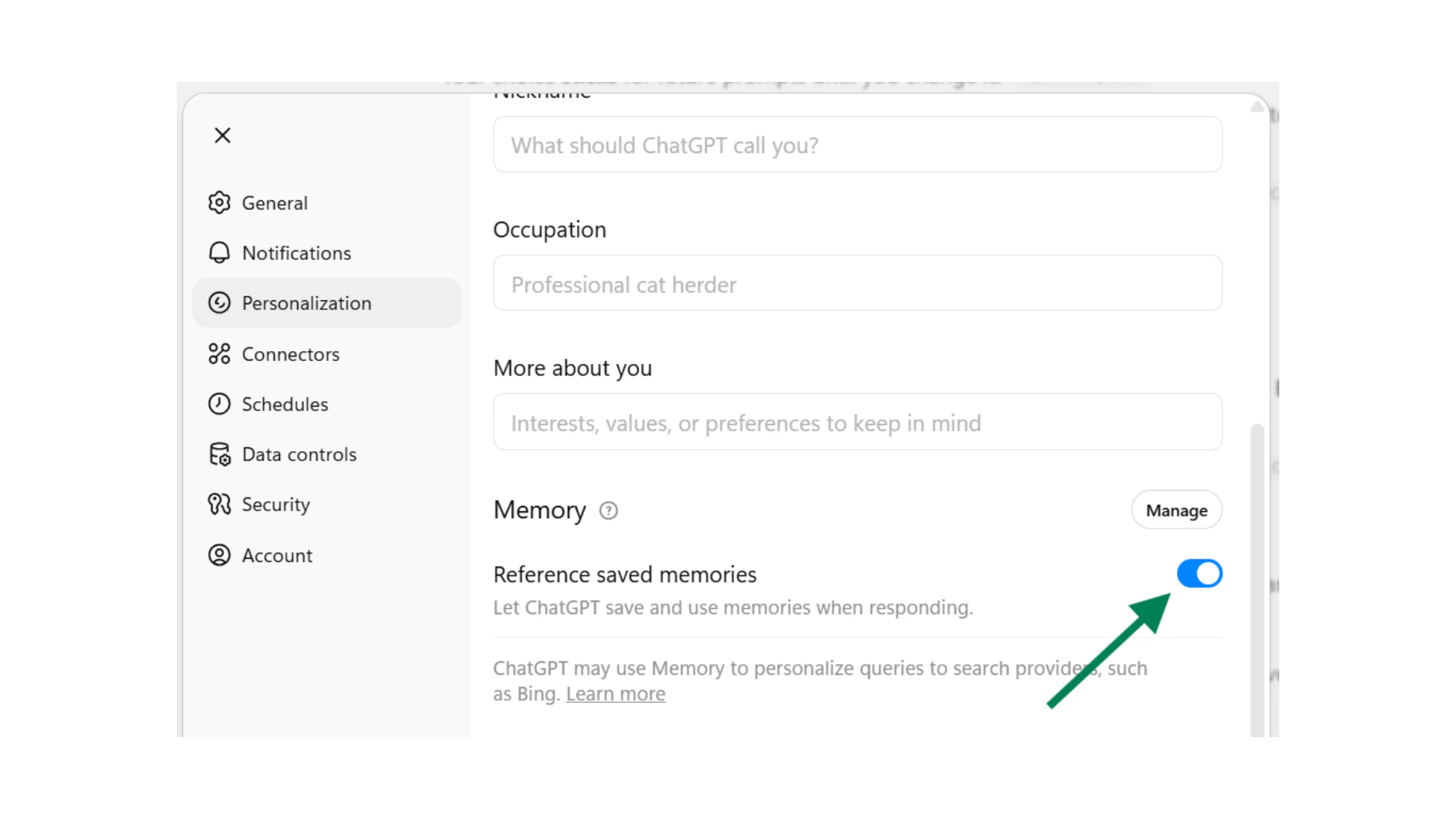
Memory lets ChatGPT remember details across conversations. Once "Reference saved memories" is enabled in Settings, ChatGPT builds a knowledge base from information you share over time.
 There are two types of memory, and two ways to add them:
 Share a detail or preference during a chat. If ChatGPT thinks this will be useful later, it saves it automatically and shows the "Updated saved memory" notification.
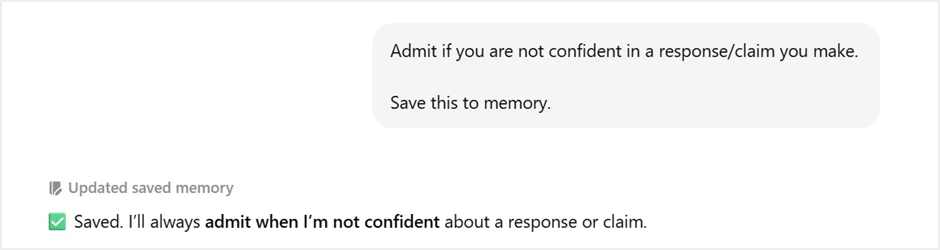 Tell ChatGPT directly: "Save this to memory." It stores the detail and confirms with the same notification. Use this when you want to be specific about what it remembers.
Saved Memories are details you explicitly ask ChatGPT to remember, or that it saves automatically during a conversation. These persist across all future chats.
Chat History lets ChatGPT reference your recent past conversations to give more relevant responses. Think of it as short-term awareness of what you have been working on recently.
You can turn either one on or off independently in Settings, then Personalization, then Memory.
Ask "What do you remember about me?" in any chat. You can also go to Settings, then Personalization, then Manage Memories to see, edit, or delete individual saved memories.
No. Saved memories are stored separately from your chat history. Deleting a chat does not remove any memories created during that conversation. To fully remove a memory, delete it from Manage Memories in Settings.
***
## Canvas tool
Canvas provides a dedicated side-by-side workspace for creating and editing written documents within ChatGPT. Unlike standard chat responses, Canvas opens a full editing environment where you can view, select, and revise specific sections of your document.
### Where to access
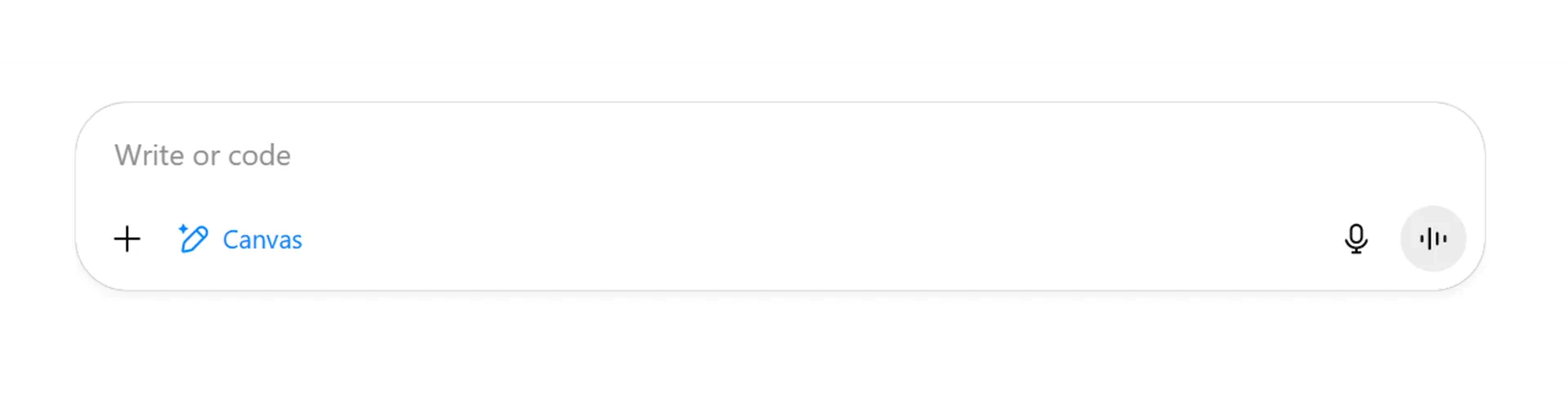
Start a chat and ask ChatGPT to generate a document, draft a report, or modify existing written material. Canvas launches automatically when suitable. You can also open it manually by selecting the "+" button, then "More", then "Canvas."
Tell ChatGPT directly: "Save this to memory." It stores the detail and confirms with the same notification. Use this when you want to be specific about what it remembers.
Saved Memories are details you explicitly ask ChatGPT to remember, or that it saves automatically during a conversation. These persist across all future chats.
Chat History lets ChatGPT reference your recent past conversations to give more relevant responses. Think of it as short-term awareness of what you have been working on recently.
You can turn either one on or off independently in Settings, then Personalization, then Memory.
Ask "What do you remember about me?" in any chat. You can also go to Settings, then Personalization, then Manage Memories to see, edit, or delete individual saved memories.
No. Saved memories are stored separately from your chat history. Deleting a chat does not remove any memories created during that conversation. To fully remove a memory, delete it from Manage Memories in Settings.
***
## Canvas tool
Canvas provides a dedicated side-by-side workspace for creating and editing written documents within ChatGPT. Unlike standard chat responses, Canvas opens a full editing environment where you can view, select, and revise specific sections of your document.
### Where to access
Start a chat and ask ChatGPT to generate a document, draft a report, or modify existing written material. Canvas launches automatically when suitable. You can also open it manually by selecting the "+" button, then "More", then "Canvas."
 ### Editing in Canvas
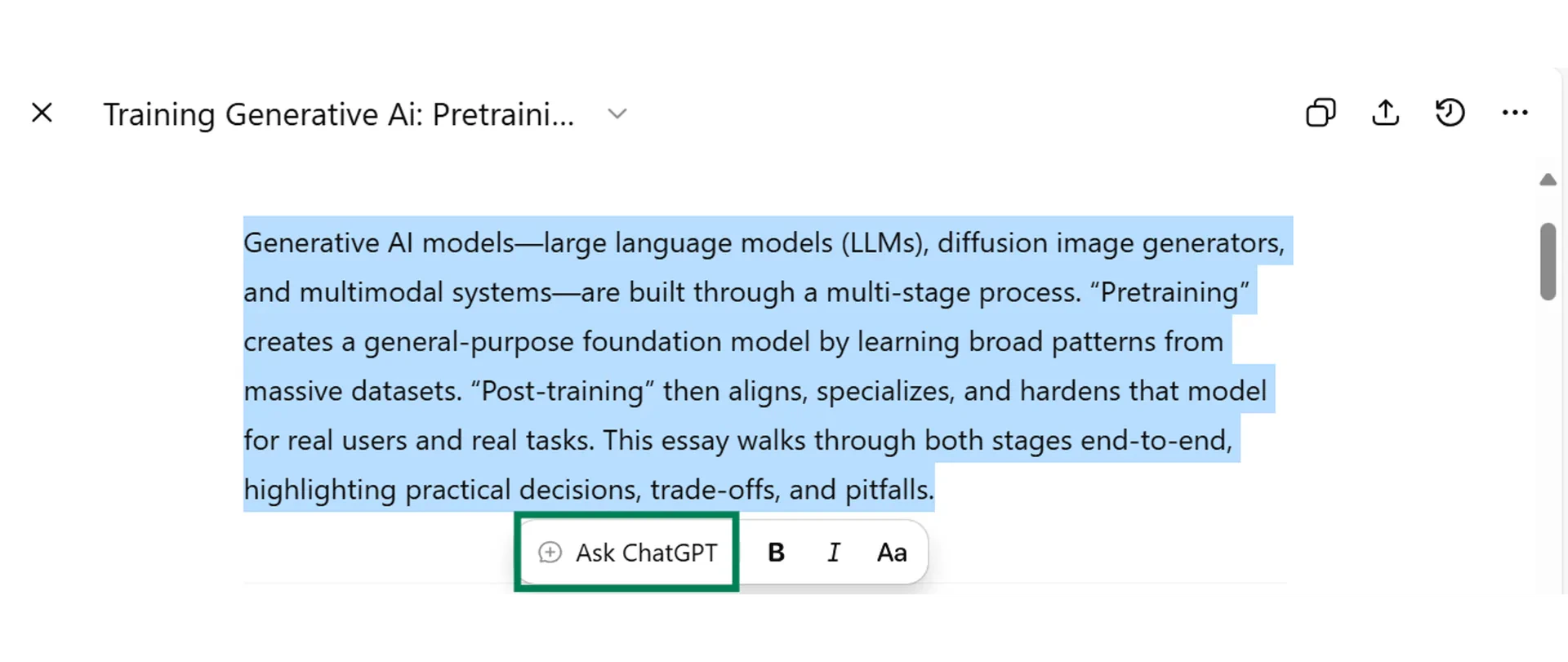
Select specific sections of your document and request changes to just those areas. For example, highlight a paragraph and ask for more detail without affecting the rest of the document.
### Editing in Canvas
Select specific sections of your document and request changes to just those areas. For example, highlight a paragraph and ask for more detail without affecting the rest of the document.
 ### Built-in editing tools
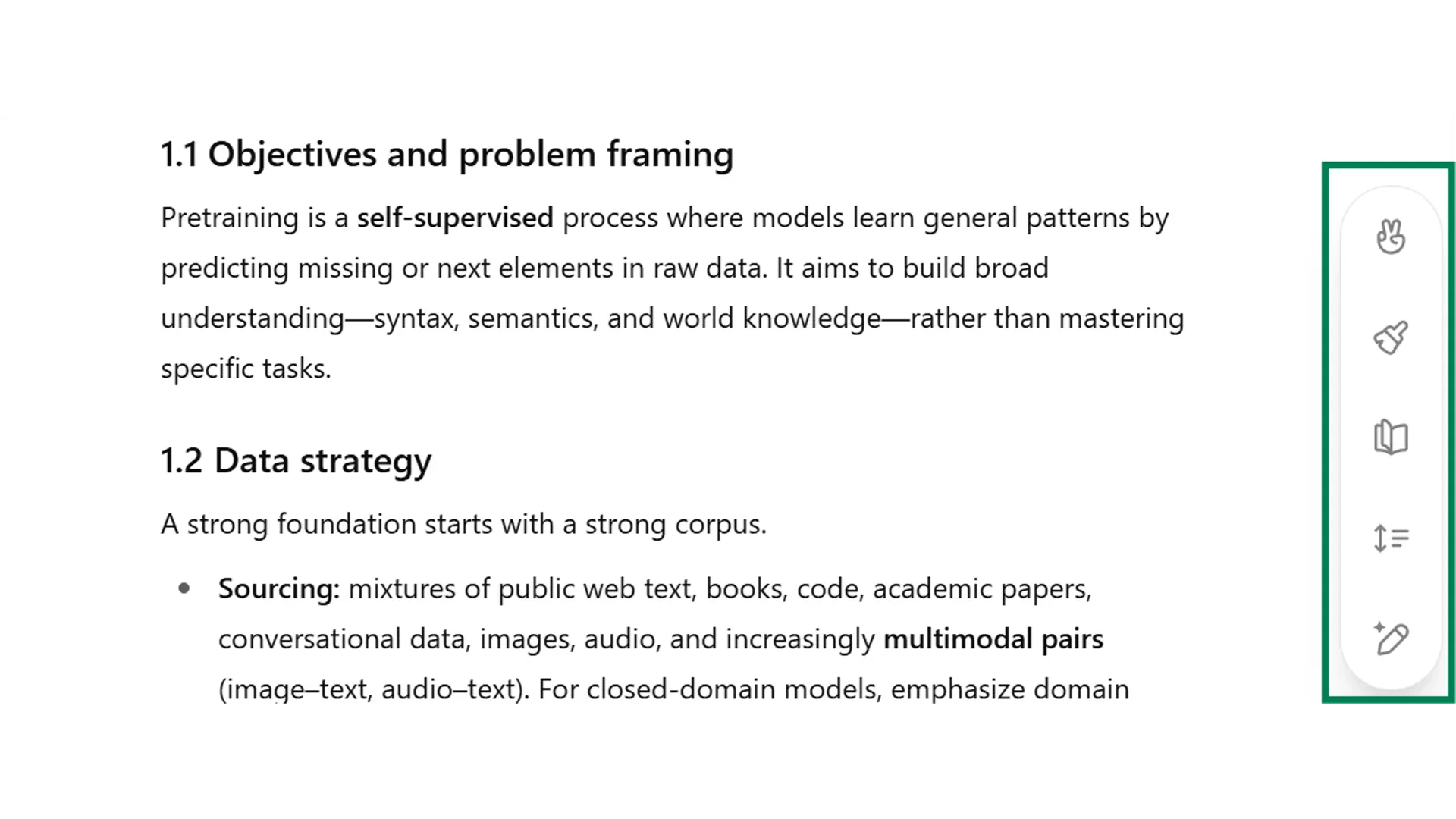
Canvas includes one-click tools that appear in the bottom right-hand corner when you hover over the edit button. You can polish grammar and sentence structure, adjust the document's complexity, change its length, and view suggested edits.
### Built-in editing tools
Canvas includes one-click tools that appear in the bottom right-hand corner when you hover over the edit button. You can polish grammar and sentence structure, adjust the document's complexity, change its length, and view suggested edits.
 ### Sharing and exporting
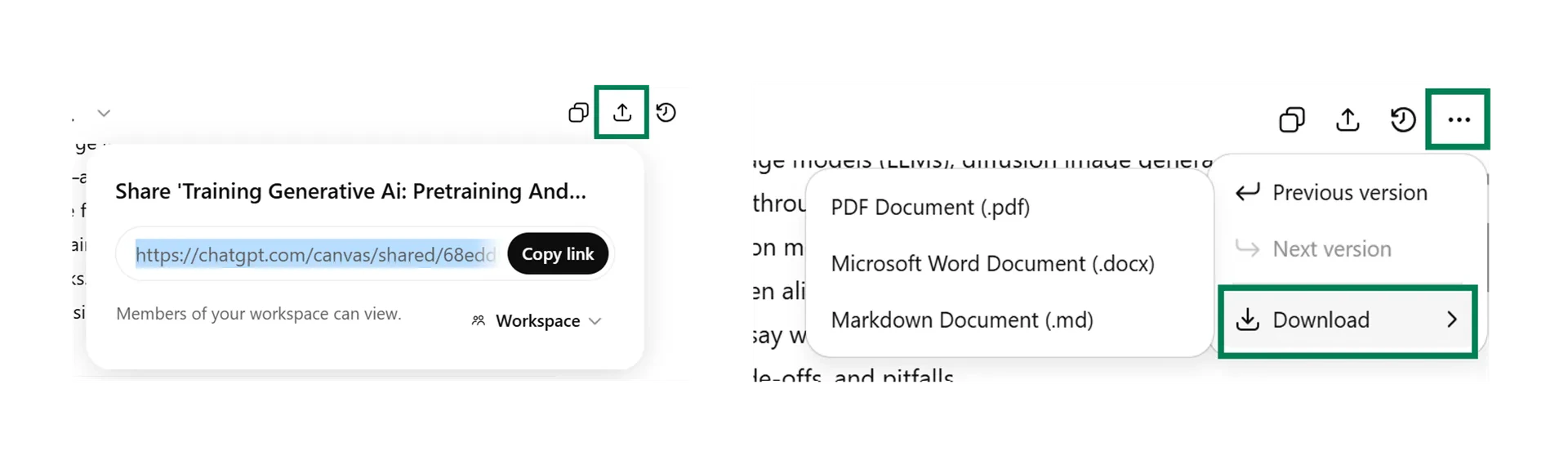
Once your document is complete, you can share a link to the entire conversation or create a link specifically to the Canvas document. If you make updates after sharing, anyone with the Canvas link can see the new edits. Canvas documents can be downloaded as PDF, Word, or Markdown formats.
### Sharing and exporting
Once your document is complete, you can share a link to the entire conversation or create a link specifically to the Canvas document. If you make updates after sharing, anyone with the Canvas link can see the new edits. Canvas documents can be downloaded as PDF, Word, or Markdown formats.
 Canvas works best for generating first drafts and implementing major structural revisions. It is particularly effective for transforming rough notes into refined documents or reformatting existing content with an improved writing style.
For ongoing minor adjustments and final polish, you might currently find it quicker to make changes manually. This function continues to develop and may not yet offer the seamless experience available from other professional writing tools.
***
## Deep Research
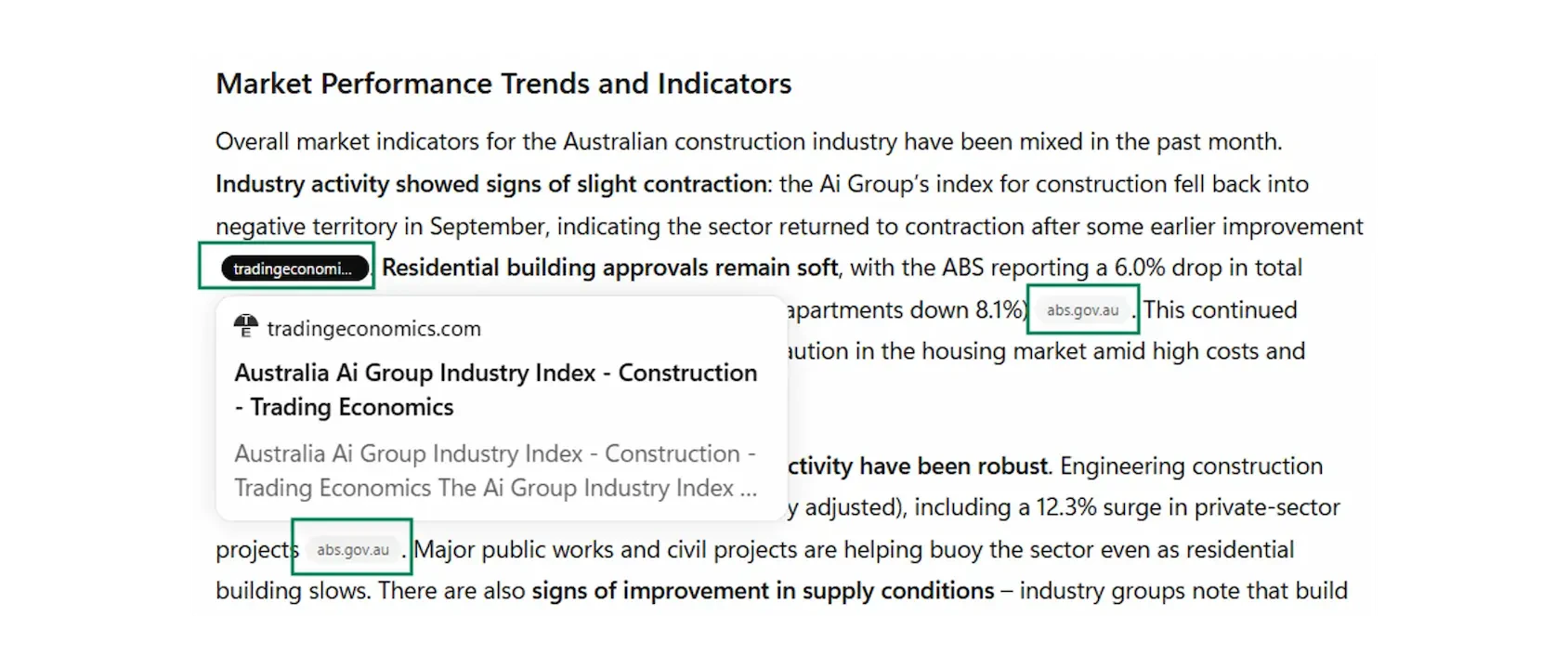
Deep Research is ChatGPT's most comprehensive approach to answering complex questions. It conducts multi-step web investigations, reading through hundreds of documents and web pages, cross-checking sources, and building a complete picture of your topic.
Canvas works best for generating first drafts and implementing major structural revisions. It is particularly effective for transforming rough notes into refined documents or reformatting existing content with an improved writing style.
For ongoing minor adjustments and final polish, you might currently find it quicker to make changes manually. This function continues to develop and may not yet offer the seamless experience available from other professional writing tools.
***
## Deep Research
Deep Research is ChatGPT's most comprehensive approach to answering complex questions. It conducts multi-step web investigations, reading through hundreds of documents and web pages, cross-checking sources, and building a complete picture of your topic.
 ### Where to access
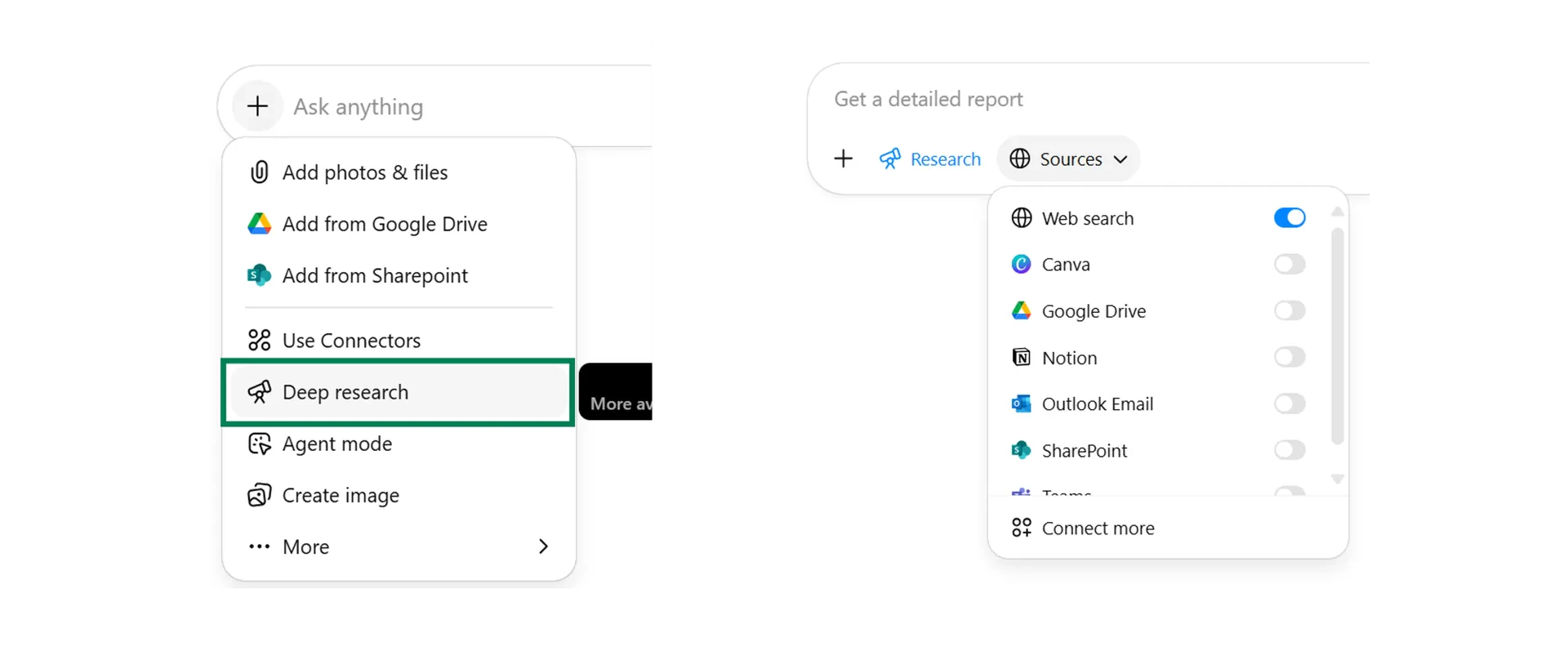
Click the "+" button in your chat and select Deep Research. You can then choose the sources it draws from. Web search enables internet access, while Company Knowledge lets it draw from your organisation's connected platforms.
### Where to access
Click the "+" button in your chat and select Deep Research. You can then choose the sources it draws from. Web search enables internet access, while Company Knowledge lets it draw from your organisation's connected platforms.
 ### When to use Deep Research
Use it for research that would normally take two or more hours of manual searching and reading.
Use it when your topic requires cross-domain insights or comparing several perspectives.
Use it for strategic decisions where depth and accuracy are worth the time.
Most paid plans include 25 queries per month. Save Deep Research for the complex, high-stakes questions where comprehensive analysis creates real value.
***
## Company Knowledge
Company Knowledge lets ChatGPT search and reference information from across your organisation's connected platforms, including Google Drive, SharePoint, Slack, GitHub, Gmail, Outlook, HubSpot, Salesforce, and more.
Ask ChatGPT to find documents, summarise strategies, or reference past decisions. It searches your connected platforms automatically. Company Knowledge is read-only, so your files remain secure and unchanged.
### File upload from cloud storage
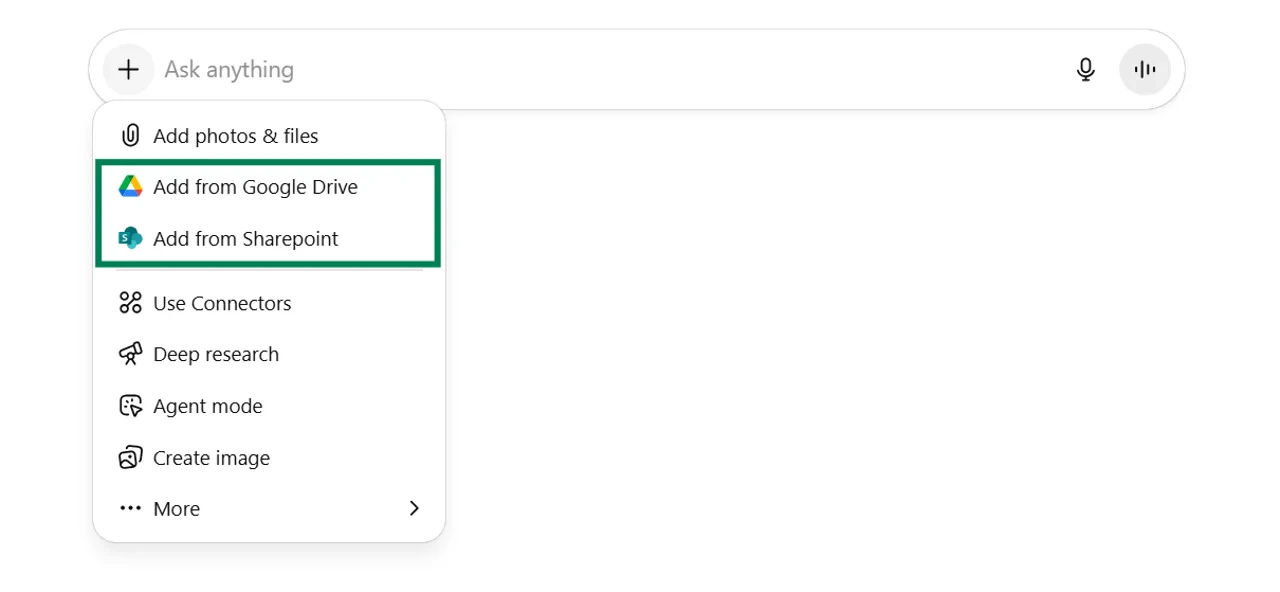
You can upload files directly from Google Drive or SharePoint by clicking the "+" icon in the chat. After initial setup via the "More" menu, these options appear in your main menu. This lets you import specific documents from your cloud storage without downloading them first.
### When to use Deep Research
Use it for research that would normally take two or more hours of manual searching and reading.
Use it when your topic requires cross-domain insights or comparing several perspectives.
Use it for strategic decisions where depth and accuracy are worth the time.
Most paid plans include 25 queries per month. Save Deep Research for the complex, high-stakes questions where comprehensive analysis creates real value.
***
## Company Knowledge
Company Knowledge lets ChatGPT search and reference information from across your organisation's connected platforms, including Google Drive, SharePoint, Slack, GitHub, Gmail, Outlook, HubSpot, Salesforce, and more.
Ask ChatGPT to find documents, summarise strategies, or reference past decisions. It searches your connected platforms automatically. Company Knowledge is read-only, so your files remain secure and unchanged.
### File upload from cloud storage
You can upload files directly from Google Drive or SharePoint by clicking the "+" icon in the chat. After initial setup via the "More" menu, these options appear in your main menu. This lets you import specific documents from your cloud storage without downloading them first.
 ### Use Company Knowledge in chat and Deep Research
Activating "Use Company Knowledge" allows ChatGPT to search your files even if you do not specify exact documents. This is useful for finding or summarising information across multiple files. You can also access Company Knowledge when using Deep Research, letting you specify which information sources it draws from.
### Use Company Knowledge in chat and Deep Research
Activating "Use Company Knowledge" allows ChatGPT to search your files even if you do not specify exact documents. This is useful for finding or summarising information across multiple files. You can also access Company Knowledge when using Deep Research, letting you specify which information sources it draws from.
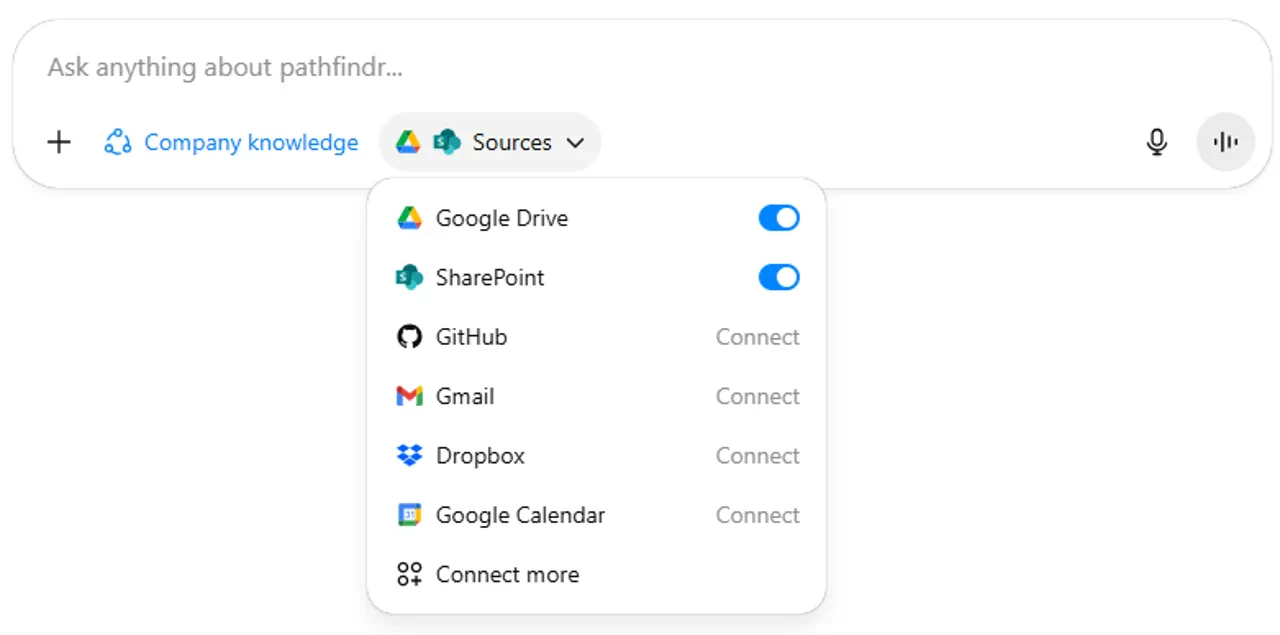 ### Syncing Company Knowledge
Turning on Sync means ChatGPT automatically references your connected platforms in every chat. You do not need to click "Use Company Knowledge" each time. ChatGPT remembers information from sources like Google Drive or SharePoint, which helps it find relevant information faster.
Company Knowledge is unavailable when using the Pro model, custom GPTs, Projects, or Voice Mode.
***
## What file types can I upload?
| Variable | File Upload Details |
| -------------------------------- | --------------------------------------------------------------------------------------------------------------------------------------------------- |
| **Supported File Formats** | PDF, TXT, Word documents (.docx), Excel spreadsheets (CSV, XLSX), Data files (JSON, HTML), Images (JPEG, PNG, non-animated GIF), PowerPoint (.pptx) |
| **Not Supported** | Google Doc links, MP4 videos, MP3 audio files |
| **File Size Limits** | Standard files: 512 MB limit. Spreadsheets: 50 MB limit. Images: 20 MB limit |
| **Upload Quantity Limits** | Free tier: approximately 3 files per day. Paid tiers: approximately 80 files per 3-hour window (resets after 3 hours) |
| **Enterprise Exclusive Feature** | Non-enterprise accounts cannot analyse images embedded within PDFs. Enterprise accounts can analyse images embedded within PDFs. |
Limits and capabilities continuously change and may differ from those stated above. Check OpenAI's official documentation for the latest details.
***
## Quick checkpoint (you're done when...)
You can explain what context means and why it changes ChatGPT's output
You used files, Custom Instructions, or Memory to enrich a conversation
You tried Canvas, Deep Research, spreadsheets, or Company Knowledge
You picked the right model based on your task complexity
Complete the mini challenge by constructing a prompt with context using our tool
### Syncing Company Knowledge
Turning on Sync means ChatGPT automatically references your connected platforms in every chat. You do not need to click "Use Company Knowledge" each time. ChatGPT remembers information from sources like Google Drive or SharePoint, which helps it find relevant information faster.
Company Knowledge is unavailable when using the Pro model, custom GPTs, Projects, or Voice Mode.
***
## What file types can I upload?
| Variable | File Upload Details |
| -------------------------------- | --------------------------------------------------------------------------------------------------------------------------------------------------- |
| **Supported File Formats** | PDF, TXT, Word documents (.docx), Excel spreadsheets (CSV, XLSX), Data files (JSON, HTML), Images (JPEG, PNG, non-animated GIF), PowerPoint (.pptx) |
| **Not Supported** | Google Doc links, MP4 videos, MP3 audio files |
| **File Size Limits** | Standard files: 512 MB limit. Spreadsheets: 50 MB limit. Images: 20 MB limit |
| **Upload Quantity Limits** | Free tier: approximately 3 files per day. Paid tiers: approximately 80 files per 3-hour window (resets after 3 hours) |
| **Enterprise Exclusive Feature** | Non-enterprise accounts cannot analyse images embedded within PDFs. Enterprise accounts can analyse images embedded within PDFs. |
Limits and capabilities continuously change and may differ from those stated above. Check OpenAI's official documentation for the latest details.
***
## Quick checkpoint (you're done when...)
You can explain what context means and why it changes ChatGPT's output
You used files, Custom Instructions, or Memory to enrich a conversation
You tried Canvas, Deep Research, spreadsheets, or Company Knowledge
You picked the right model based on your task complexity
Complete the mini challenge by constructing a prompt with context using our tool