> ## Documentation Index
> Fetch the complete documentation index at: https://academy.pathfindr.ai/llms.txt
> Use this file to discover all available pages before exploring further.
# Reading Material
> Learn to use Gemini with your Google Workspace to build better prompts and get better results
## Use Gemini with your work
Gemini already has access to your Google Workspace. That means your emails, documents, spreadsheets, and calendar are all within reach, without uploading a single file.
The difference between a generic AI response and one that actually helps you comes down to one thing: context. When you give Gemini information about your specific work, it stops guessing and starts delivering results you can use straight away.
This page will show you how to:
Reference your existing Workspace files directly in Gemini
Use persona, task, context, and format to get focused results
Work with Gemini inside Docs, Sheets, and Gmail
Use follow-up prompts to improve outputs step by step
***
## What "context" means in Gemini
When you type a question into Gemini without any background, it responds with general information. It does not know your role, your projects, or your writing style. That is what most people experience on their first try.
"Context" is the information you give Gemini so it can respond with something relevant to your work, not just any work.
"Write me a project update."
Gemini produces a generic template with placeholder text. You spend 10 minutes rewriting it.
"Write a project update for the Q1 marketing campaign @ProjectBrief.doc. Use the tone from @LastUpdate.doc and keep it under 200 words."
Gemini pulls from your actual files and delivers a draft you can send within minutes.
Context turns Gemini from a general search engine into a personalised assistant that knows your work.
***
## Reference files with the @ symbol
Gemini's standout feature is its direct connection to your Google Workspace. Type @ in the Gemini chat and you can pull in files from Google Drive, Docs, Sheets, Slides, Gmail, and Calendar without leaving the conversation.
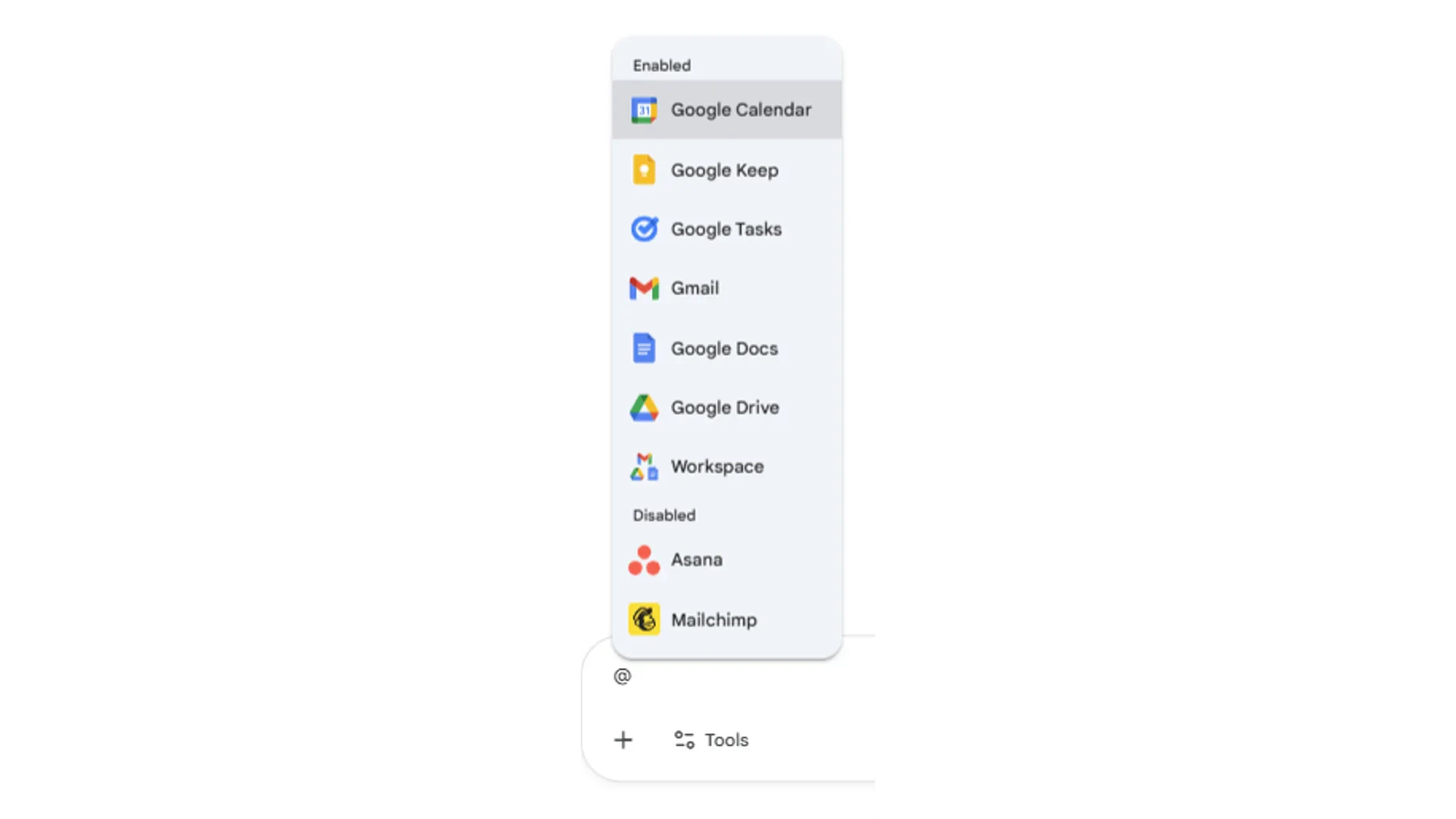 This is how Gemini differs from other AI tools. Instead of downloading a file and uploading it into a separate chat window, you simply reference it by name. Gemini reads the contents and uses them to shape its response.
Reference reports, briefs, proposals, or meeting notes. Ask Gemini to summarise, compare, or rewrite content based on what is in the document.
Pull in data from spreadsheets. Ask Gemini to find trends, explain patterns, or create summaries based on your numbers.
Reference email threads. Ask Gemini to summarise a conversation, draft a reply, or pull out action items from a long chain.
You can reference multiple files in a single prompt. For example: "Compare the budget in @Q1Budget.xlsx with the forecast in @Q2Forecast.xlsx and highlight the biggest differences."
***
## Structure your prompts
A clear prompt leads to a useful response. When using Gemini, think of your prompt as having four parts: who Gemini should be, what you need done, what information to work from, and how to present the result.
Tell Gemini who to act as. This shapes the tone, depth, and vocabulary of the response.
Example: "You are a senior marketing manager."
Describe what you need. Be specific about the action you want completed.
Example: "Summarise the key findings and recommend next steps."
Provide the background. Use @ to reference your files or paste in the relevant details.
Example: "@Q1Report.doc @CustomerFeedback.xlsx"
Specify how you want the output structured. This saves you from reformatting later.
Example: "Present as a 5-bullet executive summary with a recommendation at the end."
### Putting it together
Here is what a structured prompt looks like in practice:
```
You are a senior marketing manager. Summarise the key findings from @Q1Report.doc
and @CustomerFeedback.xlsx. Present as a 5-bullet executive summary with a
recommendation at the end. Keep it under 200 words.
```
You do not need to use all four parts every time. For quick tasks, a clear task and context may be enough. For complex outputs, include all four.
***
## Two ways to use Gemini
Gemini works in two places: as a standalone chat in your browser, and as an assistant built into your Google apps. Each approach serves a different purpose.
The browser-based Gemini chat at gemini.google.com is your central hub. Type @ to connect to your Workspace files and services. It searches, summarises, and answers questions about your existing content across sources.
Use this when you need to work across multiple files, run Deep Research, or handle tasks that span more than one app.
Click "Ask Gemini" in the top navigation of Google Docs, Sheets, Slides, or Gmail to open the side panel. This version focuses on the file you are currently editing.
Use this when you want to draft, rewrite, analyse data, or refine content without switching windows.
This is how Gemini differs from other AI tools. Instead of downloading a file and uploading it into a separate chat window, you simply reference it by name. Gemini reads the contents and uses them to shape its response.
Reference reports, briefs, proposals, or meeting notes. Ask Gemini to summarise, compare, or rewrite content based on what is in the document.
Pull in data from spreadsheets. Ask Gemini to find trends, explain patterns, or create summaries based on your numbers.
Reference email threads. Ask Gemini to summarise a conversation, draft a reply, or pull out action items from a long chain.
You can reference multiple files in a single prompt. For example: "Compare the budget in @Q1Budget.xlsx with the forecast in @Q2Forecast.xlsx and highlight the biggest differences."
***
## Structure your prompts
A clear prompt leads to a useful response. When using Gemini, think of your prompt as having four parts: who Gemini should be, what you need done, what information to work from, and how to present the result.
Tell Gemini who to act as. This shapes the tone, depth, and vocabulary of the response.
Example: "You are a senior marketing manager."
Describe what you need. Be specific about the action you want completed.
Example: "Summarise the key findings and recommend next steps."
Provide the background. Use @ to reference your files or paste in the relevant details.
Example: "@Q1Report.doc @CustomerFeedback.xlsx"
Specify how you want the output structured. This saves you from reformatting later.
Example: "Present as a 5-bullet executive summary with a recommendation at the end."
### Putting it together
Here is what a structured prompt looks like in practice:
```
You are a senior marketing manager. Summarise the key findings from @Q1Report.doc
and @CustomerFeedback.xlsx. Present as a 5-bullet executive summary with a
recommendation at the end. Keep it under 200 words.
```
You do not need to use all four parts every time. For quick tasks, a clear task and context may be enough. For complex outputs, include all four.
***
## Two ways to use Gemini
Gemini works in two places: as a standalone chat in your browser, and as an assistant built into your Google apps. Each approach serves a different purpose.
The browser-based Gemini chat at gemini.google.com is your central hub. Type @ to connect to your Workspace files and services. It searches, summarises, and answers questions about your existing content across sources.
Use this when you need to work across multiple files, run Deep Research, or handle tasks that span more than one app.
Click "Ask Gemini" in the top navigation of Google Docs, Sheets, Slides, or Gmail to open the side panel. This version focuses on the file you are currently editing.
Use this when you want to draft, rewrite, analyse data, or refine content without switching windows.
 ***
## Gemini in Google Docs
Gemini inside Google Docs helps you create, edit, and refine documents without leaving the page. There are three main ways to use it.
### Generate a new document
Open a new Google Doc and use the "Generate document" feature. You can describe what you need, or reference existing files in your Drive to pull content from presentations, spreadsheets, or other documents.
***
## Gemini in Google Docs
Gemini inside Google Docs helps you create, edit, and refine documents without leaving the page. There are three main ways to use it.
### Generate a new document
Open a new Google Doc and use the "Generate document" feature. You can describe what you need, or reference existing files in your Drive to pull content from presentations, spreadsheets, or other documents.
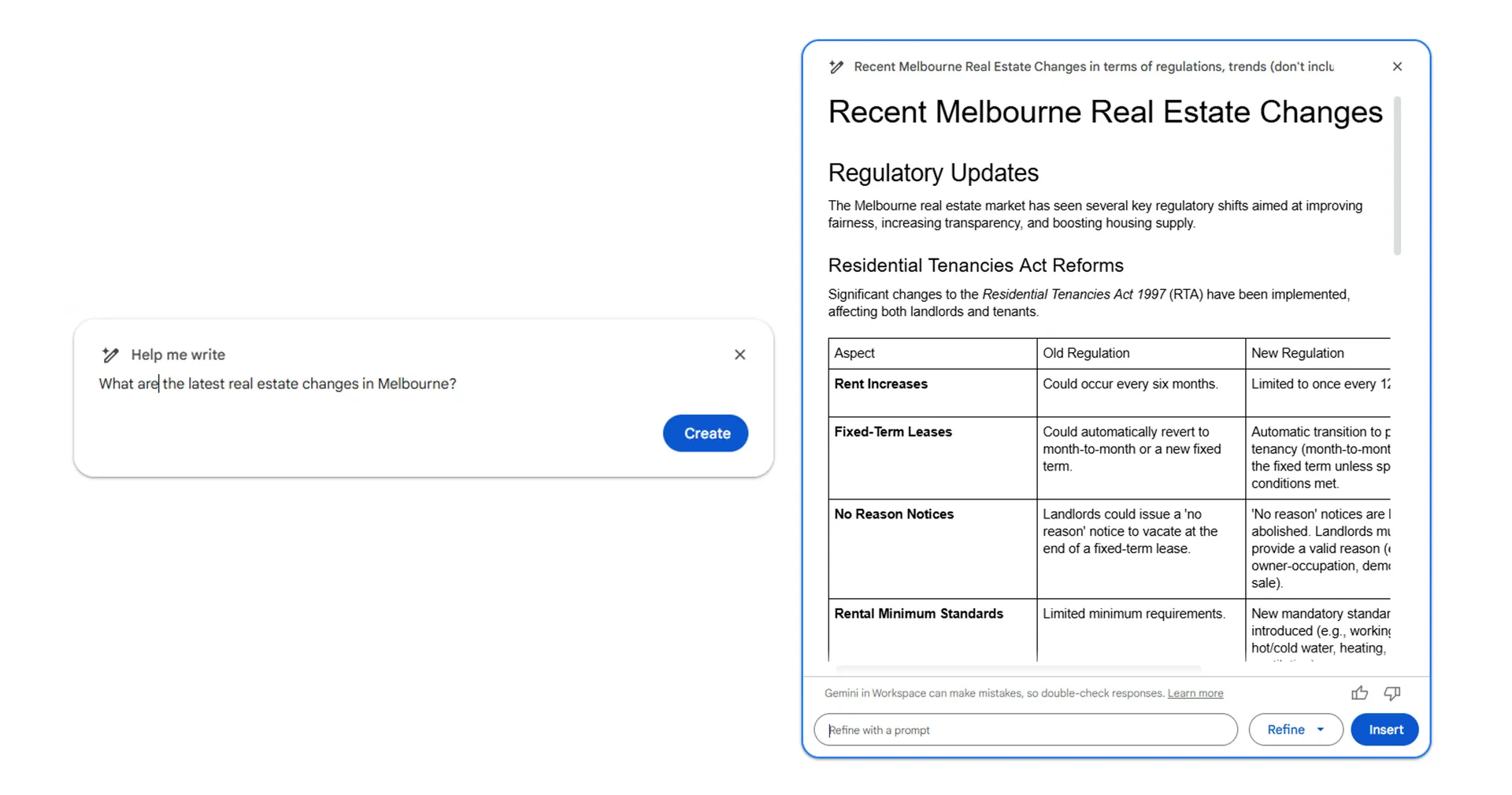
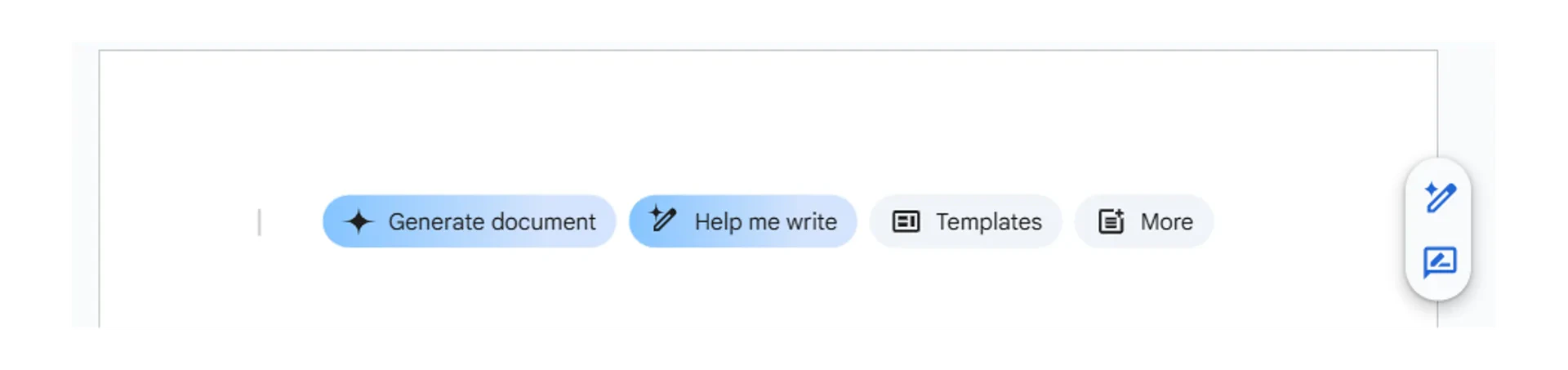 You can also use the "Help me write" button to generate drafts from a short description or outline.
 ### Edit with Refine
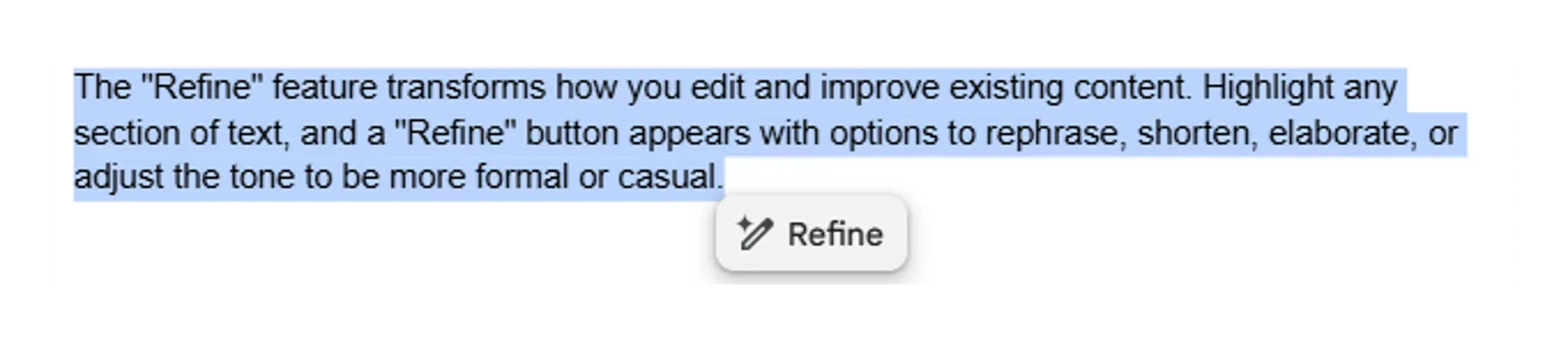
Highlight any section of text and use the Refine options to shorten, elaborate, adjust tone, or make custom changes. You can also ask Gemini to add specific data or citations to a paragraph.
### Edit with Refine
Highlight any section of text and use the Refine options to shorten, elaborate, adjust tone, or make custom changes. You can also ask Gemini to add specific data or citations to a paragraph.
 When editing through Refine, Gemini does not automatically include sources. If you need citations, add "provide the link you used" to your prompt.
### Export from Gemini chat to Docs
After Gemini completes a response in the browser chat, select "Share and export" then choose "Export to Docs." A new Google Doc is created with the full content, formatting, and citations included.
When editing through Refine, Gemini does not automatically include sources. If you need citations, add "provide the link you used" to your prompt.
### Export from Gemini chat to Docs
After Gemini completes a response in the browser chat, select "Share and export" then choose "Export to Docs." A new Google Doc is created with the full content, formatting, and citations included.
 ***
## Gemini in Google Sheets
### Analyse your data
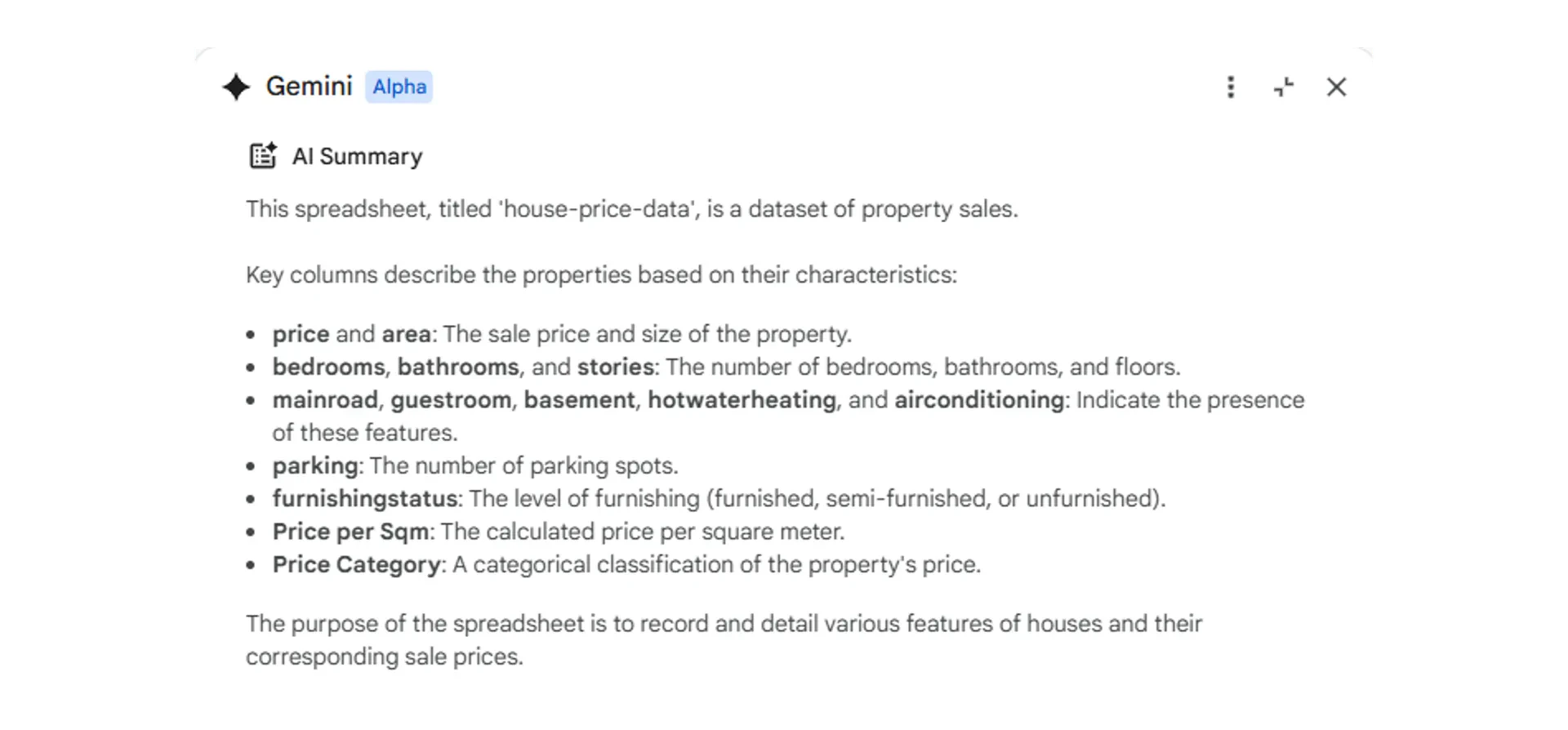
When you open a spreadsheet, Gemini automatically generates a summary in the side panel. You can ask it to find trends, identify patterns, spot outliers, or compare data across columns and time periods.
***
## Gemini in Google Sheets
### Analyse your data
When you open a spreadsheet, Gemini automatically generates a summary in the side panel. You can ask it to find trends, identify patterns, spot outliers, or compare data across columns and time periods.
 ### Generate formulas
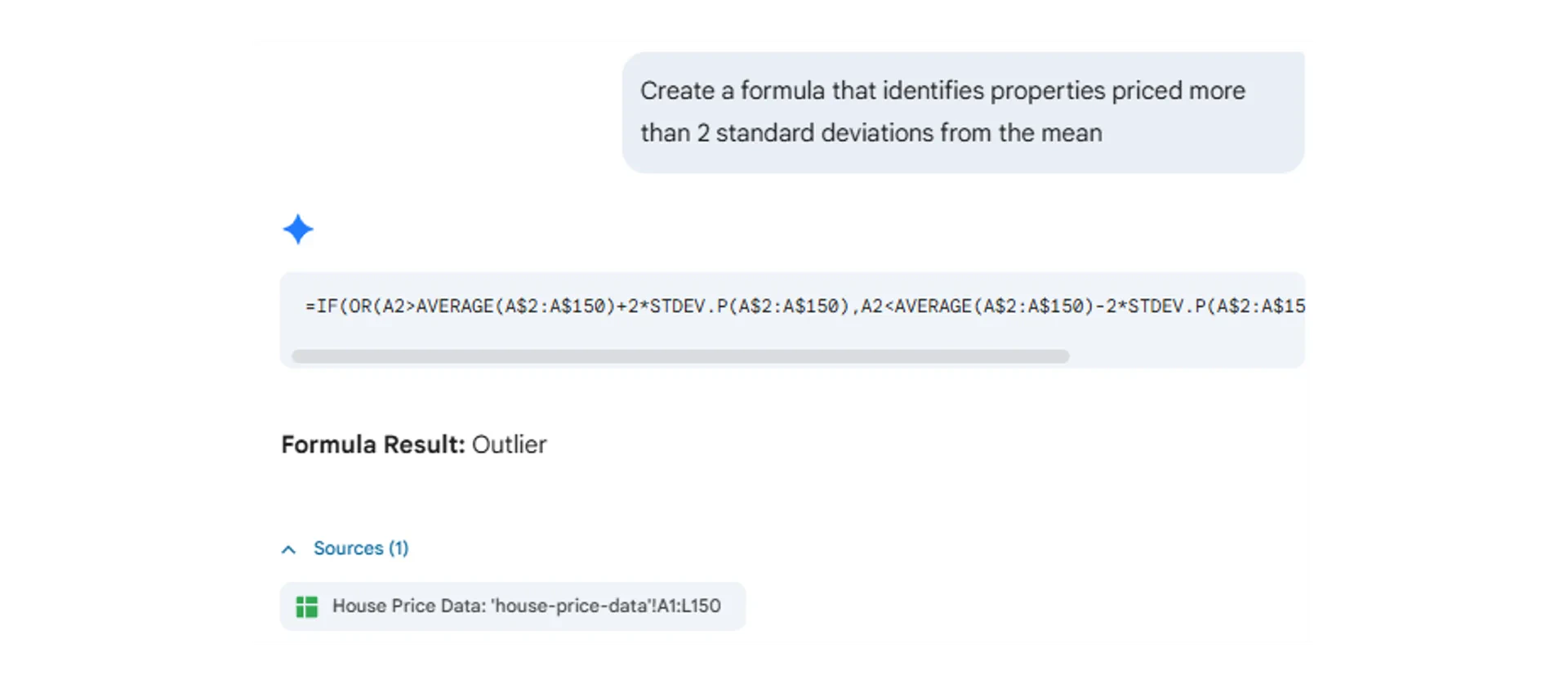
Instead of remembering formula syntax, describe the calculation you need in plain language. Gemini generates the formula and references the correct data sources in your sheet.
### Generate formulas
Instead of remembering formula syntax, describe the calculation you need in plain language. Gemini generates the formula and references the correct data sources in your sheet.
 ### The =AI function
Type =AI() in a cell to use natural language prompts within your spreadsheet. This is useful for generating text, summarising content, or categorising data across rows.
### The =AI function
Type =AI() in a cell to use natural language prompts within your spreadsheet. This is useful for generating text, summarising content, or categorising data across rows.
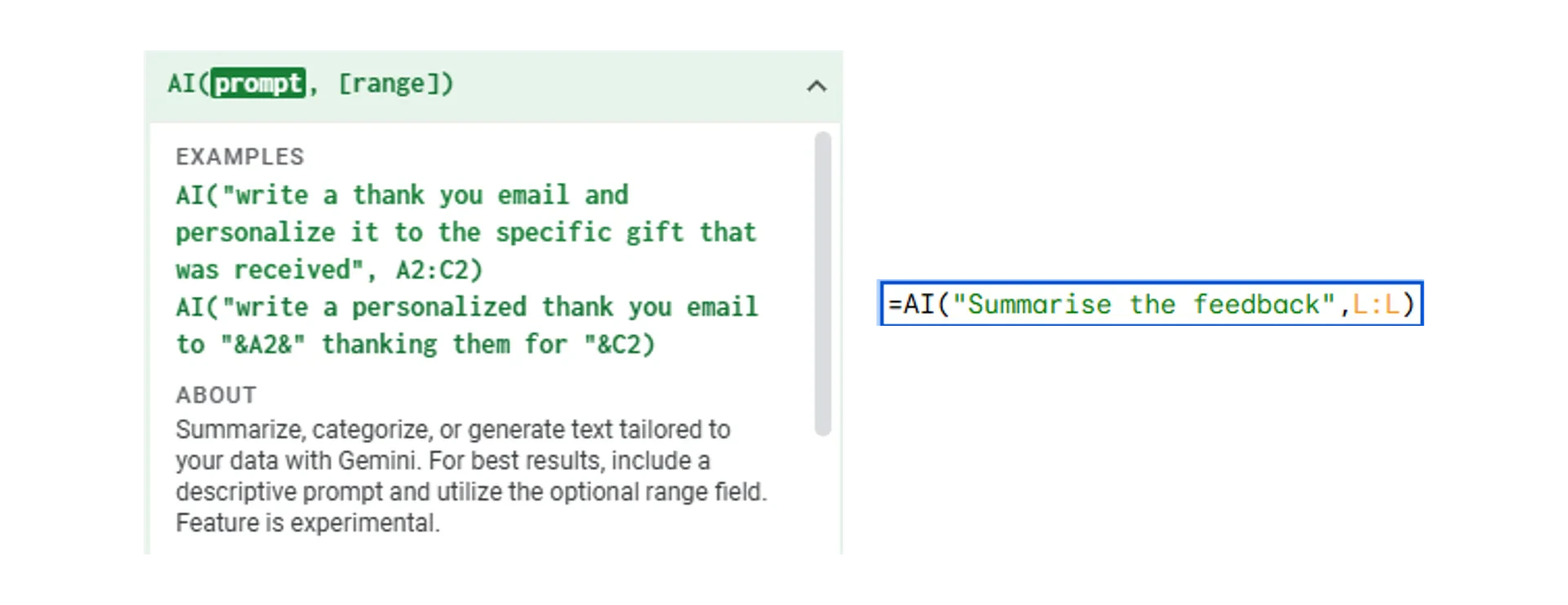 The =AI function currently does not support calculations. Use it for text-based tasks like categorisation, summarisation, and labelling.
### Create charts
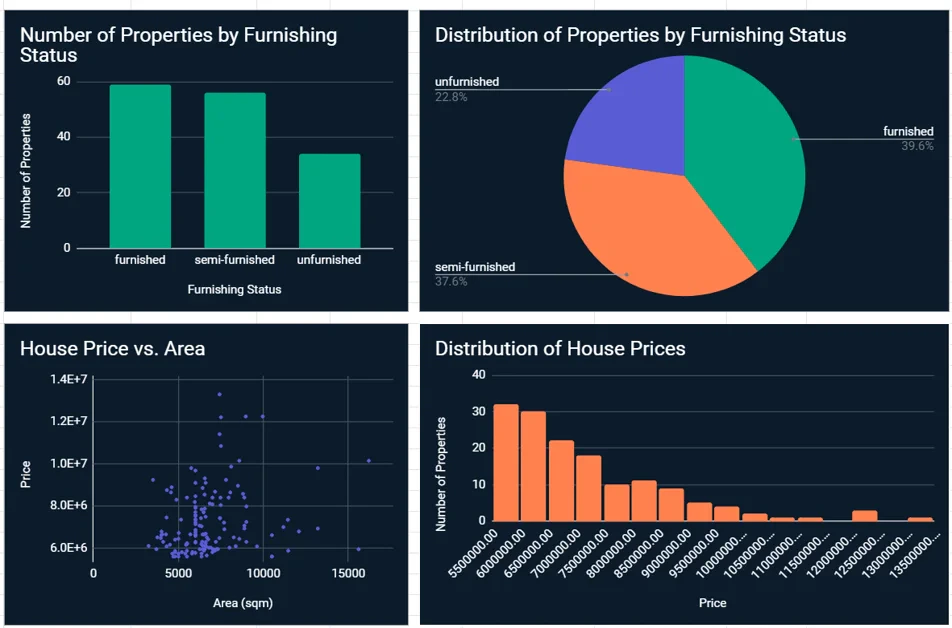
Describe the chart you need and which data to include. Gemini creates visualisations based on your instructions.
The =AI function currently does not support calculations. Use it for text-based tasks like categorisation, summarisation, and labelling.
### Create charts
Describe the chart you need and which data to include. Gemini creates visualisations based on your instructions.
 ***
## Gemini in Gmail
### Summarise email threads
For long email chains, click "Summarise this email" in the Gemini side panel. You get a concise overview of key points and action items, which is especially useful for project discussions with many replies.
***
## Gemini in Gmail
### Summarise email threads
For long email chains, click "Summarise this email" in the Gemini side panel. You get a concise overview of key points and action items, which is especially useful for project discussions with many replies.
 ### Draft and respond
Use @ to reference documents when composing emails. Gemini can pull content from your files, summarise it, and insert it directly into your draft. From there, use "Help me write" to adjust tone, length, or structure.
### Draft and respond
Use @ to reference documents when composing emails. Gemini can pull content from your files, summarise it, and insert it directly into your draft. From there, use "Help me write" to adjust tone, length, or structure.
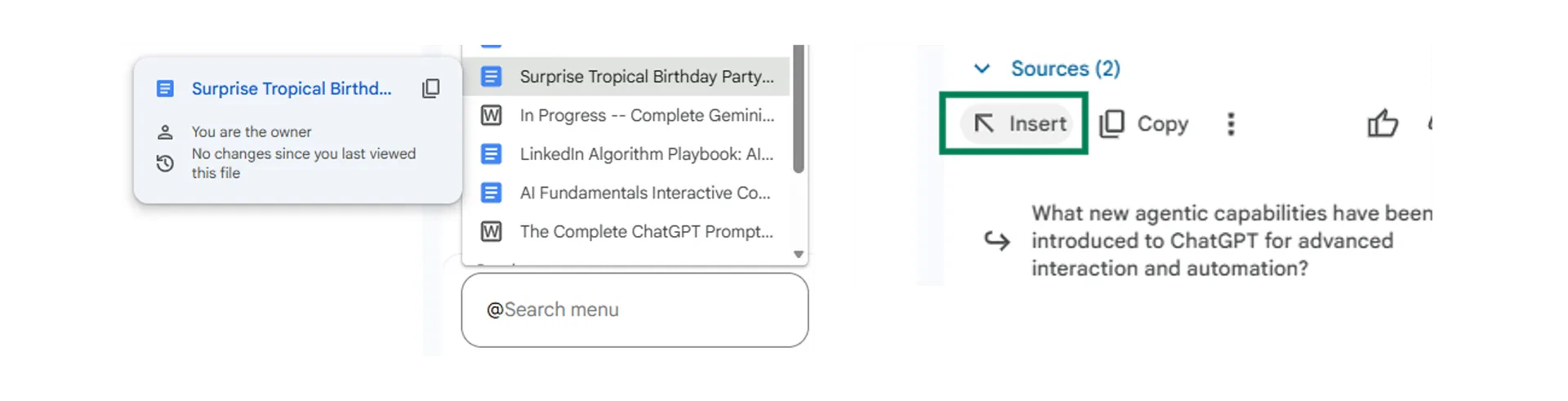 Gemini also offers contextual smart replies that analyse the email thread and your past communications to suggest responses matching your typical writing style.
***
## Iterate and refine your outputs
Your first prompt rarely produces a perfect result. The best approach is to treat the first output as a starting draft, then use follow-up prompts to refine it.
"Make this shorter and focus only on the recommendations."
"Expand the second paragraph with more detail on timelines."
"Rewrite this for a senior leadership audience."
"Make this more conversational and less formal."
"Add the revenue figures from @Q1Report.xlsx to the summary."
"Include a comparison with last quarter's results."
Keep the same conversation open when refining. Gemini remembers what you discussed earlier in the chat, so each follow-up builds on the previous response.
***
## Deep Research
Deep Research is Gemini's feature for comprehensive information gathering. It accesses and analyses hundreds of web pages, academic papers, and trusted sources to deliver structured reports with full citations. Depending on the complexity of your request, this takes between 10 and 30 minutes.
Gemini also offers contextual smart replies that analyse the email thread and your past communications to suggest responses matching your typical writing style.
***
## Iterate and refine your outputs
Your first prompt rarely produces a perfect result. The best approach is to treat the first output as a starting draft, then use follow-up prompts to refine it.
"Make this shorter and focus only on the recommendations."
"Expand the second paragraph with more detail on timelines."
"Rewrite this for a senior leadership audience."
"Make this more conversational and less formal."
"Add the revenue figures from @Q1Report.xlsx to the summary."
"Include a comparison with last quarter's results."
Keep the same conversation open when refining. Gemini remembers what you discussed earlier in the chat, so each follow-up builds on the previous response.
***
## Deep Research
Deep Research is Gemini's feature for comprehensive information gathering. It accesses and analyses hundreds of web pages, academic papers, and trusted sources to deliver structured reports with full citations. Depending on the complexity of your request, this takes between 10 and 30 minutes.
 ### When to use Deep Research
Gather intelligence on competitor offerings, pricing, market positioning, and customer sentiment across multiple sources.
Investigate potential partners, vendors, or acquisition targets by aggregating public information, financial data, and industry analysis.
Understand industry trends, emerging technologies, or regulatory changes by pulling from trade publications, analyst reports, and news sources.
Build foundational understanding of unfamiliar subjects by having Gemini curate and summarise materials from introductory through advanced levels.
### After research completes
A "Create" button appears in the results, letting you transform the research into different formats.
### When to use Deep Research
Gather intelligence on competitor offerings, pricing, market positioning, and customer sentiment across multiple sources.
Investigate potential partners, vendors, or acquisition targets by aggregating public information, financial data, and industry analysis.
Understand industry trends, emerging technologies, or regulatory changes by pulling from trade publications, analyst reports, and news sources.
Build foundational understanding of unfamiliar subjects by having Gemini curate and summarise materials from introductory through advanced levels.
### After research completes
A "Create" button appears in the results, letting you transform the research into different formats.
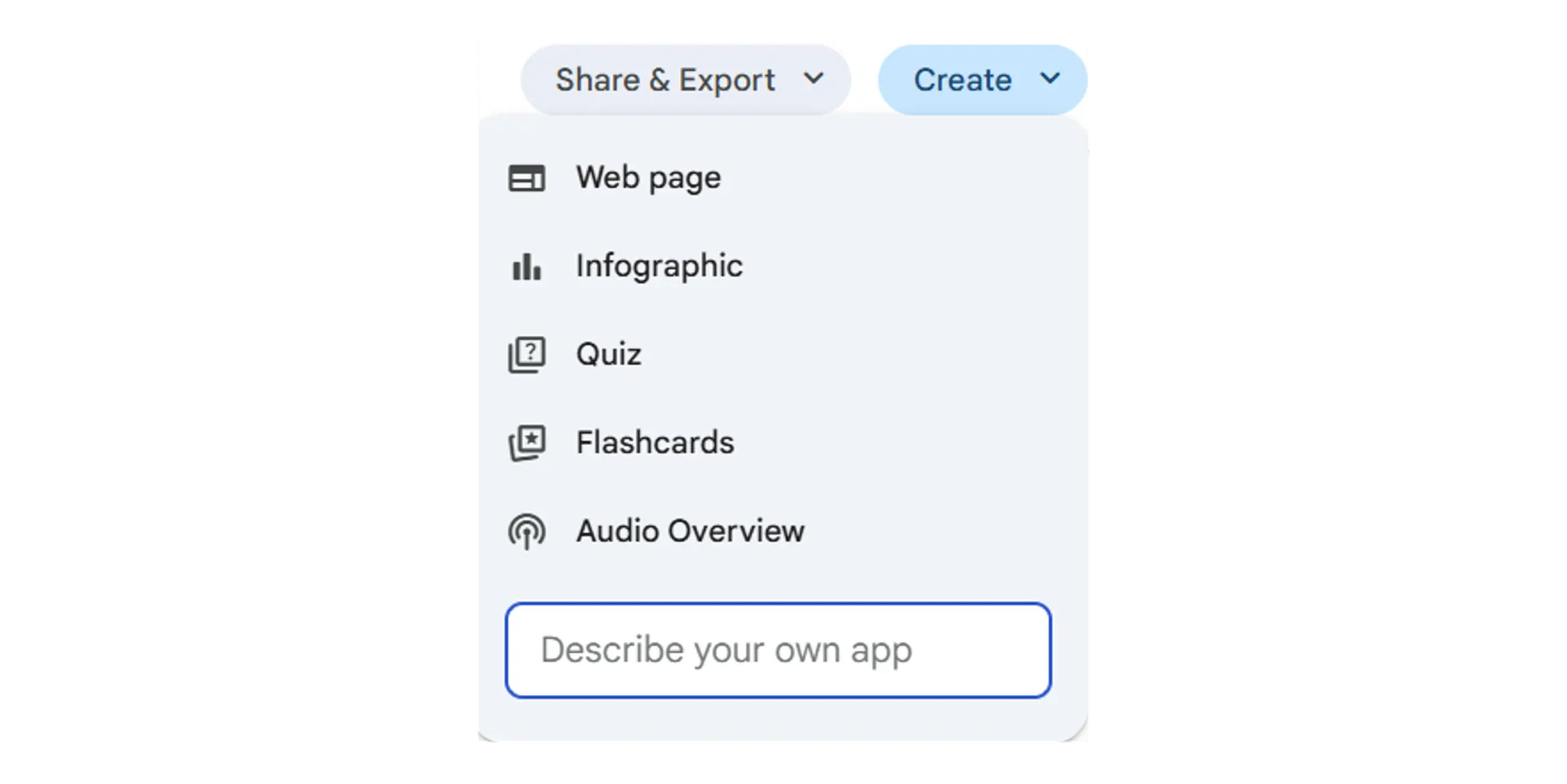 Converts the report into a shareable web page for internal knowledge bases or external publication.
Presents key findings visually with graphs and charts for presentations and stakeholder communications.
Generates assessment questions based on the research, useful for training or knowledge verification.
Creates study cards with concepts, definitions, and facts from the research for learning and retention.
Produces a spoken summary of findings so you can review the research while commuting or between meetings.
You can also export the full report directly to Google Docs using the "Export to Docs" button, which preserves formatting, citations, and structure.
Converts the report into a shareable web page for internal knowledge bases or external publication.
Presents key findings visually with graphs and charts for presentations and stakeholder communications.
Generates assessment questions based on the research, useful for training or knowledge verification.
Creates study cards with concepts, definitions, and facts from the research for learning and retention.
Produces a spoken summary of findings so you can review the research while commuting or between meetings.
You can also export the full report directly to Google Docs using the "Export to Docs" button, which preserves formatting, citations, and structure.
 ***
## Gems in Gemini
Gems are premade agents available within the Gemini chat interface across Google Workspace apps. They handle specific tasks like improving content, formatting text, and polishing drafts.
***
## Gems in Gemini
Gems are premade agents available within the Gemini chat interface across Google Workspace apps. They handle specific tasks like improving content, formatting text, and polishing drafts.
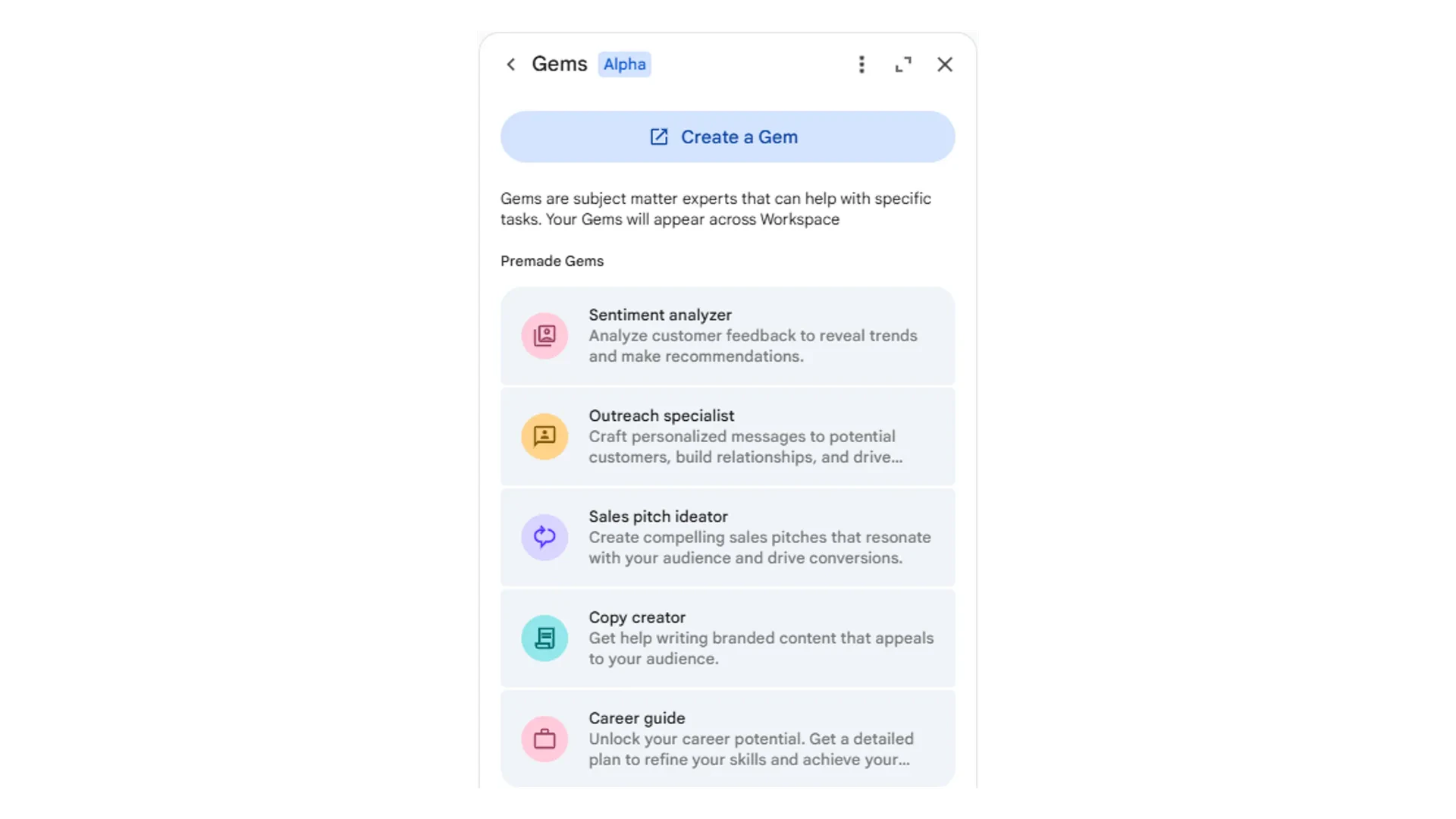 Gems appear in the side panel when you open Gemini inside apps like Google Sheets. Each Gem is tailored to common tasks for that app.
***
## NotebookLM
NotebookLM is a separate workspace where every response is grounded in your uploaded source material. It does not generate fabricated information. Instead, it provides direct citations linked back to your documents, making it easy to verify any claim.
At Pathfindr, we have integrated NotebookLM into our toolkit and found it to be a reliable resource, particularly the "Create" capabilities in the Studio tab.
### Three main panels
Gems appear in the side panel when you open Gemini inside apps like Google Sheets. Each Gem is tailored to common tasks for that app.
***
## NotebookLM
NotebookLM is a separate workspace where every response is grounded in your uploaded source material. It does not generate fabricated information. Instead, it provides direct citations linked back to your documents, making it easy to verify any claim.
At Pathfindr, we have integrated NotebookLM into our toolkit and found it to be a reliable resource, particularly the "Create" capabilities in the Studio tab.
### Three main panels
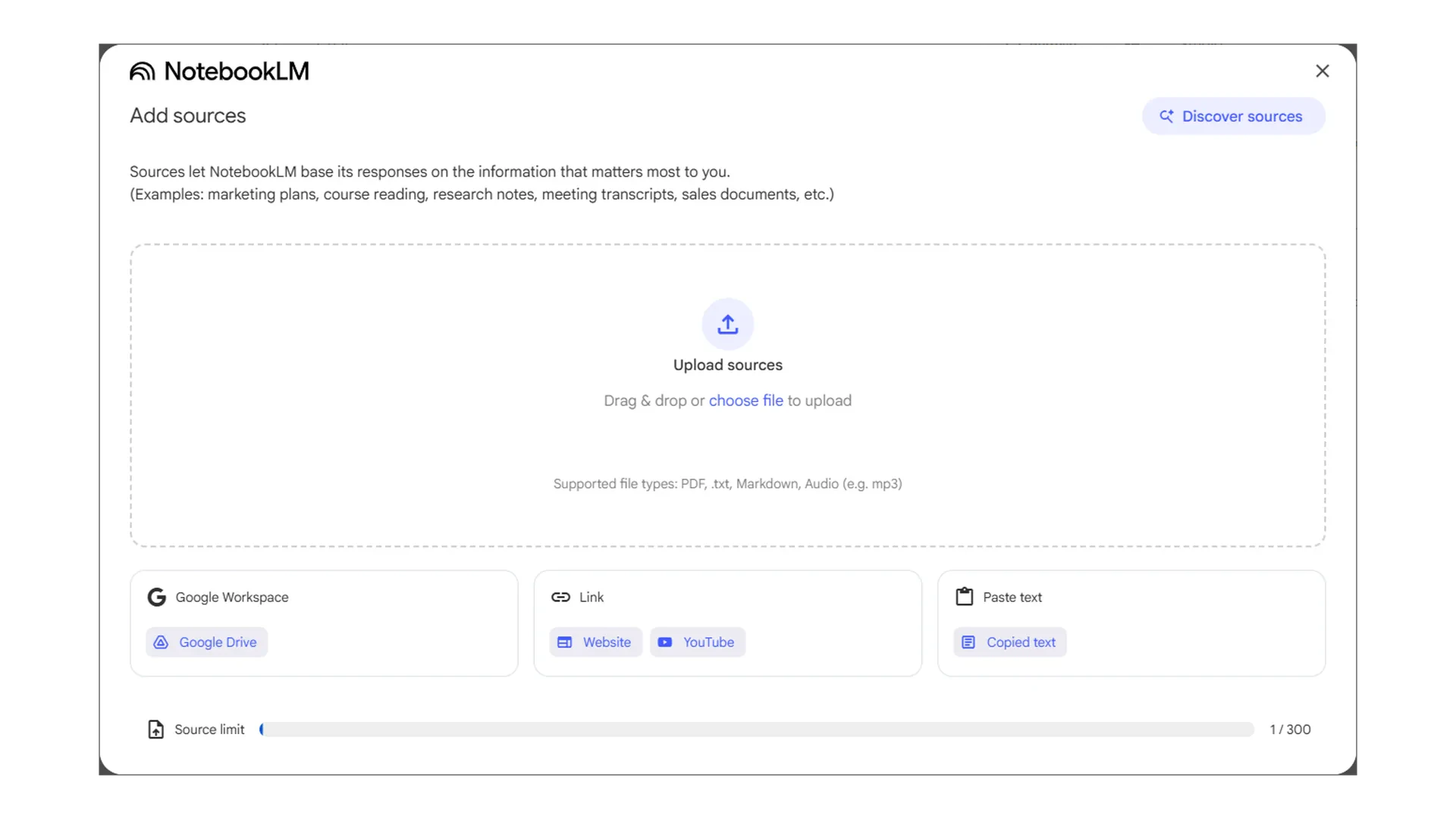
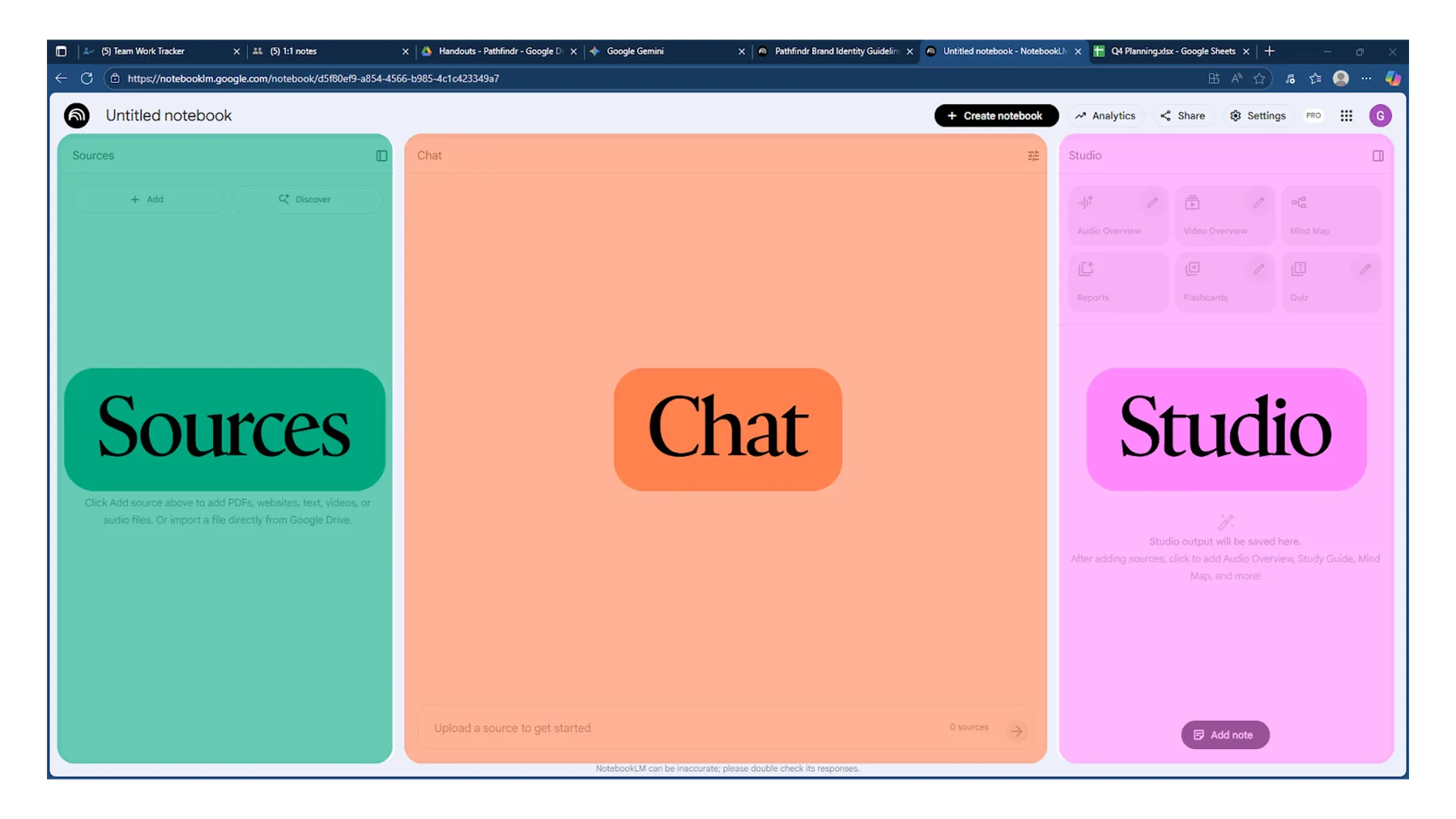 Upload documents, add web links, or connect files from Google Drive. You can attach up to 300 source files and selectively include or exclude materials before asking questions.
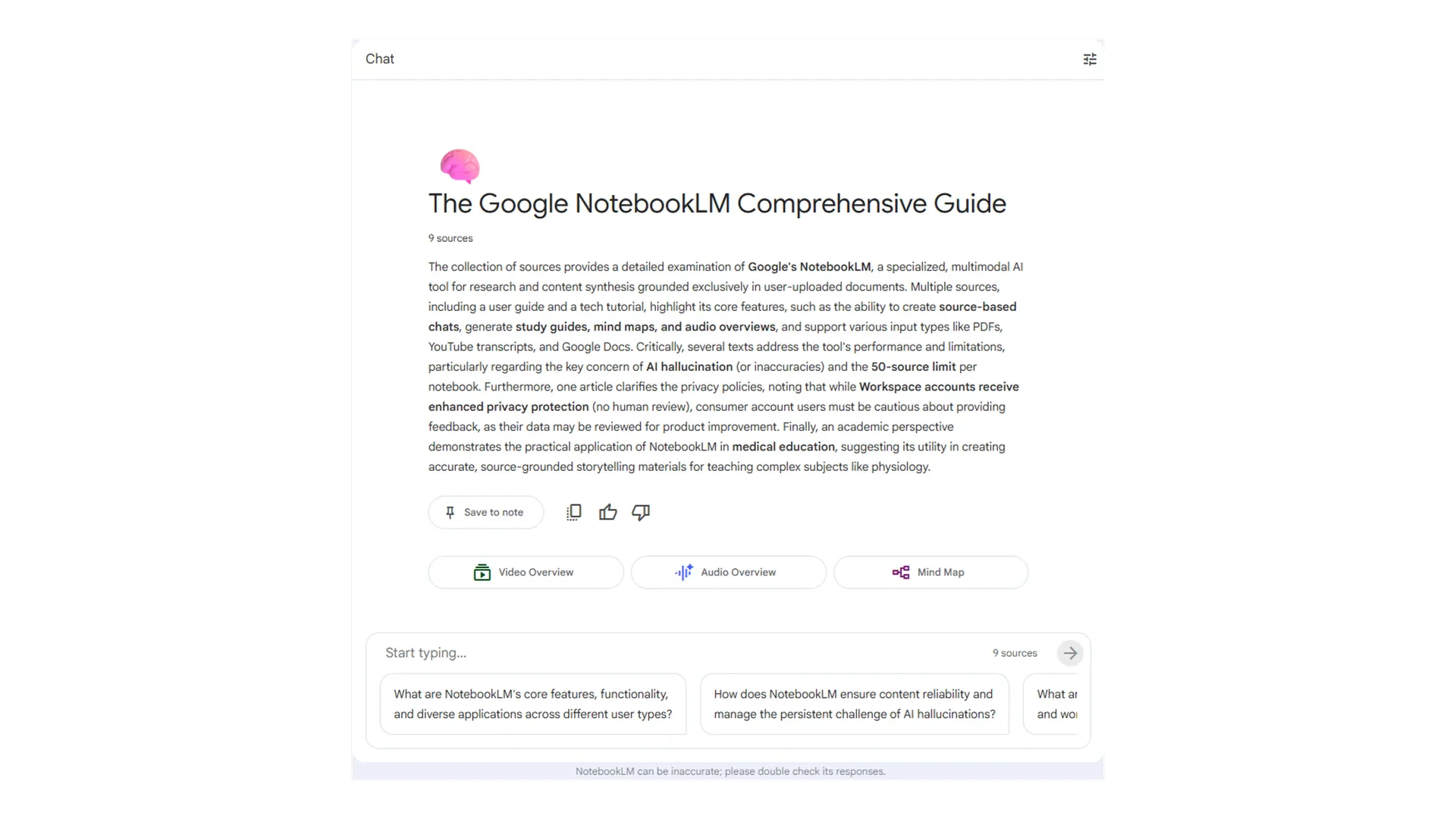
 Ask questions about your sources. Customise the AI's persona for each notebook by choosing from options like "Default" or "Learning Guide," or define a custom role and response length.
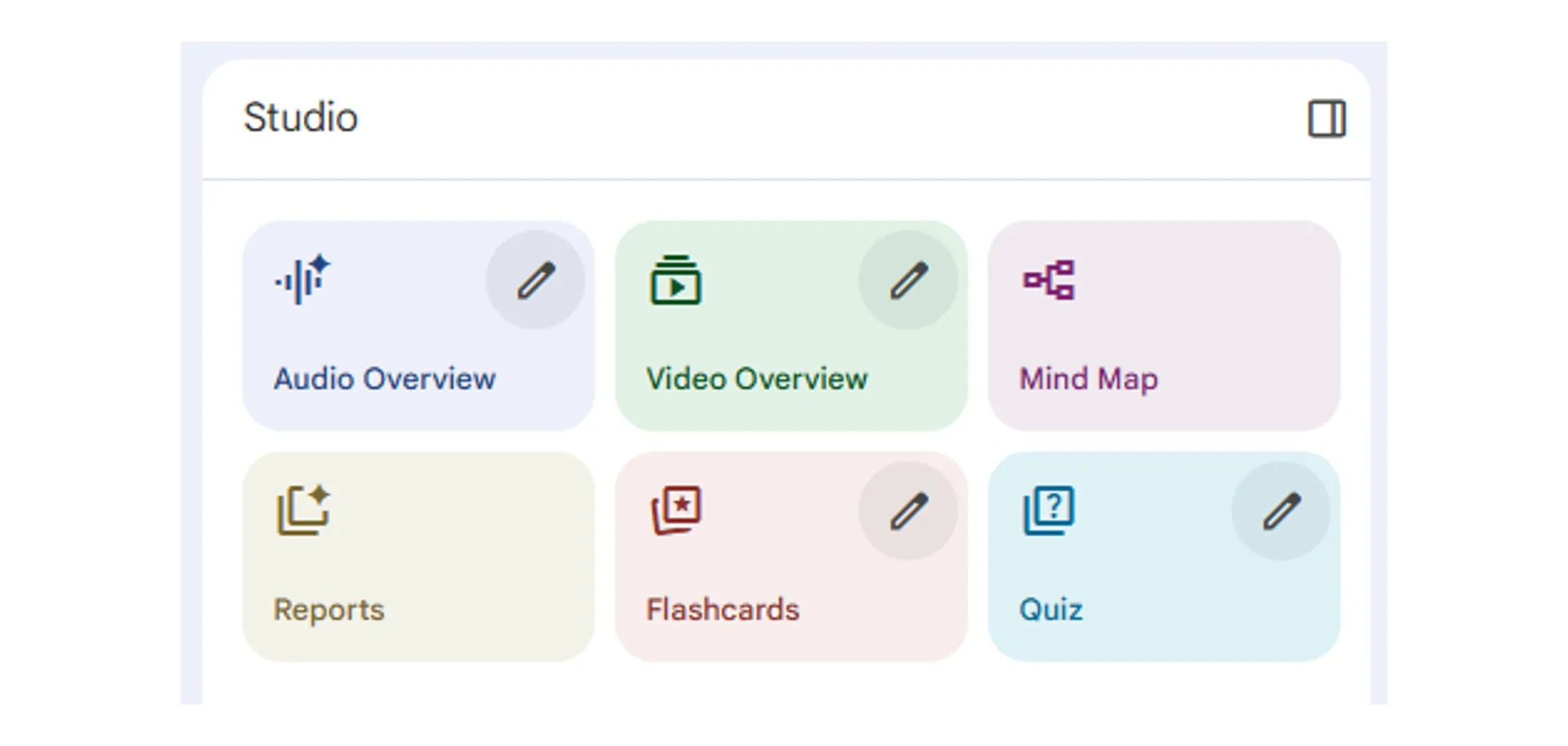
 Transform your source materials into structured outputs with one click: Audio Overview, Video Overview, Flashcards, Quiz, Mind Maps, and Reports.
 If you find a response useful during a chat, you can convert it into a note. This note appears in the Studio panel, where you can review it later or add it as a source for future queries.
***
## Quick checkpoint (you're done when...)
You referenced a Workspace file in a Gemini prompt using the @ symbol
You built a prompt using persona, task, context, and format
You opened the Gemini side panel in Docs, Sheets, or Gmail
You used a follow-up prompt to improve Gemini's first response
Complete the mini challenge by building a prompt with context from your own Workspace files
If you find a response useful during a chat, you can convert it into a note. This note appears in the Studio panel, where you can review it later or add it as a source for future queries.
***
## Quick checkpoint (you're done when...)
You referenced a Workspace file in a Gemini prompt using the @ symbol
You built a prompt using persona, task, context, and format
You opened the Gemini side panel in Docs, Sheets, or Gmail
You used a follow-up prompt to improve Gemini's first response
Complete the mini challenge by building a prompt with context from your own Workspace files