> ## Documentation Index
> Fetch the complete documentation index at: https://academy.pathfindr.ai/llms.txt
> Use this file to discover all available pages before exploring further.

# Reading Material

> A comprehensive guide to creating images, videos, and interactive webpages using ChatGPT's creative tools.

export const Quiz = ({question, options, correctIndex, explanation}) => {
  const [selected, setSelected] = useState(null);
  const [showResult, setShowResult] = useState(false);
  const handleSelect = index => {
    if (showResult) return;
    setSelected(index);
    setShowResult(true);
  };
  const isCorrect = selected === correctIndex;
  return <div className="my-8 p-6 rounded-2xl border border-zinc-200 dark:border-zinc-700 bg-gradient-to-br from-zinc-50 to-white dark:from-zinc-900 dark:to-zinc-800 shadow-sm">
      <div className="flex items-center gap-3 mb-4">
        <div className="flex items-center justify-center w-10 h-10 rounded-xl bg-blue-100 dark:bg-blue-900/40">
          <span className="text-xl">📝</span>
        </div>
        <div className="flex flex-col">
          <p className="font-semibold text-zinc-800 dark:text-zinc-100 m-0">Knowledge Check</p>
          <p className="text-xs text-zinc-500 dark:text-zinc-400 mt-0.5 m-0">Select the best answer</p>
      </div>
      </div>
      
      <p className="text-zinc-700 dark:text-zinc-200 font-medium mb-5 text-lg leading-relaxed">{question}</p>
      
      <div className="space-y-3">
        {options.map((option, index) => {
    const isSelected = selected === index;
    const isCorrectOption = index === correctIndex;
    let optionStyles = "border-zinc-200 dark:border-zinc-600 hover:border-blue-400 hover:bg-blue-50 dark:hover:bg-blue-900/20";
    if (showResult) {
      if (isCorrectOption) {
        optionStyles = "border-green-500 bg-green-50 dark:bg-green-900/30";
      } else if (isSelected && !isCorrectOption) {
        optionStyles = "border-red-500 bg-red-50 dark:bg-red-900/30";
      } else {
        optionStyles = "border-zinc-200 dark:border-zinc-700 opacity-60";
      }
    }
    return <button key={index} onClick={() => handleSelect(index)} disabled={showResult} className={`w-full text-left p-4 rounded-xl border-2 transition-all duration-200 ${optionStyles} ${!showResult && 'cursor-pointer'} ${showResult && 'cursor-default'}`}>
              <div className="flex items-start gap-3">
                <div className={`flex-shrink-0 w-6 h-6 rounded-full border-2 flex items-center justify-center text-xs font-bold ${showResult && isCorrectOption ? 'border-green-500 bg-green-500 text-white' : showResult && isSelected && !isCorrectOption ? 'border-red-500 bg-red-500 text-white' : 'border-zinc-300 dark:border-zinc-500 text-zinc-500 dark:text-zinc-400'}`}>
                  {showResult && isCorrectOption ? '✓' : showResult && isSelected ? '✗' : String.fromCharCode(65 + index)}
                </div>
                <span className="text-sm text-zinc-700 dark:text-zinc-200 leading-relaxed">{option}</span>
              </div>
            </button>;
  })}
      </div>
      
      {showResult && <div className={`mt-5 p-4 rounded-xl ${isCorrect ? 'bg-green-100 dark:bg-green-900/40 border border-green-200 dark:border-green-800' : 'bg-amber-100 dark:bg-amber-900/40 border border-amber-200 dark:border-amber-800'}`}>
          <div className="flex items-start gap-3">
            <span className="text-xl">{isCorrect ? '🎉' : '💡'}</span>
            <div className="flex flex-col">
              <p className={`text-sm font-semibold m-0 mb-1 ${isCorrect ? 'text-green-800 dark:text-green-200' : 'text-amber-800 dark:text-amber-200'}`}>
                {isCorrect ? 'Correct!' : 'Not quite right'}
              </p>
              <p className="text-sm text-zinc-600 dark:text-zinc-300 m-0 leading-relaxed">{explanation}</p>
          </div>
          </div>
        </div>}
    </div>;
};

export const GlossaryRow = ({title, description, children, flip = false, titleClassName = "text-2xl font-semibold tracking-tight text-zinc-950 dark:text-white", descriptionClassName = "mt-3 text-base leading-7 text-zinc-700 dark:text-zinc-300"}) => {
  return <div className="not-prose my-12">
      <div className="grid grid-cols-1 sm:grid-cols-[1fr_1.6fr] gap-10 items-start">
        {}
        <div className={flip ? "sm:order-2" : "sm:order-1"}>
          <div className={titleClassName}>{title}</div>
          {description ? <div className={descriptionClassName}>{description}</div> : null}
        </div>

        {}
        <div className={flip ? "sm:order-1" : "sm:order-2"}>
          <div className="rounded-2xl overflow-hidden bg-transparent pointer-events-auto">
            {children}
          </div>
        </div>
      </div>
    </div>;
};

## Create visual content with ChatGPT

ChatGPT is more than a text assistant. It can <b>generate images</b>, <b>build interactive webpages</b>, and <b>produce video clips</b> from a written description. These creative tools sit inside the same chat interface you already use, so there is no extra software to learn.

This page will show you how to:

<CardGroup cols={4}>
  <Card title="Prompt for visuals" icon="square-1">
    Structure your requests so ChatGPT produces the image or video you actually need
  </Card>

  <Card title="Generate and edit images" icon="square-2">
    Create images with GPT Image 1.5, manage your creative library, and make targeted edits
  </Card>

  <Card title="Build webpages with vibe coding" icon="square-3">
    Turn plain language into simple, shareable webpages using Canvas and the ONE Framework
  </Card>

  <Card title="Understand the limits" icon="square-4">
    Know where AI-generated content falls short so you can plan around it
  </Card>
</CardGroup>

<div className="mt-8" />

## Visual content prompting

To get the best results from creative AI tools, you need clear, structured prompts. Break your request into five key elements so ChatGPT understands exactly what you want.

<AccordionGroup>
  <Accordion title="1. Subject" icon="user">
    Clearly define the main focus of your image or video. This is the "who" or "what" of your creation and the anchor for all other elements.

    * <b>Who is the focus?</b>
    * <b>What is the main person, place, or thing?</b>
    * <b>Do you have any reference images?</b>
  </Accordion>

  <Accordion title="2. Setting" icon="location-dot">
    Describe the environment and context. Adding details about location, time, or weather creates layers of context that help the AI generate a clearer image.

    * <b>Where is this happening?</b>
    * <b>Is there a specific time of day?</b>
    * <b>Should there be specific weather conditions?</b>
  </Accordion>

  <Accordion title="3. Aesthetic" icon="paintbrush">
    Define the overall style, mood, and visual feel of the output. Specifying the aesthetic ensures the final product aligns with your desired outcome.

    * <b>Style:</b> Photorealistic, Cartoon, Painting, etc.
    * <b>Mood:</b> Cheerful, Dark, Mysterious, etc.
    * <b>Colour palette:</b> Any specific colours?
  </Accordion>

  <Accordion title="4. Composition" icon="camera">
    Composition refers to how elements are arranged within the frame. Specifying framing, perspective, and point of view has a big impact on results.

    * <b>Shot type:</b> Close-up, birds-eye, etc.
    * <b>Where is the subject placed?</b>
  </Accordion>

  <Accordion title="5. Motion (for video only)" icon="video">
    When creating video, provide direction for movement within the scene. This element is what brings a static image to life.

    * <b>Camera movements:</b> Pan, zoom, dolly, etc.
    * <b>Subject movement:</b> Does the subject move?
    * <b>Overall speed:</b> Slow, normal, fast?
    * <b>Reference image:</b> Do you have one?
  </Accordion>
</AccordionGroup>

<Tip>
  Start with just Subject and Setting. Add Aesthetic, Composition, and Motion once you have a baseline result you want to refine. Building prompts in layers gives you more control over the final output.
</Tip>

export const quizPrompting = {
  question: "Which of the five visual prompting elements is only relevant when creating video content?",
  options: ["Subject", "Aesthetic", "Composition", "Motion"],
  correctIndex: 3,
  explanation: "Motion covers camera movements, subject movement, and overall speed. These details only apply to video generation. The other four elements (Subject, Setting, Aesthetic, Composition) apply to both image and video creation."
};

<Accordion title="Test your understanding">
  <Quiz {...quizPrompting} />
</Accordion>

***

## Image generation

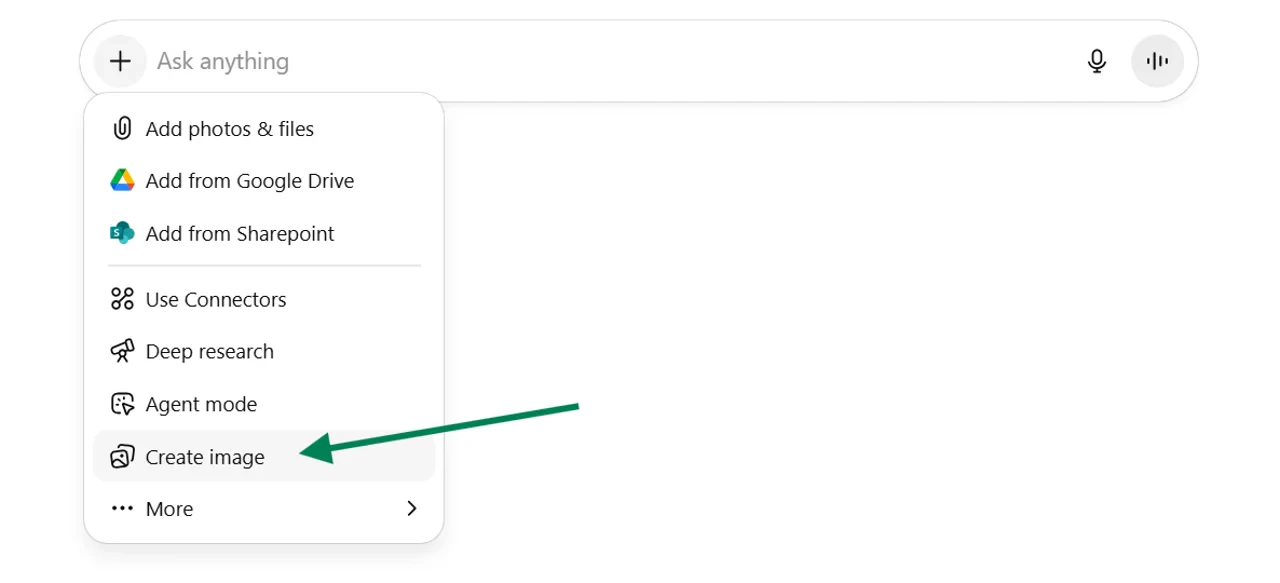
GPT Image 1.5 is OpenAI's current flagship image generation model in ChatGPT. It replaced DALL·E 3 and is integrated directly into the chat interface. The system interprets natural language descriptions and generates a corresponding image.

<GlossaryRow title="Getting started" description="To create an image, click the plus button and select Create Image. You can also start any prompt with 'Create an image of' and ChatGPT will automatically trigger the image tool.">
  <img src="https://mintcdn.com/pathfindr/0Og7YOK8gX91P7mj/images/createImage.webp?fit=max&auto=format&n=0Og7YOK8gX91P7mj&q=85&s=fa8d44a7b6937353db7b7859e72cda2b" alt="Create Image button in ChatGPT" width="1280" height="583" data-path="images/createImage.webp" />
</GlossaryRow>

<GlossaryRow title="Creative library" description="ChatGPT provides tools for managing and editing your creations. In the sidebar, you will find a Library option that displays all the images you have previously generated. Click on any image from the library to start editing. Enter a prompt in the chat bar to modify the image. In the top right corner, you can Open in chat to return to the original conversation, or download and share directly.">
  <img src="https://mintcdn.com/pathfindr/0Og7YOK8gX91P7mj/images/creativeLibrary1.webp?fit=max&auto=format&n=0Og7YOK8gX91P7mj&q=85&s=a8a2486e38957268233cd3fd5be0894e" alt="Creative Library sidebar in ChatGPT" width="1280" height="566" data-path="images/creativeLibrary1.webp" />
</GlossaryRow>

<GlossaryRow title="Editing images" description="When you click on a generated image, you will see several tools at the top. One tool lets you select a specific area of your image with your cursor and make targeted edits. For example, you could highlight a section and type 'Remove the object in the selected area.'">
  <img src="https://mintcdn.com/pathfindr/0Og7YOK8gX91P7mj/images/creativeLibrary3.webp?fit=max&auto=format&n=0Og7YOK8gX91P7mj&q=85&s=92d0d462805916ff5554425ffca05ba3" alt="Selection tool for targeted image edits" width="1280" height="672" data-path="images/creativeLibrary3.webp" />
</GlossaryRow>

<Warning>
  The selection tool allows precise edits without rewriting prompts. However, the feature is still developing and may produce small unintended variations across the image. Focus on refining the initial prompt to achieve the desired result while editing capabilities continue to improve.
</Warning>

export const quizImageGen = {
  question: "What is the recommended approach when the image editing tool produces unintended variations?",
  options: ["Keep making small edits until it looks right", "Switch to a different AI tool", "Focus on refining the initial prompt instead of relying on the editing tool", "Download the image and edit it in Photoshop"],
  correctIndex: 2,
  explanation: "The editing tool is still developing and can produce small unintended changes. OpenAI recommends focusing on getting the initial prompt right rather than making multiple small edits. This approach produces more consistent and reliable results."
};

<Accordion title="Test your understanding">
  <Quiz {...quizImageGen} />
</Accordion>

***

## Vibe coding

Vibe coding lets you turn plain language descriptions into simple, shareable webpages. You do not need software development skills. Think of it as a practical tool for visualising workflows, diagrams, infographics, and processes as basic webpages that you can share across your team.

<GlossaryRow title="Getting started" description="Open the Canvas feature in ChatGPT. For code generation, use GPT-5.3-Codex as it is currently the most effective coding model available in Canvas. Submit a prompt to begin developing the frontend code for your creation.">
  <img src="https://mintcdn.com/pathfindr/vxED2dxssEHZg3yn/images/vibeCoding1.webp?fit=max&auto=format&n=vxED2dxssEHZg3yn&q=85&s=6d09d502721dba2d799bf1c9a74ee23a" alt="Canvas code generation in ChatGPT" width="1280" height="205" data-path="images/vibeCoding1.webp" />
</GlossaryRow>

<GlossaryRow title="Preview webpage" description="Once your code has finished generating, click Preview to view the webpage within ChatGPT.">
  <img src="https://mintcdn.com/pathfindr/vxED2dxssEHZg3yn/images/vibeCoding2.webp?fit=max&auto=format&n=vxED2dxssEHZg3yn&q=85&s=ed493e817ab0dc1de1406e6445c27591" alt="Preview button in Canvas" width="1920" height="1080" data-path="images/vibeCoding2.webp" />
</GlossaryRow>

<GlossaryRow title="Share with your team" description="Review the webpage. When you are happy with the contents, click the share button to generate a link that others in your organisation can access.">
  <img src="https://mintcdn.com/pathfindr/vxED2dxssEHZg3yn/images/vibeCoding3.webp?fit=max&auto=format&n=vxED2dxssEHZg3yn&q=85&s=6bba93f1c053b9a92679207d91c7373d" alt="Shareable webpage preview" width="1280" height="681" data-path="images/vibeCoding3.webp" />
</GlossaryRow>

### The ONE Framework

Use the ONE Framework to structure your vibe coding prompts clearly and effectively. This framework helps ChatGPT understand exactly what you want to create while keeping things simple and reducing errors.

<AccordionGroup>
  <Accordion title="O - Objective">
    Start by clearly stating what you want to create. Be specific about the type of asset and its purpose.

    ```text theme={null}
    Code an infographic to compare Woolworths and Coles performance in FY2025.
    ```
  </Accordion>

  <Accordion title="N - Notes">
    Add specific details about the information that should be included.

    ```text theme={null}
    Compare net profit after tax, revenue growth, and dividend payout. Use the Woolworths and Coles brand colours.
    ```
  </Accordion>

  <Accordion title="E - Edges (Constraints)">
    Define the boundaries and guidelines. As you build, ChatGPT may make design decisions you disagree with. Revisit and adjust the original prompt to provide clearer constraints.

    Useful starting constraints:

    ```text theme={null}
    1. Do not cram all the data into one graph. Spread data out.
    2. Include simple interactive elements.
    3. Have a visually appealing design, but keep it simple.
    ```
  </Accordion>
</AccordionGroup>

<Info>
  For a non-coding audience, the real value of vibe coding lies in turning ideas and processes into visual formats you can share with colleagues or use in presentations. It makes concepts tangible and easier to discuss, rather than building complex applications.
</Info>

export const quizVibeCoding = {
  question: "What does the 'E' stand for in the ONE Framework for vibe coding?",
  options: ["Examples", "Edges", "Execution", "Evaluation"],
  correctIndex: 1,
  explanation: "The ONE Framework stands for Objective, Notes, and Edges. The Edges step defines boundaries and guidelines that prevent ChatGPT from over-engineering your creation. Setting clear constraints from the start leads to better results."
};

<Accordion title="Test your understanding">
  <Quiz {...quizVibeCoding} />
</Accordion>

***

## Video generation

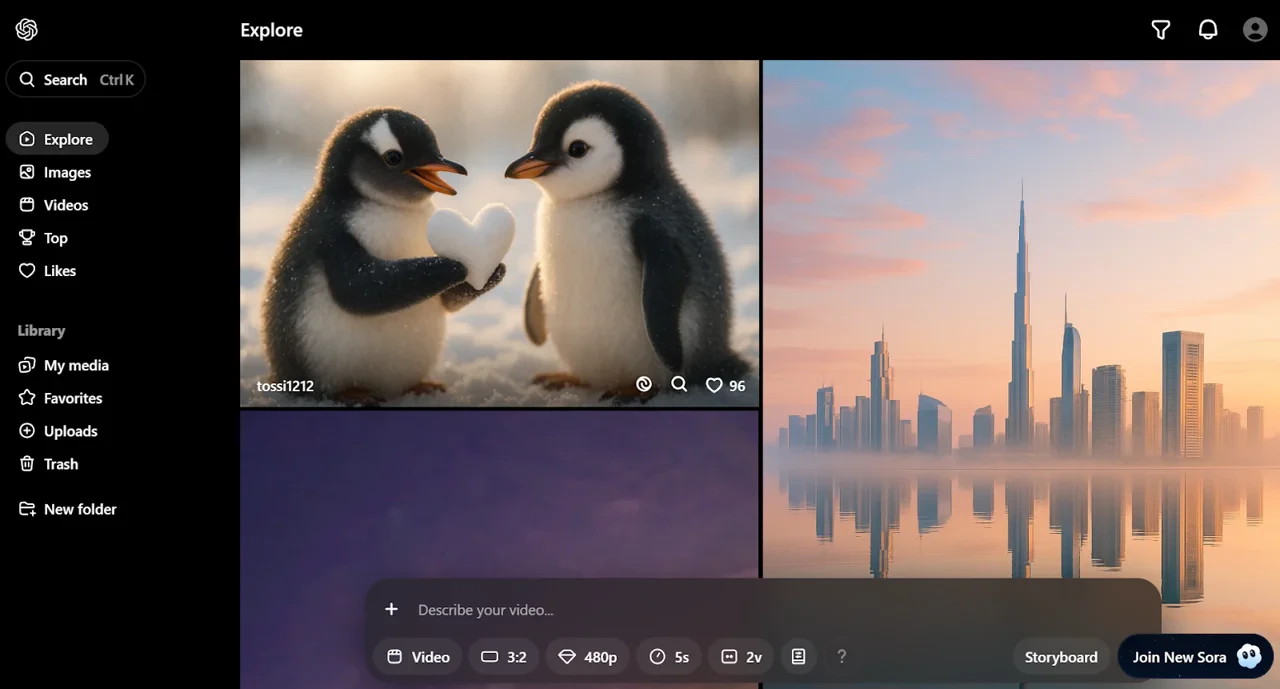
Sora is OpenAI's text-to-video generation technology that creates short video clips from written prompts. ChatGPT Pro subscribers can access <b>Sora 2</b>, though it is not currently a standard feature in ChatGPT Business accounts. In Australia, Sora 2 is not yet available. OpenAI has indicated plans to expand beyond the initial United States and Canada rollout in the coming months.

Sora 2 introduced major improvements. Most notably, it generates <b>integrated audio</b>, producing dialogue, sound effects, and ambient noise that matches the visual content. Physics simulations are also far more realistic than in previous versions.

<img src="https://mintcdn.com/pathfindr/vxED2dxssEHZg3yn/images/videoGeneration.webp?fit=max&auto=format&n=vxED2dxssEHZg3yn&q=85&s=6e0f94fdeae8288069e41ccc2942dce7" alt="Sora 2 video generation interface" width="1280" height="689" data-path="images/videoGeneration.webp" />

***

## Limitations of AI for creativity

AI-generated content has clear boundaries. Understanding these limitations helps you plan around them and set realistic expectations.

<AccordionGroup>
  <Accordion title="Mixed reactions to market-facing content" icon="users">
    Using AI-generated images and videos in public or customer-facing campaigns can generate mixed reactions. Consider your audience before publishing.
  </Accordion>

  <Accordion title="The need for transparency" icon="shield-check">
    Always disclose when you have used AI to generate content. Being open about the tools you use builds trust and manages expectations.
  </Accordion>

  <Accordion title="Complexity can create chaos" icon="triangle-exclamation">
    The more complex your prompt, the higher the chance of strange or chaotic results. This applies to vibe coding, image generation, and video generation. Start with simple, clear instructions and build in complexity progressively.
  </Accordion>

  <Accordion title="Generation can be slow with strict usage limits" icon="clock">
    Speed and usage limits are likely to improve as the technology develops. Plan your creative work around current constraints.
  </Accordion>

  <Accordion title="Text renders inaccurately" icon="font">
    Text output in images and videos is often misspelled or appears as random scribbles. This is an important consideration when developing visual content that includes text.
  </Accordion>

  <Accordion title="Extensive iteration is required" icon="rotate">
    Your first attempt will rarely be your best. Achieving a result you are happy with almost always requires modifying and iterating based on the output generated.
  </Accordion>
</AccordionGroup>

export const quizLimitations = {
  question: "Why is it important to start with simple prompts when generating images or vibe coding?",
  options: ["Simple prompts use fewer tokens and save money", "Complex prompts increase the chance of strange or chaotic results", "ChatGPT cannot process prompts longer than one sentence", "Simple prompts generate images faster"],
  correctIndex: 1,
  explanation: "The more complex your prompt, the higher the chance of the AI producing unexpected results. Starting simple and building in complexity progressively gives you more control and reduces errors across image generation, video generation, and vibe coding."
};

<Accordion title="Test your understanding">
  <Quiz {...quizLimitations} />
</Accordion>

***

## Quick checkpoint (you're done when...)

<CardGroup cols={4}>
  <Card title="Prompt with structure" icon="circle-check">
    You can break a visual request into Subject, Setting, Aesthetic, Composition, and Motion
  </Card>

  <Card title="Generate an image" icon="circle-check">
    You created at least one image using GPT Image 1.5 in ChatGPT
  </Card>

  <Card title="Build a webpage" icon="circle-check">
    You used Canvas and the ONE Framework to create a simple, shareable webpage
  </Card>

  <Card title="Know the limits" icon="circle-check">
    You understand where AI-generated content falls short and how to plan around it
  </Card>
</CardGroup>

<div className="mt-8" />

<Card title="Ready to practice?" icon="chess-knight-piece" href="/participant/visualContentAndCreativeApplications/chatgpt-challenge">
  Complete the mini challenge to practise using ChatGPT's creative tools with your own work
</Card>