> ## Documentation Index
> Fetch the complete documentation index at: https://academy.pathfindr.ai/llms.txt
> Use this file to discover all available pages before exploring further.
# Reading Material
> Learn how to use Claude's visual features to analyse photos, transcribe handwriting, and generate UI diagrams with Artifacts
## Use visuals to get more from Claude
Claude is known for writing and reasoning, but it also has powerful visual capabilities. You can upload photos of whiteboards to transcribe text, share screenshots for analysis, or ask Claude to generate interactive visual mockups and flowcharts using **Artifacts**.
These visual features are built directly into the Claude chat interface, allowing you to seamlessly mix text, images, and code generation in a single workspace.
This page will show you how to:
Transcribe handwritten notes, whiteboards, or printed documents
Share a photo of a chart or dashboard and let Claude summarise it
Use Artifacts to build React components, SVG graphics, and interactive dashboards
Refine generated diagrams or charts with feedback and follow-up prompts
***
## Meet Artifacts in Claude
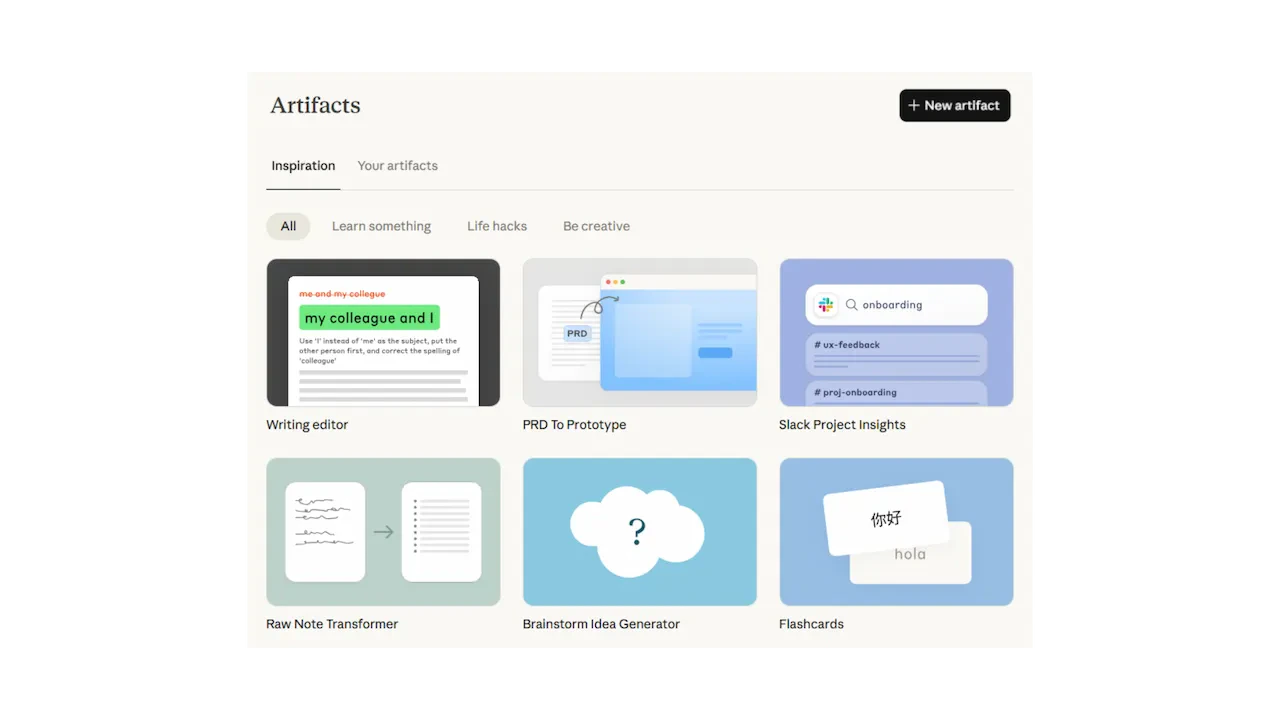
When you ask AI chatbots to describe a process or build a tool, they usually reply with long blocks of text or raw code. **Artifacts** change this. When you ask Claude to generate something visual—like a UI mockup, a flowchart, or a custom graphic—it opens a dedicated, interactive window next to your chat.
Artifacts are standalone pieces of content that you can view, edit, and interact with in real time. They are perfect for when you need a visual representation of your ideas, not just an explanation.
 Type a prompt, get text or raw code back. Good for quick questions, drafting emails, or simple analysis. The output is static and requires you to copy/paste code to see it working.
A dedicated visual workspace. Claude instantly renders interactive React components, Mermaid flowcharts, SVG illustrations, and HTML pages alongside your chat.
Here is what you can create with Artifacts:
Build functional mockups. Ask Claude to "create a dashboard layout for a sales team" and use the interactive sliders and buttons it generates.
Visualise processes. Ask Claude to turn a complex written procedure into a clear Mermaid flowchart or architecture diagram.
Generate scalable vector graphics (SVG). Ask for icons, logos, or geometric illustrations directly in the chat window.
You can toggle between the rendered view and the raw code in the Artifacts window. If you want to use the code, just click the copy button and paste it into your own project!
export const quizArtifacts = {
question: "What is the primary benefit of using Artifacts in Claude?",
options: ["It allows Claude to browse the internet faster", "It provides a dedicated, interactive window next to your chat to render visual content like UIs and diagrams", "It lets you upload larger image files", "It automatically saves all your chats to a separate folder"],
correctIndex: 1,
explanation: "Artifacts provide a dedicated workspace alongside your chat, allowing Claude to instantly render interactive components, flowcharts, and graphics instead of just giving you raw text or code."
};
***
## Upload a photo and ask Claude about it
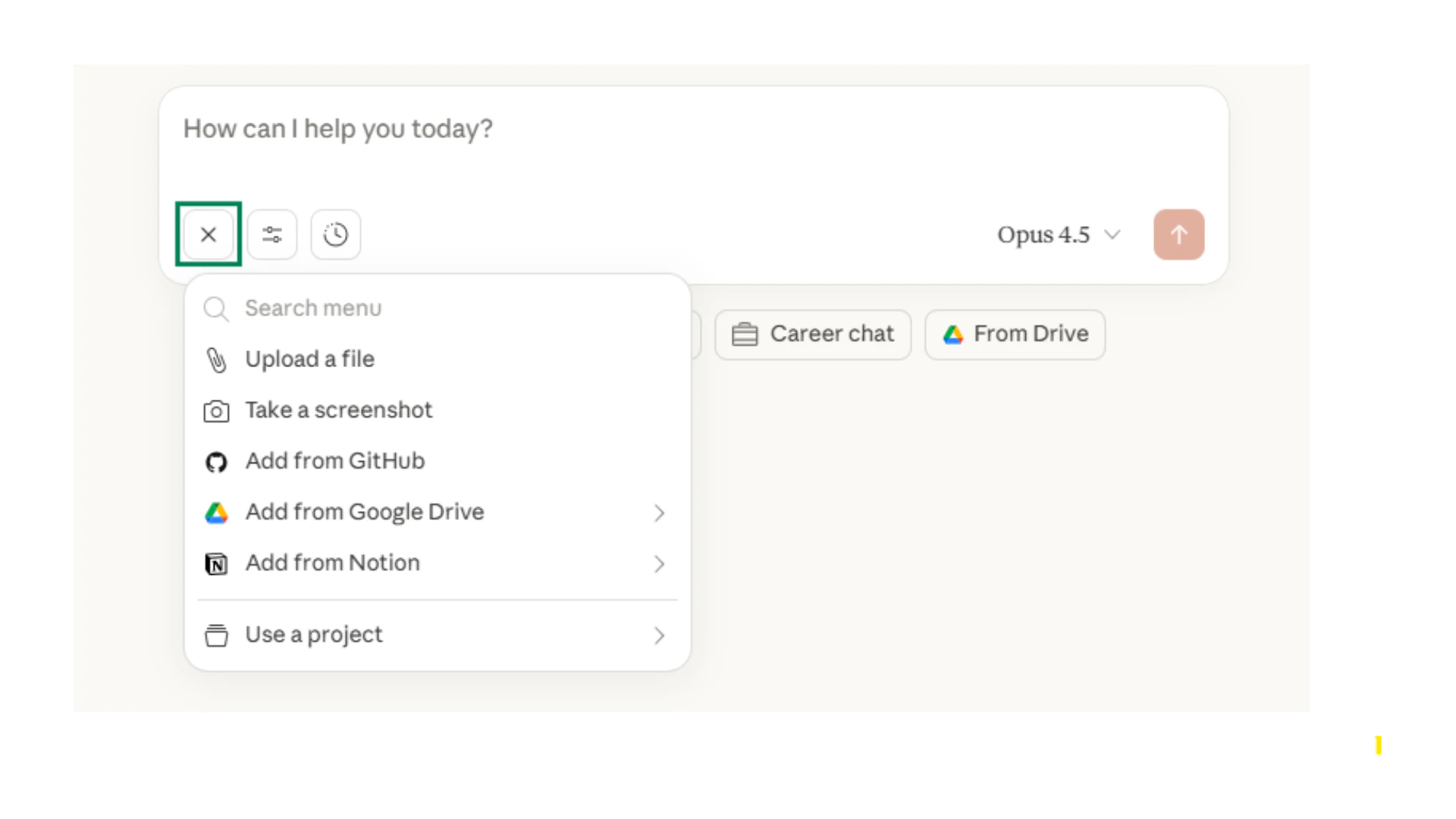
You can share an image with Claude and ask questions about it or have it extract information. Click the attachment icon (paperclip) in the chat bar, upload a photo from your device, and type your instructions.
Claude is exceptional at reading text in images (Optical Character Recognition, or OCR) and understanding the spatial relationships in diagrams.
Type a prompt, get text or raw code back. Good for quick questions, drafting emails, or simple analysis. The output is static and requires you to copy/paste code to see it working.
A dedicated visual workspace. Claude instantly renders interactive React components, Mermaid flowcharts, SVG illustrations, and HTML pages alongside your chat.
Here is what you can create with Artifacts:
Build functional mockups. Ask Claude to "create a dashboard layout for a sales team" and use the interactive sliders and buttons it generates.
Visualise processes. Ask Claude to turn a complex written procedure into a clear Mermaid flowchart or architecture diagram.
Generate scalable vector graphics (SVG). Ask for icons, logos, or geometric illustrations directly in the chat window.
You can toggle between the rendered view and the raw code in the Artifacts window. If you want to use the code, just click the copy button and paste it into your own project!
export const quizArtifacts = {
question: "What is the primary benefit of using Artifacts in Claude?",
options: ["It allows Claude to browse the internet faster", "It provides a dedicated, interactive window next to your chat to render visual content like UIs and diagrams", "It lets you upload larger image files", "It automatically saves all your chats to a separate folder"],
correctIndex: 1,
explanation: "Artifacts provide a dedicated workspace alongside your chat, allowing Claude to instantly render interactive components, flowcharts, and graphics instead of just giving you raw text or code."
};
***
## Upload a photo and ask Claude about it
You can share an image with Claude and ask questions about it or have it extract information. Click the attachment icon (paperclip) in the chat bar, upload a photo from your device, and type your instructions.
Claude is exceptional at reading text in images (Optical Character Recognition, or OCR) and understanding the spatial relationships in diagrams.
 Snap a photo of your handwritten meeting notes or a brainstorm session on a whiteboard. Ask Claude to transcribe the text into a clean list.
Upload a screenshot of a dense graph or dashboard. Ask Claude to identify the key trends or spot anomalies in the data.
Take a photo of a printed table or receipt. Ask Claude to pull the data and format it securely as a CSV or markdown table.
Claude accepts JPEG, PNG, GIF, and WEBP images. The maximum file size per image is 5 MB. You can upload up to 5 images at a time to compare them or extract details across multiple files.
Yes, Claude's vision capabilities support text extraction and transcription in many different languages, including complex character sets.
Files are temporarily uploaded to process your request. Always follow your organisation's data governance policies, especially when uploading images containing confidential information or Personally Identifiable Information (PII).
export const quizUpload = {
question: "You have a photo of a heavily annotated whiteboard from a strategy meeting. What is the best way to handle this?",
options: ["Type out all the notes manually into Claude's chat", "Upload the photo and ask Claude to transcribe the text and organise the key themes", "Use Artifacts to recreate the whiteboard", "Upload the photo, but Claude cannot read handwriting"],
correctIndex: 1,
explanation: "Claude excels at Optical Character Recognition (OCR) and can easily transcribe handwritten notes and pull key themes from whiteboard photos."
};
***
## Iterate on visual concepts
Whether you are generating an interactive dashboard mockup with Artifacts or asking Claude to analyse a chart, the first result is just a starting point. Claude is a conversational assistant, which means you can continuously refine your visuals through follow-up prompts.
Here is how to get the most out of iterative prompting with visuals:
Begin by defining the core task. "Create an interactive calculator for comparing mortgage rates" or "What does this uploaded financial chart show?"
If using Artifacts, tell Claude what to change. "Make the buttons blue and add a slider for the deposit amount." If analysing an image, ask for details. "Focus only on the Q3 revenue dip and give me three possible reasons shown in the data."
Once the foundation is solid, ask Claude to expand. "Now add a chart to the Artifact showing the comparison over 30 years" or "Turn the analysis of this chart into a bulleted summary for an executive."
Claude's context window Remembers the previous versions of your Artifacts. If you ask it to make a change and do not like the result, you can use the version history in the Artifact panel to go back, or just ask Claude to revert the last edit.
***
## Try it with your own work
The best way to learn Claude's visual tools is to use them on a real task. Pick one of the following and spend five minutes experimenting.
Find a handwritten note, a printed agenda, or a photo of a whiteboard from your last meeting. Upload it to Claude and ask: "Please transcribe this text and bold all the action items."
Open Claude and ask it to build an interactive Artifact. Try typing: "Create a simple interactive dashboard for tracking team tasks. Use a clean, modern aesthetic." Play with the buttons it creates!
Take a screenshot of a chart or graph you are preparing for a presentation. Upload it and ask Claude: "What is the primary narrative of this chart? Is it easy to understand at a glance?"
Remember, Claude is a collaborative tool. Do not expect magic on the first prompt; instead, treat it like a brainstorming partner where you shape the output together.
export const quizFinal = {
question: "If Claude generates an interactive dashboard Artifact and you want to change the color scheme, what should you do?",
options: ["You have to start a completely new chat with the new colors in the prompt", "Copy the raw code and change it manually", "Just type a follow-up prompt like 'Make the buttons blue' and Claude will update the Artifact", "Click the 'Edit Color' button in the Artifact menu"],
correctIndex: 2,
explanation: "Claude is conversational. If you want to refine an Artifact, simply type a follow-up prompt in the chat asking for the change, and Claude will automatically update the rendered visual."
};
***
## Quick checkpoint (you're done when...)
You generated a visual component (like a chart or UI) using Artifacts
You uploaded an image and had Claude transcribe or analyse it
You used follow-up prompts to refine an Artifact or image analysis
You understand what type of attachments Claude accepts
Complete the mini challenge to practise using Claude's visual features
Snap a photo of your handwritten meeting notes or a brainstorm session on a whiteboard. Ask Claude to transcribe the text into a clean list.
Upload a screenshot of a dense graph or dashboard. Ask Claude to identify the key trends or spot anomalies in the data.
Take a photo of a printed table or receipt. Ask Claude to pull the data and format it securely as a CSV or markdown table.
Claude accepts JPEG, PNG, GIF, and WEBP images. The maximum file size per image is 5 MB. You can upload up to 5 images at a time to compare them or extract details across multiple files.
Yes, Claude's vision capabilities support text extraction and transcription in many different languages, including complex character sets.
Files are temporarily uploaded to process your request. Always follow your organisation's data governance policies, especially when uploading images containing confidential information or Personally Identifiable Information (PII).
export const quizUpload = {
question: "You have a photo of a heavily annotated whiteboard from a strategy meeting. What is the best way to handle this?",
options: ["Type out all the notes manually into Claude's chat", "Upload the photo and ask Claude to transcribe the text and organise the key themes", "Use Artifacts to recreate the whiteboard", "Upload the photo, but Claude cannot read handwriting"],
correctIndex: 1,
explanation: "Claude excels at Optical Character Recognition (OCR) and can easily transcribe handwritten notes and pull key themes from whiteboard photos."
};
***
## Iterate on visual concepts
Whether you are generating an interactive dashboard mockup with Artifacts or asking Claude to analyse a chart, the first result is just a starting point. Claude is a conversational assistant, which means you can continuously refine your visuals through follow-up prompts.
Here is how to get the most out of iterative prompting with visuals:
Begin by defining the core task. "Create an interactive calculator for comparing mortgage rates" or "What does this uploaded financial chart show?"
If using Artifacts, tell Claude what to change. "Make the buttons blue and add a slider for the deposit amount." If analysing an image, ask for details. "Focus only on the Q3 revenue dip and give me three possible reasons shown in the data."
Once the foundation is solid, ask Claude to expand. "Now add a chart to the Artifact showing the comparison over 30 years" or "Turn the analysis of this chart into a bulleted summary for an executive."
Claude's context window Remembers the previous versions of your Artifacts. If you ask it to make a change and do not like the result, you can use the version history in the Artifact panel to go back, or just ask Claude to revert the last edit.
***
## Try it with your own work
The best way to learn Claude's visual tools is to use them on a real task. Pick one of the following and spend five minutes experimenting.
Find a handwritten note, a printed agenda, or a photo of a whiteboard from your last meeting. Upload it to Claude and ask: "Please transcribe this text and bold all the action items."
Open Claude and ask it to build an interactive Artifact. Try typing: "Create a simple interactive dashboard for tracking team tasks. Use a clean, modern aesthetic." Play with the buttons it creates!
Take a screenshot of a chart or graph you are preparing for a presentation. Upload it and ask Claude: "What is the primary narrative of this chart? Is it easy to understand at a glance?"
Remember, Claude is a collaborative tool. Do not expect magic on the first prompt; instead, treat it like a brainstorming partner where you shape the output together.
export const quizFinal = {
question: "If Claude generates an interactive dashboard Artifact and you want to change the color scheme, what should you do?",
options: ["You have to start a completely new chat with the new colors in the prompt", "Copy the raw code and change it manually", "Just type a follow-up prompt like 'Make the buttons blue' and Claude will update the Artifact", "Click the 'Edit Color' button in the Artifact menu"],
correctIndex: 2,
explanation: "Claude is conversational. If you want to refine an Artifact, simply type a follow-up prompt in the chat asking for the change, and Claude will automatically update the rendered visual."
};
***
## Quick checkpoint (you're done when...)
You generated a visual component (like a chart or UI) using Artifacts
You uploaded an image and had Claude transcribe or analyse it
You used follow-up prompts to refine an Artifact or image analysis
You understand what type of attachments Claude accepts
Complete the mini challenge to practise using Claude's visual features