> ## Documentation Index
> Fetch the complete documentation index at: https://academy.pathfindr.ai/llms.txt
> Use this file to discover all available pages before exploring further.

# Reading Material

> Learn how to use Gemini's AI visual tools to generate professional images and videos with Nano Banana and Veo.

export const Quiz = ({question, options, correctIndex, explanation}) => {
  const [selected, setSelected] = useState(null);
  const [showResult, setShowResult] = useState(false);
  const handleSelect = index => {
    if (showResult) return;
    setSelected(index);
    setShowResult(true);
  };
  const isCorrect = selected === correctIndex;
  return <div className="my-8 p-6 rounded-2xl border border-zinc-200 dark:border-zinc-700 bg-gradient-to-br from-zinc-50 to-white dark:from-zinc-900 dark:to-zinc-800 shadow-sm">
      <div className="flex items-center gap-3 mb-4">
        <div className="flex items-center justify-center w-10 h-10 rounded-xl bg-blue-100 dark:bg-blue-900/40">
          <span className="text-xl">📝</span>
        </div>
        <div className="flex flex-col">
          <p className="font-semibold text-zinc-800 dark:text-zinc-100 m-0">Knowledge Check</p>
          <p className="text-xs text-zinc-500 dark:text-zinc-400 mt-0.5 m-0">Select the best answer</p>
      </div>
      </div>
      
      <p className="text-zinc-700 dark:text-zinc-200 font-medium mb-5 text-lg leading-relaxed">{question}</p>
      
      <div className="space-y-3">
        {options.map((option, index) => {
    const isSelected = selected === index;
    const isCorrectOption = index === correctIndex;
    let optionStyles = "border-zinc-200 dark:border-zinc-600 hover:border-blue-400 hover:bg-blue-50 dark:hover:bg-blue-900/20";
    if (showResult) {
      if (isCorrectOption) {
        optionStyles = "border-green-500 bg-green-50 dark:bg-green-900/30";
      } else if (isSelected && !isCorrectOption) {
        optionStyles = "border-red-500 bg-red-50 dark:bg-red-900/30";
      } else {
        optionStyles = "border-zinc-200 dark:border-zinc-700 opacity-60";
      }
    }
    return <button key={index} onClick={() => handleSelect(index)} disabled={showResult} className={`w-full text-left p-4 rounded-xl border-2 transition-all duration-200 ${optionStyles} ${!showResult && 'cursor-pointer'} ${showResult && 'cursor-default'}`}>
              <div className="flex items-start gap-3">
                <div className={`flex-shrink-0 w-6 h-6 rounded-full border-2 flex items-center justify-center text-xs font-bold ${showResult && isCorrectOption ? 'border-green-500 bg-green-500 text-white' : showResult && isSelected && !isCorrectOption ? 'border-red-500 bg-red-500 text-white' : 'border-zinc-300 dark:border-zinc-500 text-zinc-500 dark:text-zinc-400'}`}>
                  {showResult && isCorrectOption ? '✓' : showResult && isSelected ? '✗' : String.fromCharCode(65 + index)}
                </div>
                <span className="text-sm text-zinc-700 dark:text-zinc-200 leading-relaxed">{option}</span>
              </div>
            </button>;
  })}
      </div>
      
      {showResult && <div className={`mt-5 p-4 rounded-xl ${isCorrect ? 'bg-green-100 dark:bg-green-900/40 border border-green-200 dark:border-green-800' : 'bg-amber-100 dark:bg-amber-900/40 border border-amber-200 dark:border-amber-800'}`}>
          <div className="flex items-start gap-3">
            <span className="text-xl">{isCorrect ? '🎉' : '💡'}</span>
            <div className="flex flex-col">
              <p className={`text-sm font-semibold m-0 mb-1 ${isCorrect ? 'text-green-800 dark:text-green-200' : 'text-amber-800 dark:text-amber-200'}`}>
                {isCorrect ? 'Correct!' : 'Not quite right'}
              </p>
              <p className="text-sm text-zinc-600 dark:text-zinc-300 m-0 leading-relaxed">{explanation}</p>
          </div>
          </div>
        </div>}
    </div>;
};

export const GlossaryRow = ({title, description, children, flip = false, titleClassName = "text-2xl font-semibold tracking-tight text-zinc-950 dark:text-white", descriptionClassName = "mt-3 text-base leading-7 text-zinc-700 dark:text-zinc-300"}) => {
  return <div className="not-prose my-12">
      <div className="grid grid-cols-1 sm:grid-cols-[1fr_1.6fr] gap-10 items-start">
        {}
        <div className={flip ? "sm:order-2" : "sm:order-1"}>
          <div className={titleClassName}>{title}</div>
          {description ? <div className={descriptionClassName}>{description}</div> : null}
        </div>

        {}
        <div className={flip ? "sm:order-1" : "sm:order-2"}>
          <div className="rounded-2xl overflow-hidden bg-transparent pointer-events-auto">
            {children}
          </div>
        </div>
      </div>
    </div>;
};

## Introduction

Creating professional images and videos takes time and technical skill. AI visual tools change that. Gemini gives you the ability to generate concepts, test ideas, and move from brief to prototype with significantly greater speed.

The key to creative success lies in understanding how to communicate your vision clearly and leveraging the right tools for each task. Whether you're creating a single social media post or building an entire marketing campaign, you'll learn to work collaboratively with AI to bring your creative ideas to life more efficiently than ever before.

## Prompting for image and video generation

To get the best results from creative AI tools, it's essential you address five key elements, leaving minimal guesswork to AI:

<AccordionGroup>
  <Accordion icon="user" title="Subject">
    Clearly define the main focus ("who" or "what") of your image or video to anchor the creation.

    **Key questions to consider:**

    * Who/What is the focus?
    * Any reference images?
  </Accordion>

  <Accordion icon="map-pin" title="Setting">
    Describe the environment, context, location, time, or weather to build the world around the subject.

    **Key questions to consider:**

    * Where/When is this happening?
    * Weather conditions?
  </Accordion>

  <Accordion icon="palette" title="Aesthetic">
    Define the overall style, mood, and feel (e.g., Photorealistic, Cheerful) to guide the artistic direction.

    **Key questions to consider:**

    * What's the style/mood?
    * Preferred colour palette?
  </Accordion>

  <Accordion icon="frame" title="Composition">
    Specify how elements are arranged, including framing, perspective, and point of view (e.g., Close-up, bird's-eye).

    **Key questions to consider:**

    * Shot type?
    * Subject placement?
  </Accordion>

  <Accordion icon="video" title="Motion">
    For AI videos, being specific about movement and direction is essential. If you have a reference image, draw arrows, directions, and labels to help AI visualise your instruction. Lastly, your description should outline the camera and subject's motion.

    **Key questions to consider:**

    * Have you labeled (annotated) your reference image(s)?
    * Is the camera or subject moving?
    * What's the scene's speed?
  </Accordion>
</AccordionGroup>

<div className="mt-8" />

<Accordion icon="copy" title="Copy sample prompt here">
  ```text theme={null}
  Subject: A professional barista pouring latte art into a ceramic cup
  Setting: A brightly lit, modern cafe in the early morning
  Aesthetic: Photorealistic, cinematic lighting, warm inviting tones
  Composition: Close-up shot, eye-level angle, shallow depth of field focusing on the cup
  Motion: Slow, deliberate pouring motion from the pitcher, with steam rising gently from the cup (for video)
  ```
</Accordion>

## Nano Banana image generation

Nano Banana is Google's leading AI image generation technology, and is one of the most advanced image creation tools available on the market. This tool stands out in its ability to accurately interpret reference images, making it especially powerful for consistent, high-quality product shots. It excels at generating photorealistic visuals that capture fine details, natural lighting, and subtle textures, while also being perfect for making precise edits to the same image.

<Frame>
  <img src="https://mintcdn.com/pathfindr/0Og7YOK8gX91P7mj/images/nanoBananaImageGeneration.webp?fit=max&auto=format&n=0Og7YOK8gX91P7mj&q=85&s=79d4a9884898dbc24d0ef3505e976547" alt="Nano Banana Image Generation Pn" width="1920" height="379" data-path="images/nanoBananaImageGeneration.webp" />
</Frame>

### Prompting techniques

<GlossaryRow title="Replicating reference images" description="When you have a reference image of a specific subject or setting you want Nano Banana to replicate, create a fresh chat and ask Gemini to: 'Create an enhanced prompt to create an identical replica of the **[product/scene]** attached in the reference image. In extreme detail, enhance my prompt under the headings: subject, setting, aesthetic and composition. My idea is **[describe what you want to create]**.'">
  <img src="https://mintcdn.com/pathfindr/vxED2dxssEHZg3yn/images/replicatingReferenceImages.webp?fit=max&auto=format&n=vxED2dxssEHZg3yn&q=85&s=d883020906c65e968c75ee30afda6bc0" alt="Replicating Reference Images Pn" width="1920" height="677" data-path="images/replicatingReferenceImages.webp" />
</GlossaryRow>

<GlossaryRow title="Extracting style from reference images" description="When you have a reference image with a style you want to replicate in a new creation, create a fresh chat and ask Gemini to: 'In the artistic style of the reference image, create a new image of [Describe the new subject & setting]'. This method is particularly effective for creating artworks, illustrations, or visuals that are inspired by existing content.">
  <img src="https://mintcdn.com/pathfindr/0Og7YOK8gX91P7mj/images/extractingStyleFromReferenceImages.webp?fit=max&auto=format&n=0Og7YOK8gX91P7mj&q=85&s=fd616762980d5a95d7d77c85b52bc917" alt="Extracting Style From Reference Images Pn" width="1920" height="696" data-path="images/extractingStyleFromReferenceImages.webp" />
</GlossaryRow>

<div className="mt-8" />

<Accordion title="Test your understanding">
  <Quiz
    question="Which tool is best for accurately interpreting reference images and maintaining consistent product shots?"
    options={[
"Veo",
"Nano Banana",
"Google Stitch",
"Google Mixboard"
]}
    correctIndex={1}
    explanation="Nano Banana excels at interpreting reference images, making it especially powerful for consistent, high-quality product shots."
  />
</Accordion>

## Veo video generation

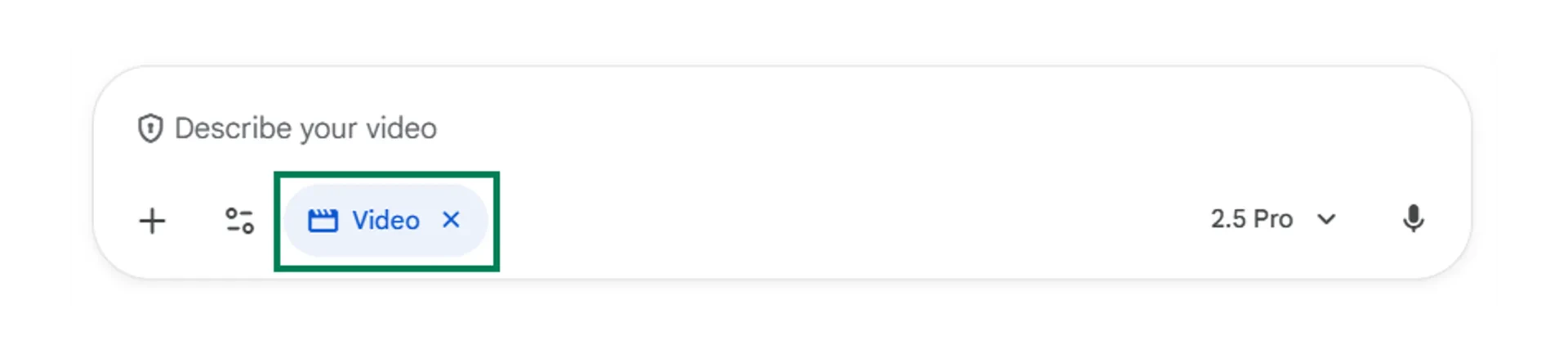
Veo 3.1 is Google's most advanced video generation model, representing a significant leap in AI-driven media creation. This tool excels at interpreting reference images and prompts to produce eight-second videos that also include audio. This technology stands out in its ability to understand cinematic directions and simulate realistic human movement.

<Frame>
  <img src="https://mintcdn.com/pathfindr/vxED2dxssEHZg3yn/images/veoVideoGeneration.webp?fit=max&auto=format&n=vxED2dxssEHZg3yn&q=85&s=aa98978ebc6ac2b00c937db4392c2d3d" alt="Veo Video Generation Pn" width="1920" height="433" data-path="images/veoVideoGeneration.webp" />
</Frame>

<Tip>
  Most Gemini plans allow you to generate three to five videos per day, with exact limits varying by subscription tier.
</Tip>

### Video generation best practices

When creating videos in the Gemini platform, the best workflow is to first use Nano Banana to generate a reference image and then define the subject, setting, aesthetic, composition, and motion to describe what should happen in the video. This approach helps you get results you're happy with, using Nano Banana to sketch the opening frame while avoiding unnecessary prompt spend in Veo.

<Warning>
  Avoid over-prompting for video, as long or overly intricate prompts can confuse the model and lead to muddled results. Unlike image generation, keep your video prompts relatively simple. Be clear about what you want to happen on screen, and let Veo handle some of the creative interpretation.
</Warning>

<div className="mt-8" />

<Accordion title="Test your understanding">
  <Quiz
    question="When generating videos with Veo, what is the recommended workflow to get the best results?"
    options={[
"Provide extremely long, detailed prompts directly to Veo",
"First create a reference image in Nano Banana, then use simple and action-focused prompts in Veo",
"Upload video clips for Veo to edit",
"Use Mixboard to generate video storyboards before prompting Veo"
]}
    correctIndex={1}
    explanation="Using Nano Banana to create the opening frame reference image, followed by simple, clear instructions for motion, produces the most reliable results while saving on generation limits."
  />
</Accordion>

## Video and image generation limitations

Understanding the current limitations helps you set realistic expectations and plan accordingly:

<AccordionGroup>
  <Accordion icon="users" title="Mixed reactions">
    Be aware that using AI-generated images and videos in public or customer-facing campaigns can generate mixed reactions.
  </Accordion>

  <Accordion icon="eye" title="Transparency needed">
    It is always good practice to be transparent when you've used AI to generate content. Being open about the tools you've used helps build trust and manage expectations.
  </Accordion>

  <Accordion icon="pen" title="Challenging edits">
    As you make tweaks or edits to an image, Gemini may sometimes modify unintended elements of the image.
  </Accordion>

  <Accordion icon="clock" title="Speed & usage limits">
    As this technology continues to develop, its speed and usage limits are likely to improve.
  </Accordion>

  <Accordion icon="text" title="Inaccurate text">
    Text output in images and videos is often misspelled or includes random scribbles. This will likely improve over time but remains an important consideration when developing visual content.
  </Accordion>

  <Accordion icon="rotate" title="Iteration required">
    Your first attempt will rarely be your best. Achieving a result you're happy with will require modification and iteration based on generated output.
  </Accordion>
</AccordionGroup>

## Google's early stage creative platforms

Google is developing several specialised platforms that extend beyond basic image and video generation:

<AccordionGroup>
  <Accordion icon="film" title="Google Flow">
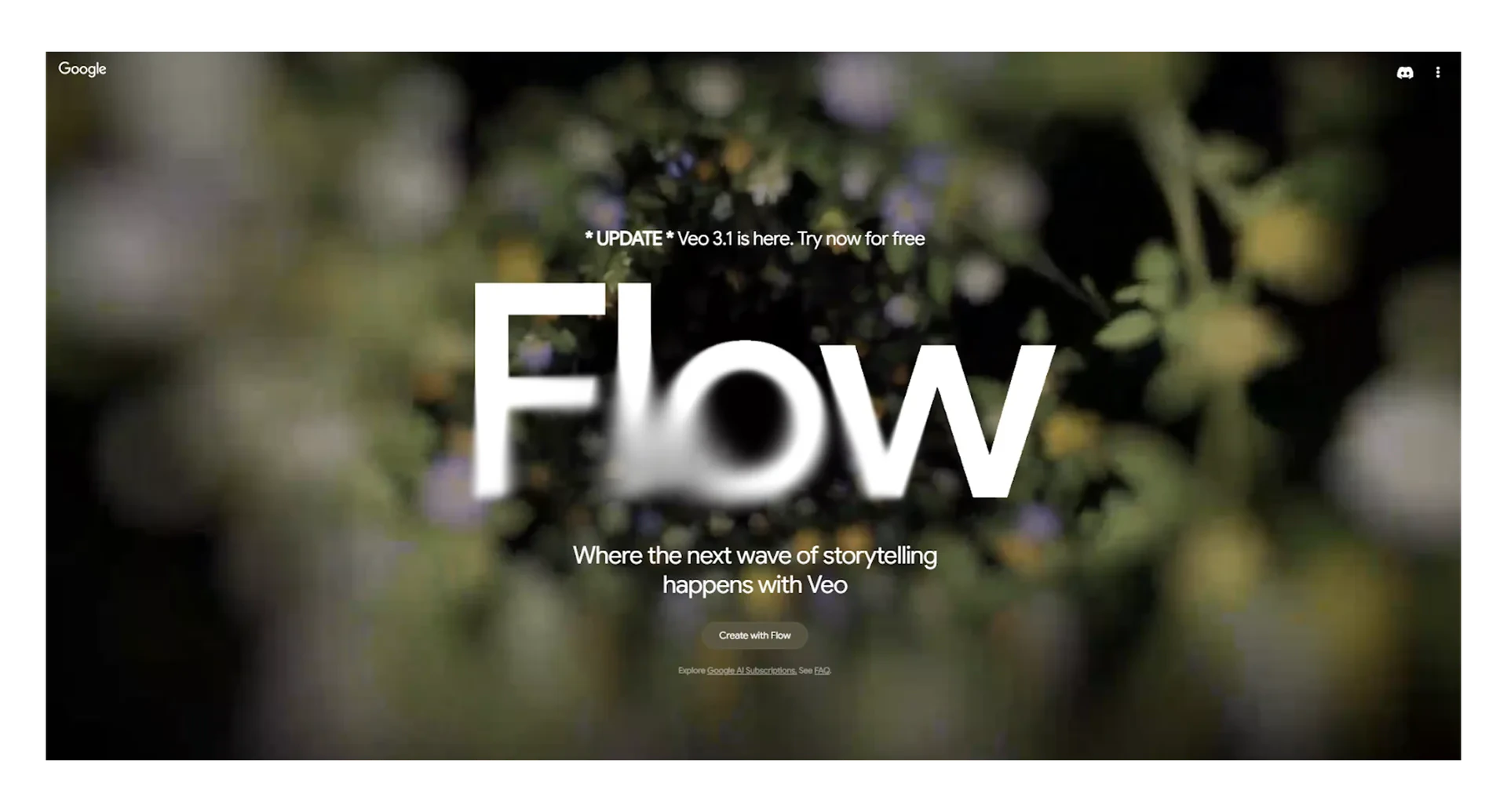
    Google Flow is Google's native filmmaking tool, allowing you to turn images and prompts into videos, then stitch together different Veo clips to build real scenes. It gives you shot-by-shot control, so you can plan sequences, iterate on specific moments, and maintain consistent characters and style across an entire piece.

    This matters because it moves AI video from one-off clips to true storytelling and production workflows. Compared with traditional Gemini chat prompting, Flow offers a structured, visual workspace rather than a single giant prompt, making it easier to refine, reuse, and scale ideas. Overall, it's a very promising direction for serious AI-powered video creation.

    <Frame>
      <img src="https://mintcdn.com/pathfindr/0Og7YOK8gX91P7mj/images/googleFlow.webp?fit=max&auto=format&n=0Og7YOK8gX91P7mj&q=85&s=b373291060c84c100012f26f1c363521" alt="Google Flow Pn" width="1920" height="1035" data-path="images/googleFlow.webp" />
    </Frame>
  </Accordion>

  <Accordion icon="palette" title="Google Mixboard">
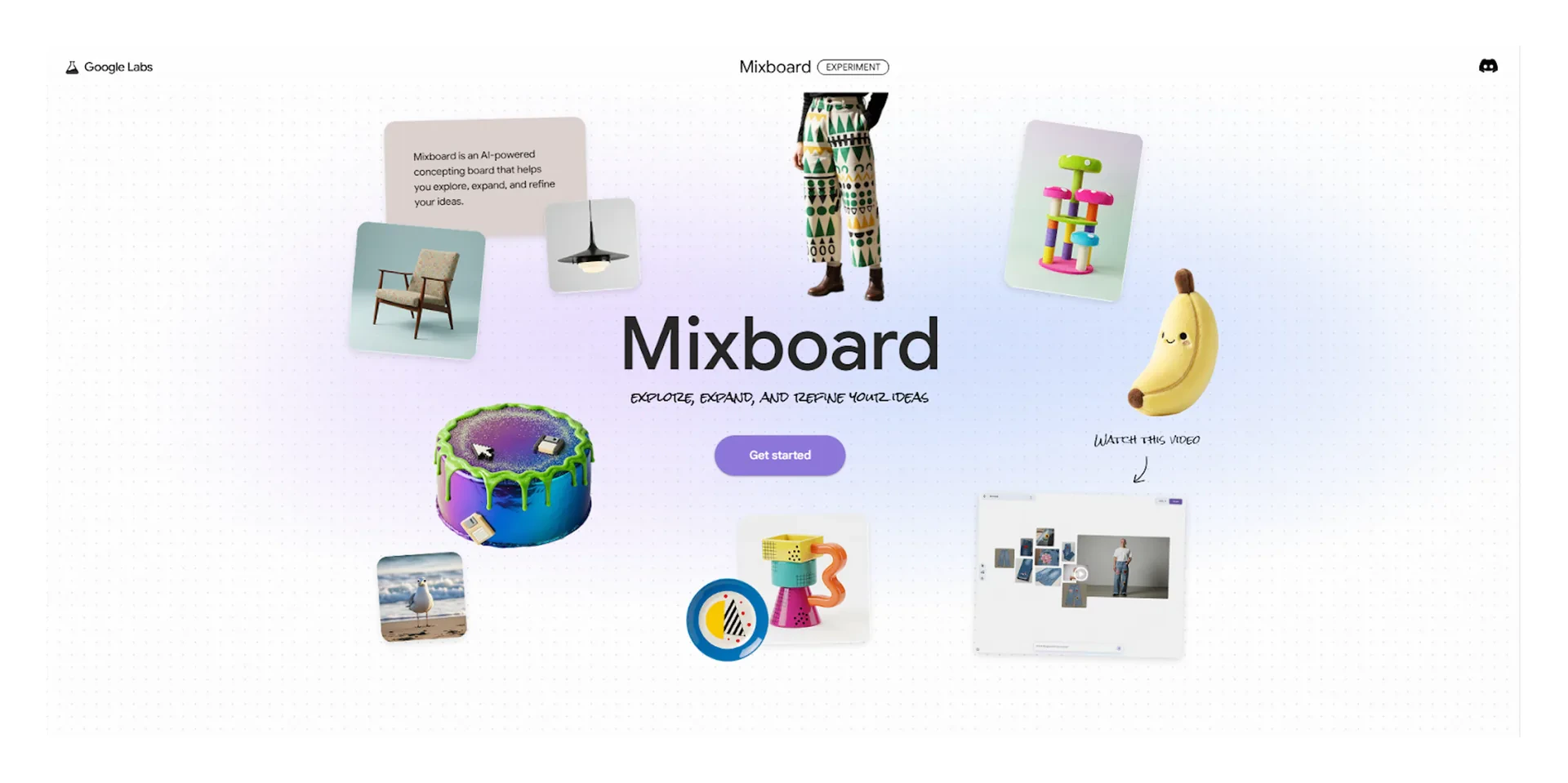
    Mixboard is Google's AI-powered concept board, giving you a visual space to explore, expand, and refine ideas using Nano Banana. You can pull in images, create moodboards, generate multiple concept variations, and quickly test different styles. Mixboard can also be shared between team members to visually map out creative ideas.

    Compared with a traditional Gemini chat, Mixboard offers a more tactile, creative canvas instead of a linear text box. While this platform is still in its infancy, it represents an exciting movement towards AI-enhanced creative collaboration.

    <Frame>
      <img src="https://mintcdn.com/pathfindr/0Og7YOK8gX91P7mj/images/googleMixboard.webp?fit=max&auto=format&n=0Og7YOK8gX91P7mj&q=85&s=a3b87905a6825df312706a1bdcdc2e29" alt="Google Mixboard Pn" width="1920" height="959" data-path="images/googleMixboard.webp" />
    </Frame>
  </Accordion>

  <Accordion icon="link" title="Google Stitch">
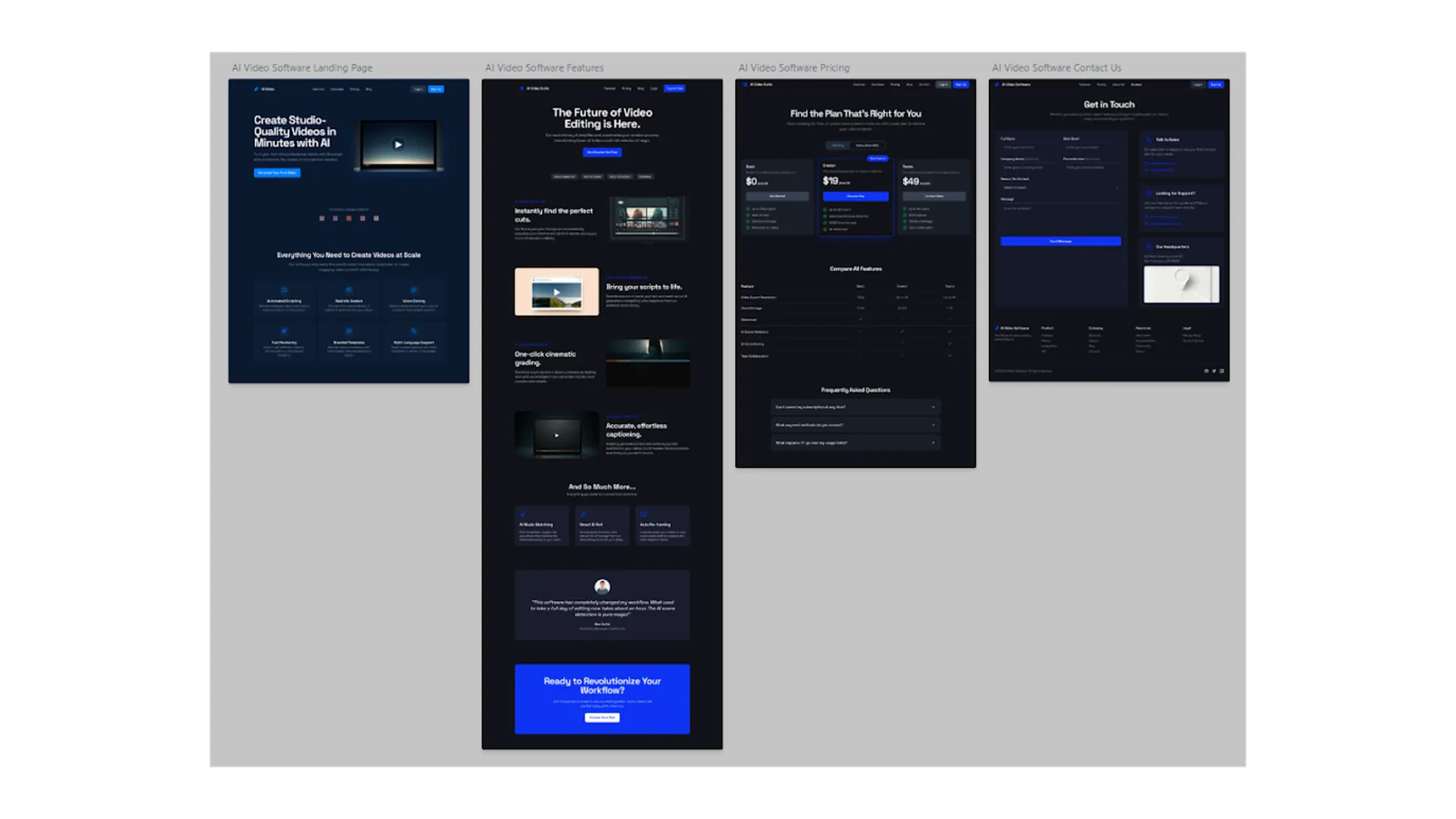
    Google Stitch is Google's AI-powered UI/UX sketching tool that turns simple text descriptions into interface concepts in seconds. The technology helps you quickly sketch out screens, flows, and interactions, then refine them as you go.

    Similar to Figma, you get a visual canvas where you can map user journeys, adjust layouts, and explore alternative designs. You can "vibe code" and describe your designs while Stitch handles most of the heavy lifting. Best of all, you can export your work to Figma or even copy the generated code if needed.

    <Frame>
      <img src="https://mintcdn.com/pathfindr/0Og7YOK8gX91P7mj/images/googleStitch.webp?fit=max&auto=format&n=0Og7YOK8gX91P7mj&q=85&s=79c42aa386f082bbf9c3177365079cb2" alt="Google Stitch Pn" width="1920" height="1080" data-path="images/googleStitch.webp" />
    </Frame>
  </Accordion>
</AccordionGroup>

## Quick checkpoint (you're done when…)

<CardGroup cols={4}>
  <Card icon="circle-check" title="5 prompt elements">
    You can list the five key elements for image and video prompting
  </Card>

  <Card icon="circle-check" title="Reference images">
    You know how to use Nano Banana to replicate subjects or extract styles
  </Card>

  <Card icon="circle-check" title="Video workflows">
    You use an initial image frame before generating video in Veo
  </Card>

  <Card icon="circle-check" title="Expectation management">
    You understand current limitations like inaccurate text and usage limits
  </Card>
</CardGroup>

<div className="mt-8" />

<Card icon="chess-knight-piece" href="/participant/visualContentAndCreativeApplications/gemini-challenge" title="Ready to practice?">
  Complete the mini challenges of the module
</Card>