

Use Copilot for your work
Think of Copilot as a new team member who works alongside you in Microsoft 365. It helps with summaries, drafts, meeting notes, and quick research. You can ask it to review documents, write emails, pull key points from long threads, or generate content based on your work files. This page will show you how to:Assign roles
Direct Copilot with focused personas
Choose models
Choose Work or Web data sources
Connect tools
Access Copilot in your apps
Refine outputs
Use follow-ups to improve results
Direct Copilot with roles
Give Copilot a clear role to focus its response. Pick one of these three starting points based on your task.Learning about Copilot context
In Copilot, if you want a more precise answer, the answer usually lies in building “context” for Copilot. It usually boils down to four things:- Work/Web: are you using Microsoft 365 data, or the internet?
- App context: are you in Word, Teams, Outlook, or Excel?
- References: did you point Copilot to the right doc/thread/section?
- Permissions: do you actually have access to that content?
Work Tab vs Web Tab
This toggle is located at the top of the chat interface.
Work Tab
Your inside-the-business mode.It can use your Microsoft 365 world (files, email, calendar, Teams chats — apps you’re allowed to access).It’s the pick for anything tied to your organisation or your day-to-day work.
Web Tab
Internet mode.It’s great for external research, general explanations, and “what does this mean?” questions.It can’t magically see your internal files or chats, so anything company-specific will feel vague unless you switch back to Work or attach the info.
Copilot inside Microsoft applications
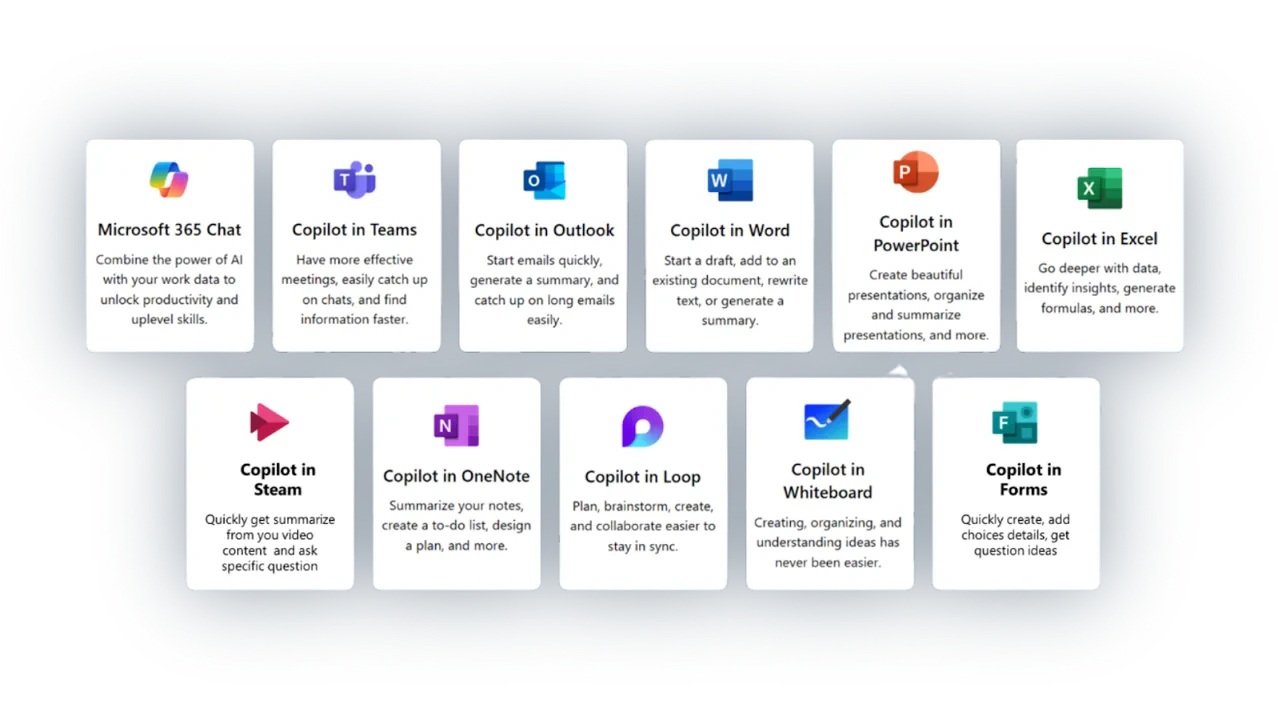
Copilot also shows up inside apps like Word, Excel, PowerPoint, Outlook, and Teams.Think of it like this:
- In-app Copilot is best when you’re already working in a specific file (rewrite, summarise, improve). The button is usually found on the top right-hand corner of the ribbon.
- Main Copilot chat is best when you want a broader back-and-forth or multi-step thinking.
Word / PowerPoint
The open file is the context. Copilot is brilliant for drafts, rewrites, and structure when the doc is already there.
Outlook
The email thread is the context. Great for drafting replies, summarising threads, and pulling out actions.
Teams
The chat or meeting is the context (when available). Perfect for recaps, decisions, and “what did we agree on?”
Excel
The sheet (and especially tables) is the context. Best for explaining data, summarising patterns, and helping you decide what to do next.
A quick word on personalisation
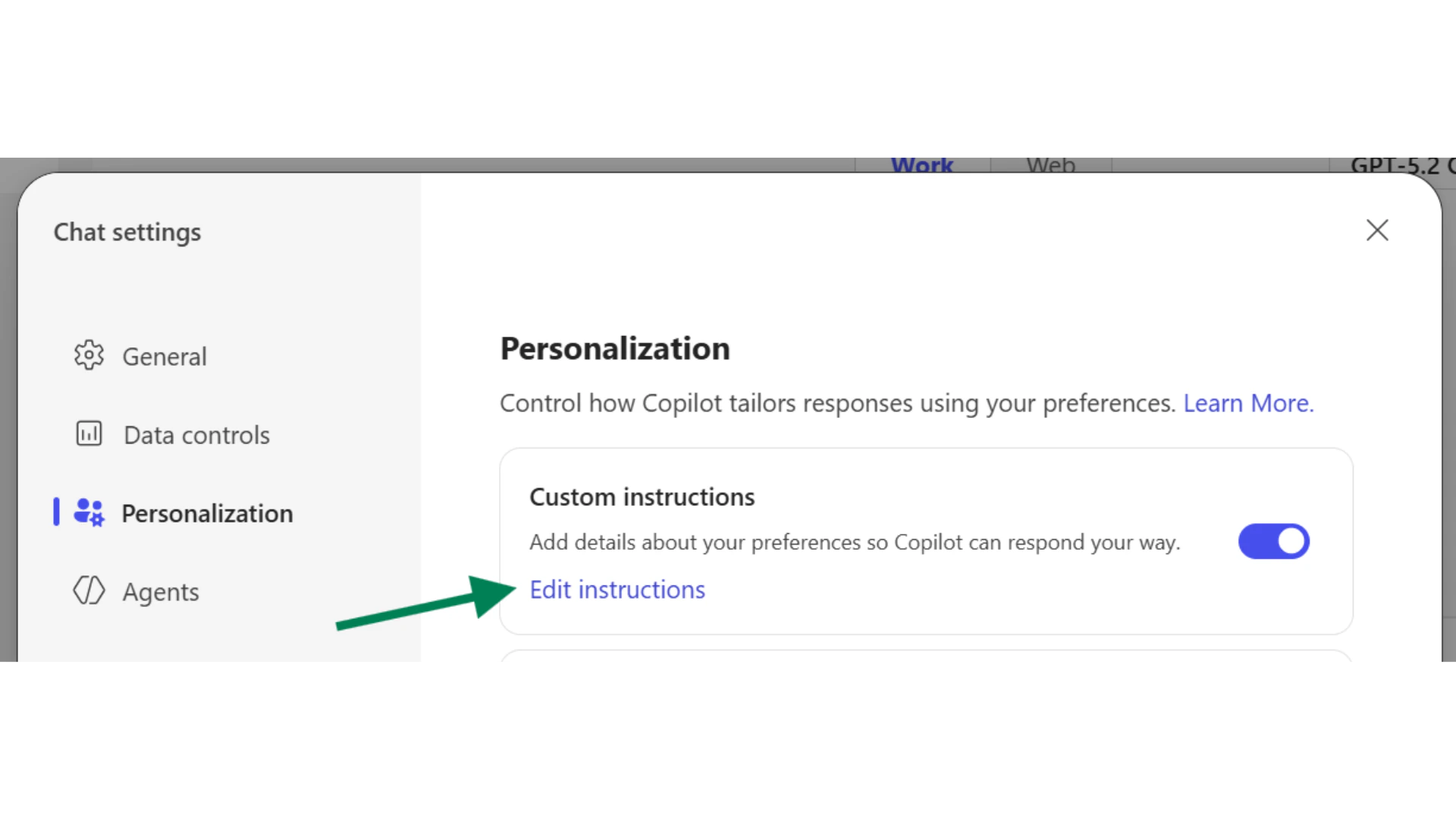
Some versions of Copilot let you set preferences (like tone, format, and how detailed you want answers).This is handy because it stops you repeating the same instructions every time. You can access Copilot personalisation by clicking on the triple dot icon on the top right hand corner of the interface → Select “Settings” → “Personalisation”
Custom Instructions
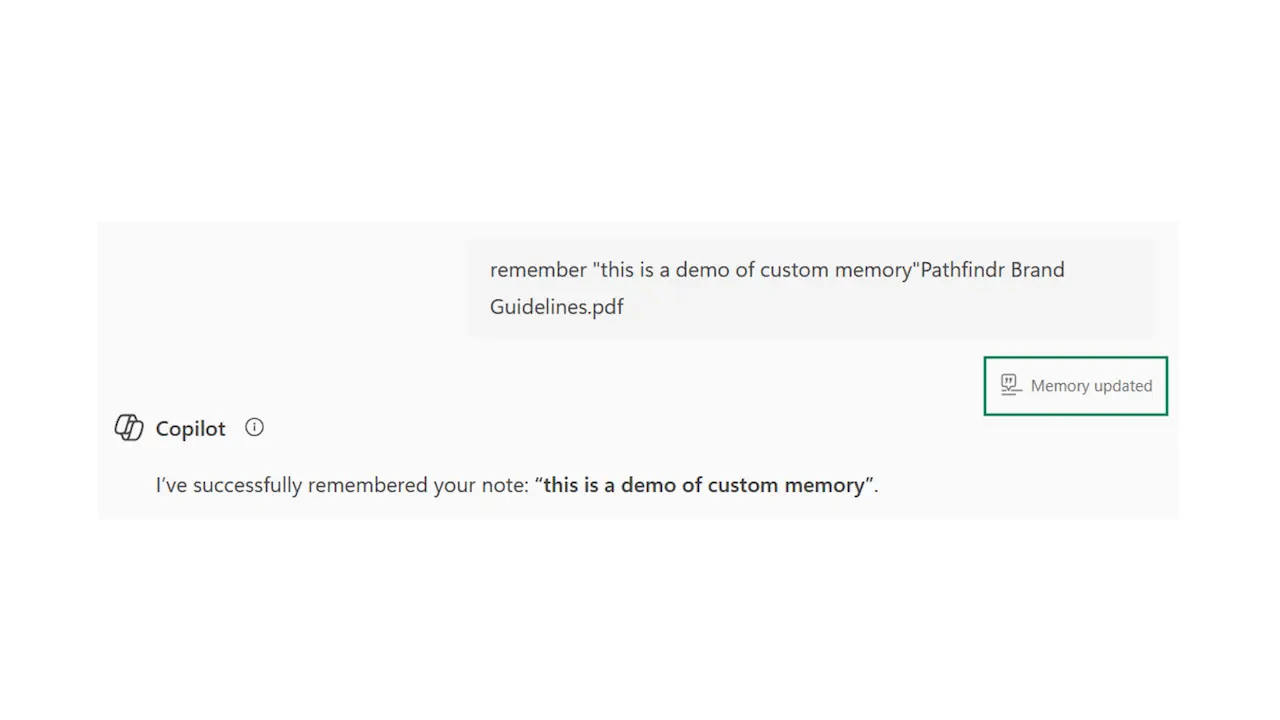
Copilot Memory
Quick checkpoint (you’re done when…)
Assign roles
You can explain role assignment in one sentence
Switch modes
You know the difference between Work and Web modes
Use side panel
You opened Copilot in at least one Microsoft 365 app
Refine outputs
You used follow-ups to improve Copilot’s output
Ready to practice?
Complete the mini challenges of the module