

What you’ll learn
A prompt is the instruction you give to Copilot. The clearer your direction, the better the response. This module shows you how to structure prompts that get useful results on the first try.Structure prompts
Use frameworks to organise your requests
Apply patterns
Copy proven formats for common tasks
Enrich inputs
Add files, references, and context to your prompts
Automate tasks
Set up scheduled prompts and saved prompts
What is a prompt?
A prompt is the way you tell an AI what you want and how you want the result to look. A good prompt doesn’t just say what to do. It often includes context, tone, format, or constraints to guide the result. Think of it as having a conversation with a very knowledgeable assistant who needs clear directions to help you best. The more precise you frame your request and prompt, the more accurate your responses can be.Essential prompting frameworks
These four frameworks cover most workplace prompting scenarios. Pick the one that matches your task type.Copilot Recommended Framework — Microsoft's official approach
Copilot Recommended Framework — Microsoft's official approach
Use this framework when you want to follow Microsoft’s recommended structure for Copilot prompts.
1
Goal
What do you want from Copilot?
Example: “I want a list of 3-5 bullet points to prepare me…”
2
Context
Why do you need it and who is involved?
Example: “…for an upcoming meeting with [person], focusing on their current state and what they’re looking to achieve.”
3
Expectation
How should Copilot respond to best fulfil your request?
Example: “Respond with a tone that is friendly but authoritative…”
4
Source
What information or samples do you want Copilot to use?
Example: “…and focus on email and Teams chats with [people] over the last two weeks.”
CLEAR Framework — Great for most interactions
CLEAR Framework — Great for most interactions
Use CLEAR when you need Copilot to produce something specific, like a report, email, or summary.
1
Context
What is the purpose or situation?
Example: “Our sales team is struggling with quarterly targets”
2
Length
How long should the response be?
Example: “I need a concise 2-page proposal for senior management”
3
Examples
What style or format should it follow?
Example: “Follow our standard business case format with executive summary”
4
Audience
Who will read this?
Example: “Sales director, regional managers, and C-suite executives”
5
Request
What exactly do you want as output?
Example: “Create a competitive analysis and action plan to improve Q3 performance”
PREP Framework — Great for creating content
PREP Framework — Great for creating content
Use PREP when you need Copilot to write or create something from scratch.
1
Purpose
What is the goal of this content?
Example: “Train a new employee on workplace safety”
2
Role
Who should Copilot act as?
Example: “Act as a workplace safety trainer”
3
Expectations
What format or style should it follow?
Example: “Create a checklist with explanations for each point”
4
Parameters
What constraints should it consider?
Example: “Maximum 15 items, use simple language, include emergency procedures”
STAR Framework — Great for problem-solving
STAR Framework — Great for problem-solving
Use STAR when you need Copilot to help you work through a challenge or make a decision.
1
Situation
What is the current business challenge?
Example: “Our customer support team is overwhelmed with 40% more tickets since product launch”
2
Task
What needs to be accomplished?
Example: “Need to reduce response times to under 4 hours while maintaining quality scores above 85%”
3
Action
What options are you considering?
Example: “Consider automation, staffing options, or process improvements”
4
Result
What outcomes define success?
Example: “Want to achieve target response times within 8 weeks. Help me evaluate these options and create an implementation roadmap.”
Test your understanding
Test your understanding
Common prompting patterns
These five patterns work across most business tasks. Copy the structure and swap in your own details.Test your understanding
Test your understanding
Enriching your prompts
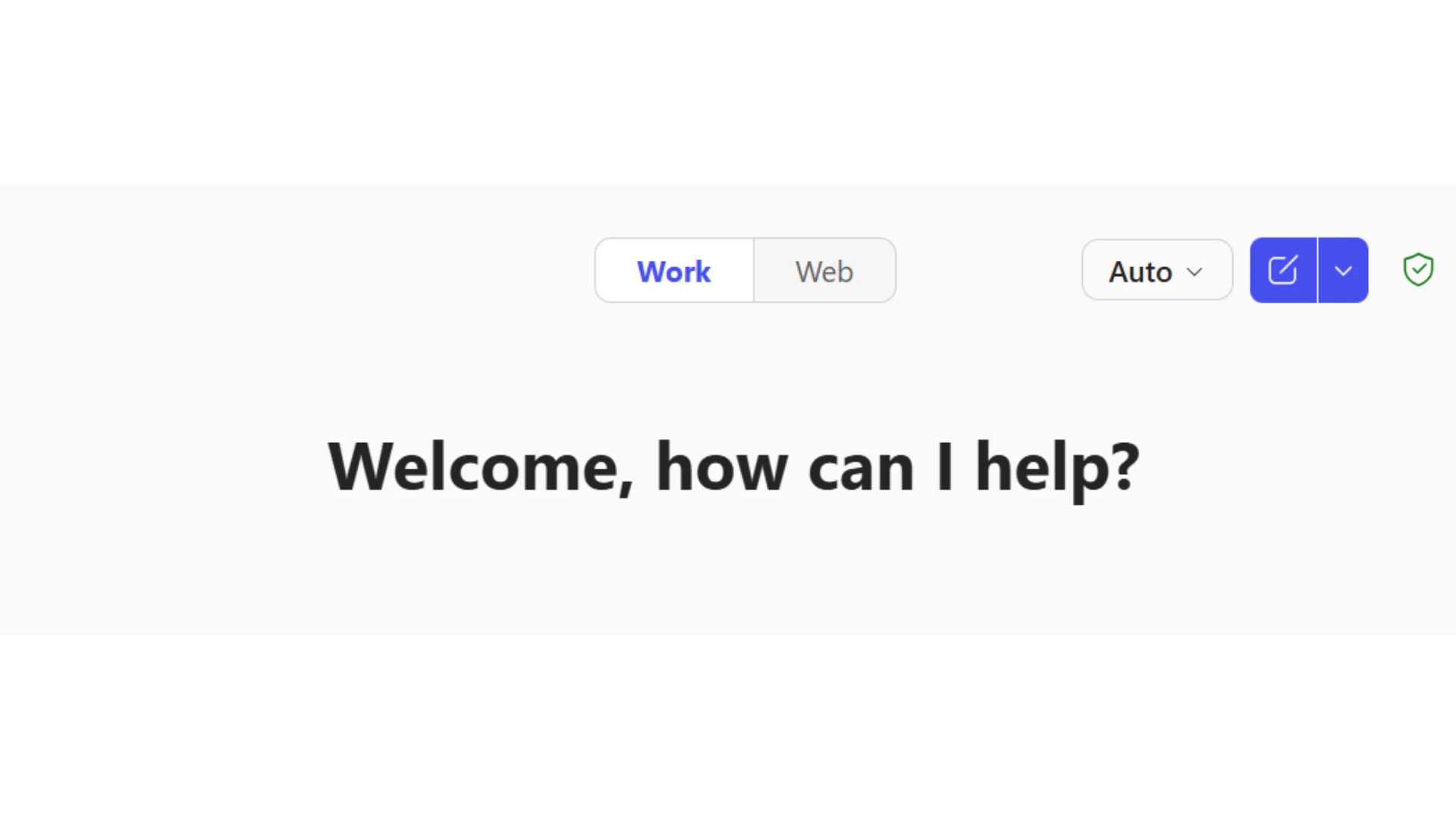
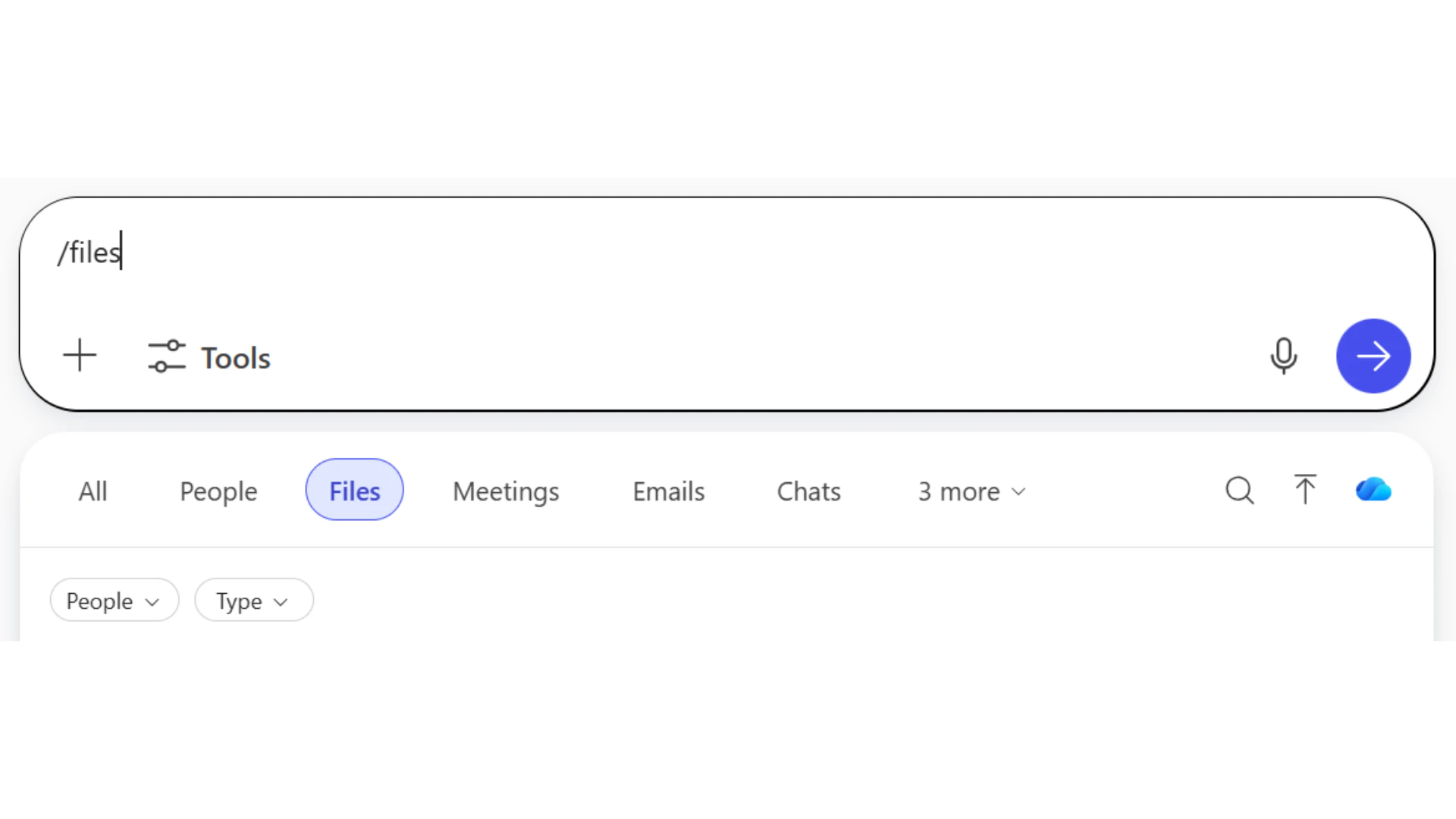
Text is not your only input. Copilot can work with your Microsoft 365 data, files, and references to give you faster, more accurate results.Work vs Web toggle
Reference with slash commands
Test your understanding
Test your understanding
Advanced techniques
Once you are comfortable with the basics, these techniques help you tackle more complex tasks.Chain prompting
Chain prompting
Break complex tasks into smaller steps. Complete one step before moving to the next.
1
First prompt
“Help me brainstorm topics for a presentation about climate change”
2
Second prompt
“Now help me create an outline for a presentation about renewable energy solutions”
3
Third prompt
“Create detailed content for the first three slides of this outline”
Iterative refinement
Iterative refinement
Start broad, then narrow down based on the response you receive.
1
Initial
“Help me plan a team building event”
2
Refine
“Focus on indoor activities for 15 people with a budget of $500”
3
Finalise
“Create a detailed timeline for a cooking class team building event”
Constraint setting
Constraint setting
Add specific limitations to get focused results.
Multi-perspective prompting
Multi-perspective prompting
Ask Copilot to analyse from different viewpoints.
Scenario planning
Scenario planning
Explore different possibilities before committing to a plan.
Test your understanding
Test your understanding
Automating your prompts
Copilot can run prompts automatically and save your favourite prompts for reuse. These features save time on repetitive tasks.Scheduled prompts
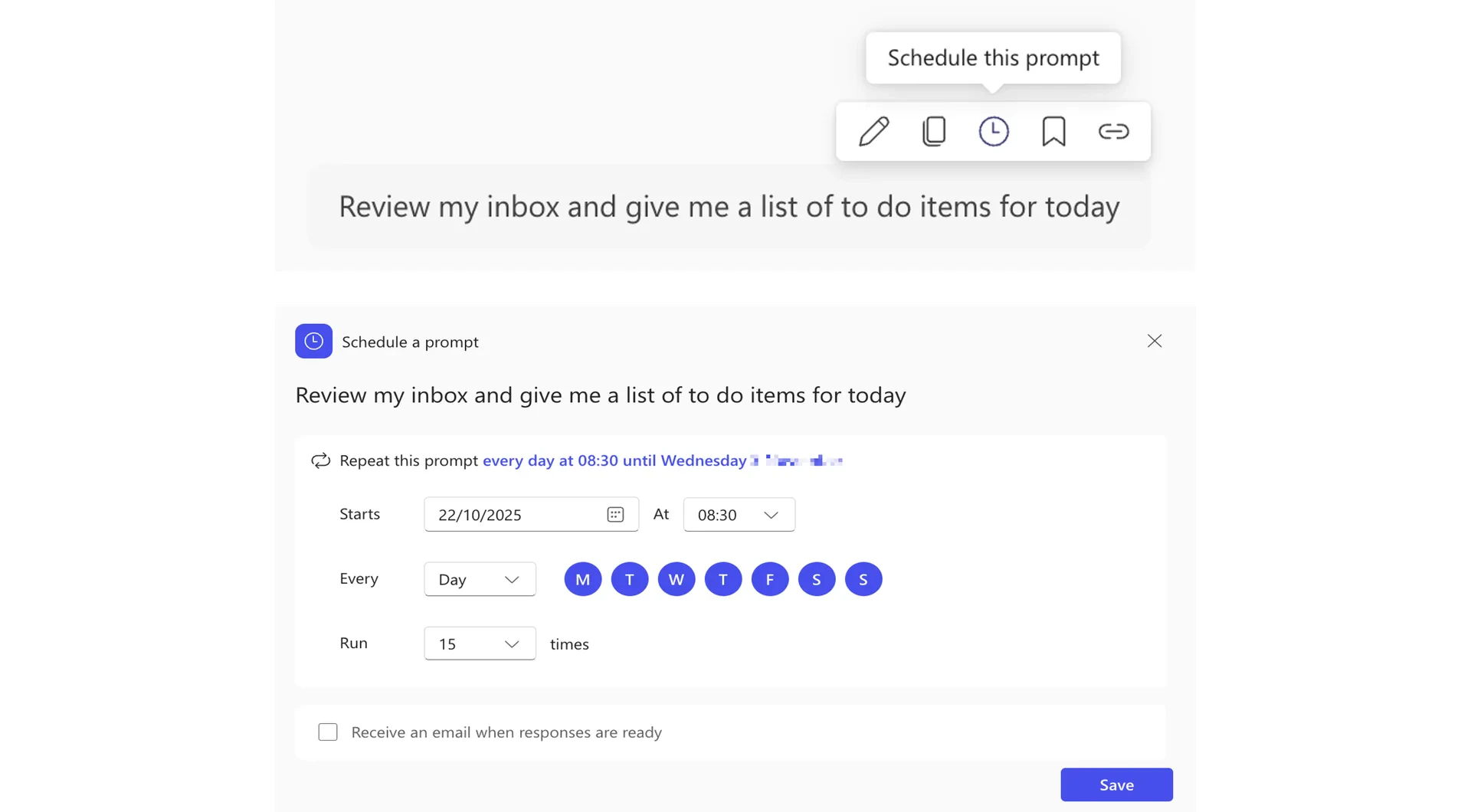
Limitation:You can only schedule a prompt to run up to 15 times. After it reaches this limit, you will need to set it up again.
Prompt Gallery
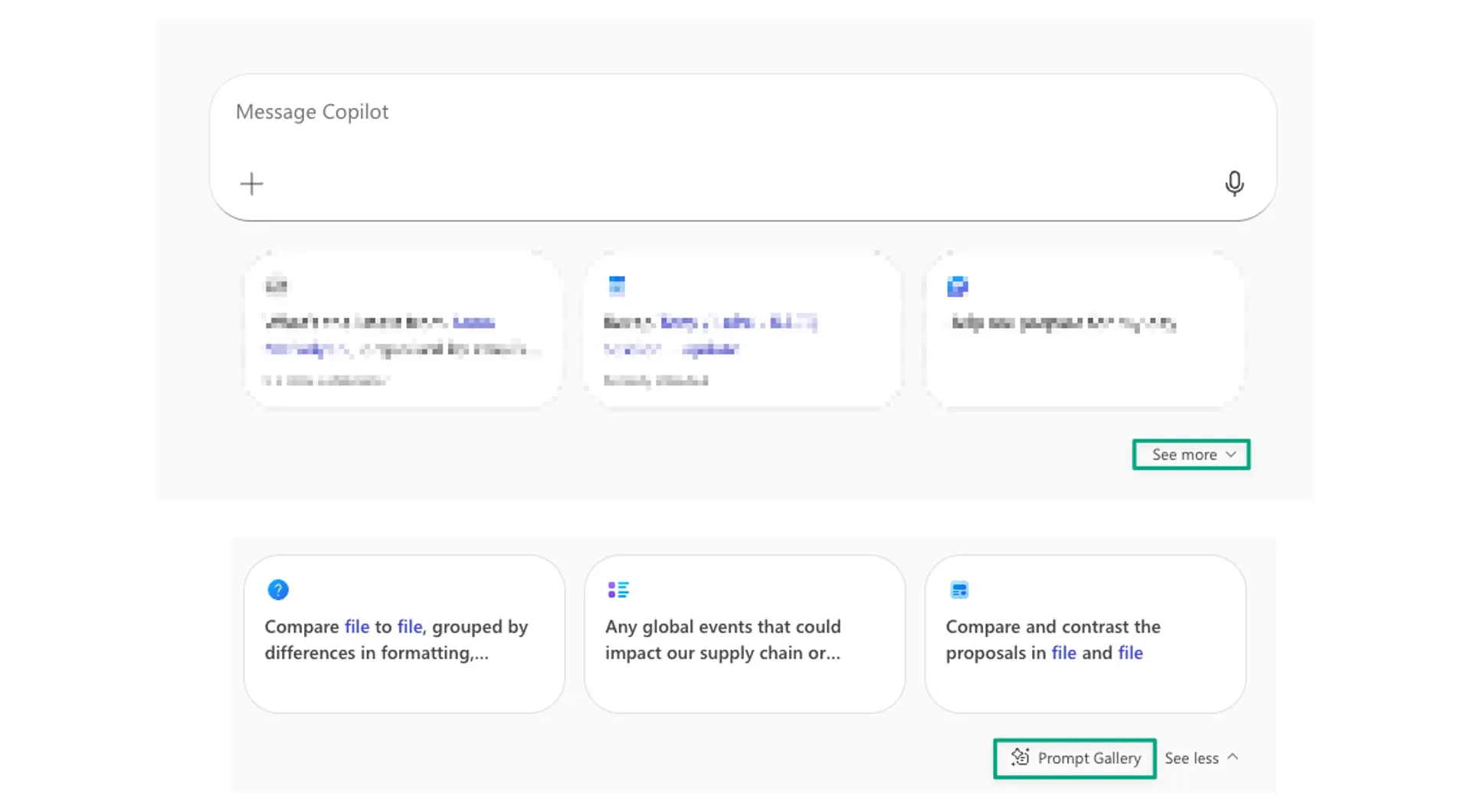
Build your own gallery
Hover over your submitted prompts and select “Save Prompt”. You can then edit, organise, and share them as needed.
Quick checkpoint
Good prompting is like briefing a capable colleague. The clearer you are about what you need, the better Copilot can help. Start with the frameworks, practise with different patterns, and refine your approach based on what works for your tasks. You are done with this module when you can do the following:Structure prompts
You can apply at least one framework to a real task
Apply patterns
You have used a prompting pattern from this module
Enrich inputs
You have tried Work mode or slash commands
Refine outputs
You have used follow-up prompts to improve a response
Ready to practice?
Complete the challenge by building a prompt using what you have learned