

What you’ll learn
Agent Builder — now officially called Copilot Studio Lite — is built directly into Microsoft 365 Copilot. No extra licence, no extra software. This guide shows you how to go from idea to working agent.Understand agents
What agents are and when to use one
Plan your agent
Define the right scope and instructions
Build and connect
Set up your agent with knowledge and tools
Share and scale
Publish and hand off to your team
What is an agent?
An agent is a custom version of Copilot with a specific job. You give it a name, a set of instructions, and optionally a knowledge source — and it behaves consistently every time you or your team uses it, without you needing to re-explain the context. Think of it as building a specialist assistant that already knows your processes, your tone, and your reference material. The difference between a regular Copilot conversation and an agent:What agents are good for
Not everything needs an agent. Agents work best for tasks that are:- Repetitive — the same type of task you do multiple times per week
- Context-heavy — the task requires background knowledge your team shouldn’t have to re-explain
- Multi-person — the task is done by multiple people who should get consistent results
Examples from real teams
Examples from real teams
Test your understanding
Test your understanding
Where to find Agent Builder
Agent Builder is now called Copilot Studio Lite and is built into Microsoft 365 Copilot. You do not need a separate Copilot Studio licence.The Agents panel
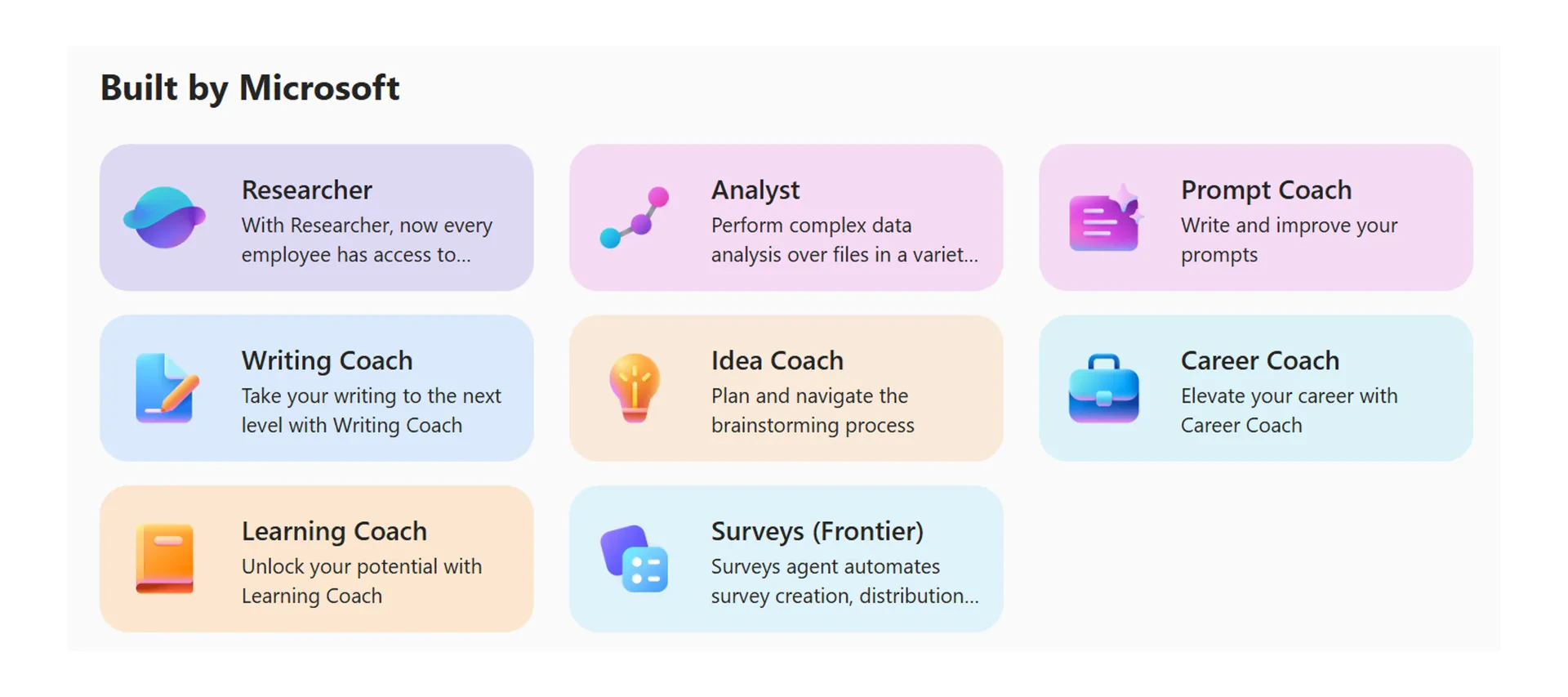
The builder interface
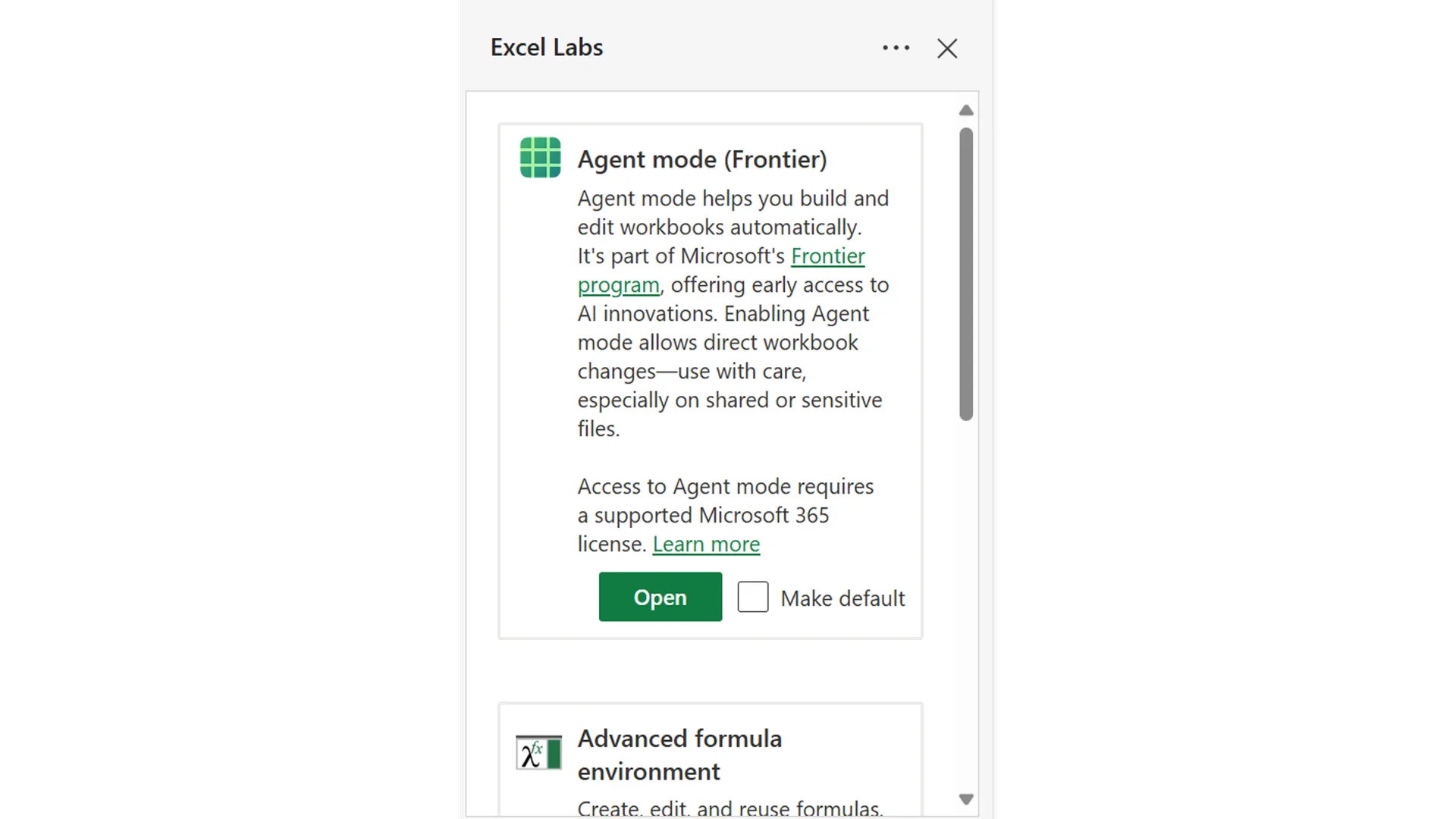
Planning your agent
Before you open the builder, spend five minutes answering these three questions. Agents built without clear planning are harder to test and rarely work well on the first try.1
What does the agent do?
Write one sentence describing the task. Example: “This agent helps people managers write consistent performance review summaries using our company template.”If you cannot write it in one sentence, the scope is too broad. Narrow it down.
2
What does it need to know?
List the documents, policies, or data sources your agent should draw from. These become your knowledge sources. Examples: an SOP document, a policy PDF, a SharePoint folder, or a past project brief.
3
Who will use it?
If it is just for you, save it privately. If your whole team will use it, you will need to share it — plan for this before you build so you set up permissions correctly.
Test your understanding
Test your understanding
Building your agent
Step 1 — Name and instructions
- What the agent does
- What tone or format to use
- What it should and should not do
Step 2 — Add knowledge
- A SharePoint site — for team documents and wikis
- A OneDrive folder — for personal or departmental files
- An uploaded document — for a specific PDF, Word doc, or policy
New in 2026: Agents can now accept file uploads from users mid-conversation — not just at build time. This means your agent can analyse a document a user drops in during the chat, without you having to pre-load everything.
Testing and refining
Before you share your agent, test it properly. A quick test protects your reputation and your team’s time.How to test well
How to test well
1
Use real tasks
Send the agent a task you would actually give it in real life. Do not test with “Hi” or simple greetings — test with the kind of complex request it was built to handle.
2
Check the format
Does the response use the right structure? Is it the right length? Does it match the tone in your instructions?
3
Test the edges
Try asking the agent something it should not do. Does it stay within scope, or does it go off-topic? If it drifts, tighten the instructions.
4
Ask a colleague
Before sharing broadly, ask one person who was not involved in building it to test it. Fresh eyes find gaps faster than the builder does.
Common instruction fixes
Common instruction fixes
Sharing your agent
Share with your team
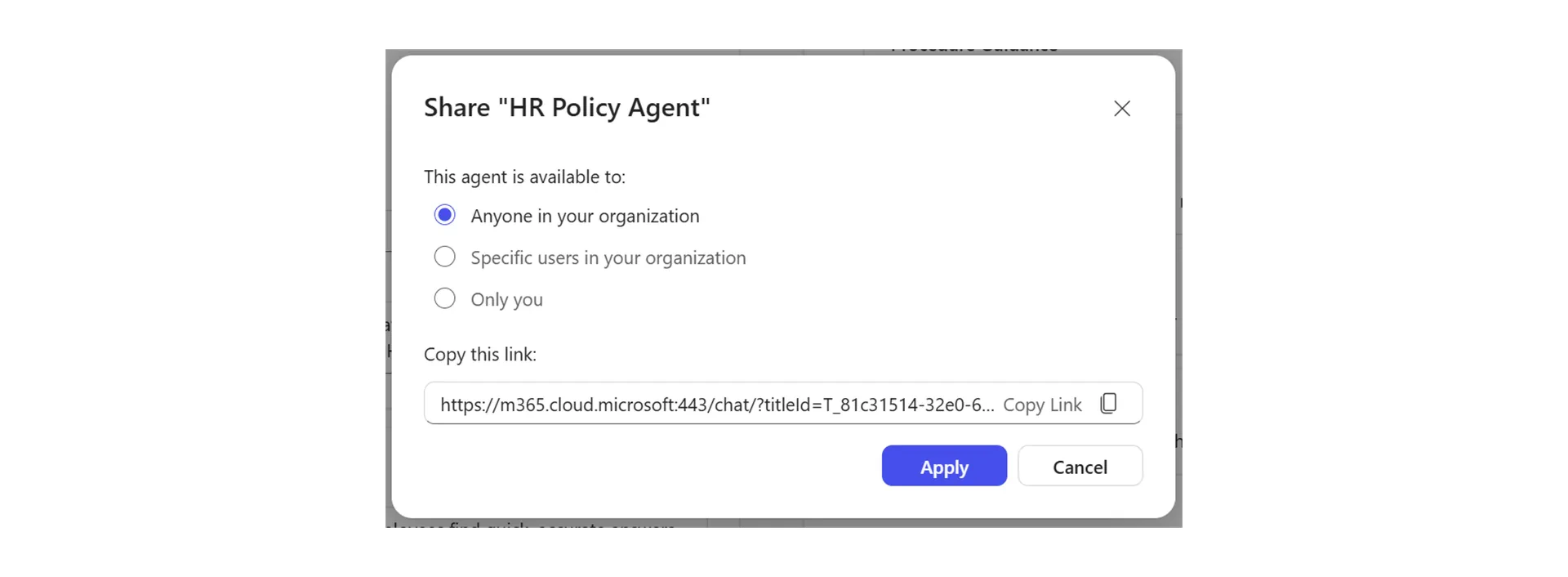
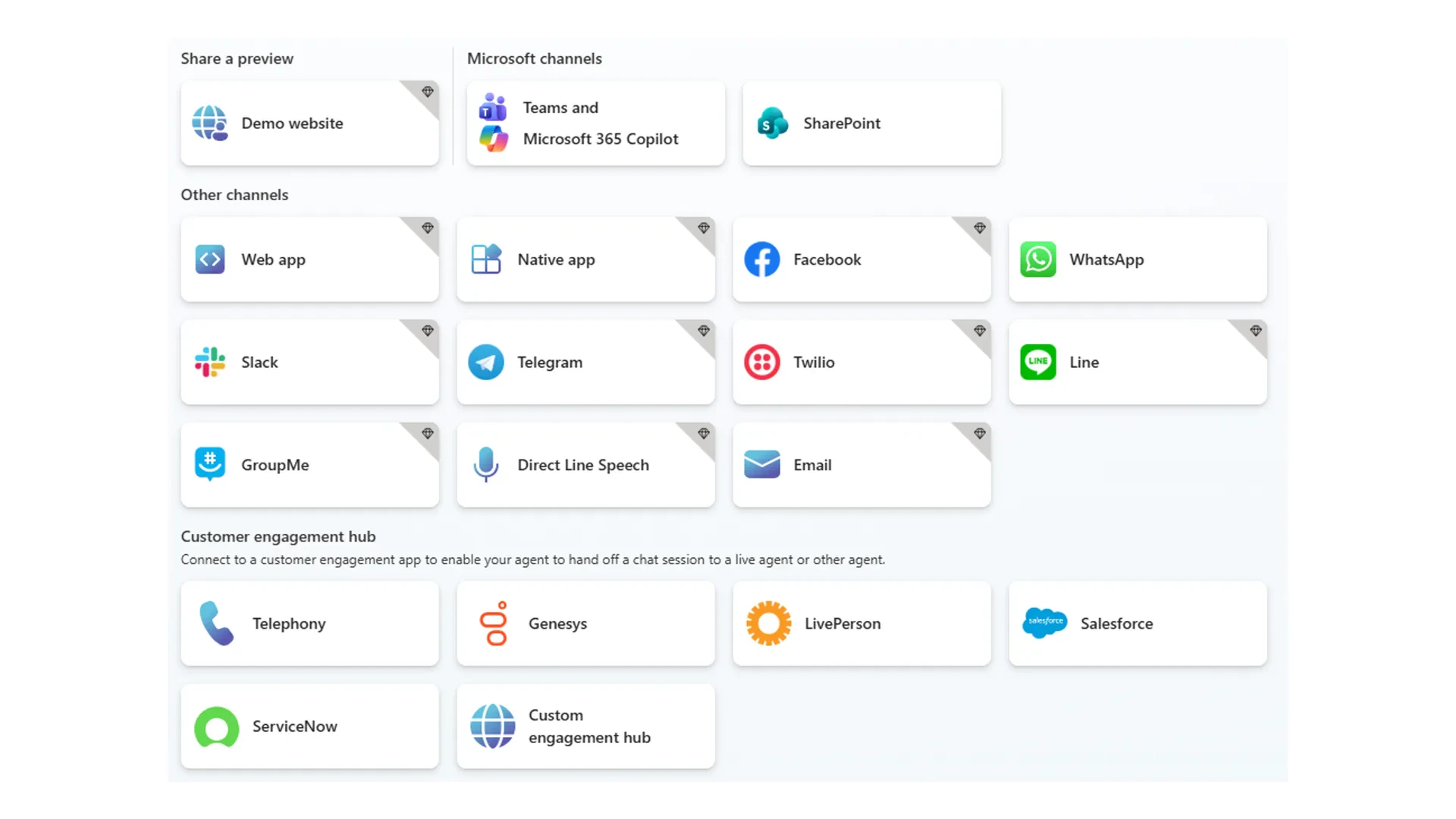
Publish to new channels
Quick checkpoint
You are done with this module when you can do the following:Scope your agent
You can describe your agent in one clear sentence
Write instructions
You have written instructions that constrain the agent’s scope and tone
Connect knowledge
You have connected at least one knowledge source
Share it
You have shared the agent with at least one colleague
Ready to build?
Complete the challenge to build and test your first Copilot agent