

Use visuals to get more from Copilot
Most people use Copilot by typing. But Copilot can also create images for you and understand images you share with it. That means you can ask it to design a visual for a slide deck, or upload a photo of a whiteboard and have it pull out the key points. These visual features sit inside the tools you already use: PowerPoint, the Copilot chat in your browser, and Microsoft Teams. No extra software, no design skills required. This page will show you how to:Create images with Copilot
Generate visuals for presentations, emails, and documents using a text description
Upload and analyse photos
Share a photo, screenshot, or diagram and let Copilot read and summarise it
Build slides with visuals
Add AI-created images directly into PowerPoint presentations
Pick the right mode
Know when to use Work mode vs Web mode for visual tasks
Meet Designer in Copilot
When you ask Copilot to create an image in the normal chat, it generates a single result based on your prompt. That works for quick one-off visuals. But if you need more control, such as choosing aspect ratios, refining specific areas of an image, or editing an existing photo, you want Designer . Designer is a dedicated image creation and editing workspace that is now built directly into Microsoft 365 Copilot. You can access it from the Create tab in the Copilot app, or by opening Designer at designer.microsoft.com. It uses the same AI models as Copilot chat (currently GPT-Image-1.5, rolled out January 2026), but gives you a visual editor alongside the prompt box so you can see and adjust your work side by side.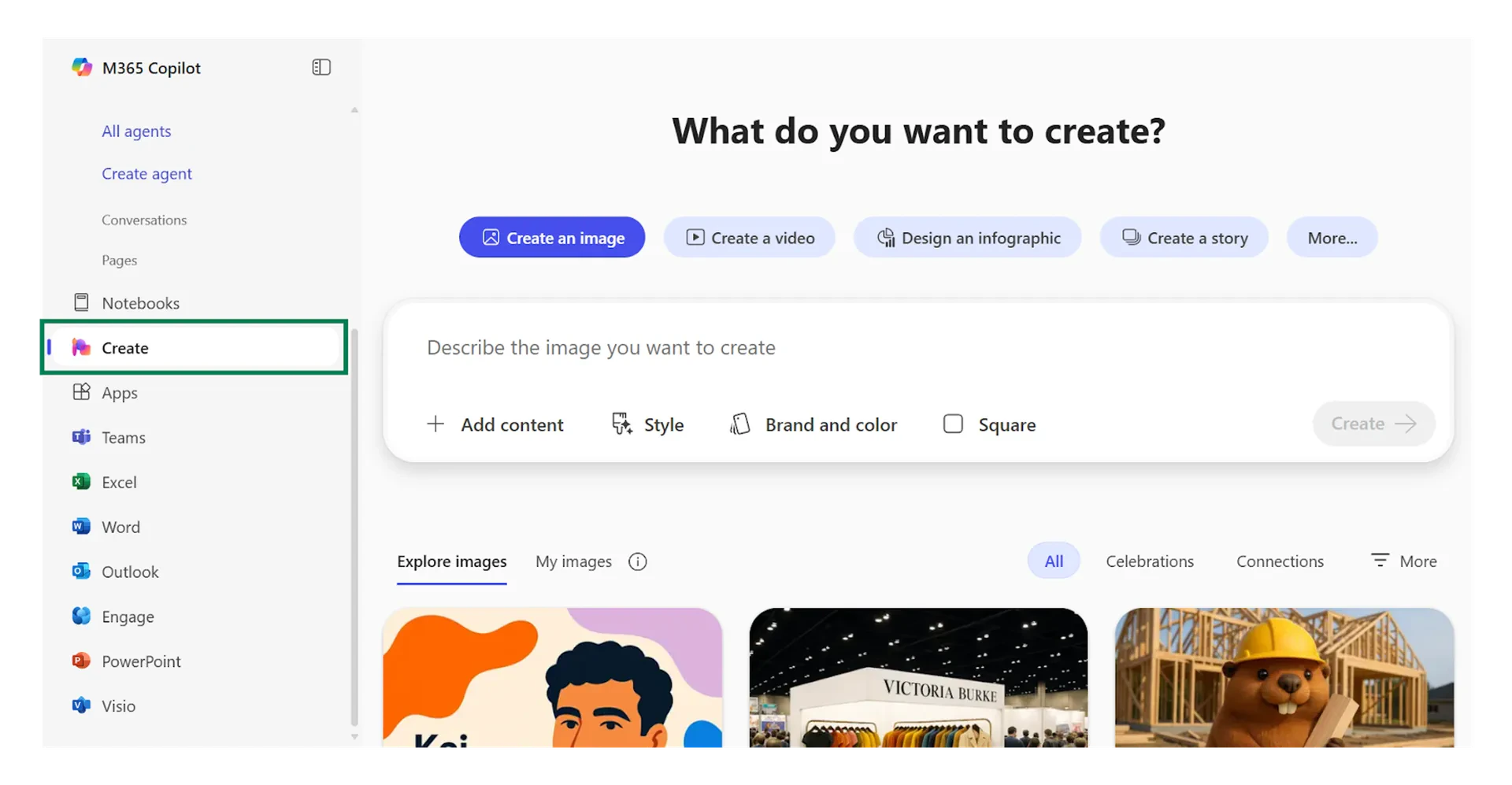
Normal chat
Type a prompt, get a single image back. Good for quick concepts and throwaway visuals. Limited editing options after the image is generated.
Designer
Full visual editor with prompt refinement, aspect ratio controls, regional editing, and the ability to upload your own images for modification. Better for anything you plan to share or publish.
Edit specific areas
Select a region of your image and change just that section. Swap a background, remove an object, or replace text without regenerating the whole image.
Start from your own image
Upload a photo or graphic you already have. Ask Designer to enhance it, change the style, add elements, or adapt it for a different format.
Resize for any channel
Choose the right dimensions before you generate. Create images sized for PowerPoint slides, social media posts, email headers, or Teams backgrounds in one step.
Create images from a description
Open Copilot in your browser (copilot.microsoft.com) or in Microsoft Teams and type what you want to see. Copilot uses Designer (built in) to generate an image based on your description. You do not need a separate Designer account. This works for social media graphics, presentation visuals, concept illustrations, and simple diagrams. The image appears in your chat and you can download it, copy it, or refine it with follow-up instructions.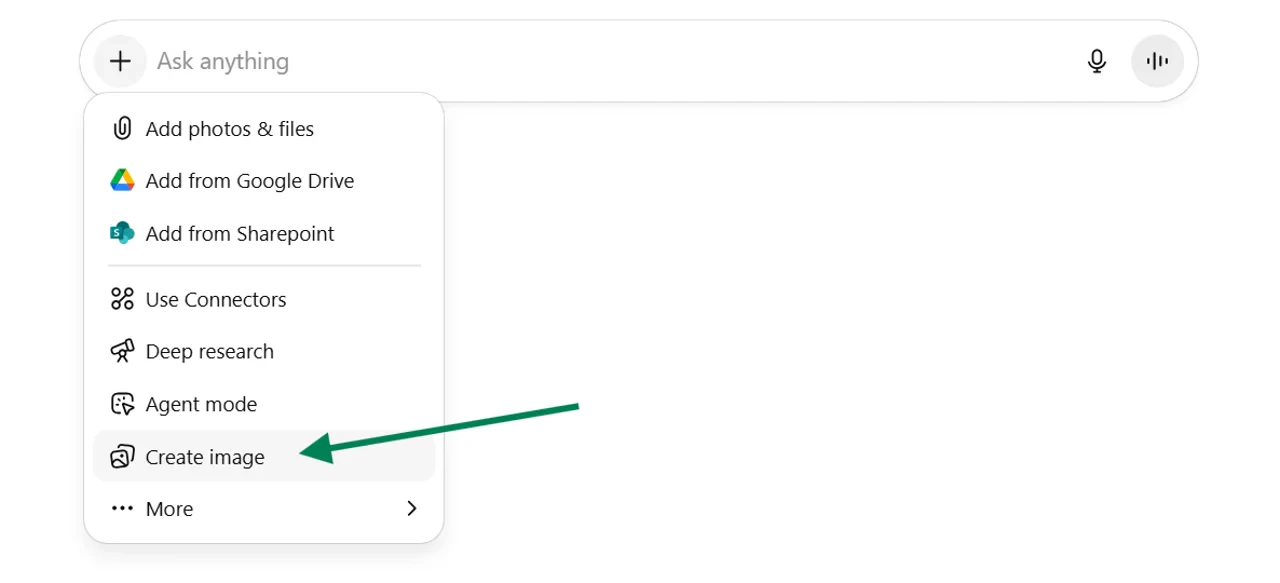
Good prompt
“Create a clean, professional illustration of a team collaborating around a table with laptops, in a modern office setting. Use blue and white tones.”
Vague prompt
“Make me a picture of teamwork.”
Upload a photo and ask Copilot about it
You can share an image with Copilot and ask questions about it. Click the image icon in the chat bar, upload a photo from your device, and type your question. This is useful in more situations than you might expect. Here are a few ways people across different teams are using it.Whiteboard notes
Snap a photo of your whiteboard after a brainstorm. Ask Copilot to list the key themes and turn them into action items.
Printed documents
Photograph a printed form, receipt, or contract page. Ask Copilot to extract specific details or summarise the content.
Charts and dashboards
Screenshot a chart from a report or dashboard. Ask Copilot to explain what the data shows and suggest talking points.
What file types can I upload?
What file types can I upload?
Copilot accepts JPEG, PNG, GIF, and WEBP images. Maximum file size is 20 MB. You can upload one image at a time in the chat window.
Does Copilot store my uploaded images?
Does Copilot store my uploaded images?
Images you upload in a chat session are processed to generate a response but are not permanently stored by Microsoft. Check your organisation’s data governance policy for specifics on how your tenant handles uploaded content.
Can I use this with sensitive documents?
Can I use this with sensitive documents?
Use Work modewhen uploading anything work-related. Work mode keeps your data within your organisation’s Microsoft 365 boundary. Avoid uploading confidential material in Web mode.
Add AI images to your presentations
Copilot in PowerPoint can generate images for your slides without leaving the app. Open a presentation, select the Copilot panel, and ask it to create a visual that fits your content.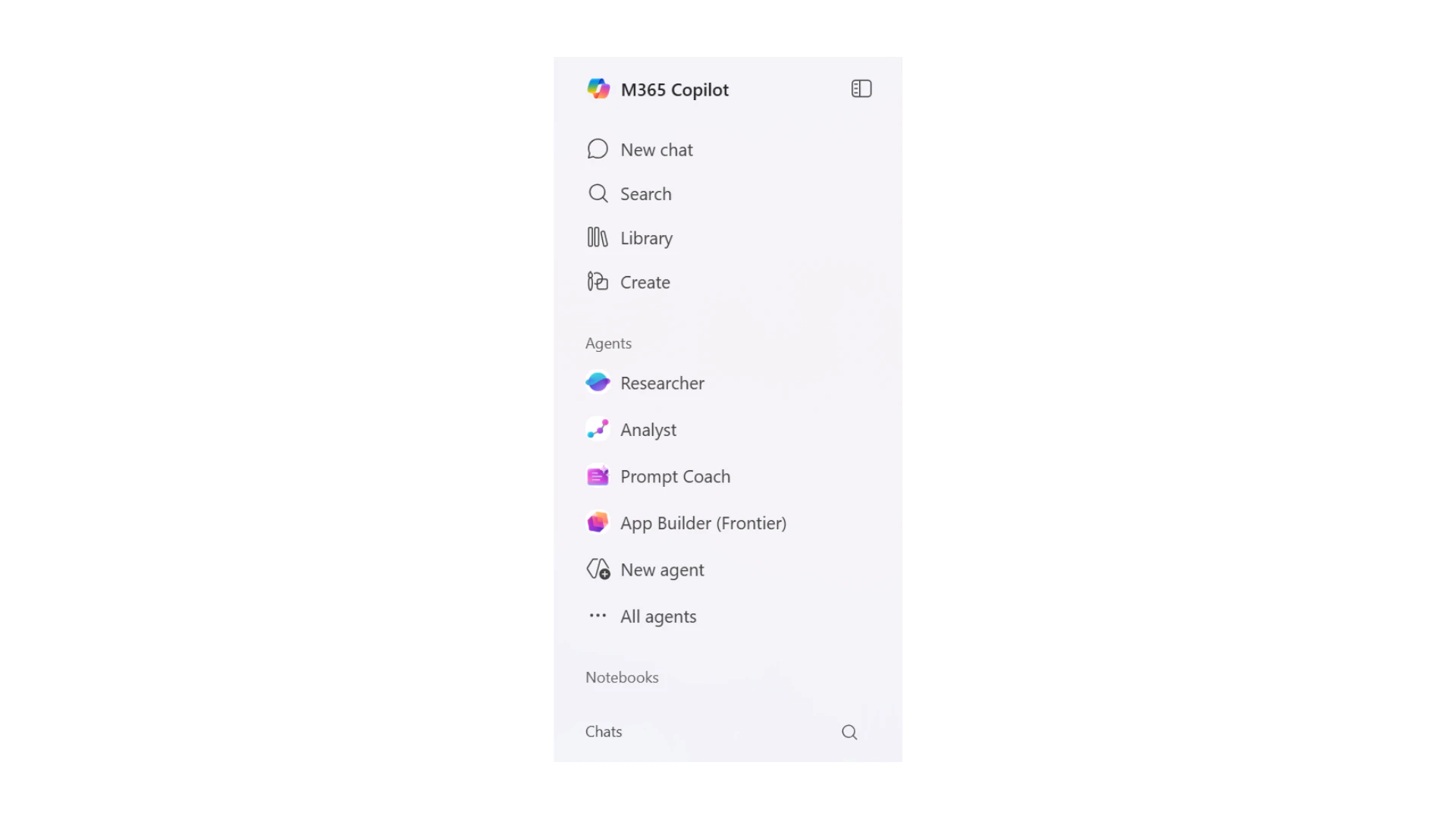
1
Open your presentation
Open an existing PowerPoint file or start a new one. Click the Copilot icon in the ribbon to open the side panel.
2
Describe the image you need
Type something like: “Create an image of a customer journey map with four stages, using a modern flat design style.” Be specific about the content, style, and colour palette.
3
Insert and adjust
Copilot generates the image in the panel. Click to insert it into your slide. Resize and reposition it as needed. If it is not quite right, ask Copilot to adjust specific elements.
Copilot uses GPT-Image-1.5 for image generation (rolled out January 2026). This produces sharper results, better lighting, and generates images up to four times faster than the previous model.
Work mode vs Web mode for visuals
The Work/Web toggle matters when you are working with images. Choosing the right mode affects both the quality of the result and where your data goes.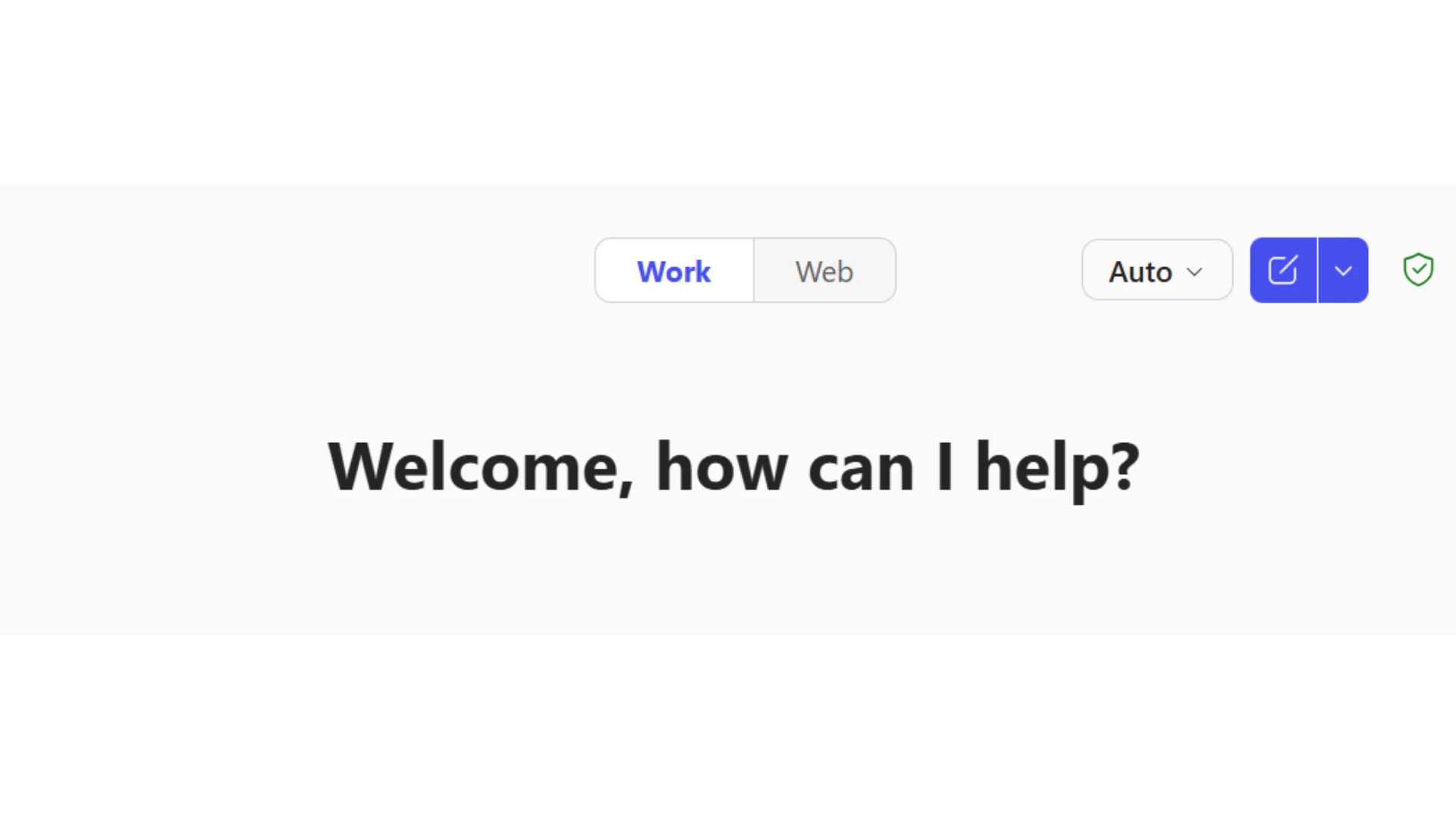
Work mode
Use this when your image or prompt involves internal content: company logos, branded templates, meeting notes, or any document from SharePoint or OneDrive. Your data stays within your organisation’s Microsoft 365 environment.
Web mode
Use this for general image creation or when you want Copilot to reference public information. Web mode draws on internet sources and is better for generic visuals, stock-style images, and external research.
Try it with your own work
The best way to build confidence with visual features is to try them with something real. Pick one of the following and spend five minutes on it.Turn a whiteboard into a summary
Turn a whiteboard into a summary
After your next meeting, take a photo of the whiteboard or sticky notes. Upload it to Copilot and ask: “List the key decisions and action items from this whiteboard photo.” Compare the result to your own notes.
Create a visual for your next presentation
Create a visual for your next presentation
Open your next PowerPoint draft. Use Copilot to generate one image that supports your key message. Try describing the concept, audience, and style in your prompt.
Analyse a chart you use regularly
Analyse a chart you use regularly
Screenshot a chart or dashboard you check often, such as a weekly sales report or a project tracker. Upload it to Copilot and ask: “What are the three most important trends in this chart?” See if it picks up what you already know, and whether it spots anything you missed.
Quick checkpoint (you’re done when…)
Create an image
You generated at least one image using a text description in Copilot
Upload a photo
You shared an image with Copilot and asked it to analyse or summarise
Use visuals in slides
You added an AI-created image to a PowerPoint presentation
Choose the right mode
You understand when to use Work mode vs Web mode for visual tasks
Ready to practice?
Complete the mini challenge to practise using Copilot’s visual features with your own work