

Use ChatGPT for your work
Think of ChatGPT as a new team member who can help with writing, brainstorming, problem-solving, and creative tasks. You can ask it to draft content, suggest ideas, work through questions step by step, or explain complex topics in simple terms. It handles file uploads and maintains conversation context as you work. This page will show you how to:Assign roles
Direct ChatGPT with focused personas
Choose models
Add documents to conversations
Connect tools
Interact hands-free
Refine outputs
Use follow-ups to improve results
Direct ChatGPT with roles
Give ChatGPT a clear role to focus its response. Pick one of these three starting points based on your task.Context in ChatGPT (what it’s really working from)
ChatGPT doesn’t magically know your work situation unless you give it something to work with.For beginners, “context” usually means:
- what you pasted into the chat
- any files you attached
- your saved preferences (optional)
- any tools you turned on (also optional)
Adding Context to Your Conversation
Paste / Add Files
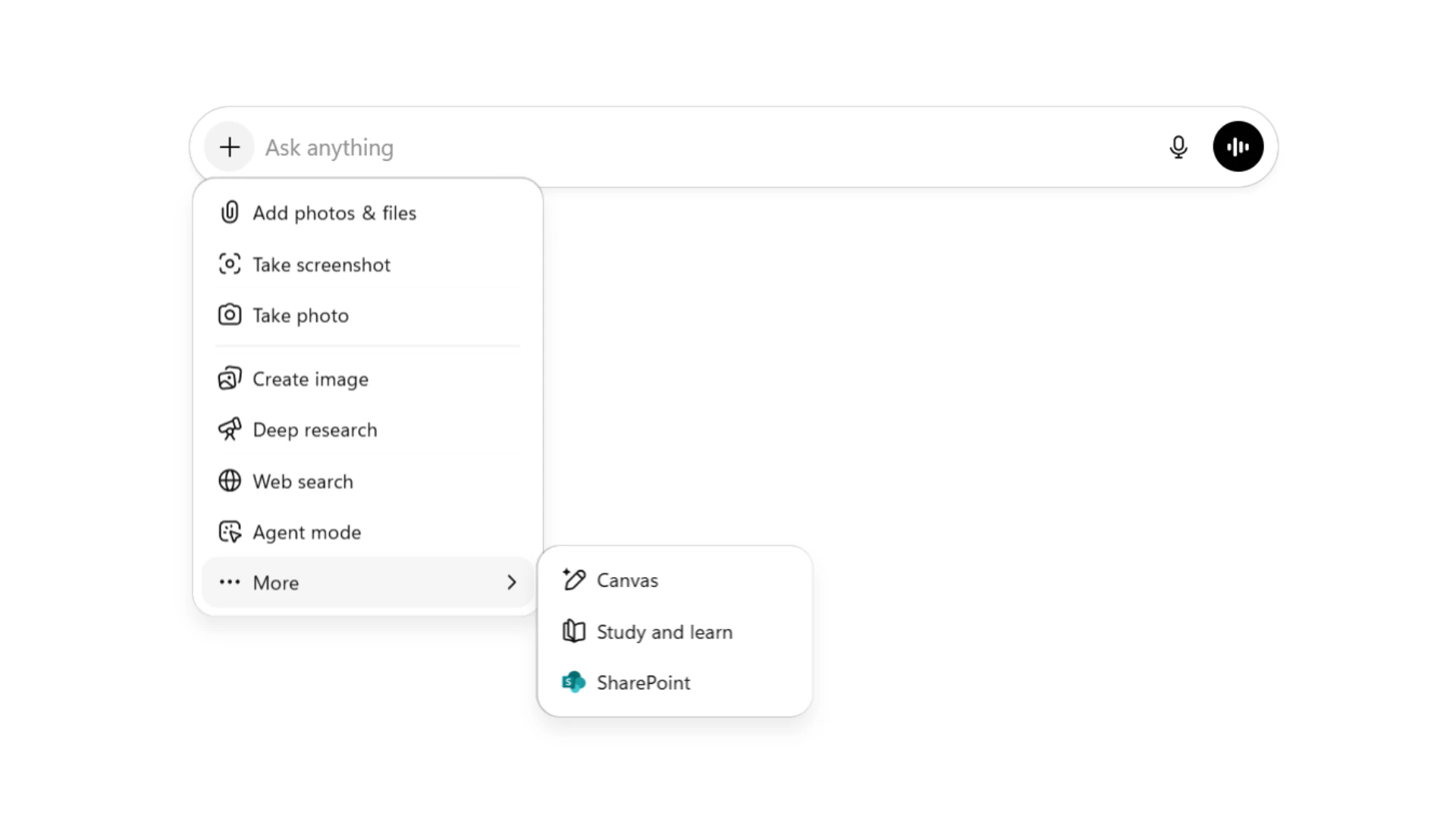
- Add photos & files
- Deep research
- Agent mode
- Create image
- Web search
- Canvas
- Study and learn
Custom Instructions
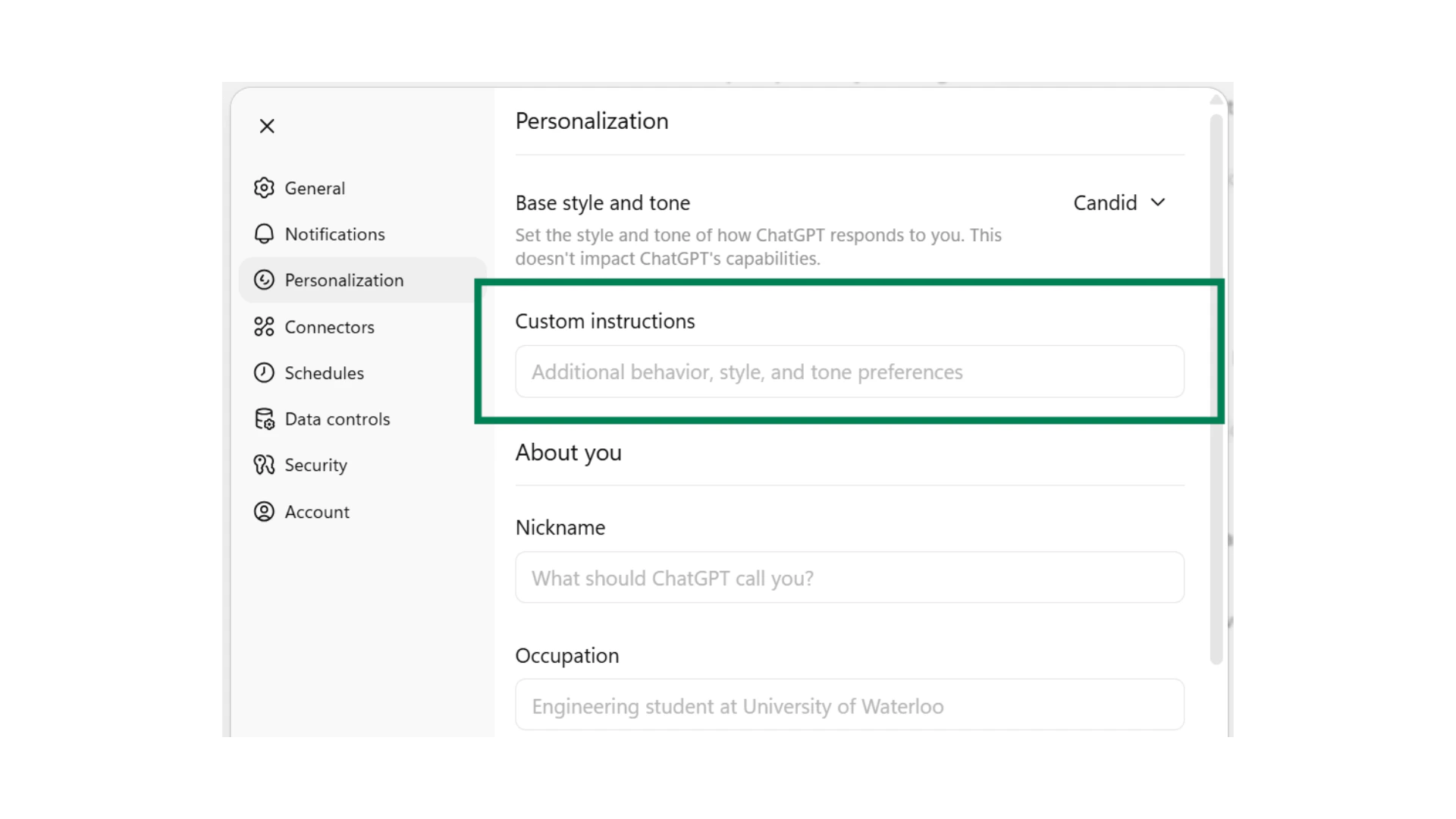
- “Use concise, action-oriented responses”
- “Be brutally honest and critical when responding”
- “Be a supportive brainstorming and thinking partner”
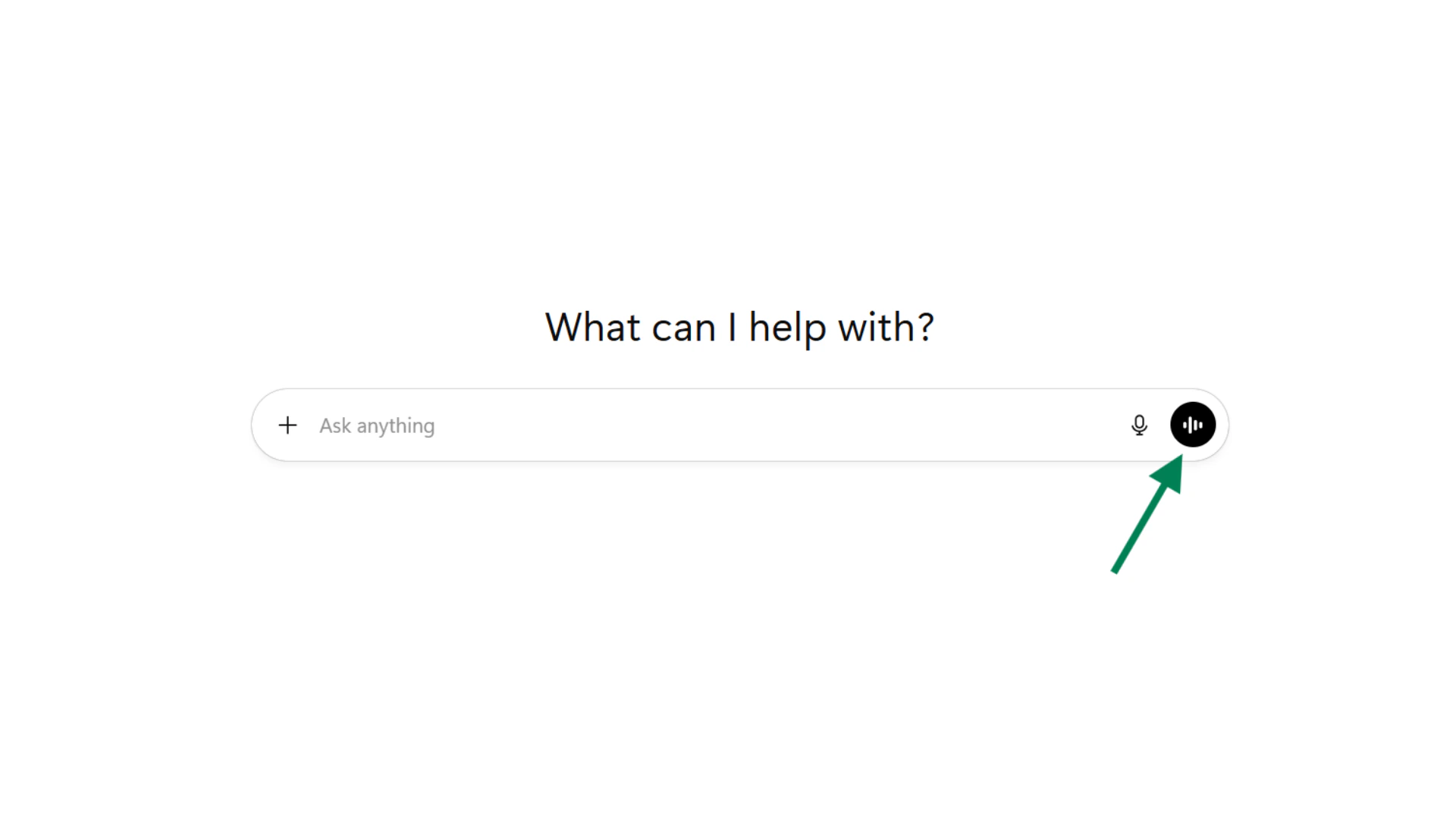
Voice Mode
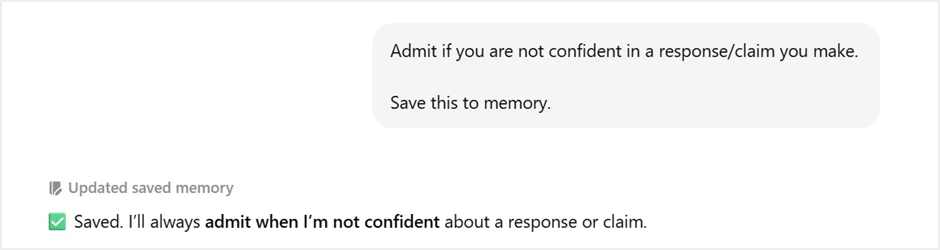
Enabling & managing memories
Once “Reference saved memories” is enabled in settings, ChatGPT will retain important information from your interactions. This allows ChatGPT to build an ongoing knowledge base of the information you have shared in conversations.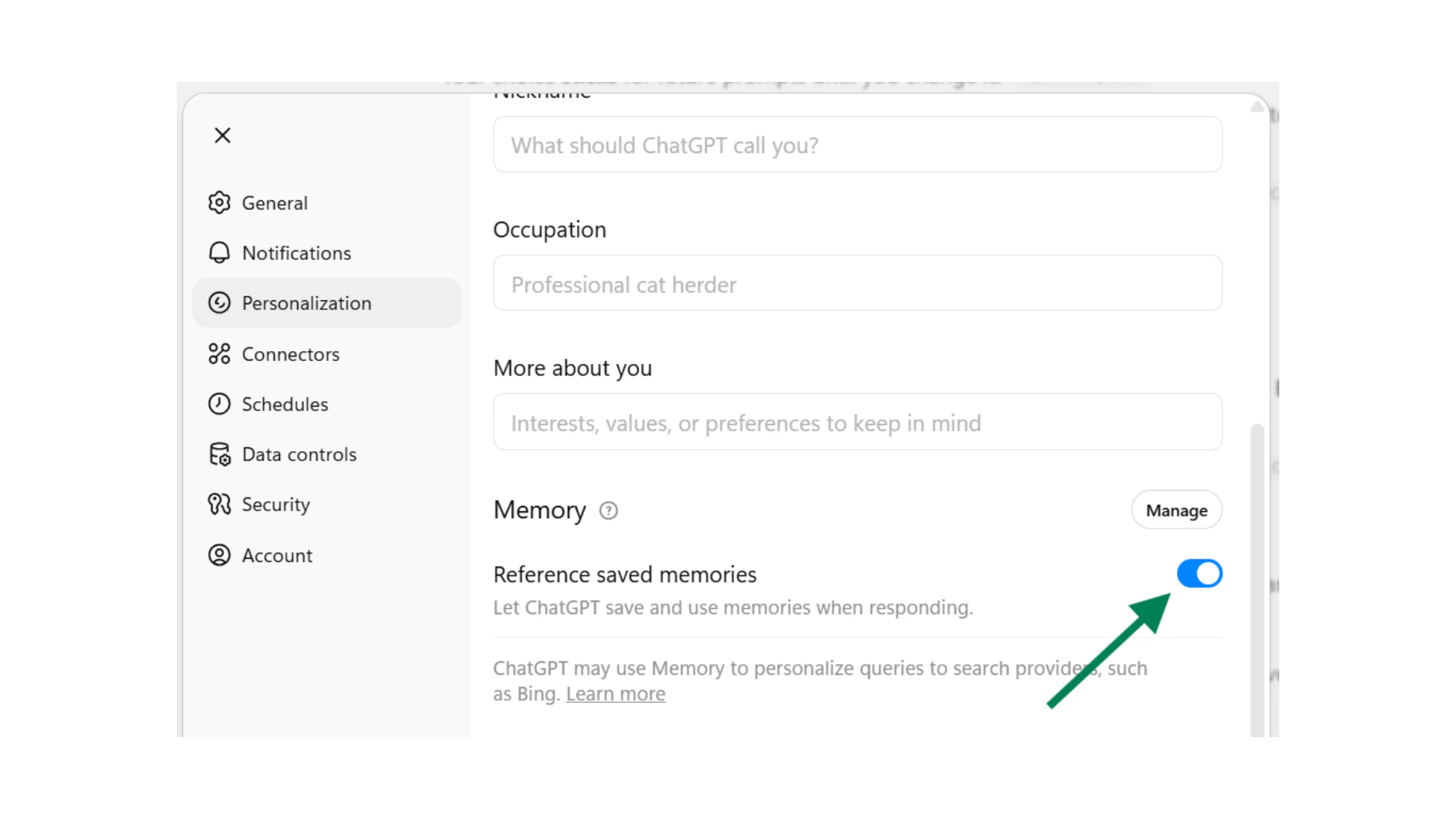
Adding Memories
There are two ways to create or add a saved memory:Automatic Memory

Manual Memory
Choosing your AI model
Model switching
The different models within ChatGPT represent the different brains or capabilities available to you. You can allow selection to take place automatically or you can opt to select a particular model yourself.GPT-5.2 Flagship Model
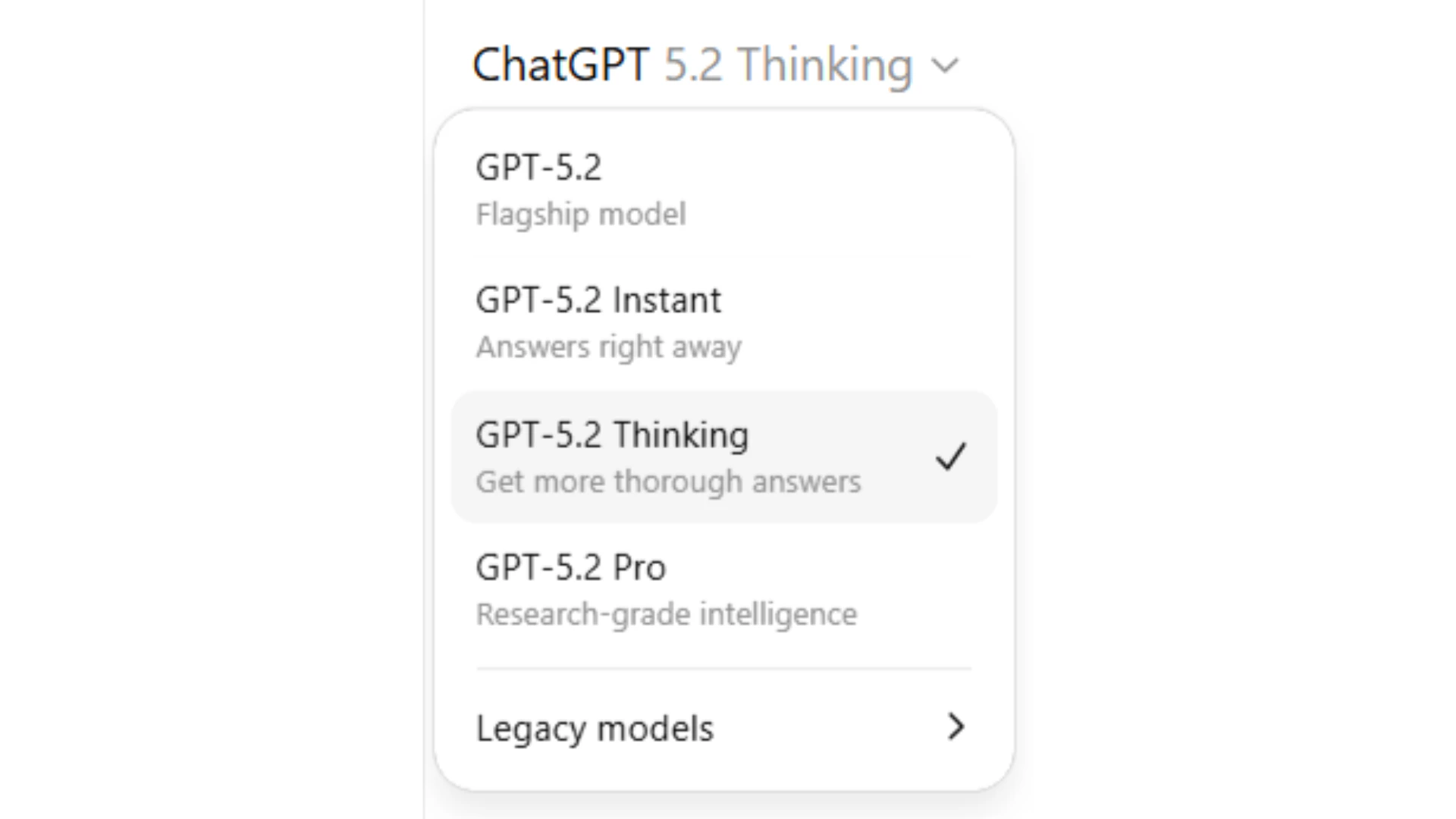
GPT-5.2 Thinking Toggle
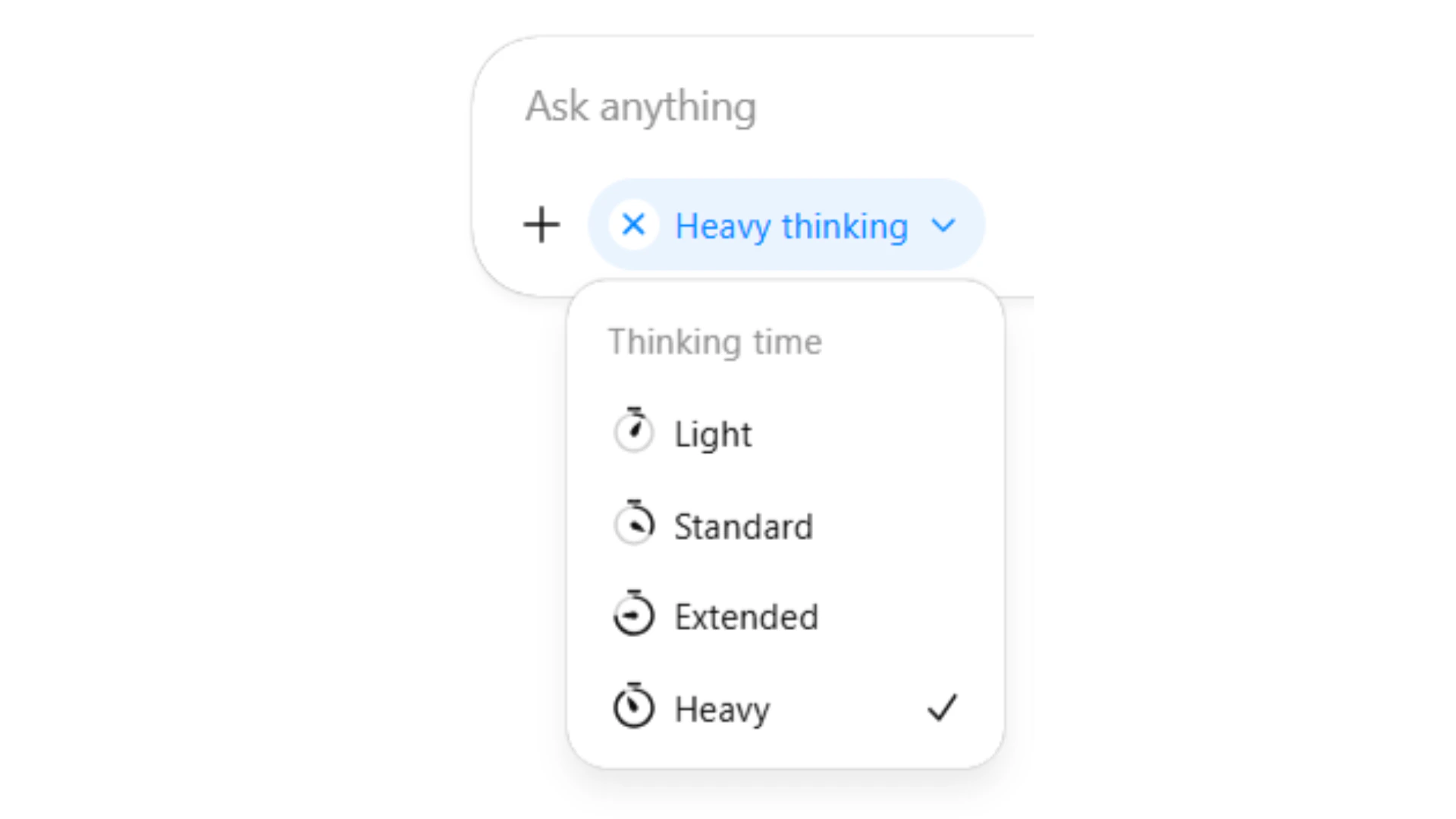
When to use reasoning models
Think of reasoning models as turning your ChatGPT into a senior advisor, or expert consultant in any field. The responses you receive from reasoning models will be far more considered and accurate compared to using other foundation models. In ChatGPT, your reasoning models are GPT-5.2 Thinking and GPT-5.2 Pro. Use these when solving particularly complex problems, or analysing large data sets. These models can be thought of as the standard go-to choices when we need to conduct complex research, analysis or problem solving.What file types can I upload?
Please note limits and capabilities continuously change and may differ from those stated above.
Quick checkpoint (you’re done when…)
Assign roles
You can explain role assignment in one sentence
Upload files
You added documents to your conversation
Use voice mode
You tried voice input or Voice Mode for interaction
Refine outputs
You used follow-ups to improve ChatGPT’s output
Ready to practice?
Complete the mini challenge by constructing a propmt with our tool