

Use Gemini for your work
Think of Gemini as a new team member built into Google Workspace. It works directly in Gmail, Docs, Sheets, and Meet without switching apps. You can ask it to draft emails, summarise documents, analyse spreadsheet data, or generate visual content. It connects to your Drive files and email without manual uploads. This page will help you:Assign roles
Direct Gemini with focused personas
Choose models
Use in Gmail, Docs, Sheets, Meet
Connect tools
Pick the right Gemini version
Refine outputs
Connect apps and upload files
Direct Gemini with roles
Give Gemini a clear role to focus its response. Pick one of these three starting points based on your task.🎯 Test your understanding
🎯 Test your understanding
Gemini in Google Workspace
Gemini integrates directly into the Workspace apps you use daily. Access it through the Gemini icon or side panel in each application.Gmail
Click the Gemini icon in Gmail to open the side panel. Ask questions about your inbox, summarise long email threads, or draft replies with “Help me write”. Gemini can search across your messages using natural language.
Google Docs
Open any document and click “Ask Gemini” in the top right. Generate new content from a prompt, summarise the current document, rewrite selected text, or reference other files from your Drive.
Google Sheets
Click “Ask Gemini” while working in a spreadsheet. Generate tables and trackers from descriptions, create formulas based on what you need, analyse data patterns, or pull information from your Gmail.
Google Meet
Gemini can take meeting notes automatically, summarise discussions, and capture action items. If you join late, ask Gemini to catch you up on what you missed. Translated captions are also available.
Choosing the right Gemini model
Gemini offers different models suited to different tasks. Understanding when to use each helps you get better results.When to use Fast
Use the Fast model for everyday tasks where speed matters more than deep analysis. This includes quick summaries, simple questions, brainstorming ideas, and general assistance. Fast is the default model and handles most requests well.
When to use Thinking or Pro
Switch to Thinking or Pro when you need deeper reasoning. This includes complex analysis, detailed coding tasks, working with large documents, and problems requiring multiple steps to solve. These models take longer but provide more thorough responses.
You can select your model from the dropdown menu in the Gemini app. Google AI Pro and Ultra subscribers receive higher limits for Thinking and Pro models.
🎯 Test your understanding
🎯 Test your understanding
Gemini with context
Gemini becomes more useful when you provide context. There are several ways to give Gemini the information it needs to help you effectively.Connected apps
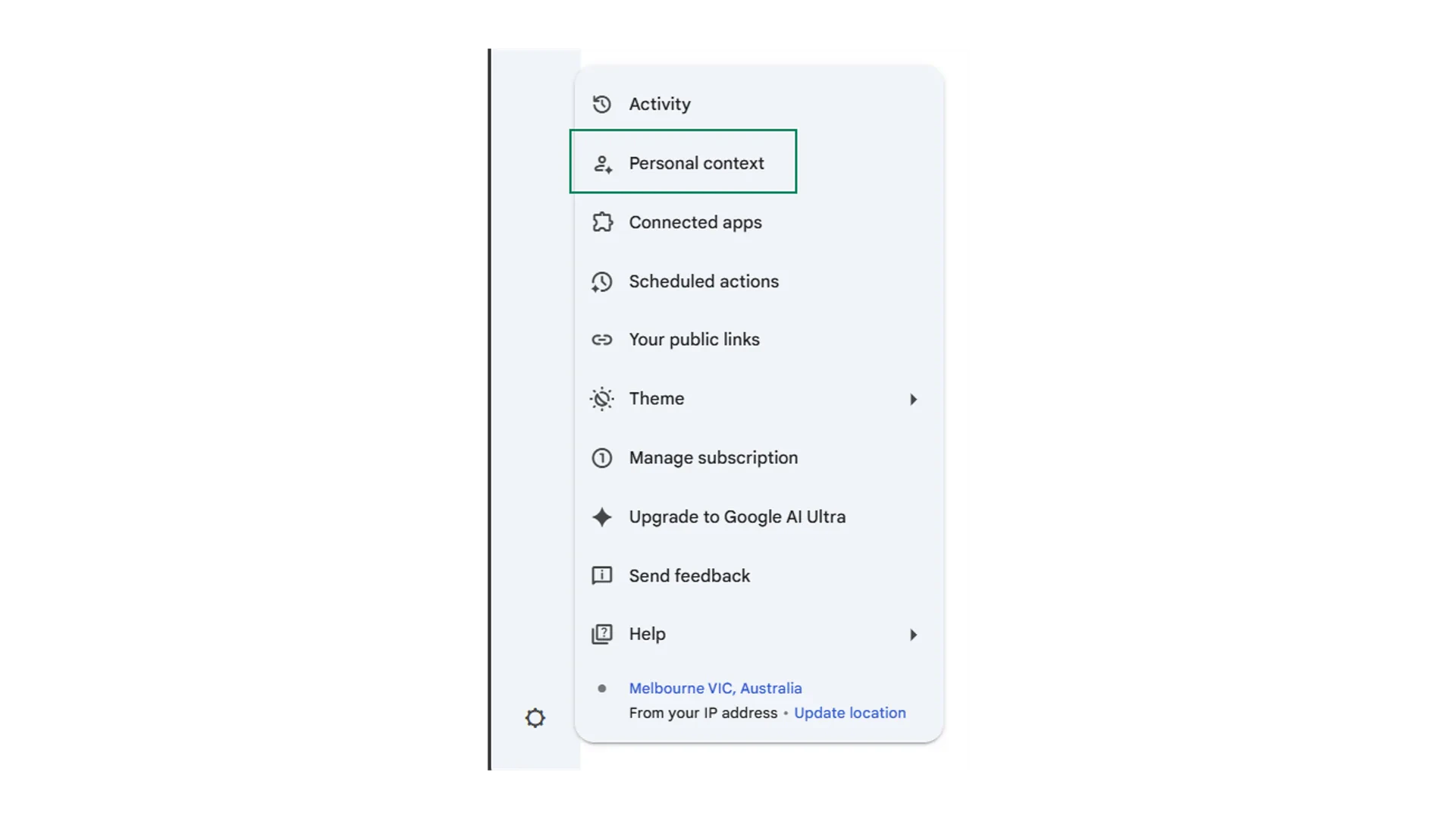
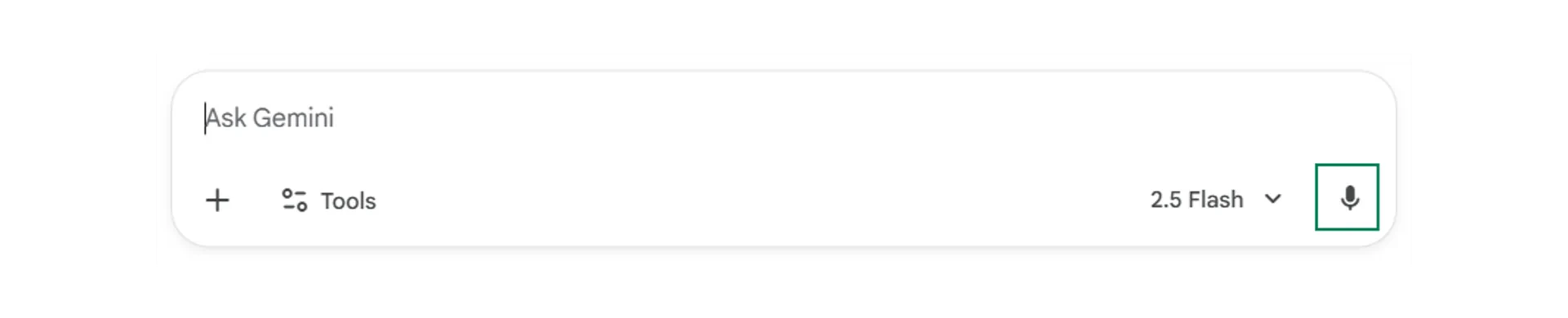
Dictation tool
Files from rrive or upload
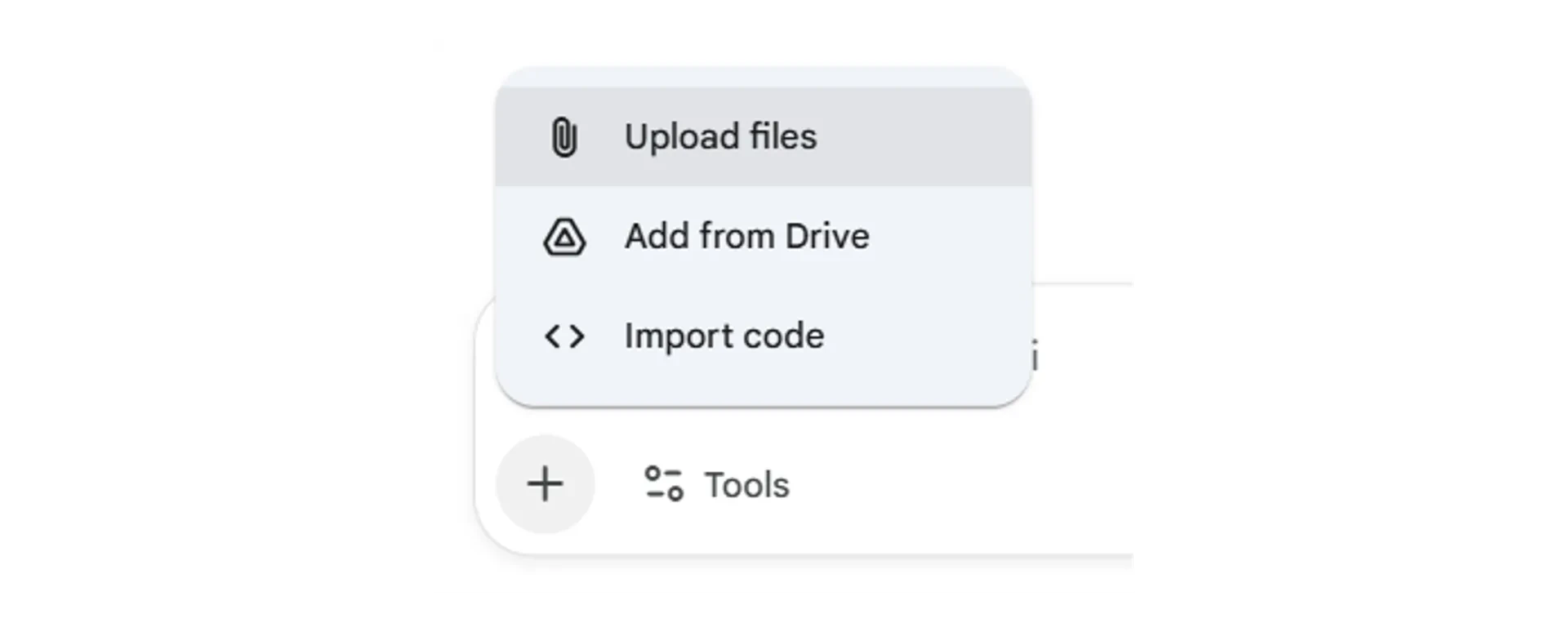
File upload
Gemini can analyse documents, images, and other files you upload. Here are the current limits to keep in mind.Supported file types
Limits may change as Google continues to develop Gemini. For the most current information, refer to Google’s official documentation.
Quick checkpoint (you’re done when…)
Assign roles
You can explain role assignment in one sentence
Access across apps
You opened Gemini in at least one Workspace app
Choose models
You know which model to pick: Fast vs Thinking vs Pro
Add context
You added context using files, apps, or voice input
Ready to practice?
Complete the mini challenges of the module