

Use Gemini with your work
Gemini already has access to your Google Workspace. That means your emails, documents, spreadsheets, and calendar are all within reach, without uploading a single file. The difference between a generic AI response and one that actually helps you comes down to one thing: context. When you give Gemini information about your specific work, it stops guessing and starts delivering results you can use straight away. This page will show you how to:Add context with @
Reference your existing Workspace files directly in Gemini
Structure your prompts
Use persona, task, context, and format to get focused results
Use Gemini in your apps
Work with Gemini inside Docs, Sheets, and Gmail
Iterate and refine
Use follow-up prompts to improve outputs step by step
What “context” means in Gemini
When you type a question into Gemini without any background, it responds with general information. It does not know your role, your projects, or your writing style. That is what most people experience on their first try. “Context” is the information you give Gemini so it can respond with something relevant to your work, not just any work.Without context
“Write me a project update.”Gemini produces a generic template with placeholder text. You spend 10 minutes rewriting it.
With context
“Write a project update for the Q1 marketing campaign @ProjectBrief.doc. Use the tone from @LastUpdate.doc and keep it under 200 words.”Gemini pulls from your actual files and delivers a draft you can send within minutes.
Reference files with the @ symbol
Gemini’s standout feature is its direct connection to your Google Workspace. Type @ in the Gemini chat and you can pull in files from Google Drive, Docs, Sheets, Slides, Gmail, and Calendar without leaving the conversation.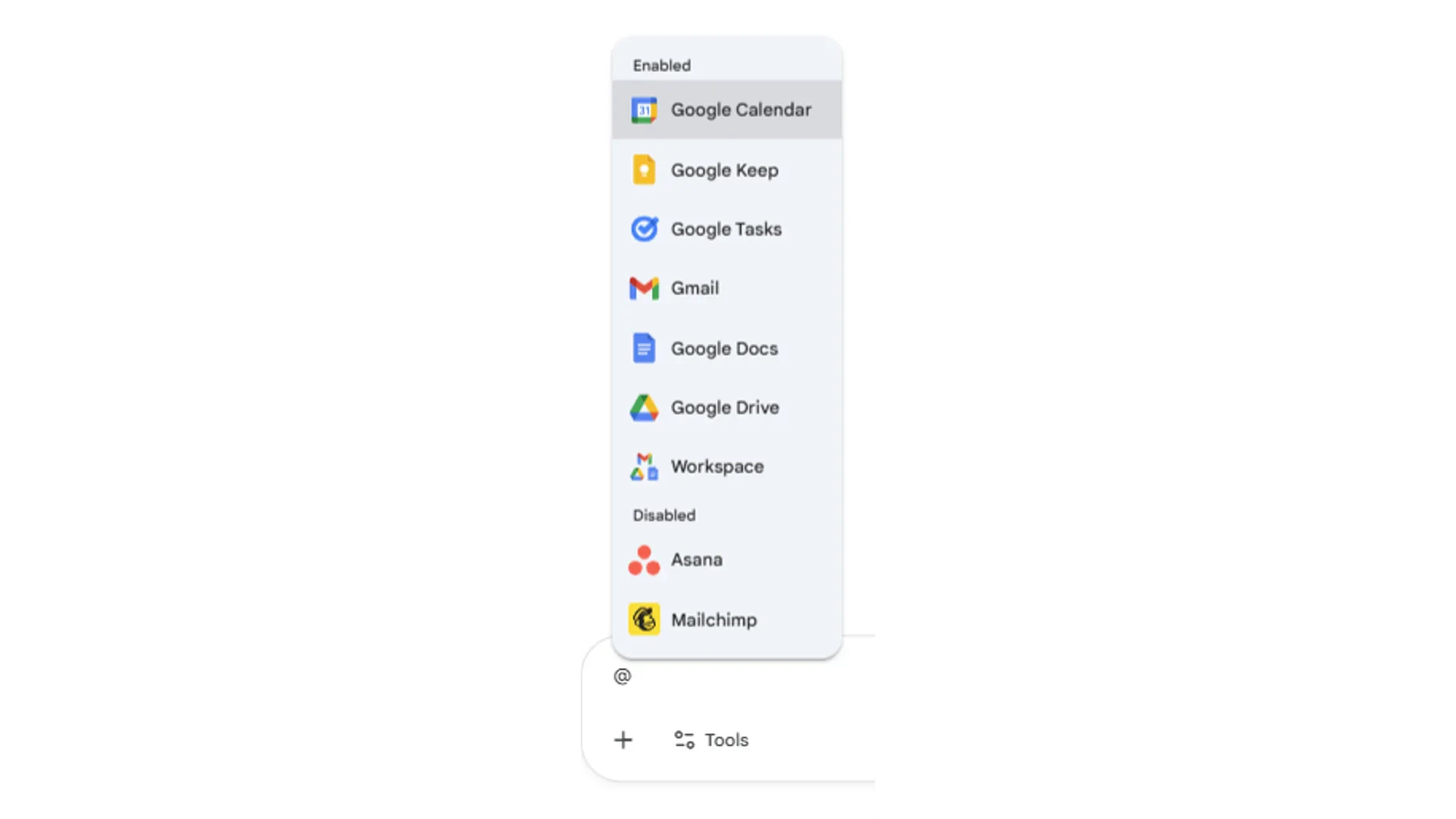
Google Docs
Reference reports, briefs, proposals, or meeting notes. Ask Gemini to summarise, compare, or rewrite content based on what is in the document.
Google Sheets
Pull in data from spreadsheets. Ask Gemini to find trends, explain patterns, or create summaries based on your numbers.
Gmail
Reference email threads. Ask Gemini to summarise a conversation, draft a reply, or pull out action items from a long chain.
Structure your prompts
A clear prompt leads to a useful response. When using Gemini, think of your prompt as having four parts: who Gemini should be, what you need done, what information to work from, and how to present the result.Persona
Tell Gemini who to act as. This shapes the tone, depth, and vocabulary of the response.Example: “You are a senior marketing manager.”
Task
Describe what you need. Be specific about the action you want completed.Example: “Summarise the key findings and recommend next steps.”
Context
Provide the background. Use @ to reference your files or paste in the relevant details.Example: “@Q1Report.doc @CustomerFeedback.xlsx”
Format
Specify how you want the output structured. This saves you from reformatting later.Example: “Present as a 5-bullet executive summary with a recommendation at the end.”
Putting it together
Here is what a structured prompt looks like in practice:Two ways to use Gemini
Gemini works in two places: as a standalone chat in your browser, and as an assistant built into your Google apps. Each approach serves a different purpose.- Gemini in your browser
- Gemini inside your apps
The browser-based Gemini chat at gemini.google.com is your central hub. Type @ to connect to your Workspace files and services. It searches, summarises, and answers questions about your existing content across sources.Use this when you need to work across multiple files, run Deep Research, or handle tasks that span more than one app.

Gemini in Google Docs
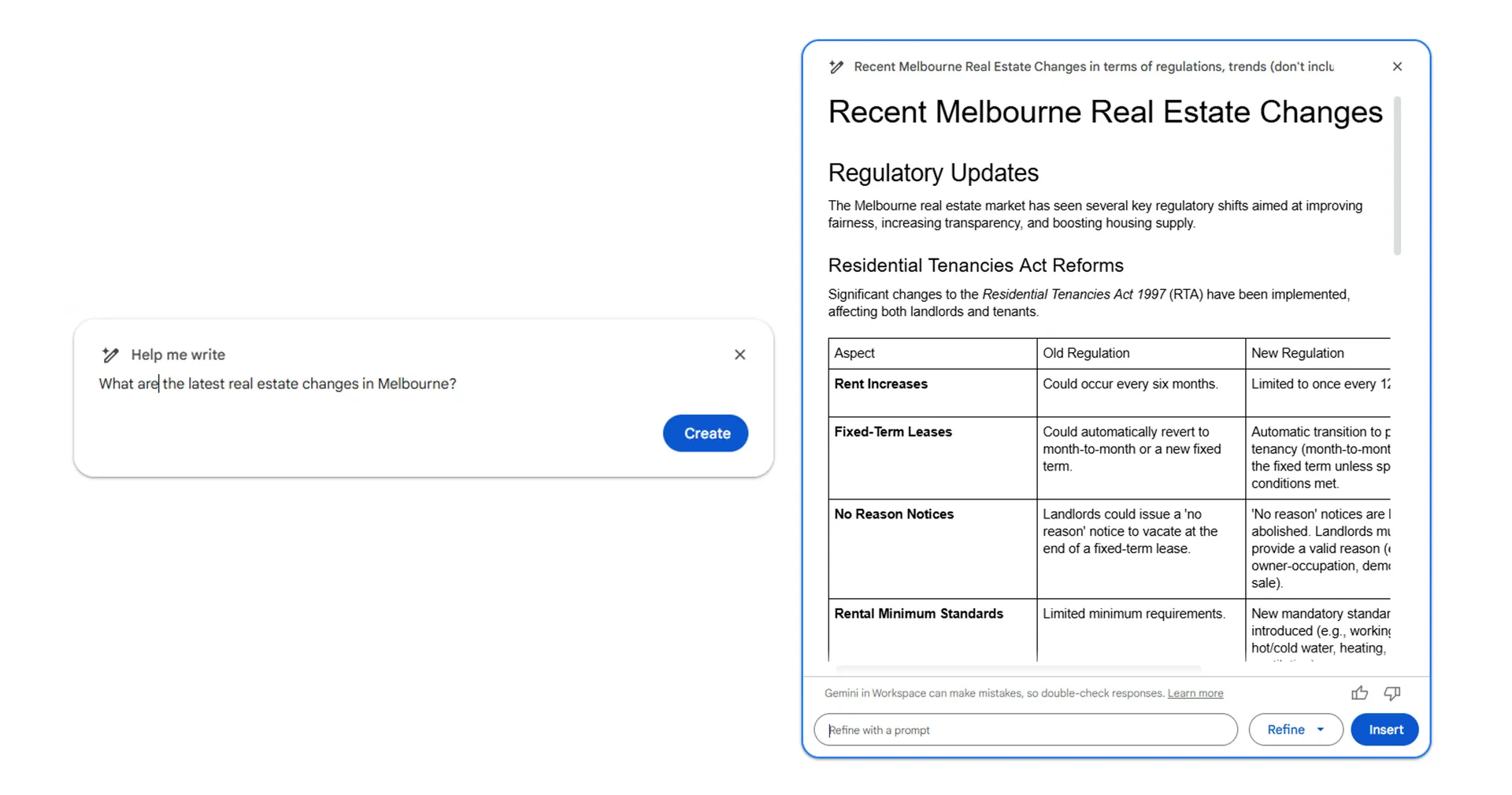
Gemini inside Google Docs helps you create, edit, and refine documents without leaving the page. There are three main ways to use it.Generate a new document
Open a new Google Doc and use the “Generate document” feature. You can describe what you need, or reference existing files in your Drive to pull content from presentations, spreadsheets, or other documents.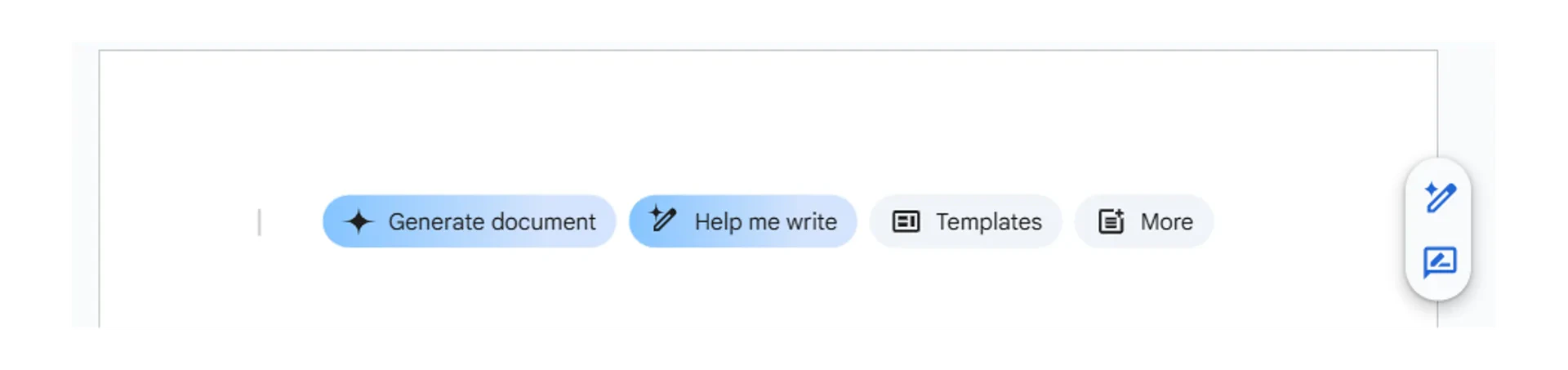
Edit with Refine
Highlight any section of text and use the Refine options to shorten, elaborate, adjust tone, or make custom changes. You can also ask Gemini to add specific data or citations to a paragraph.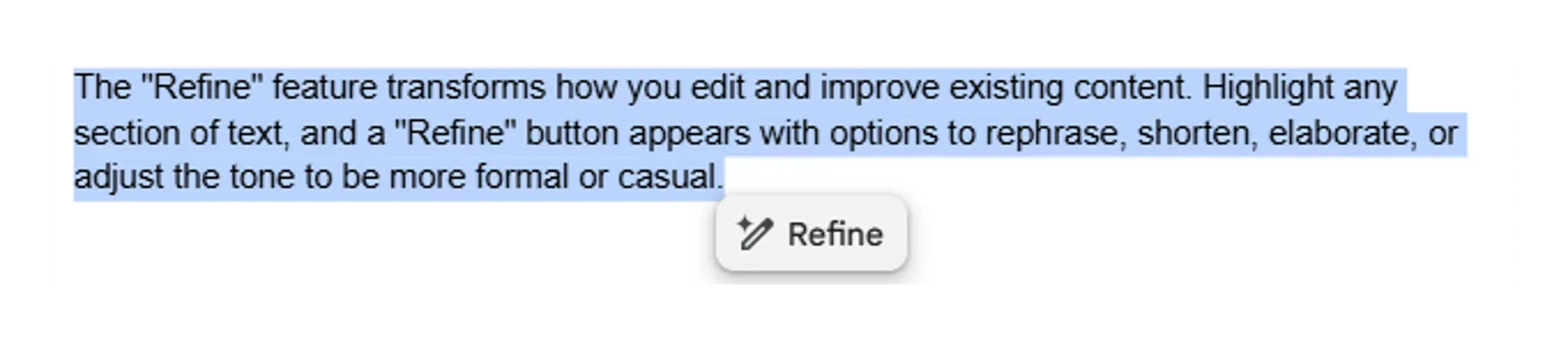
Export from Gemini chat to Docs
After Gemini completes a response in the browser chat, select “Share and export” then choose “Export to Docs.” A new Google Doc is created with the full content, formatting, and citations included.
Gemini in Google Sheets
Analyse your data
When you open a spreadsheet, Gemini automatically generates a summary in the side panel. You can ask it to find trends, identify patterns, spot outliers, or compare data across columns and time periods.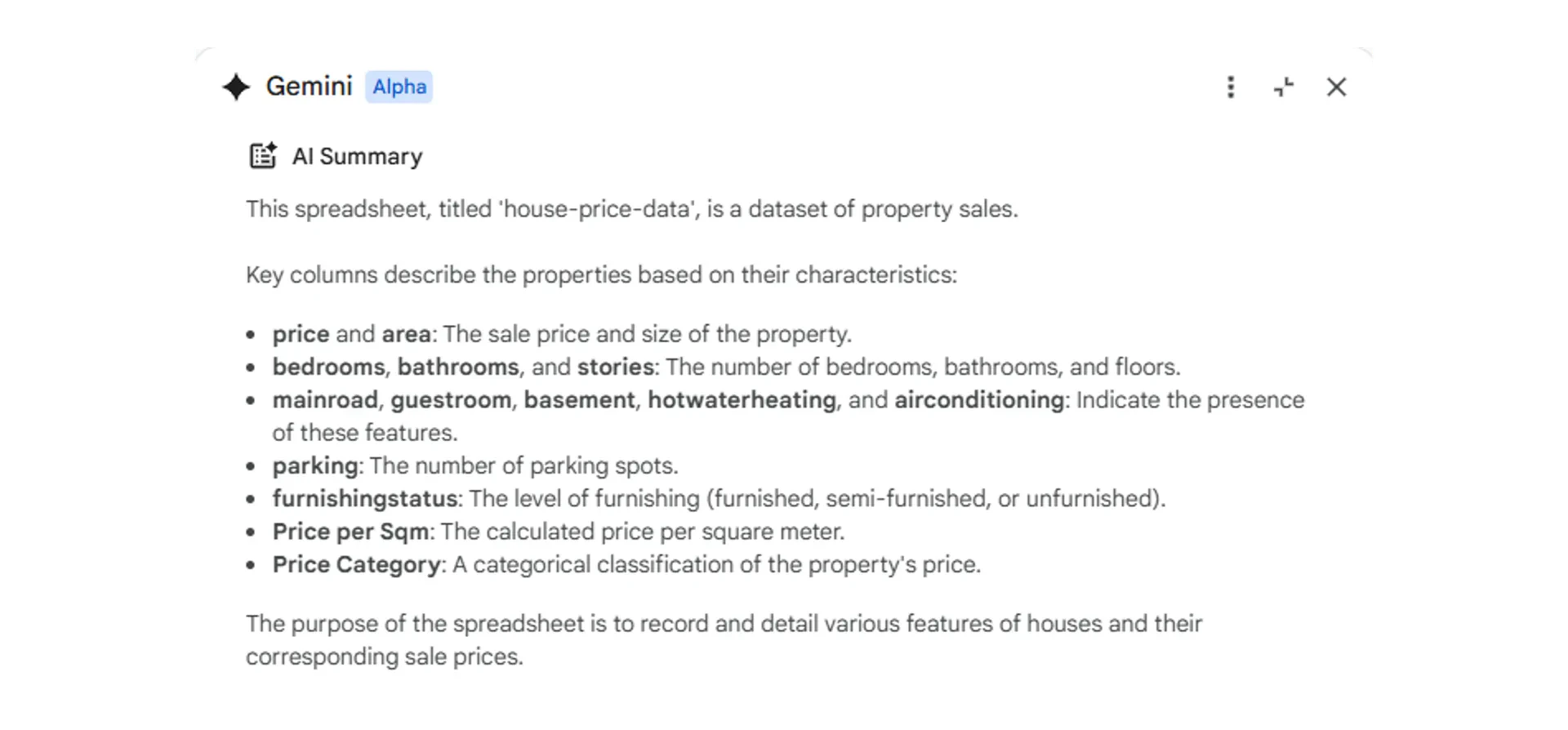
Generate formulas
Instead of remembering formula syntax, describe the calculation you need in plain language. Gemini generates the formula and references the correct data sources in your sheet.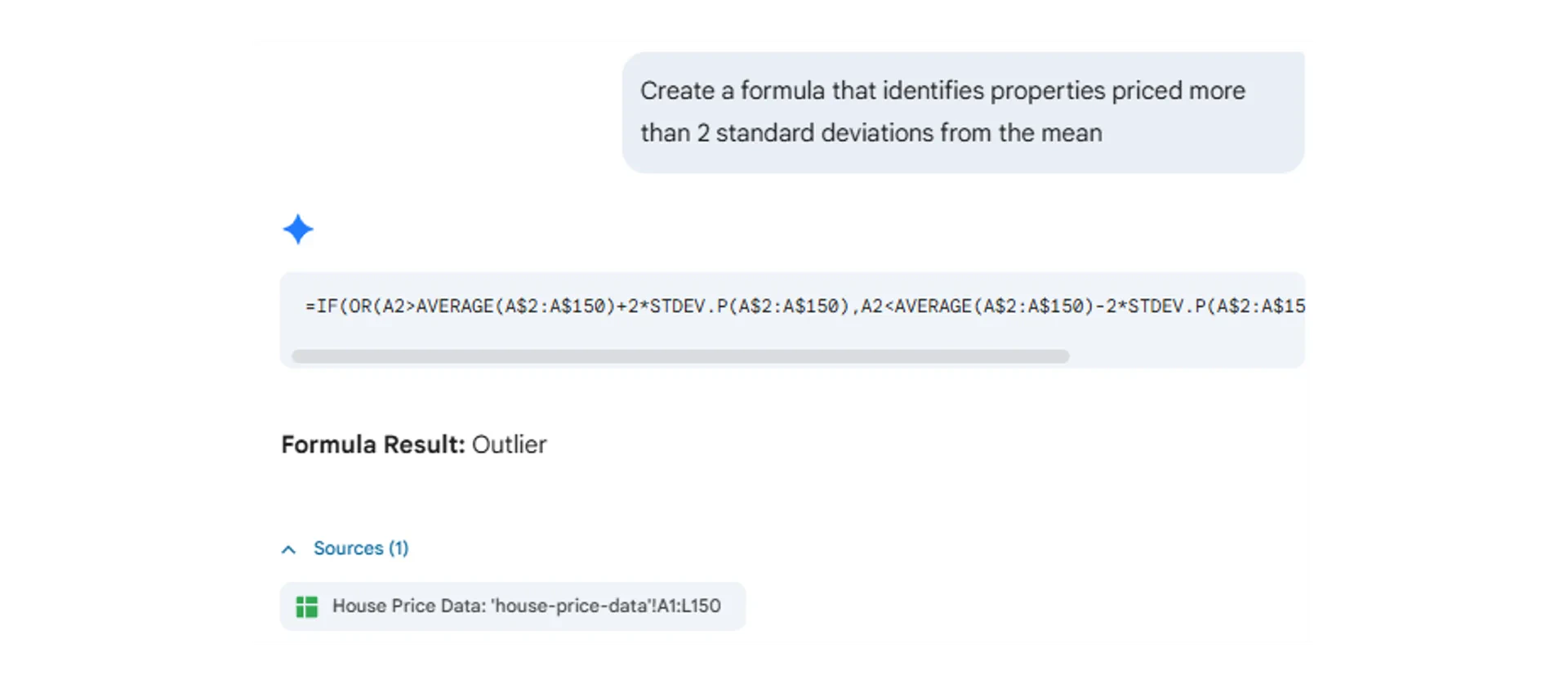
The =AI function
Type =AI() in a cell to use natural language prompts within your spreadsheet. This is useful for generating text, summarising content, or categorising data across rows.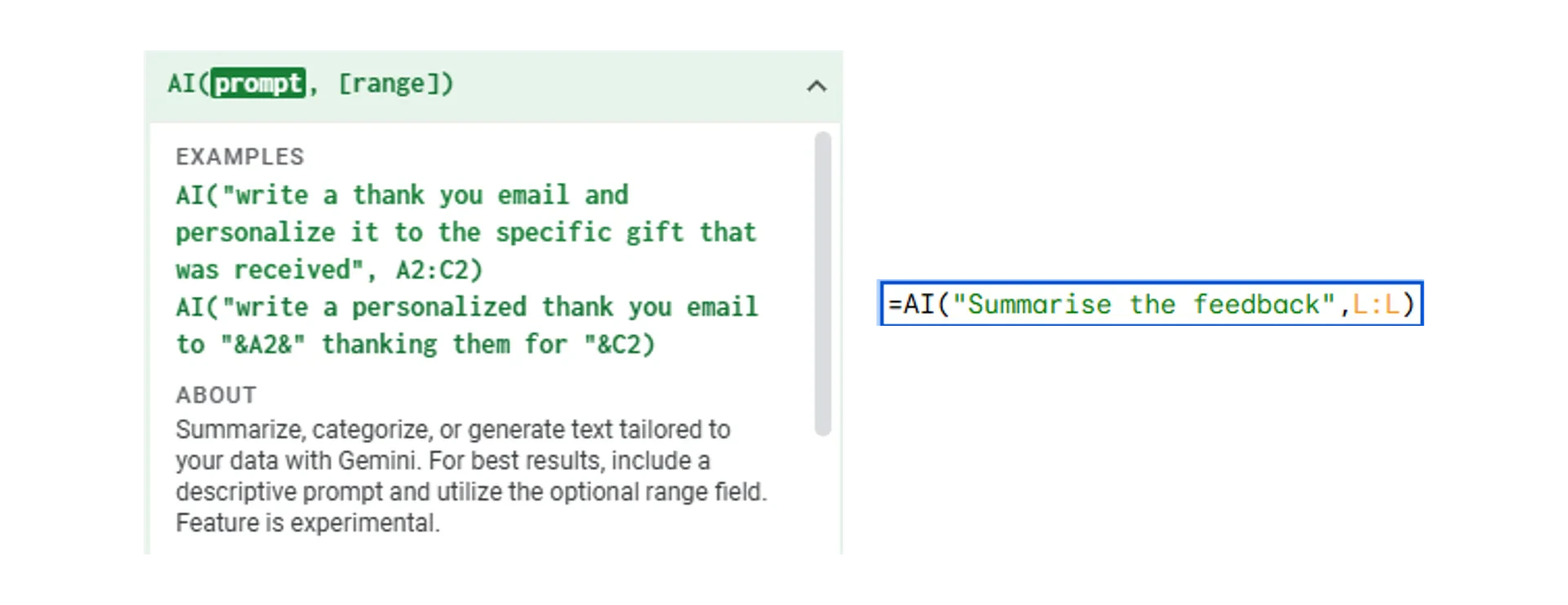
Create charts
Describe the chart you need and which data to include. Gemini creates visualisations based on your instructions.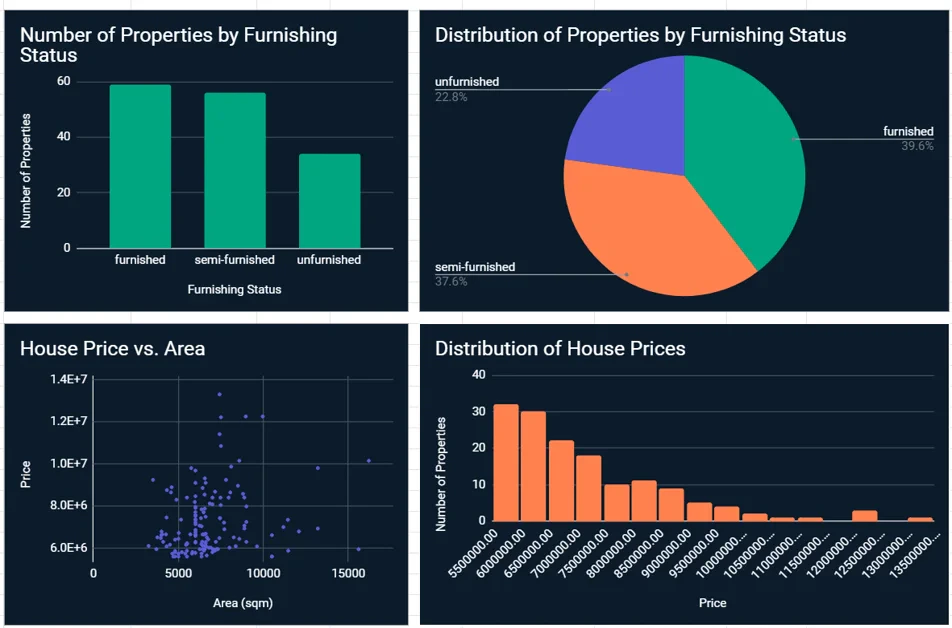
Gemini in Gmail
Summarise email threads
For long email chains, click “Summarise this email” in the Gemini side panel. You get a concise overview of key points and action items, which is especially useful for project discussions with many replies.
Draft and respond
Use @ to reference documents when composing emails. Gemini can pull content from your files, summarise it, and insert it directly into your draft. From there, use “Help me write” to adjust tone, length, or structure.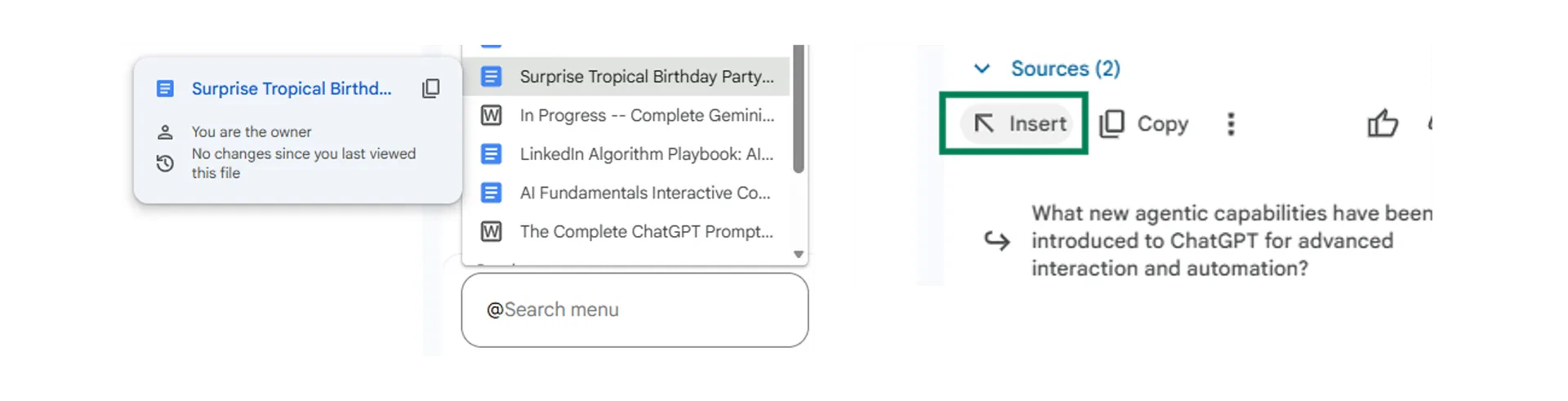
Iterate and refine your outputs
Your first prompt rarely produces a perfect result. The best approach is to treat the first output as a starting draft, then use follow-up prompts to refine it.Adjust the length
“Make this shorter and focus only on the recommendations.”“Expand the second paragraph with more detail on timelines.”
Change the tone
“Rewrite this for a senior leadership audience.”“Make this more conversational and less formal.”
Add specifics
“Add the revenue figures from @Q1Report.xlsx to the summary.”“Include a comparison with last quarter’s results.”
Deep Research
Deep Research is Gemini’s feature for comprehensive information gathering. It accesses and analyses hundreds of web pages, academic papers, and trusted sources to deliver structured reports with full citations. Depending on the complexity of your request, this takes between 10 and 30 minutes.
When to use Deep Research
Competitor analysis
Gather intelligence on competitor offerings, pricing, market positioning, and customer sentiment across multiple sources.
Due diligence
Investigate potential partners, vendors, or acquisition targets by aggregating public information, financial data, and industry analysis.
Market research
Understand industry trends, emerging technologies, or regulatory changes by pulling from trade publications, analyst reports, and news sources.
Learning new topics
Build foundational understanding of unfamiliar subjects by having Gemini curate and summarise materials from introductory through advanced levels.
After research completes
A “Create” button appears in the results, letting you transform the research into different formats.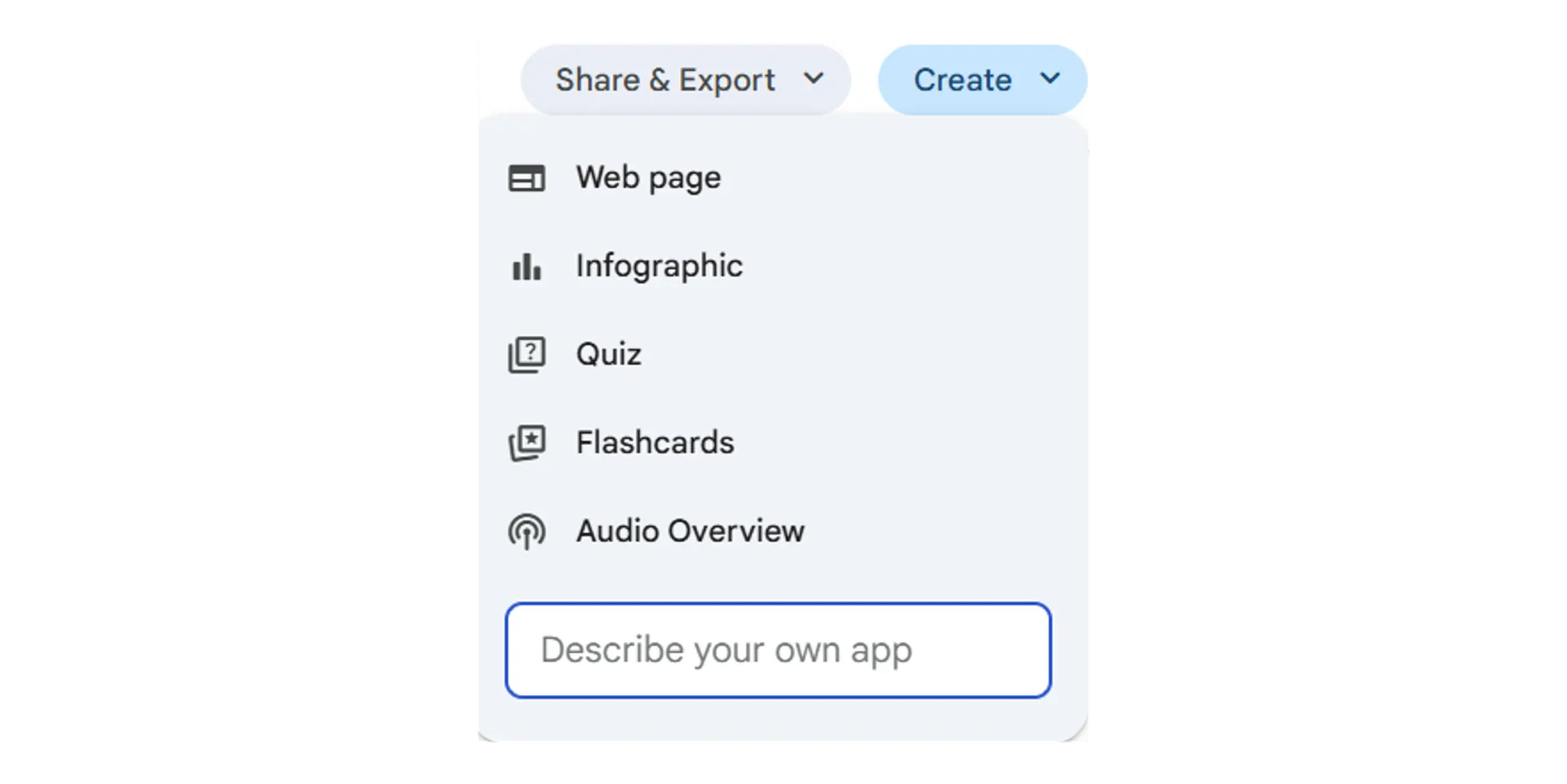
Web page
Web page
Converts the report into a shareable web page for internal knowledge bases or external publication.
Infographic
Infographic
Presents key findings visually with graphs and charts for presentations and stakeholder communications.
Quiz
Quiz
Generates assessment questions based on the research, useful for training or knowledge verification.
Flashcards
Flashcards
Creates study cards with concepts, definitions, and facts from the research for learning and retention.
Audio overview
Audio overview
Produces a spoken summary of findings so you can review the research while commuting or between meetings.

Gems in Gemini
Gems are premade agents available within the Gemini chat interface across Google Workspace apps. They handle specific tasks like improving content, formatting text, and polishing drafts.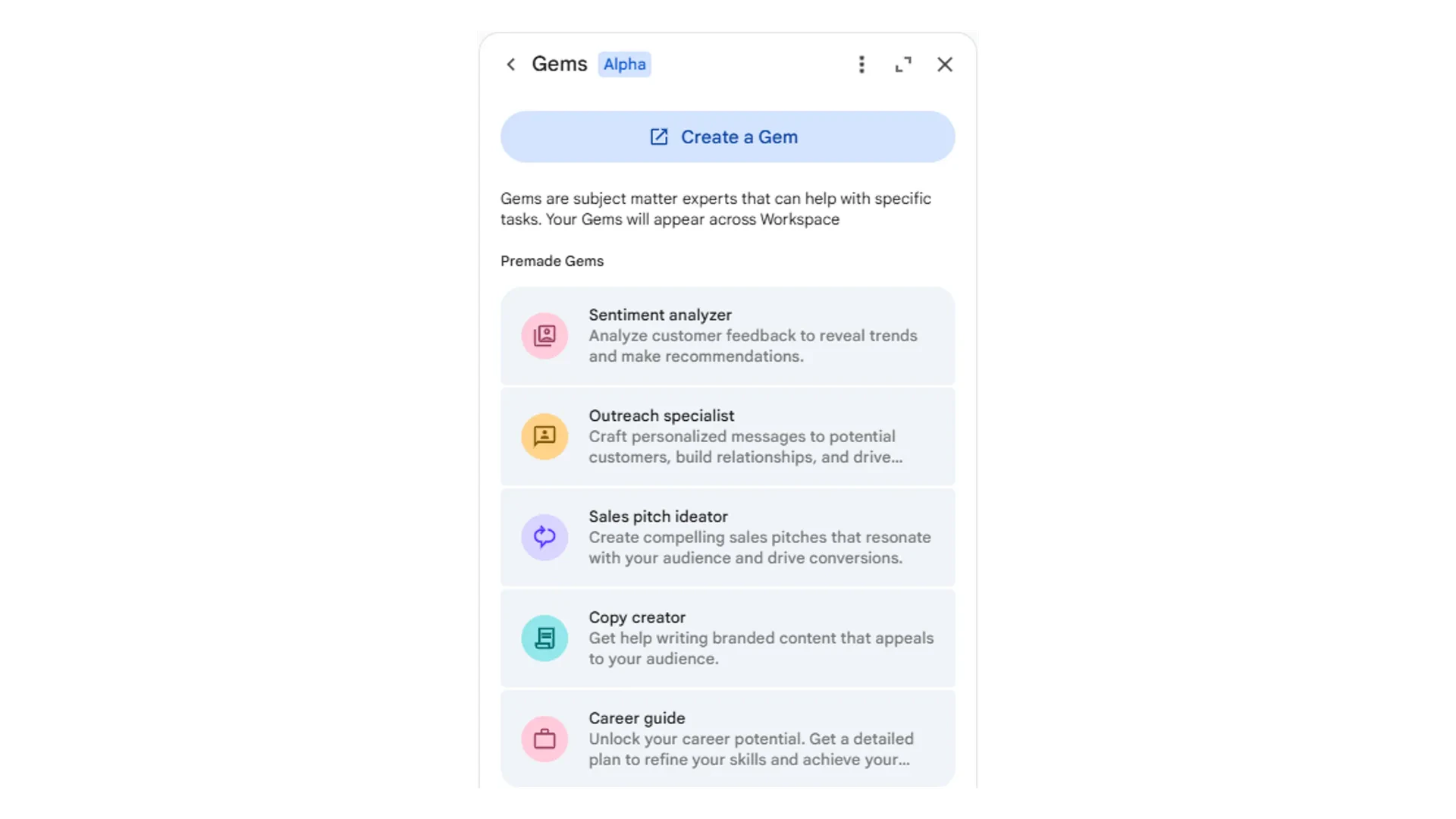
NotebookLM
NotebookLM is a separate workspace where every response is grounded in your uploaded source material. It does not generate fabricated information. Instead, it provides direct citations linked back to your documents, making it easy to verify any claim.At Pathfindr, we have integrated NotebookLM into our toolkit and found it to be a reliable resource, particularly the “Create” capabilities in the Studio tab.
Three main panels
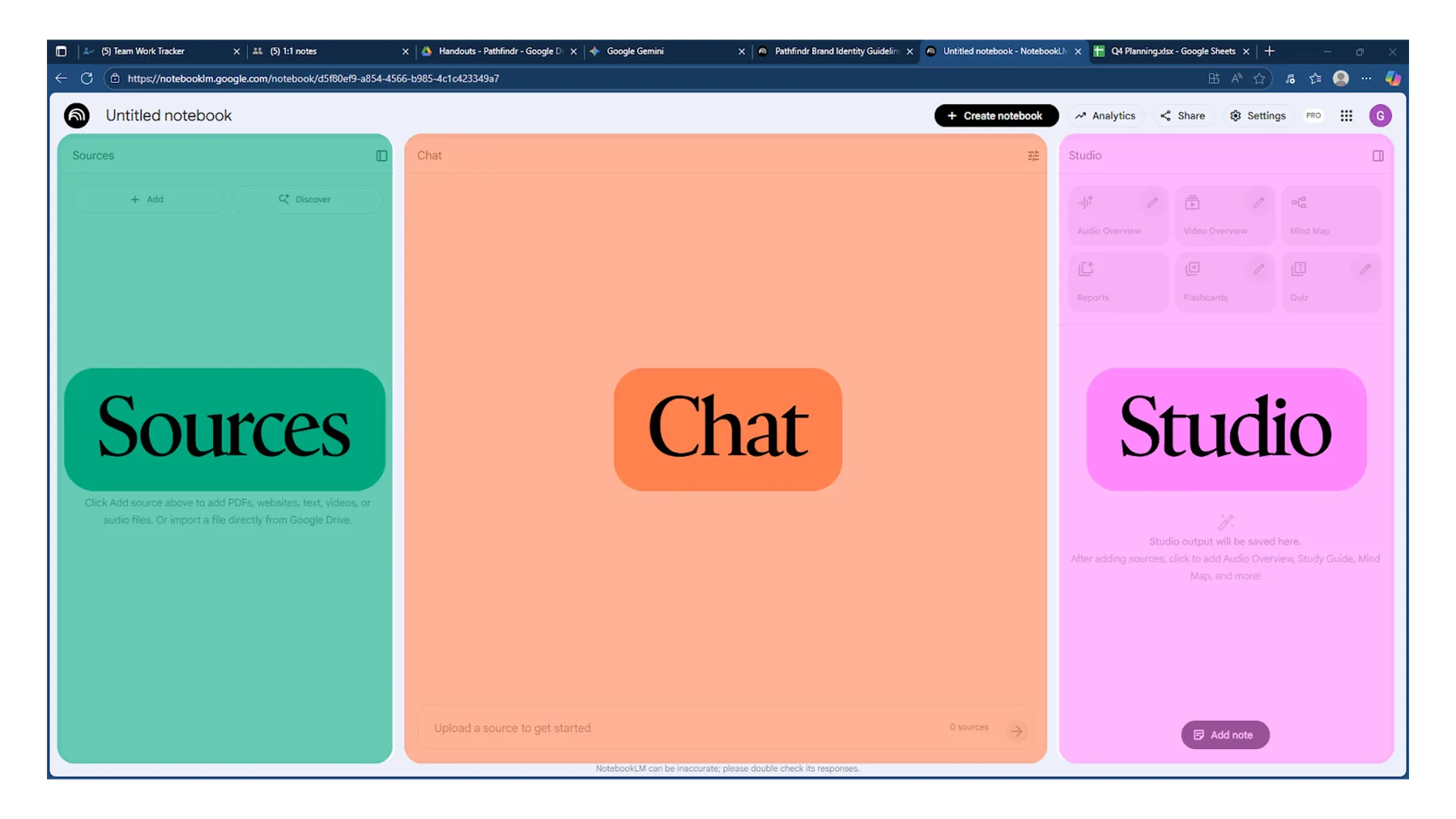
Sources
Upload documents, add web links, or connect files from Google Drive. You can attach up to 300 source files and selectively include or exclude materials before asking questions.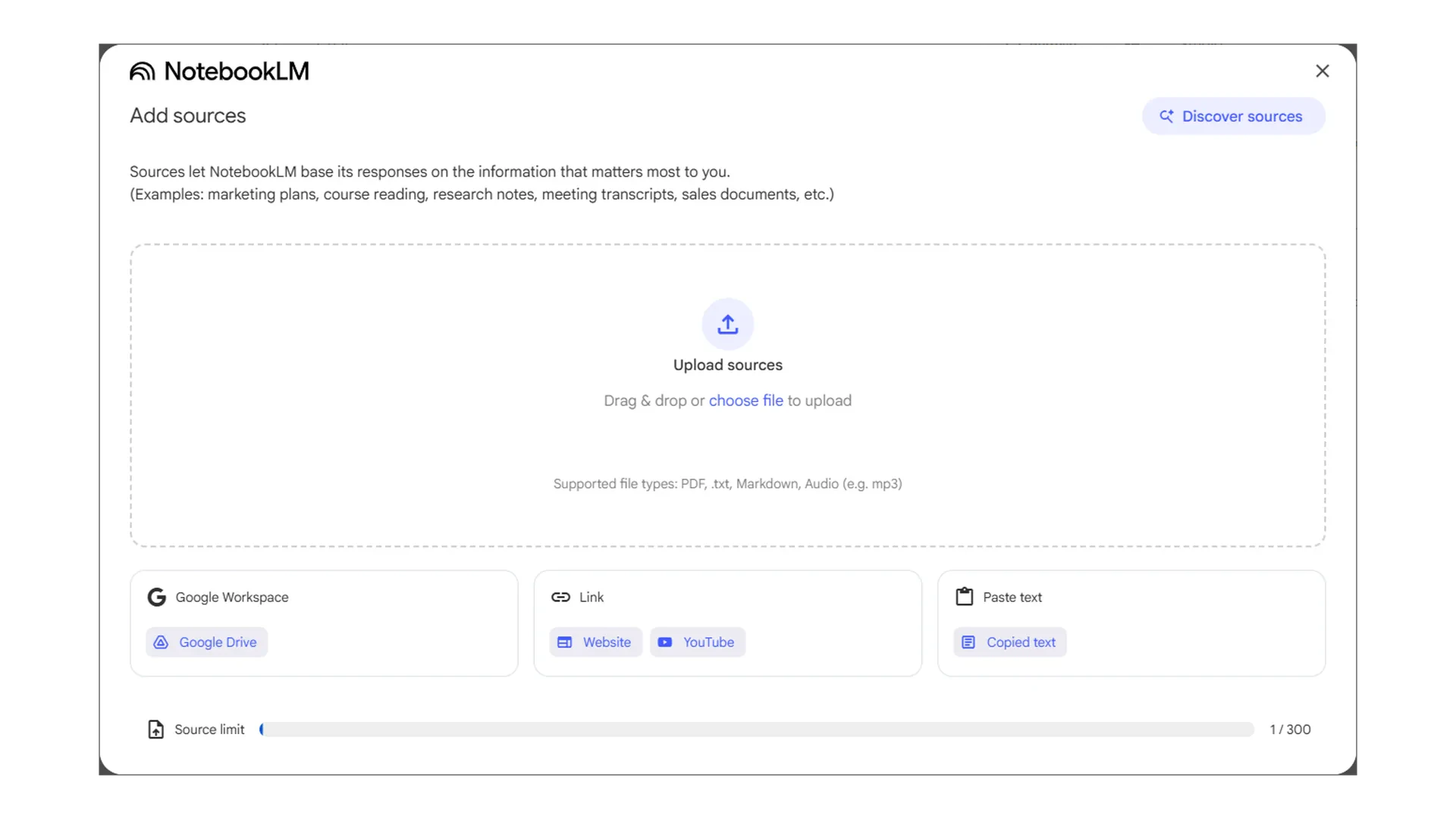
Chat
Ask questions about your sources. Customise the AI’s persona for each notebook by choosing from options like “Default” or “Learning Guide,” or define a custom role and response length.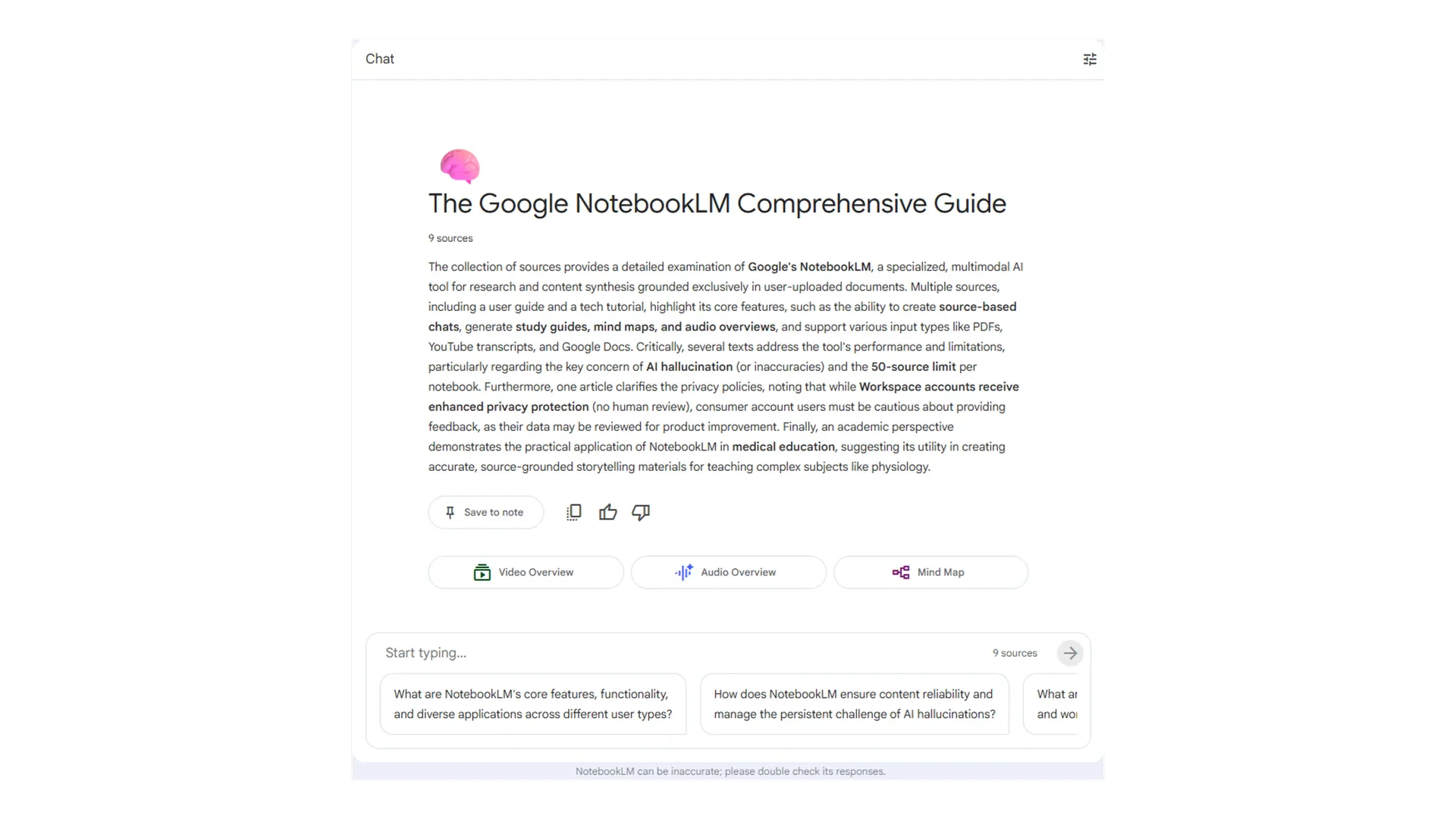
Studio
Transform your source materials into structured outputs with one click: Audio Overview, Video Overview, Flashcards, Quiz, Mind Maps, and Reports.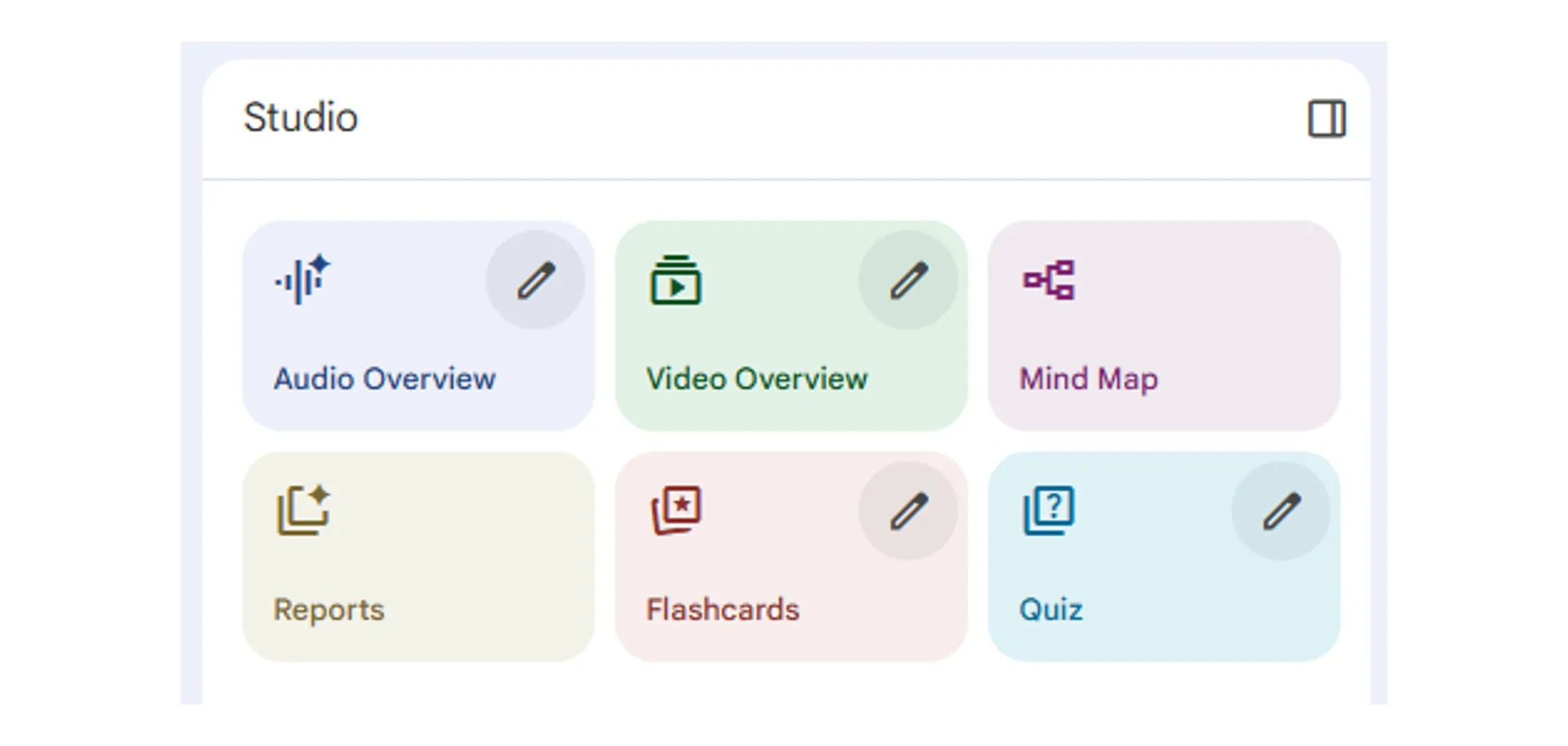
Quick checkpoint (you’re done when…)
Add context with @
You referenced a Workspace file in a Gemini prompt using the @ symbol
Structure prompts
You built a prompt using persona, task, context, and format
Use Gemini in apps
You opened the Gemini side panel in Docs, Sheets, or Gmail
Iterate and refine
You used a follow-up prompt to improve Gemini’s first response
Ready to practice?
Complete the mini challenge by building a prompt with context from your own Workspace files