

Use Claude for your work
Think of Claude as a new team member who can help with writing, research, analysis, and project work. You can ask it to draft documents, pull together information, process data, or work through decisions with you. This page will show you how to:Assign roles
Direct Claude with focused personas
Choose models
Pick the right thinking mode
Connect tools
Link files and integrations
Refine outputs
Use follow-ups to improve results
Direct Claude with roles
Claude responds well when you give it clear direction. Give Claude a clear role to focus its response. Pick one of these three starting points based on your task.🎯 Test your understanding
🎯 Test your understanding
Choosing the right model and mode
Claude offers different models and thinking modes. Selecting the right combination saves time on simple tasks and improves quality on complex ones.When to use standard mode
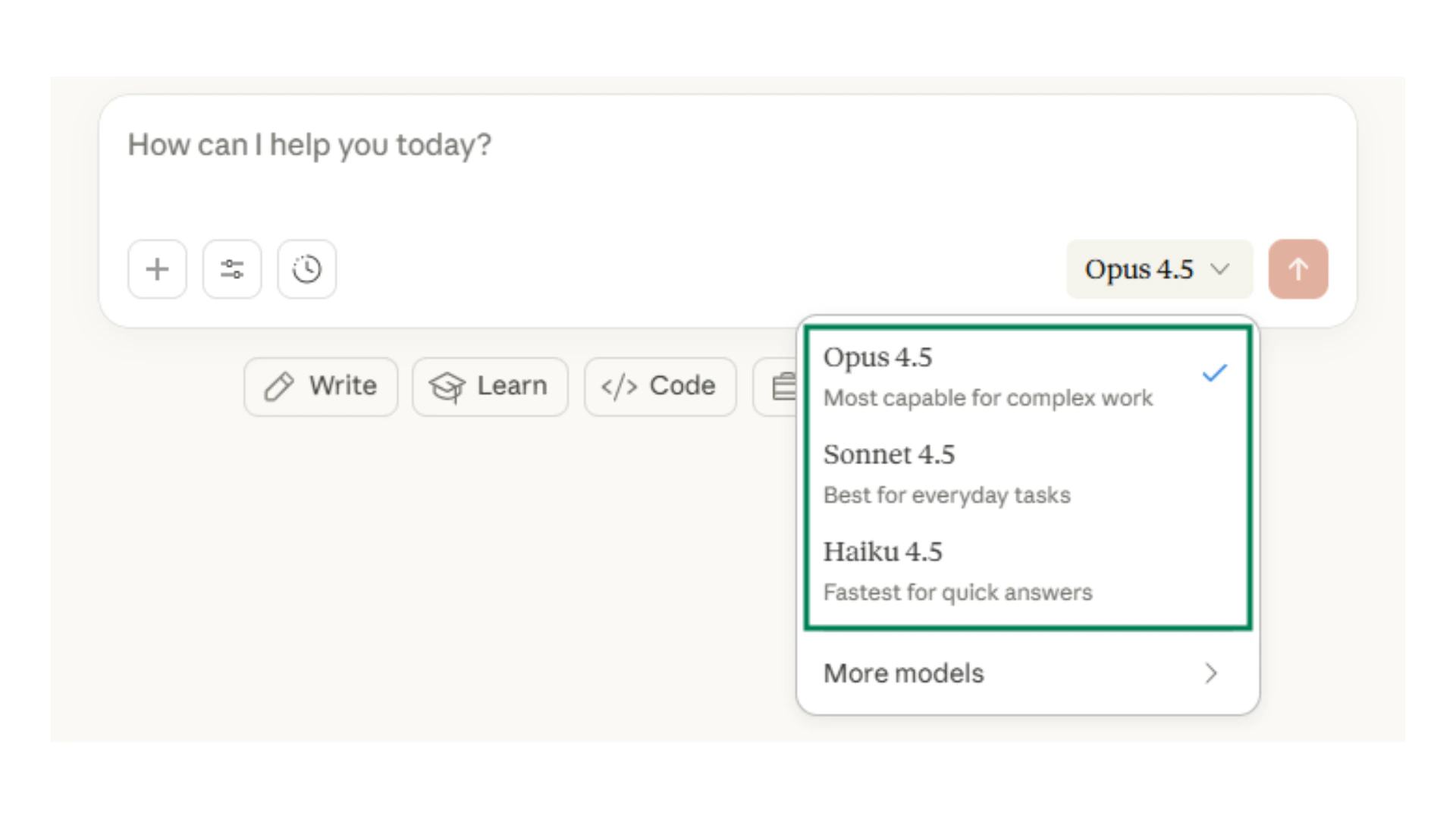
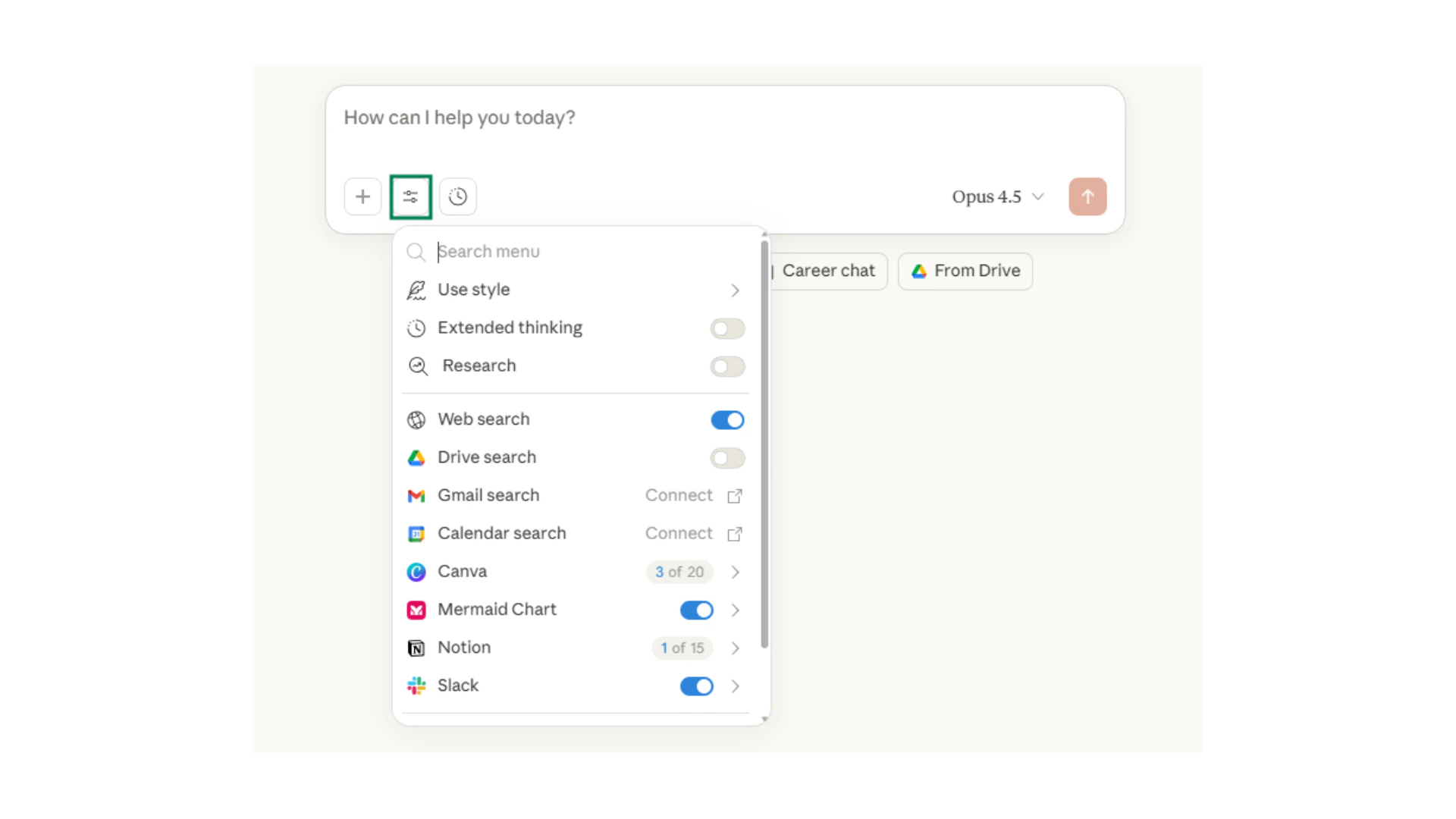
When to use extended thinking
🎯 Test your understanding
🎯 Test your understanding
Giving Claude context
Claude becomes more useful when you provide context. There are several ways to give Claude the information it needs to help you effectively.Projects
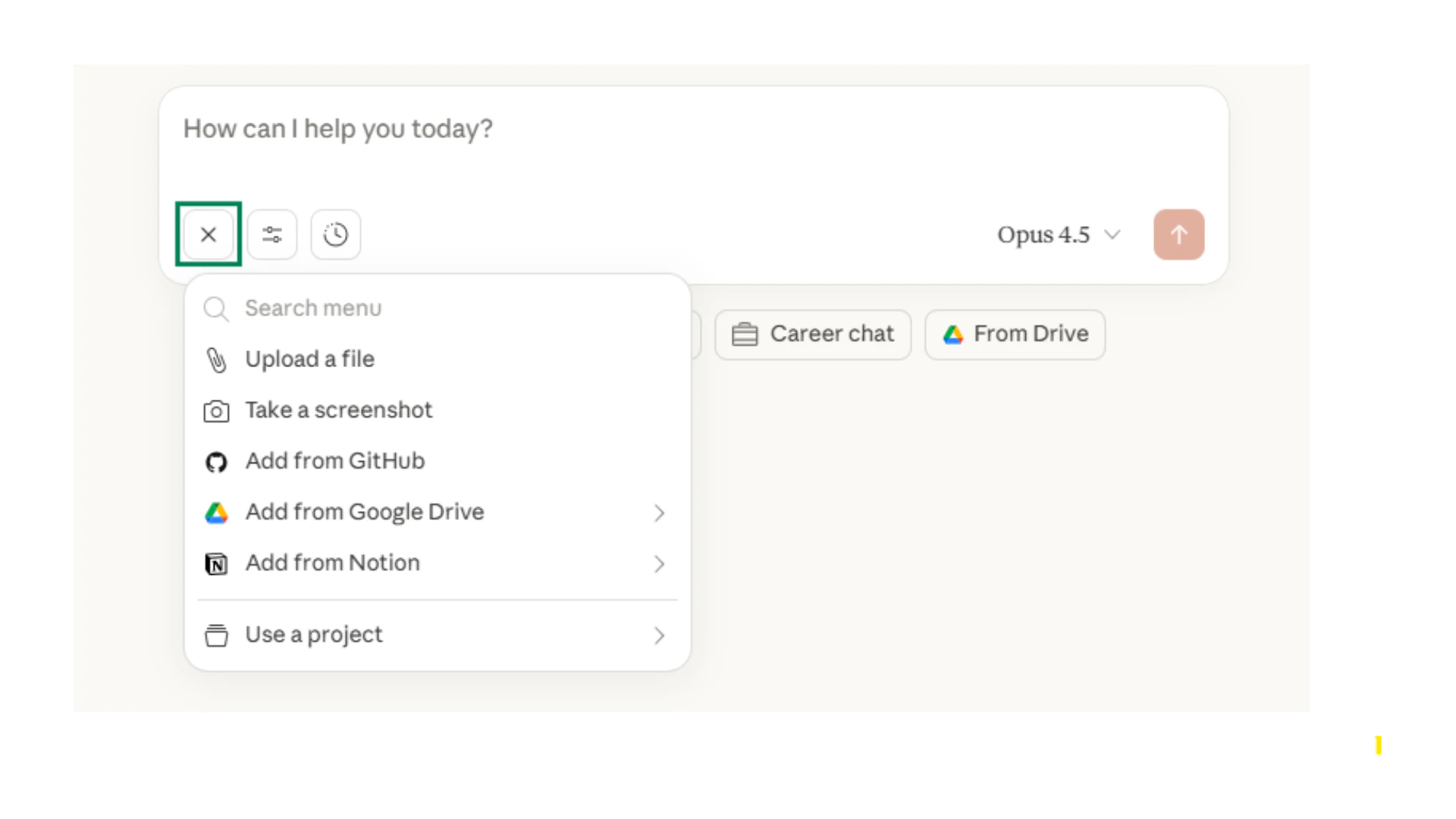
Connectors
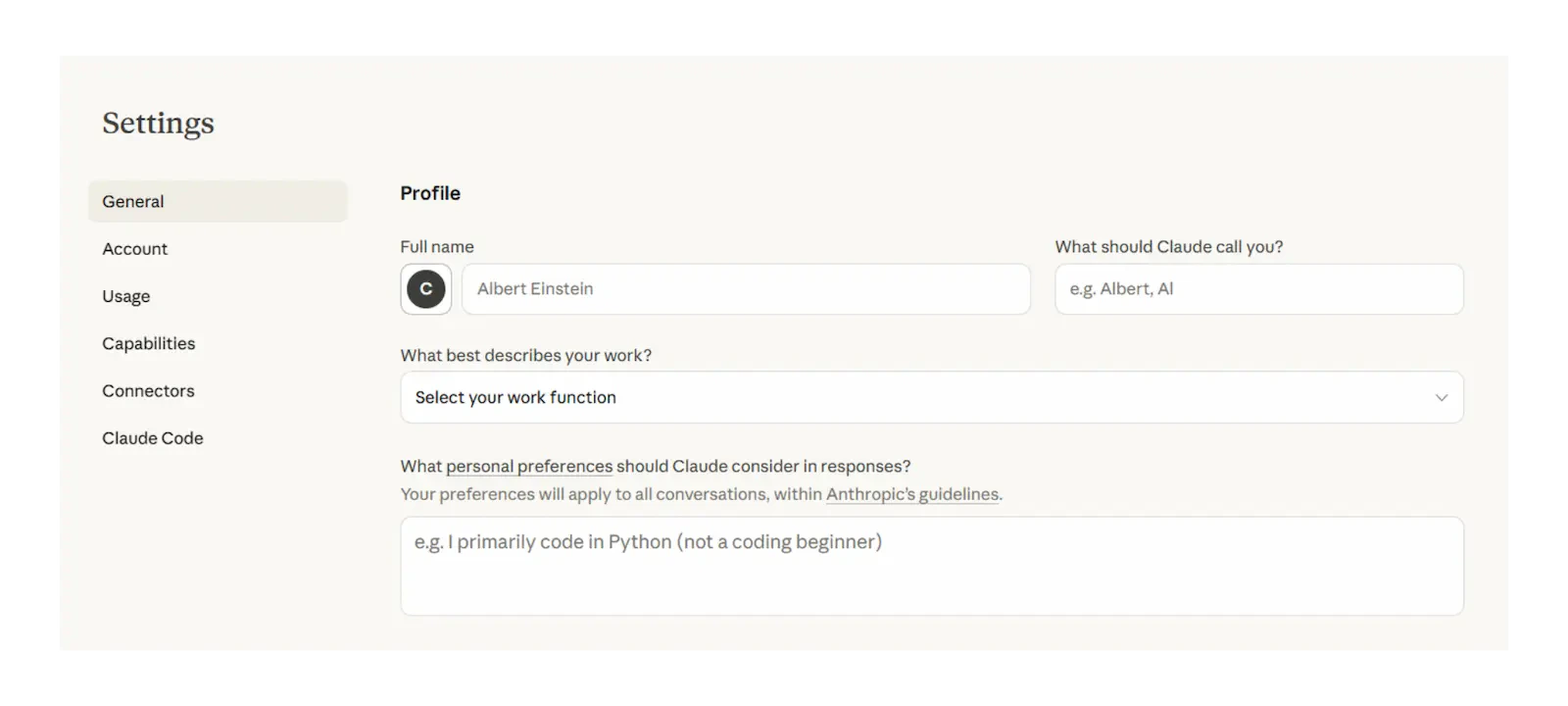
File uploads
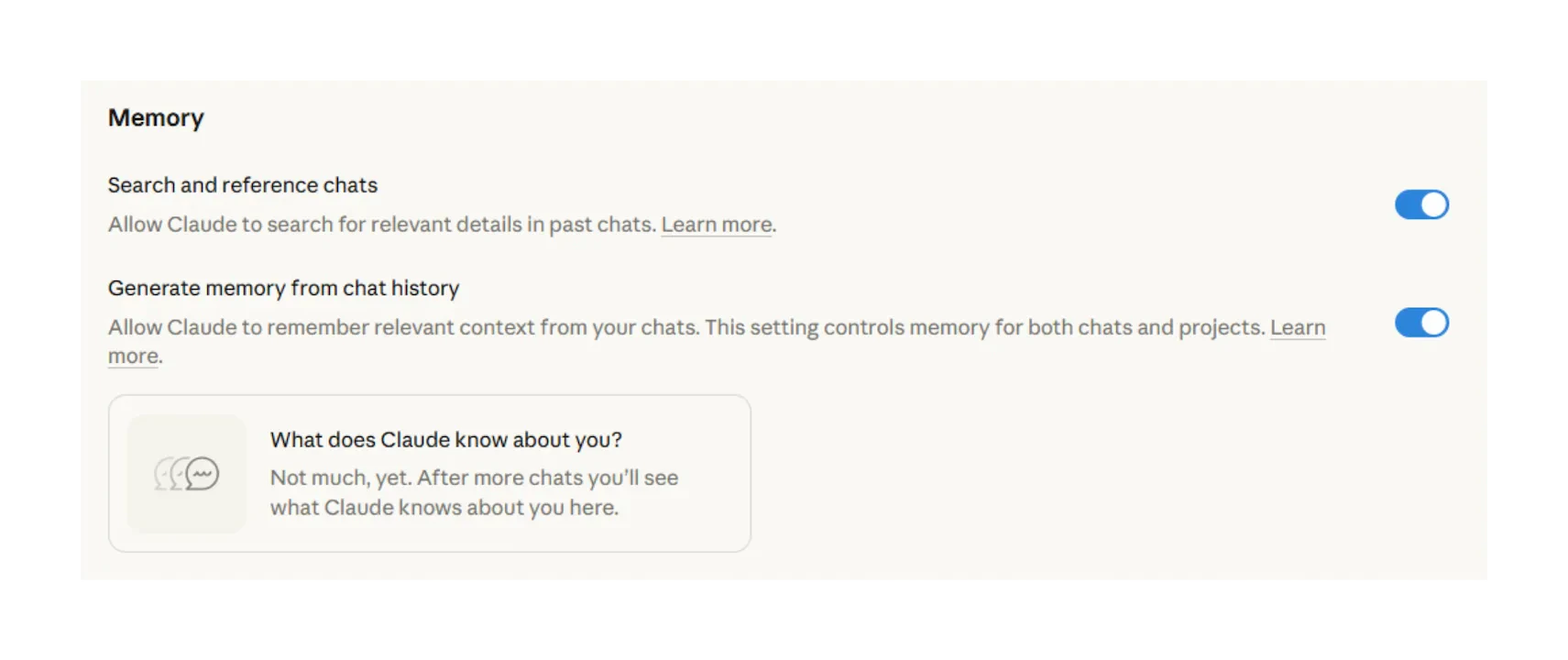
File upload limits
Research and web search
Claude can search the web and conduct deep research when you need current information or comprehensive analysis.Web search
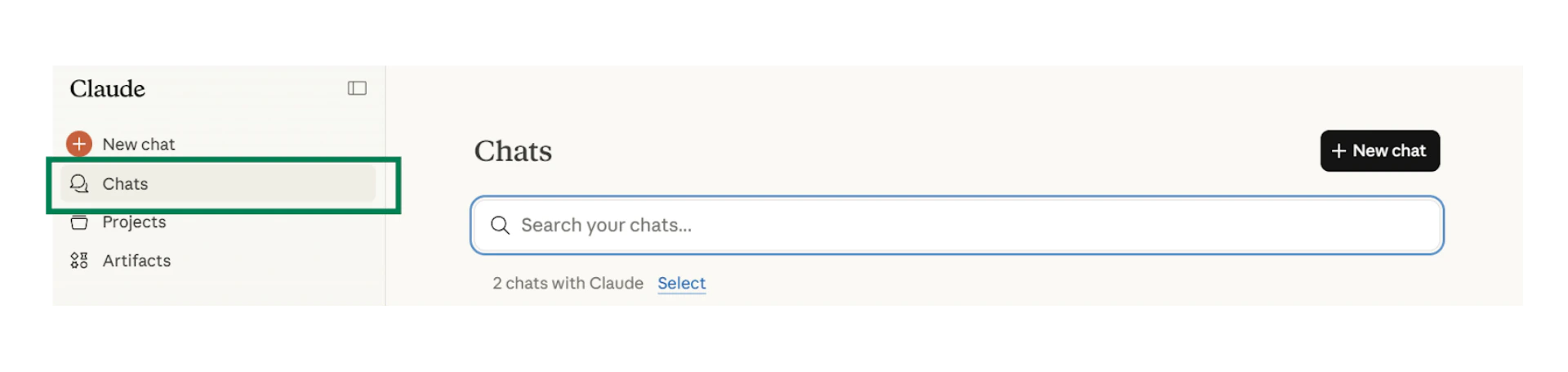
Research mode

To enable: Click Search and tools → toggle Web search on. For deeper investigation, click the Research button.
Quick checkpoint (you’re done when…)
Assign roles
You can explain role assignment in one sentence
Choose models
You know when to use extended thinking vs standard mode
Connect tools
You added context using Projects, connectors, or file uploads
Refine outputs
You used follow-ups to improve Claude’s output
Ready to practice?
Complete the mini challenges of the module