What you’ll learn

Custom GPTs are your own purpose-built versions of ChatGPT. You give them a name, a set of instructions, and optionally a knowledge source or external connection — and they deliver consistent, on-point results every time, without you re-explaining the context.

Understand Custom GPTs

What they are and when to build one

Plan your GPT

Define scope, instructions, and knowledge

Build and connect

Set up the Configure tab and add data sources

Share and scale

Publish to your team or workspace

What is a Custom GPT?

A Custom GPT is a version of ChatGPT you configure yourself. It has your instructions baked in, your knowledge sources connected, and your preferred conversational style set — so every conversation starts exactly where it needs to. The GPT Builder is available to all ChatGPT Plus, Team, and Enterprise users. You do not need to write code.
Regular ChatGPTCustom GPT
You re-explain context every timeInstructions are persistent
General-purposeBuilt for a specific task
Personal useShareable across your team
No memory between sessionsCan reference your documents
Enterprise stat: According to OpenAI’s March 2025 enterprise report, users who work with Custom GPTs save an average of 40–60 minutes per day on repetitive tasks. 20% of all enterprise messages are now processed via a Custom GPT or Project.

Where to find the GPT Builder

Access via My GPTs
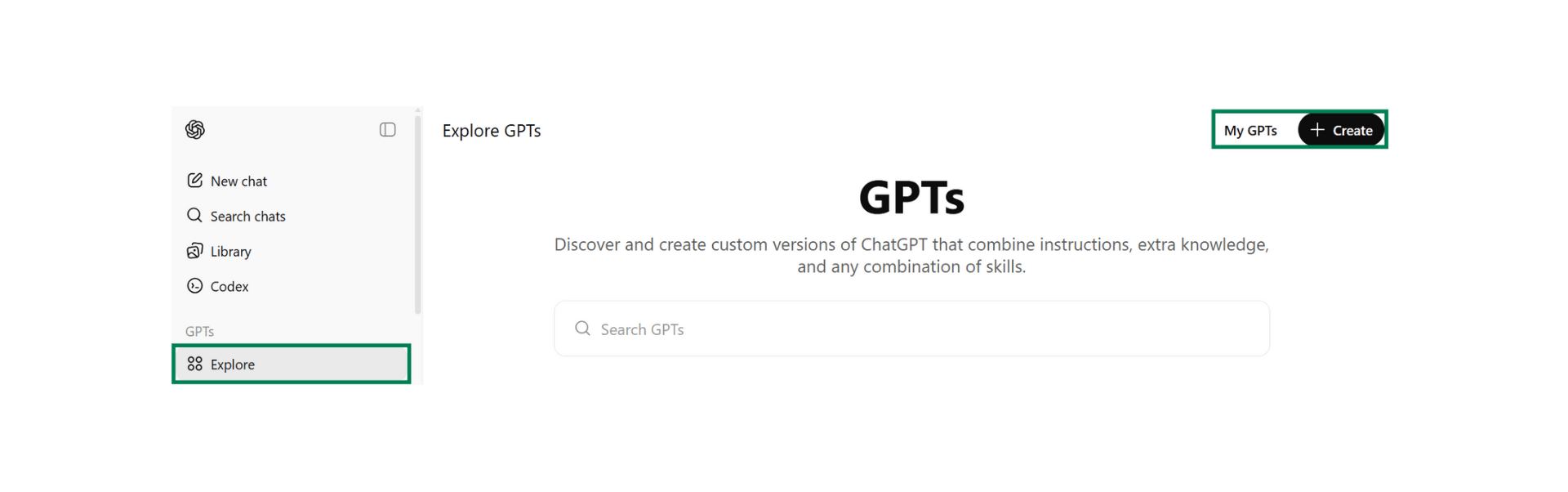
GPTs Explore page in ChatGPTIn ChatGPT, click your profile icon in the top right, then select My GPTs. From here you can see GPTs you have created or have access to, and click Create a GPT to open the builder.

The Configure tab

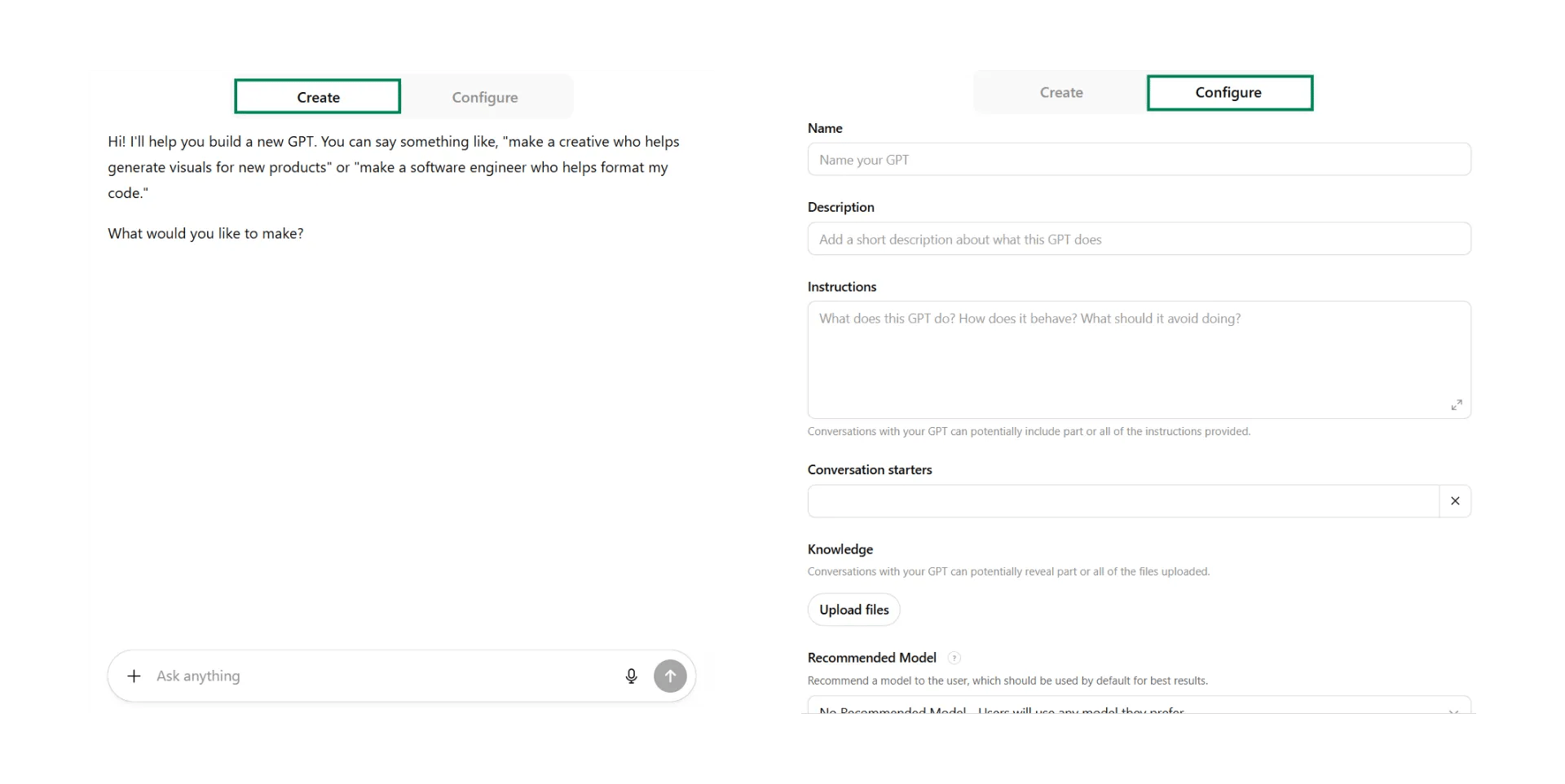
GPT Create and Configure tabsThe builder has two tabs: Create (a conversational setup flow) and Configure (manual fields). Always use Configure — it gives you full control over every setting and is faster once you know what you are doing.

Planning your Custom GPT

Before you open the builder, define these three things. GPTs without clear planning are hard to test and easy to misuse.
1

One-sentence task description

Write exactly what this GPT does. Example: “This GPT helps account managers write personalised follow-up emails after client meetings, using the notes the user provides.”If it takes more than one sentence, narrow the scope.
2

What it needs to know

List the documents, policies, or templates your GPT should reference. These become your knowledge sources. Supported formats: PDF, Word (.docx), plain text. In 2026, you can also connect Google Drive or Slack natively.
3

Who will use it

If it is just for you, keep it private. If your team will use it, decide on sharing before you build — ChatGPT Team workspaces let you publish GPTs internally so the whole organisation can find and use them.

Building your Custom GPT

Instructions field
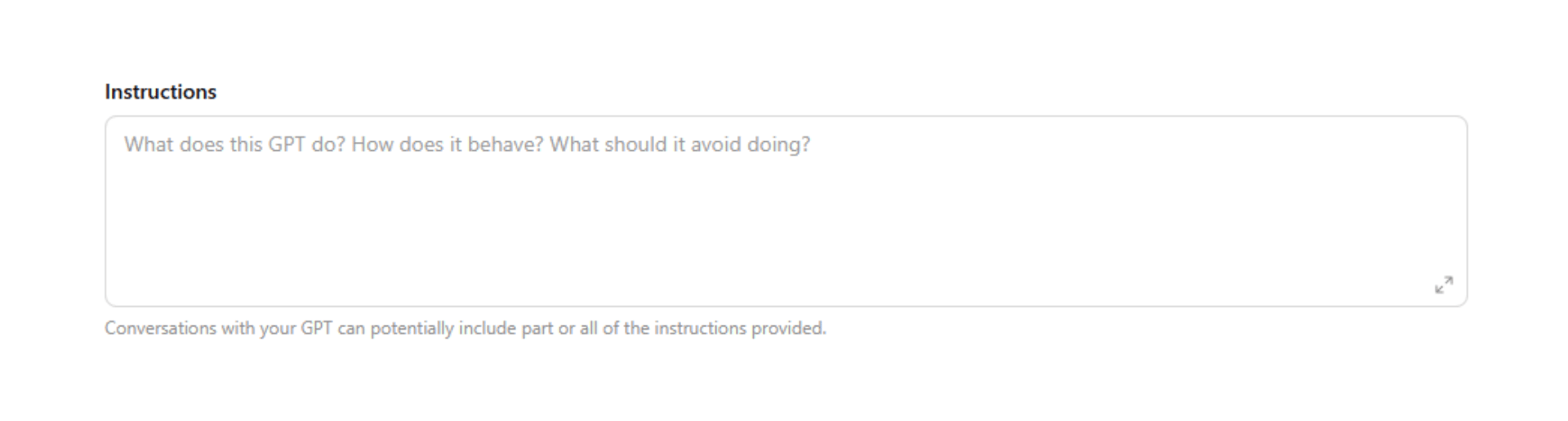
GPT Instructions field in the Configure tabThe Instructions field is the most important configuration you will make. This is the persistent system prompt — it tells the GPT what to do, how to respond, what to avoid, and what format to use.Example instruction structure:
You are a follow-up email writer for the account management 
team at [Company]. When the user shares meeting notes, write 
a personalised follow-up email that:
- Opens with a specific reference to something discussed
- Summarises the key agreed actions (numbered list)
- Closes with a clear next step and proposed date
Keep it under 180 words. Professional but warm.

Knowledge sources

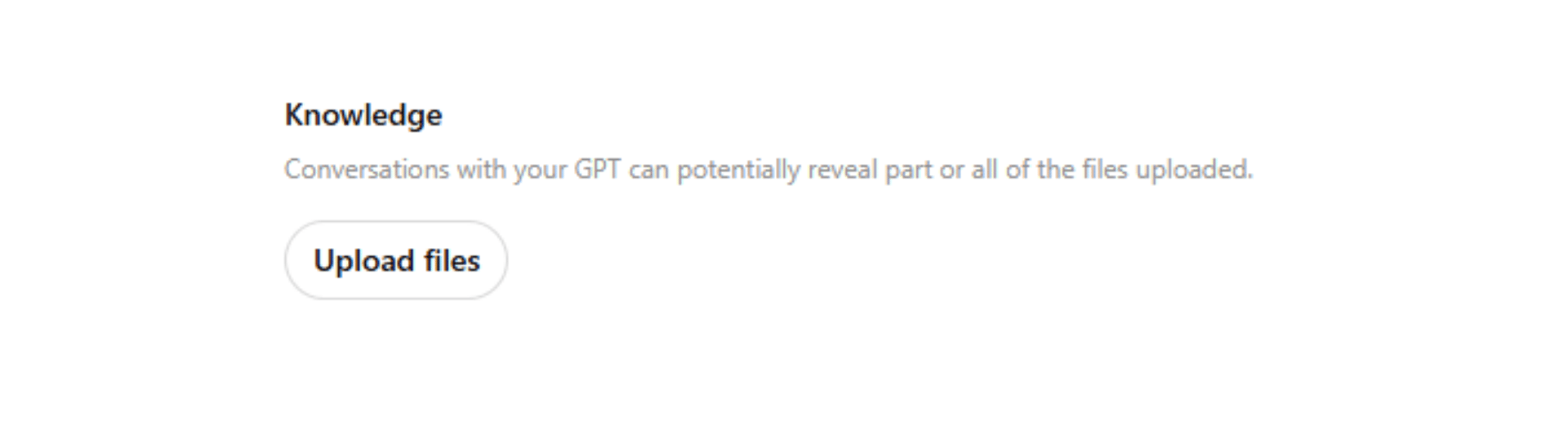
GPT Knowledge upload sectionClick Upload files to add reference documents. Your GPT will search these automatically when relevant.Supported formats: PDF, Word (.docx), plain text, CSVNew connectors (2026):
ChatGPT now supports native connections to Google Drive, Slack, and Power BI as knowledge sources — not just uploaded files. Enterprise admins can enable these in workspace settings under Connections.

Capabilities and model selection

Capabilities
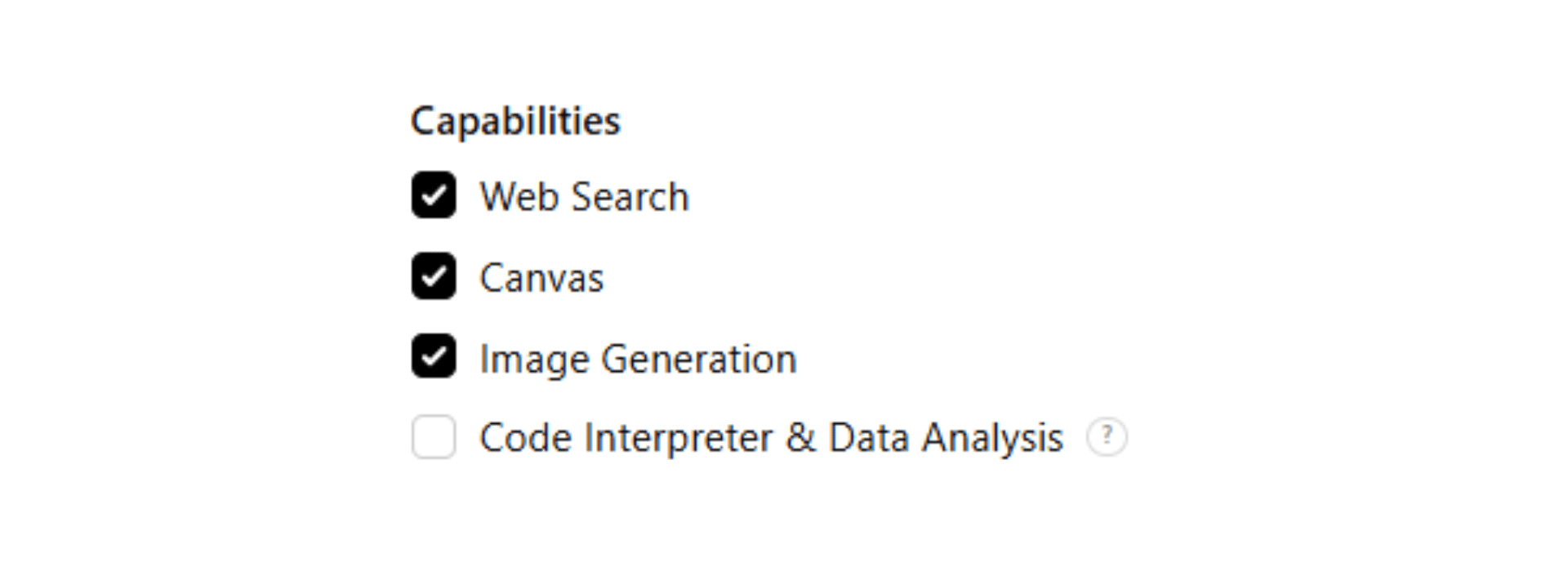
GPT Capabilities panelIn the Configure tab, scroll to Capabilities. Toggle on what your GPT needs:
  • Web search — for GPTs that need current information
  • Image generation — for creative or visual tasks
  • Code interpreter — for data analysis, file processing, or calculations
Only enable what the GPT actually needs. Extra capabilities can confuse it.

Model selection

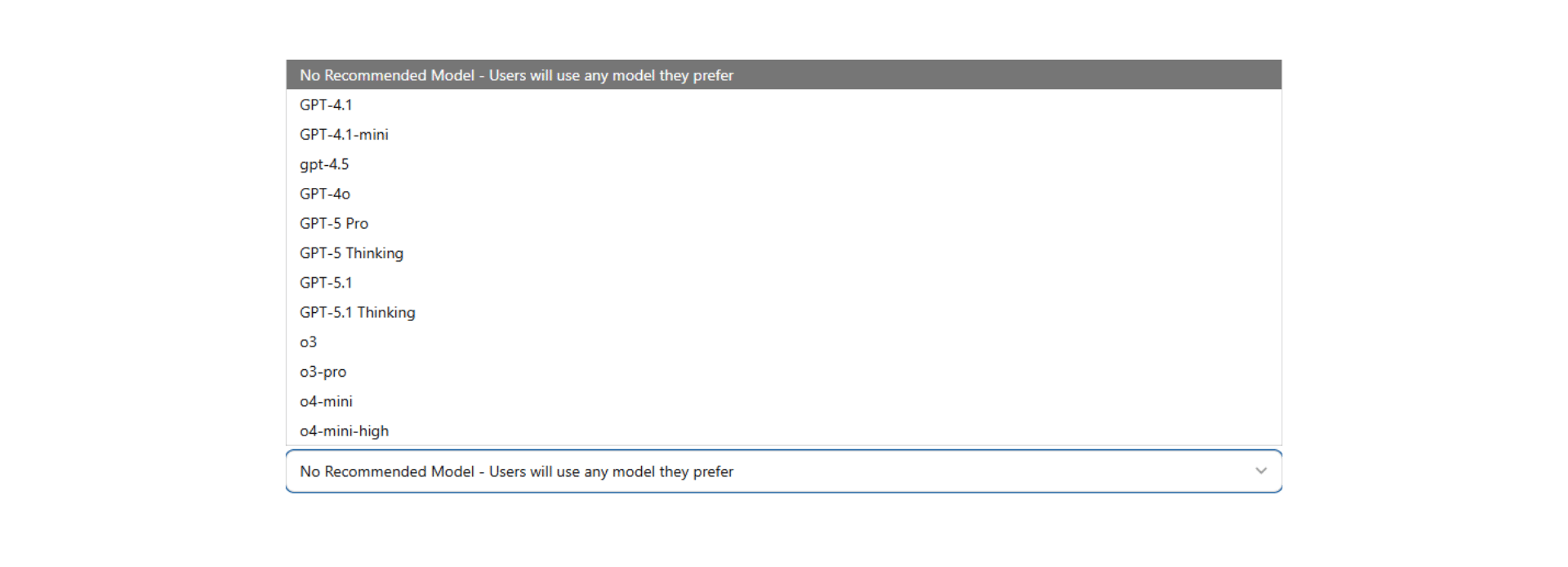
GPT Model selection panelNew in 2026 (Enterprise): ChatGPT Team and Enterprise admins can now pin a specific model version to a GPT — ensuring all users get consistent responses regardless of which model ChatGPT defaults to.For most workplace GPTs, the default model works well. Use model pinning when consistency across time is critical (e.g., a compliance GPT where answer drift is a risk).

Memory and context

Enhanced memory across sessions
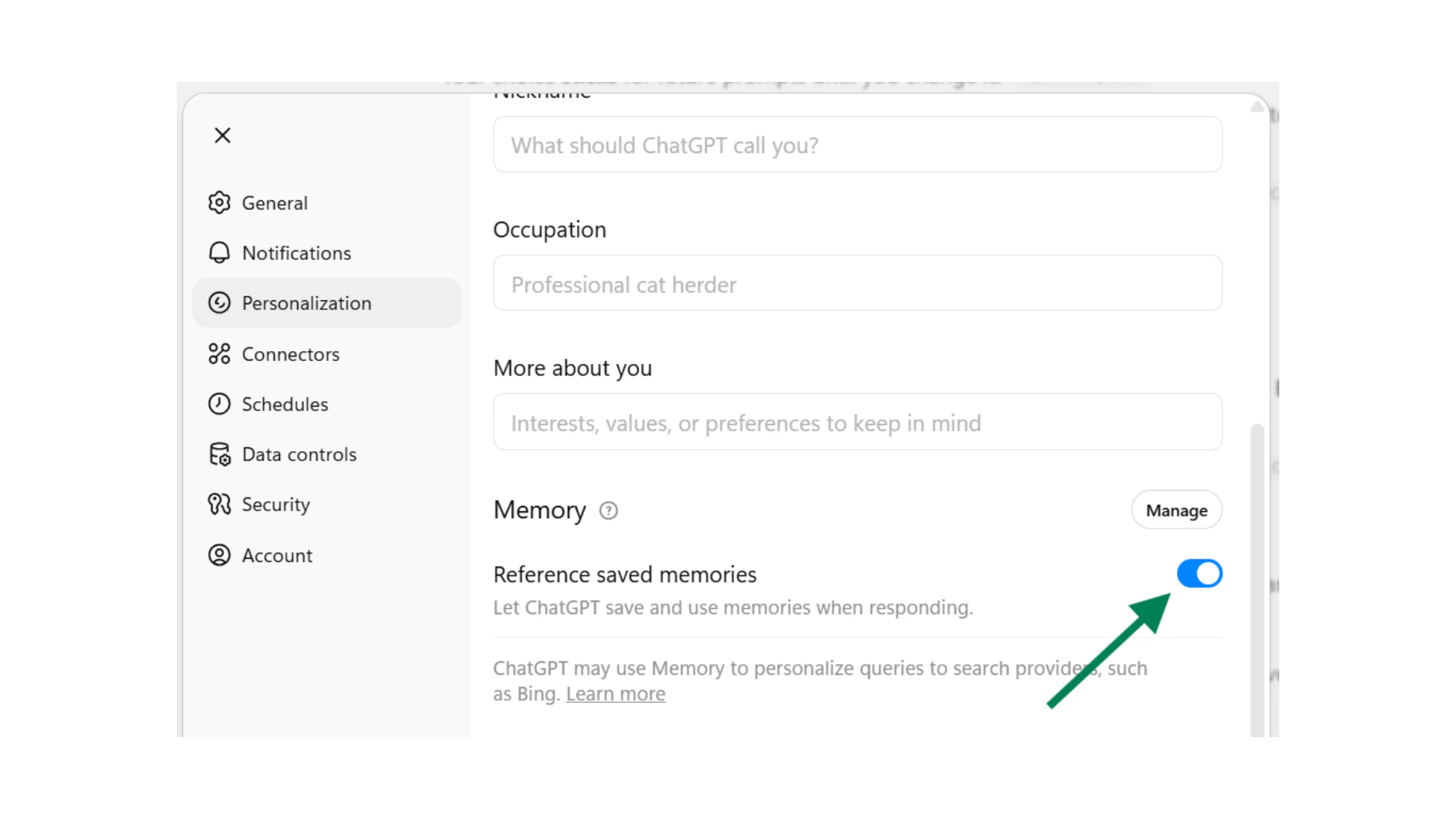
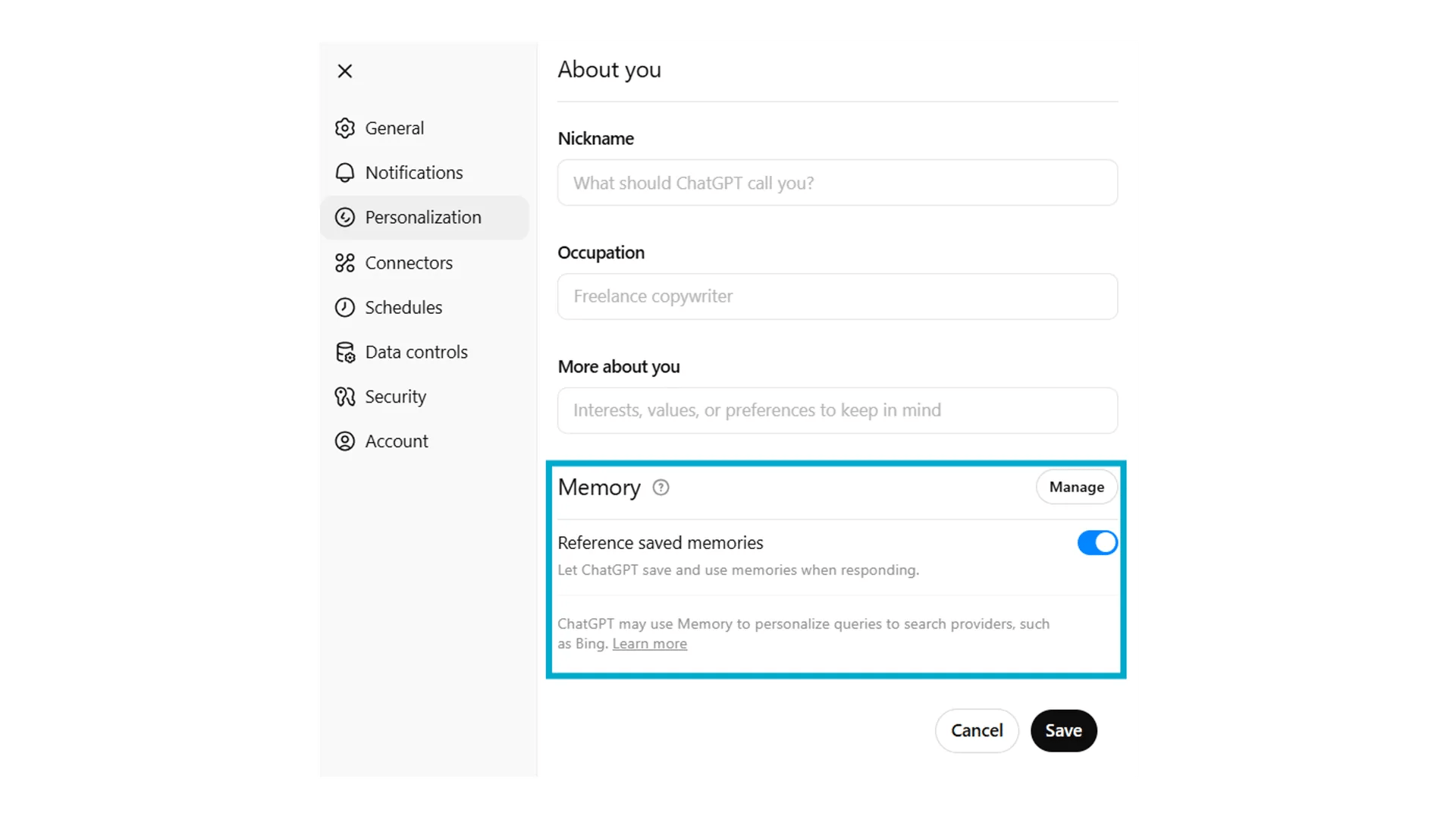
ChatGPT Memory settingsNew in 2026: ChatGPT’s enhanced Memory now works across sessions. When a user enables Memory, ChatGPT remembers key context from past conversations — including preferences, past decisions, and recurring tasks. This makes Custom GPTs even stickier for power users who return to the same GPT regularly.Memory is controlled per-user in Settings → Personalisation → Memory.

Managing what gets remembered

ChatGPT Manage Memory panelUsers can see what ChatGPT has remembered and delete specific memories at any time. As a GPT builder, include a note in your instructions about what the GPT should prioritise remembering — for example: “If the user shares their job title, team size, or preferred format, remember this for future conversations.”
For enterprise users: data used in Custom GPTs and Projects is not used to train the base ChatGPT model. This is confirmed in the OpenAI Enterprise privacy policy. It is safe to reference for organisations with data sensitivity concerns.

Sharing your Custom GPT

If you are on a ChatGPT Team or Enterprise plan, you can publish a GPT to your workspace so all members can find and use it. In the builder, click Save, then set visibility to Anyone in [workspace name].Your GPT will appear in the team’s GPT library. Members do not need to create their own version — they just open it and use it.
Custom GPT with Zapier Actions connectedAdvanced GPTs can connect to external tools via Actions — essentially API calls that let the GPT pull data from or push data to other systems. Common use cases: triggering a Zapier workflow, pulling CRM data, or submitting a form.Actions require some technical setup. For most workplace GPTs, knowledge files and instructions are sufficient.

Quick checkpoint

You are done with this module when you can do the following:

Scope your GPT

You can describe your GPT in one clear sentence

Write instructions

You have written instructions that define task, format, and scope

Connect knowledge

You have uploaded at least one file or connected a data source

Add starters

You have written at least one useful conversation starter

Ready to build?

Complete the challenge to build and test your first Custom GPT