

Give ChatGPT context so it works for you
Every time you start a new chat, ChatGPT starts from scratch. It does not know your role, your team, your preferred writing style, or what you are working on. Without that background, it gives you a generic response that needs rounds of editing. Context is the information you give ChatGPT so it can respond in a way that fits your situation. The more relevant detail you provide, the less time you spend going back and forth. We will show you how to use specific ChatGPT features to build in context automatically, so you can do less setup and more of the work that matters. This page will show you how to:Understand context
Learn what context means and why it changes your output
Add context to chats
Use files, instructions, and memory to enrich conversations
Use built-in tools
Work with Canvas, Deep Research, spreadsheets, and Company Knowledge
Choose the right model
Pick the model that fits the complexity of your task
What counts as “context”?
Think of context like briefing a new colleague before they start a task. You would not hand someone a vague request and expect a perfect result. You would tell them who you are, what you need, and how you like things done. In ChatGPT, context comes from several places:What you type or paste
The text in your message, including any background, examples, or reference material you include directly in the chat.
Files you attach
Documents, spreadsheets, images, and PDFs you upload using the ”+” button. ChatGPT reads these and uses them to shape its response.
Custom Instructions
Persistent preferences you set once in Settings. These apply to every new conversation automatically.
Memory
Details ChatGPT saves from your past conversations, like your role, team size, or preferred format.
Company Knowledge
Connected platforms like Google Drive, SharePoint, and Slack that ChatGPT can search to find your organisation’s files and information.
Deep Research
A research mode that reads through hundreds of web pages and documents to build a comprehensive answer for complex questions.
The what, when, how of giving context
When you brief a colleague, you naturally explain what you need, when it applies, and how you want it done. The same framework works for ChatGPT.What
Tell ChatGPT the task and include background. Paste in meeting notes, a brief, or a document for it to reference.
When
Set the situation. Is this for an executive summary due Friday? A client email response? A brainstorm with no wrong answers?
How
Describe the format and tone. Should it be a bullet list, a two-paragraph summary, or a formal report? Friendly or direct?
This is the same “what, when, how” structure used to brief any team member, human or AI. If you can explain the task to a colleague, you can explain it to ChatGPT.
How to add context in your conversation
There are several ways to give ChatGPT more to work with during a chat. Here is what each one does.Paste text or add files
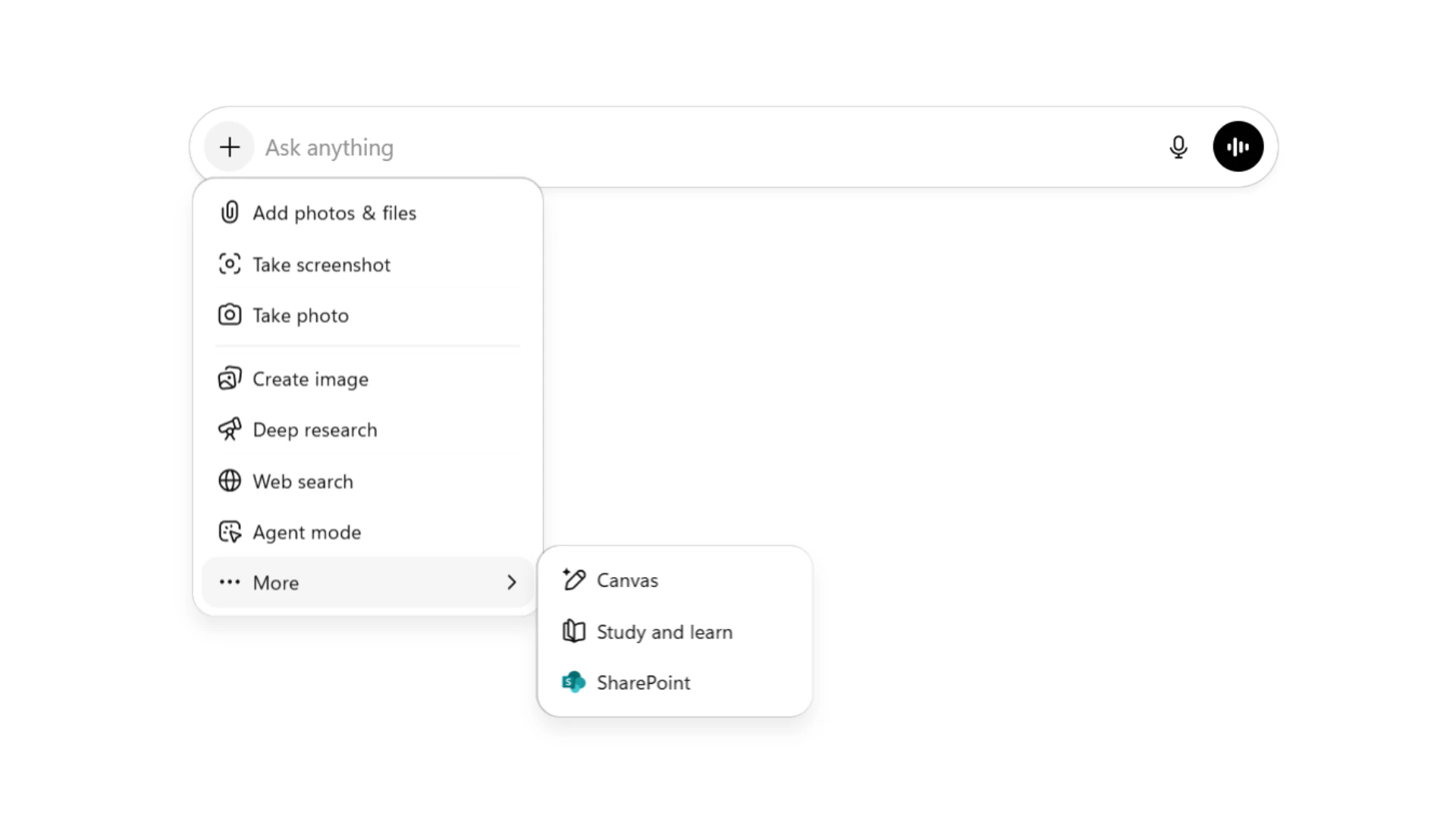
- Add photos and files
- Deep research
- Agent mode
- Create image
- Web search
- Canvas
- Study and learn
Custom Instructions
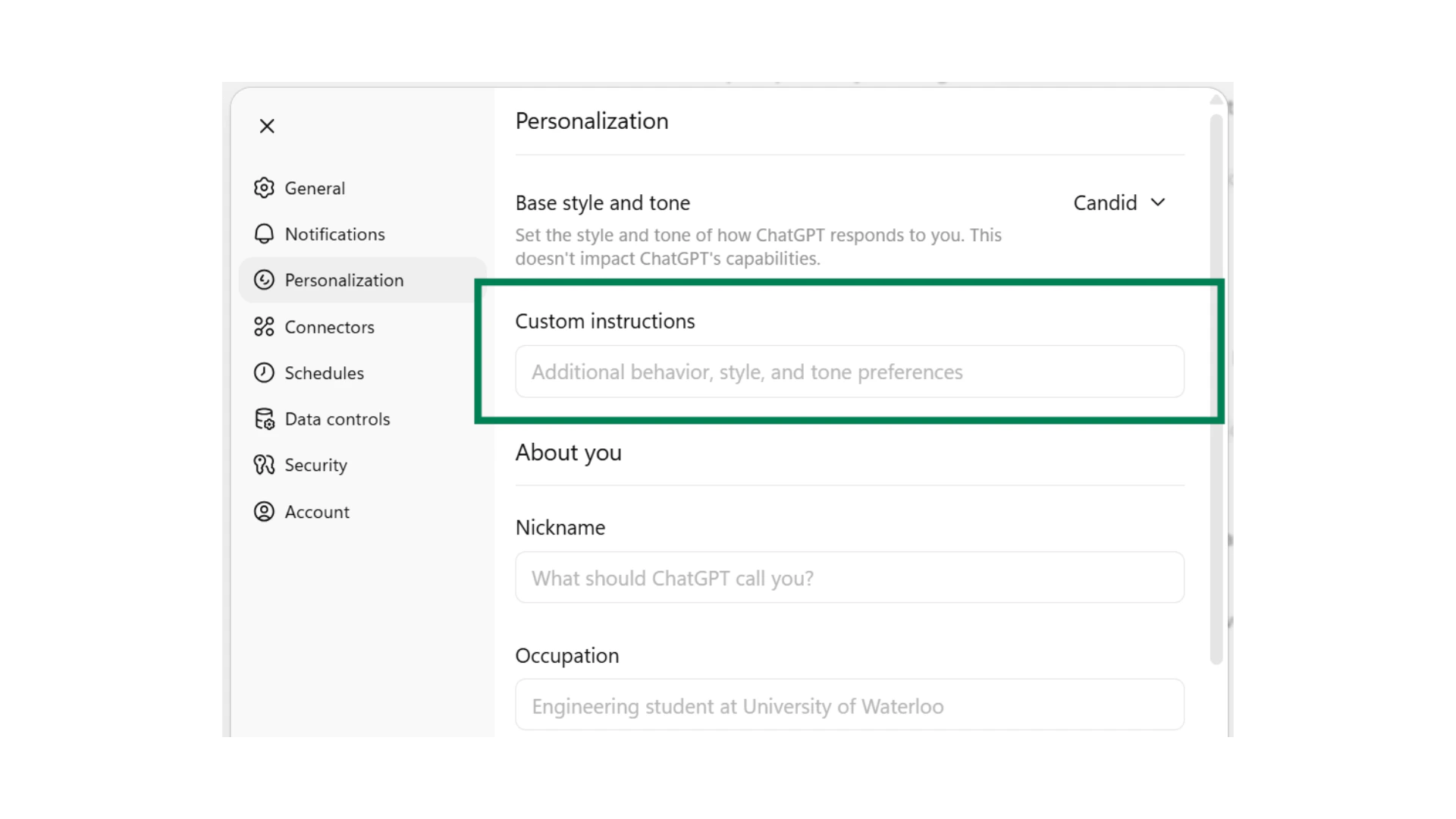
- “Use concise, action-oriented responses”
- “Be brutally honest and critical when responding”
- “Be a supportive brainstorming and thinking partner”
Voice Mode
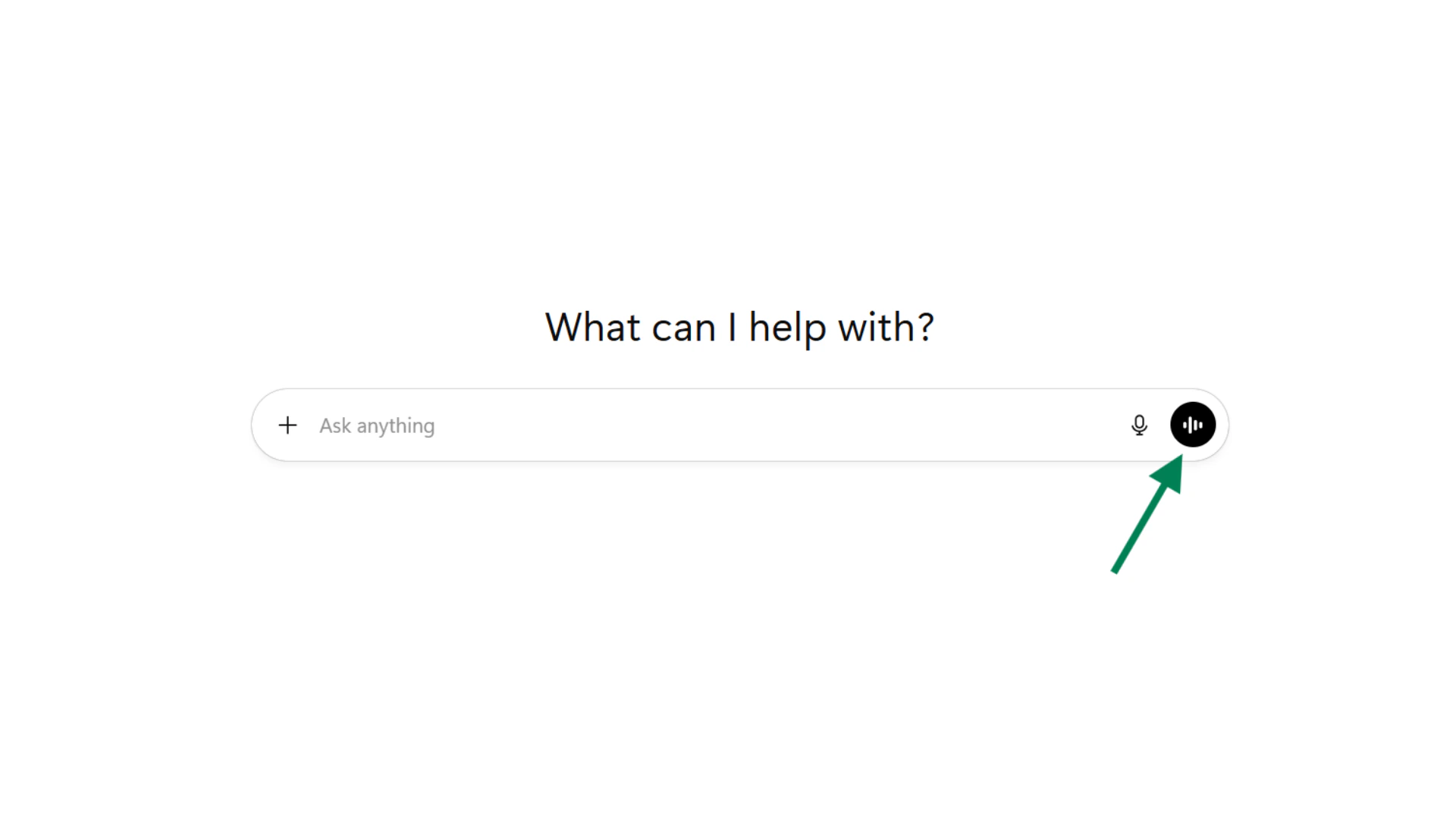
Direct ChatGPT with roles
Give ChatGPT a clear role to focus its response. Pick one of these three starting points based on your task.Enable and manage Memory
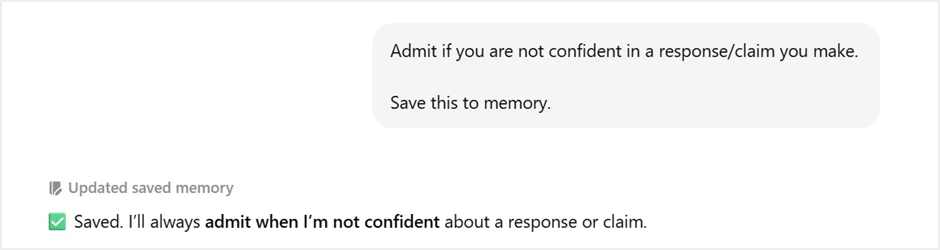
Memory lets ChatGPT remember details across conversations. Once “Reference saved memories” is enabled in Settings, ChatGPT builds a knowledge base from information you share over time.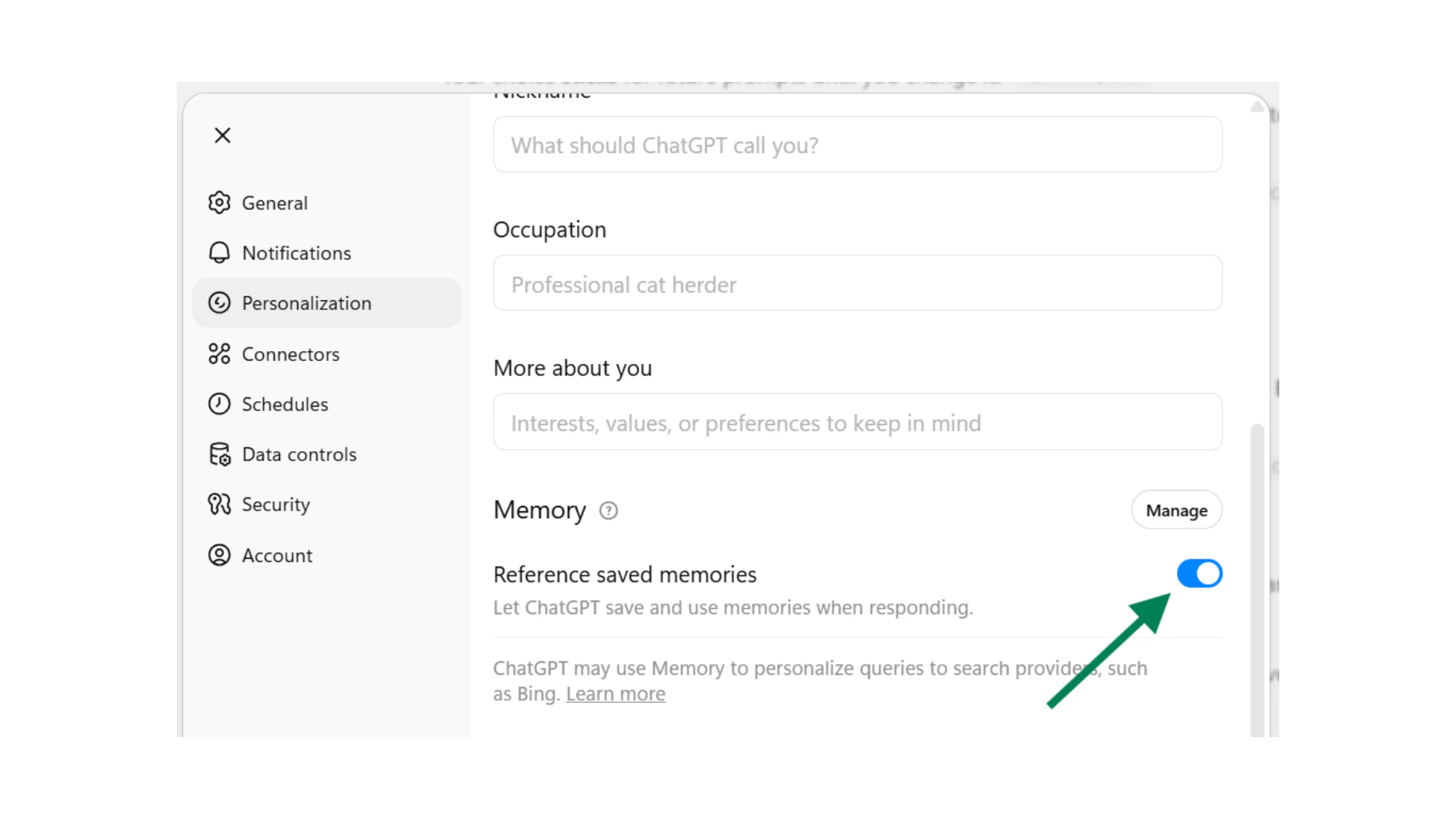
Automatic Memory

Manual Memory
What is the difference between Saved Memories and Chat History?
What is the difference between Saved Memories and Chat History?
Saved Memories are details you explicitly ask ChatGPT to remember, or that it saves automatically during a conversation. These persist across all future chats.Chat History lets ChatGPT reference your recent past conversations to give more relevant responses. Think of it as short-term awareness of what you have been working on recently.You can turn either one on or off independently in Settings, then Personalization, then Memory.
How do I check what ChatGPT remembers?
How do I check what ChatGPT remembers?
Ask “What do you remember about me?” in any chat. You can also go to Settings, then Personalization, then Manage Memories to see, edit, or delete individual saved memories.
Does deleting a chat remove its memories?
Does deleting a chat remove its memories?
No. Saved memories are stored separately from your chat history. Deleting a chat does not remove any memories created during that conversation. To fully remove a memory, delete it from Manage Memories in Settings.
Canvas tool
Canvas provides a dedicated side-by-side workspace for creating and editing written documents within ChatGPT. Unlike standard chat responses, Canvas opens a full editing environment where you can view, select, and revise specific sections of your document.Where to access
Start a chat and ask ChatGPT to generate a document, draft a report, or modify existing written material. Canvas launches automatically when suitable. You can also open it manually by selecting the ”+” button, then “More”, then “Canvas.”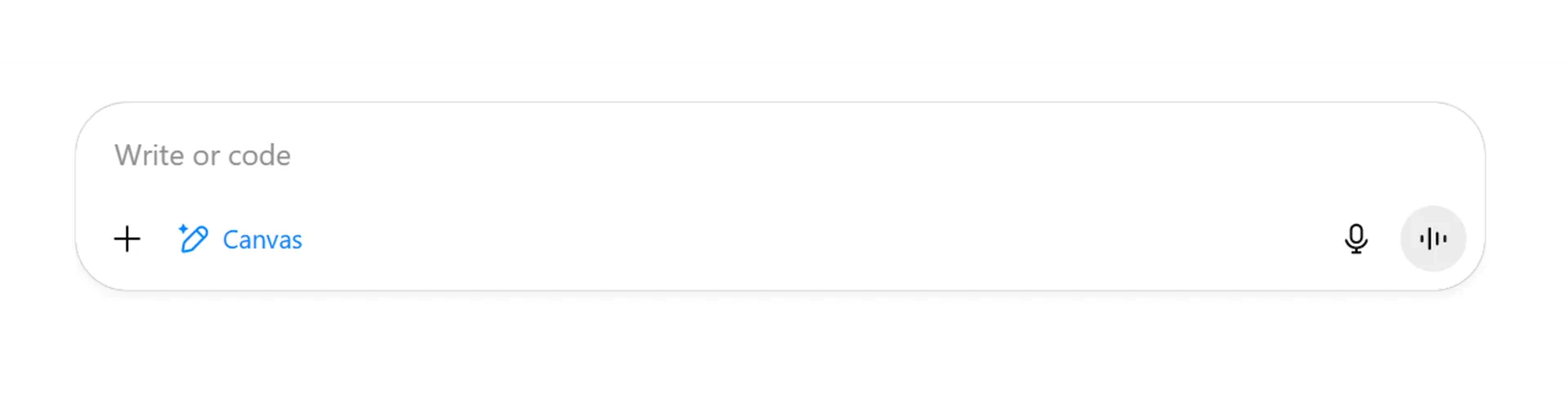
Editing in Canvas
Select specific sections of your document and request changes to just those areas. For example, highlight a paragraph and ask for more detail without affecting the rest of the document.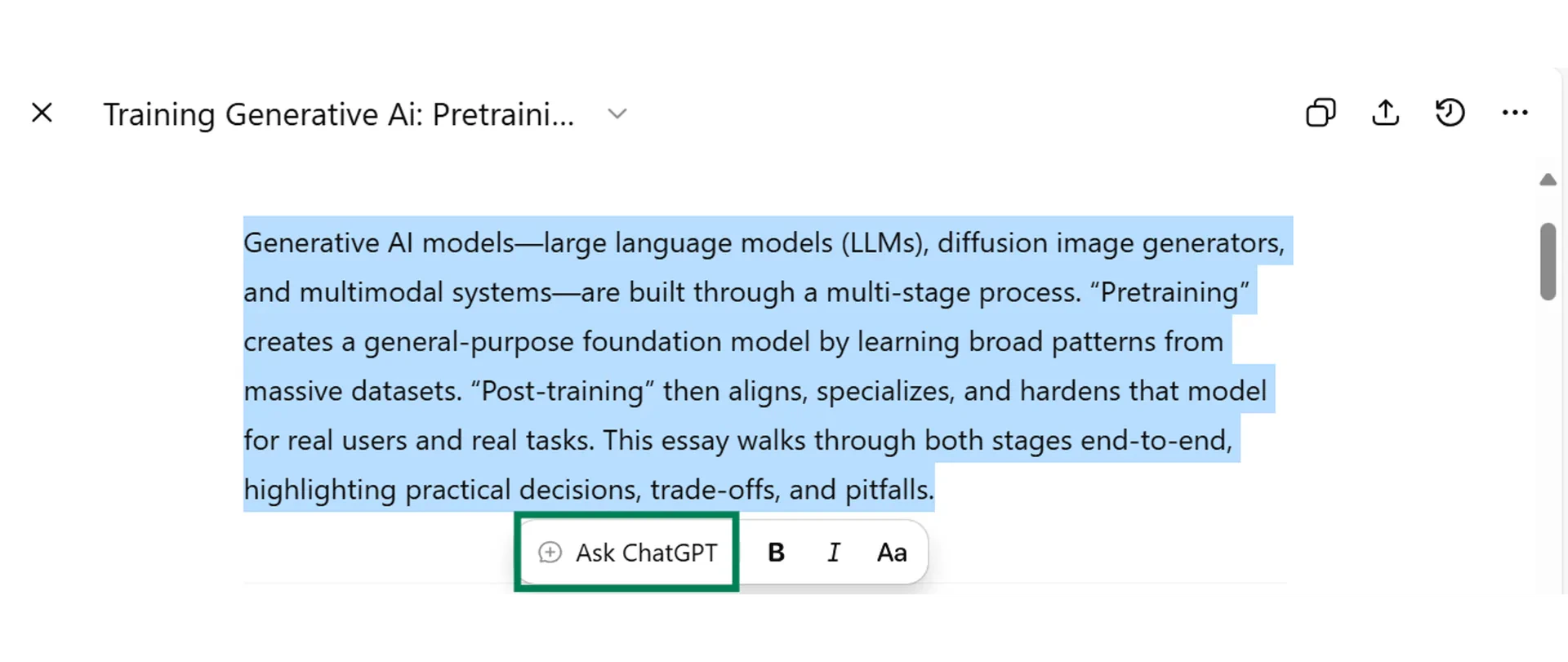
Built-in editing tools
Canvas includes one-click tools that appear in the bottom right-hand corner when you hover over the edit button. You can polish grammar and sentence structure, adjust the document’s complexity, change its length, and view suggested edits.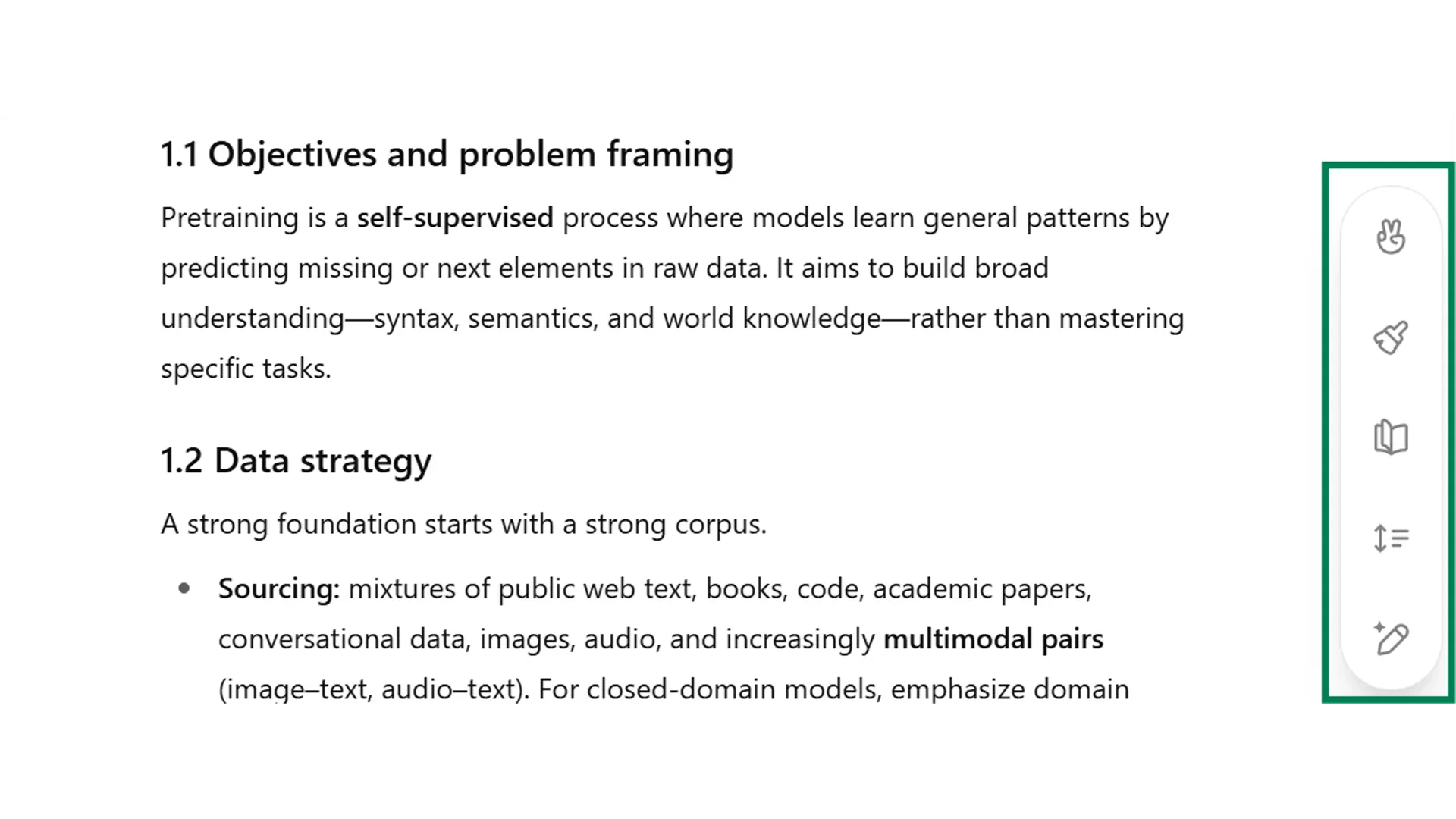
Sharing and exporting
Once your document is complete, you can share a link to the entire conversation or create a link specifically to the Canvas document. If you make updates after sharing, anyone with the Canvas link can see the new edits. Canvas documents can be downloaded as PDF, Word, or Markdown formats.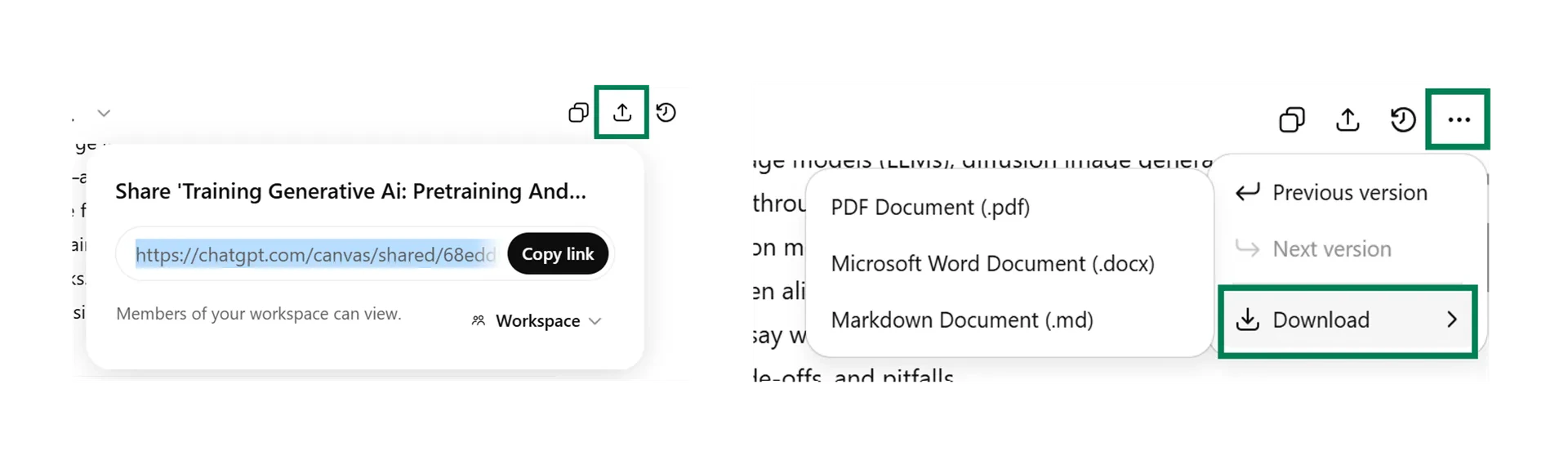
Canvas works best for generating first drafts and implementing major structural revisions. It is particularly effective for transforming rough notes into refined documents or reformatting existing content with an improved writing style.
Deep Research
Deep Research is ChatGPT’s most comprehensive approach to answering complex questions. It conducts multi-step web investigations, reading through hundreds of documents and web pages, cross-checking sources, and building a complete picture of your topic.
Where to access
Click the ”+” button in your chat and select Deep Research. You can then choose the sources it draws from. Web search enables internet access, while Company Knowledge lets it draw from your organisation’s connected platforms.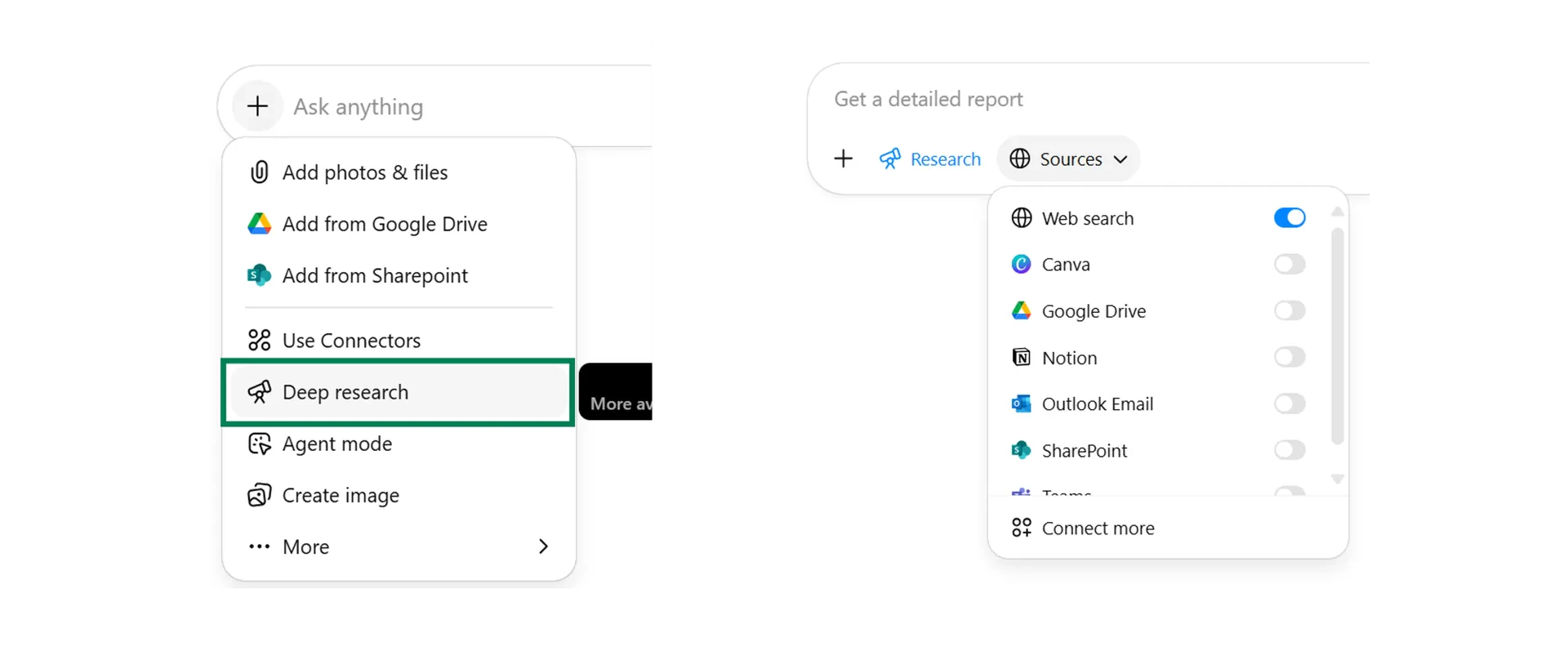
When to use Deep Research
Questions that take hours
Use it for research that would normally take two or more hours of manual searching and reading.
Multiple viewpoints
Use it when your topic requires cross-domain insights or comparing several perspectives.
High-stakes decisions
Use it for strategic decisions where depth and accuracy are worth the time.
Most paid plans include 25 queries per month. Save Deep Research for the complex, high-stakes questions where comprehensive analysis creates real value.
Company Knowledge
Company Knowledge lets ChatGPT search and reference information from across your organisation’s connected platforms, including Google Drive, SharePoint, Slack, GitHub, Gmail, Outlook, HubSpot, Salesforce, and more. Ask ChatGPT to find documents, summarise strategies, or reference past decisions. It searches your connected platforms automatically. Company Knowledge is read-only, so your files remain secure and unchanged.File upload from cloud storage
You can upload files directly from Google Drive or SharePoint by clicking the ”+” icon in the chat. After initial setup via the “More” menu, these options appear in your main menu. This lets you import specific documents from your cloud storage without downloading them first.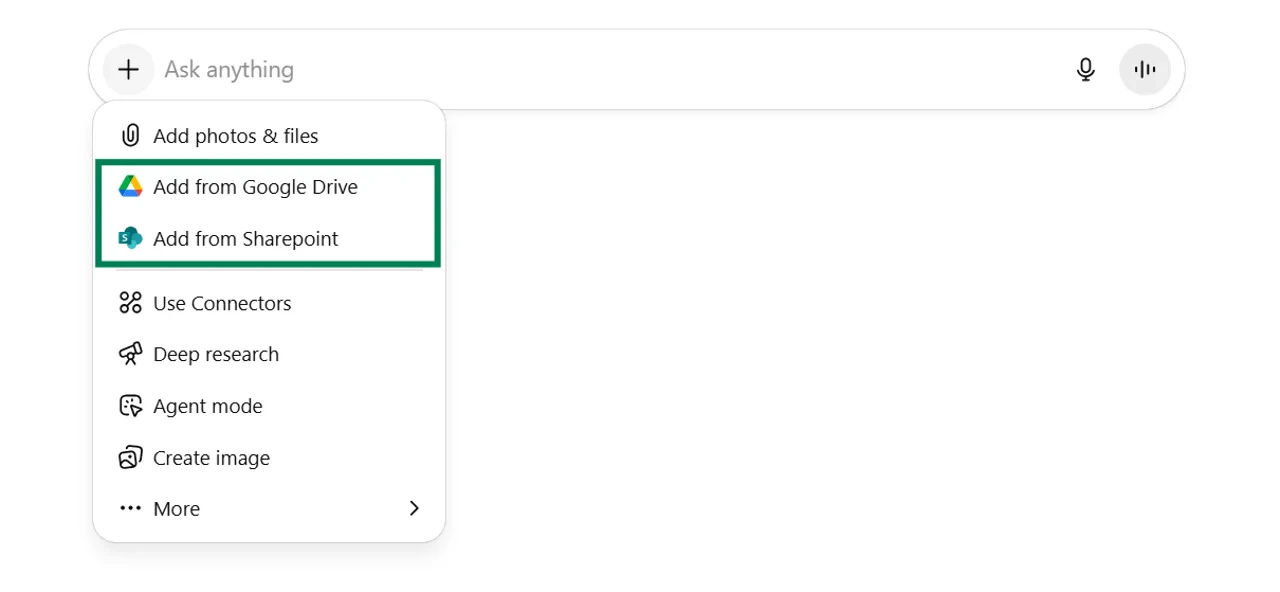
Use Company Knowledge in chat and Deep Research
Activating “Use Company Knowledge” allows ChatGPT to search your files even if you do not specify exact documents. This is useful for finding or summarising information across multiple files. You can also access Company Knowledge when using Deep Research, letting you specify which information sources it draws from.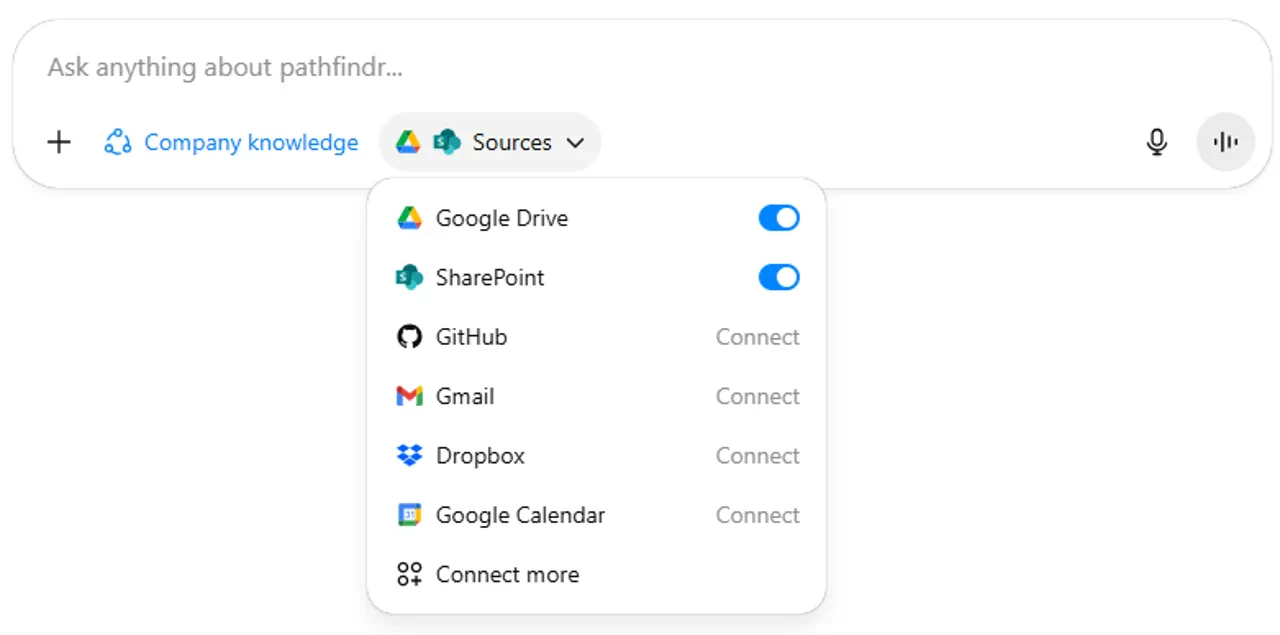
Syncing Company Knowledge
Turning on Sync means ChatGPT automatically references your connected platforms in every chat. You do not need to click “Use Company Knowledge” each time. ChatGPT remembers information from sources like Google Drive or SharePoint, which helps it find relevant information faster.What file types can I upload?
Limits and capabilities continuously change and may differ from those stated above. Check OpenAI’s official documentation for the latest details.
Quick checkpoint (you’re done when…)
Understand context
You can explain what context means and why it changes ChatGPT’s output
Add context to chats
You used files, Custom Instructions, or Memory to enrich a conversation
Use built-in tools
You tried Canvas, Deep Research, spreadsheets, or Company Knowledge
Choose a model
You picked the right model based on your task complexity
Ready to practice?
Complete the mini challenge by constructing a prompt with context using our tool