

Building context in Claude
Every AI tool needs context to give you a useful answer. Without it, you get generic responses that miss the mark. With it, you get outputs that feel like they were written by someone who knows your job. In Claude, “context” is everything the model is working from when it responds to you. This includes what you typed, what you uploaded, any saved preferences, and any connected tools or data sources. This page will show you how to:Add context
Upload files and paste content into your chats
Use Projects
Organise your work with reusable context
Connect tools
Pull from Google Drive, Slack, and other platforms
Extend thinking
Let Claude reason through complex problems
Why context changes everything
When you ask Claude a question without context, it responds using only what it was trained on. That is useful for general knowledge, but not for your specific work. When you add context, Claude shifts from a general assistant to one that understands your documents, your tone, your data, and your goals. The difference between a generic answer and a tailored one almost always comes down to how much relevant context you provided.Without context
“Write me a project update.”
Claude gives you a generic template with placeholder text. You spend 15 minutes rewriting it.
With context
“Write me a project update based on the attached status report. Use a professional tone and keep it under 200 words.”
Claude gives you a draft that references your actual milestones, risks, and next steps.
The four building blocks of context
Anthropic (the company behind Claude) describes effective AI systems as having four core components. These same building blocks apply to how you set up your Claude workspace for better results.The model
Claude’s underlying reasoning ability. You choose how deeply it thinks about your task.
Knowledge
The documents, files, and data you give Claude access to.
Tools
Connected platforms like Google Drive, Slack, and web search that Claude can pull from.
Instructions
Your prompt, saved preferences, and Project instructions that guide Claude’s behaviour.
Adding files and content to your chat
The most direct way to give Claude context is to add it right into your conversation. You can upload files, paste text, or share images for Claude to work with.What you can upload
How to add files
Click the paperclip icon in the chat input, or drag and drop files directly into the conversation. Claude will confirm what it received and you can start asking questions about it straight away.Projects
A Project in Claude is an organised workspace for a specific goal or topic. You can add files and documents that Claude will reference across all conversations in that project, so you do not need to re-upload them each time. You can also set custom instructions to guide how Claude responds, and share the project with teammates to collaborate.Three types of Projects
Your Projects
Projects you create and own. Full control over content, settings, and sharing.
Team Projects
Shared workspaces where your whole team can contribute. Everyone sees the same files, instructions, and chat history.
Shared With You
Projects others have invited you into. You can chat and contribute, but the owner controls the setup and permissions.
Setting up a Project
- Click “Projects” in the sidebar, then select “Create Project.”
- Give it a name and description so Claude understands the purpose.
- Upload your reference files. These stay available across every conversation inside the project.
- Add custom instructions. Tell Claude about your preferred tone, format, audience, or any rules it should follow.
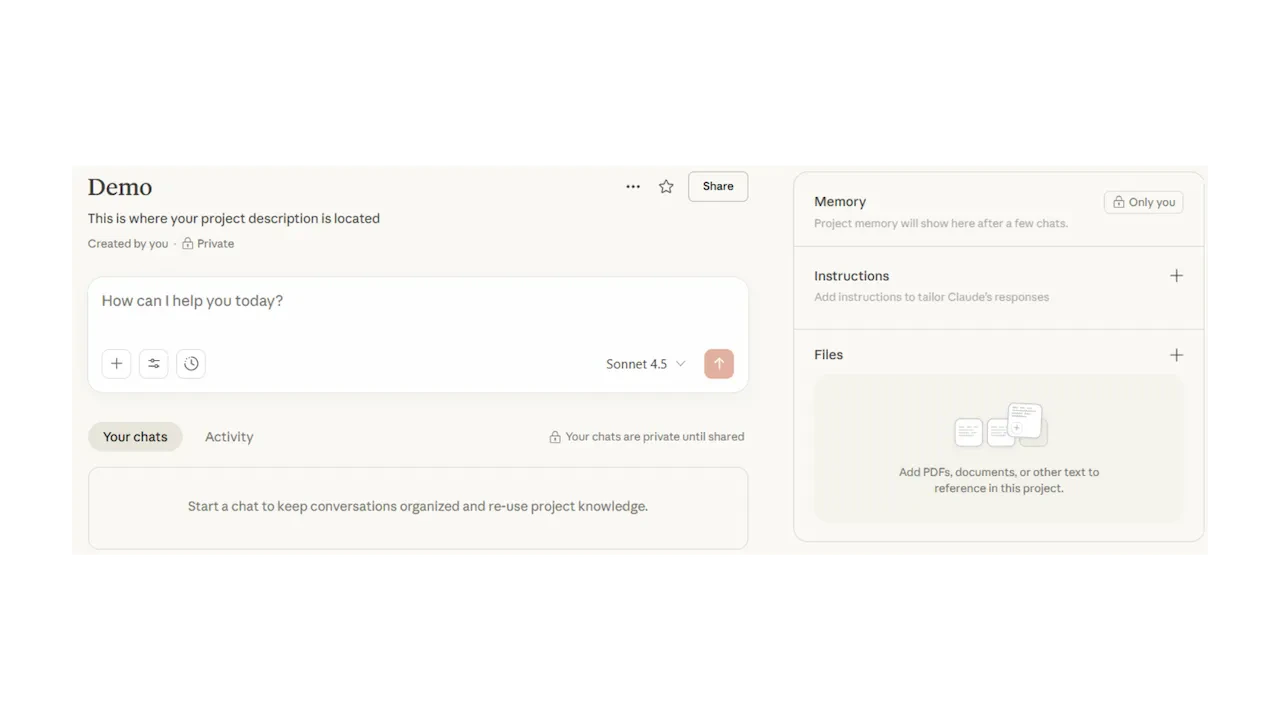
Custom instructions (your saved preferences)
Custom instructions let you set preferences that Claude remembers across conversations. Instead of repeating “keep it under 200 words” or “use Australian English” every time, you save it once and Claude applies it automatically.What to include in your instructions
Tone and style
“Write in a professional but approachable tone. Use Australian English spelling.”
Format preferences
“Default to short paragraphs. Use bullet points only when listing more than three items.”
Connectors
Give Claude access to the content you already have in Google Drive, Slack, Microsoft 365, and other platforms. Instead of copying and pasting documents or summarising emails manually, Claude pulls from the platform directly. Connect once through settings, grant permissions, then Claude can search and retrieve content when you need it. Ask Claude to “find the Q3 report in my Drive” or “search Slack for conversations about the product launch” and it happens automatically.When to use them
Documents
Analyse documents in Google Drive without downloading them first.
Messages
Summarise email threads or Slack discussions in seconds.
Live data
Reference recent meetings, calendar events, or content that updates regularly.
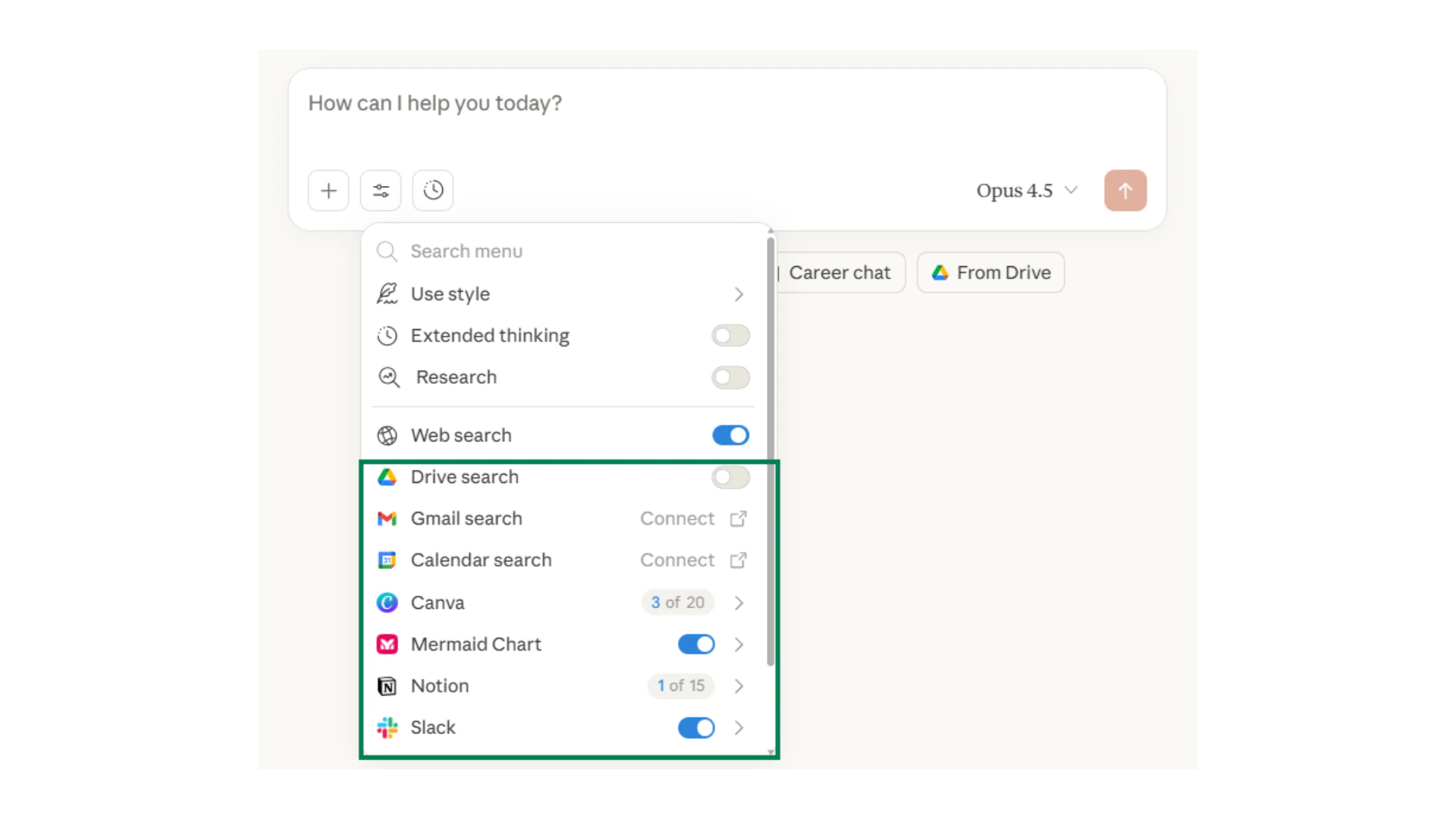
Connectors are available on Pro and Team plans. Your IT administrator may need to approve access depending on your organisation’s security policies.
Research
The Research tool is Claude’s dedicated mode for comprehensive investigation. Research takes your prompt and runs multiple searches, synthesises findings, analyses patterns, and delivers a structured report. With this tool, Claude will read through hundreds of websites, often spending around 5 to 30 minutes of thinking time to respond to your request.When to use it
Good fit
In-depth competitive or market research. Understanding complex policy or regulatory changes. Deep-diving into unfamiliar technical topics. Exploring complex issues from multiple angles.
Not the best fit
Quick factual lookups. Simple questions with straightforward answers. Tasks where you already have all the information you need.
You can trigger both Research and Extended thinking to work at the same time. This can often yield more in-depth results than using Research mode by itself.
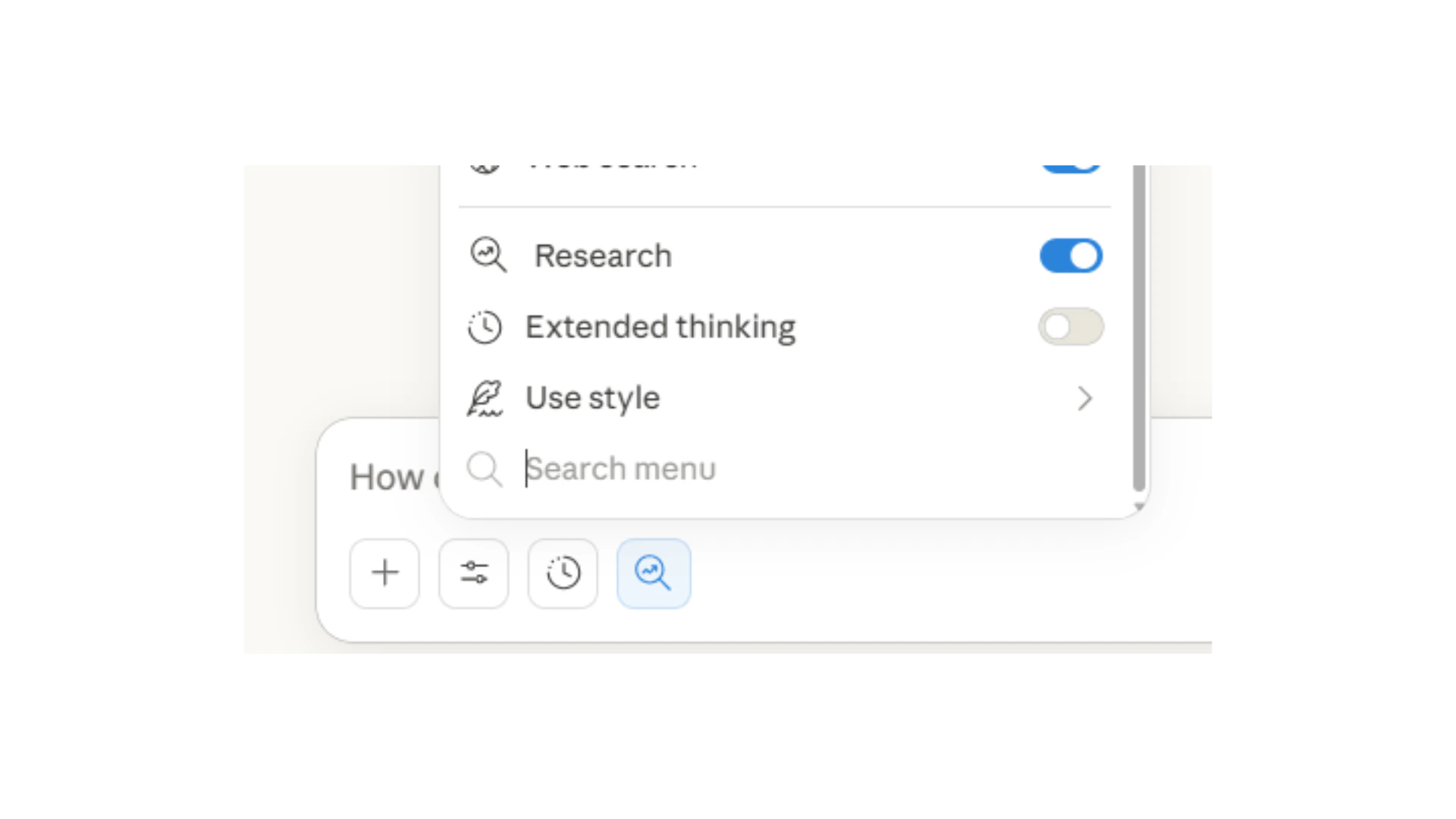
Extended thinking
Extended thinking is a feature that lets Claude spend more time reasoning through a problem before responding. For simple questions, Claude responds quickly. For complex analysis, planning, or problem-solving, turning on extended thinking tells Claude to work through the problem step by step before giving you an answer.When to turn it on
Use extended thinking when you need Claude to work through something complex, such as analysing a long document, comparing multiple options, planning a project, or solving a multi-step problem. For everyday questions and quick tasks, you do not need it.Creating resources with Claude
Within Claude, you have the ability to export information in a variety of file formats. By simply asking Claude to create a document, spreadsheet, or presentation, it will generate a downloadable file that is ready to be used straight away. To enable this, visit Settings, then Capabilities, and enable Code execution and file creation.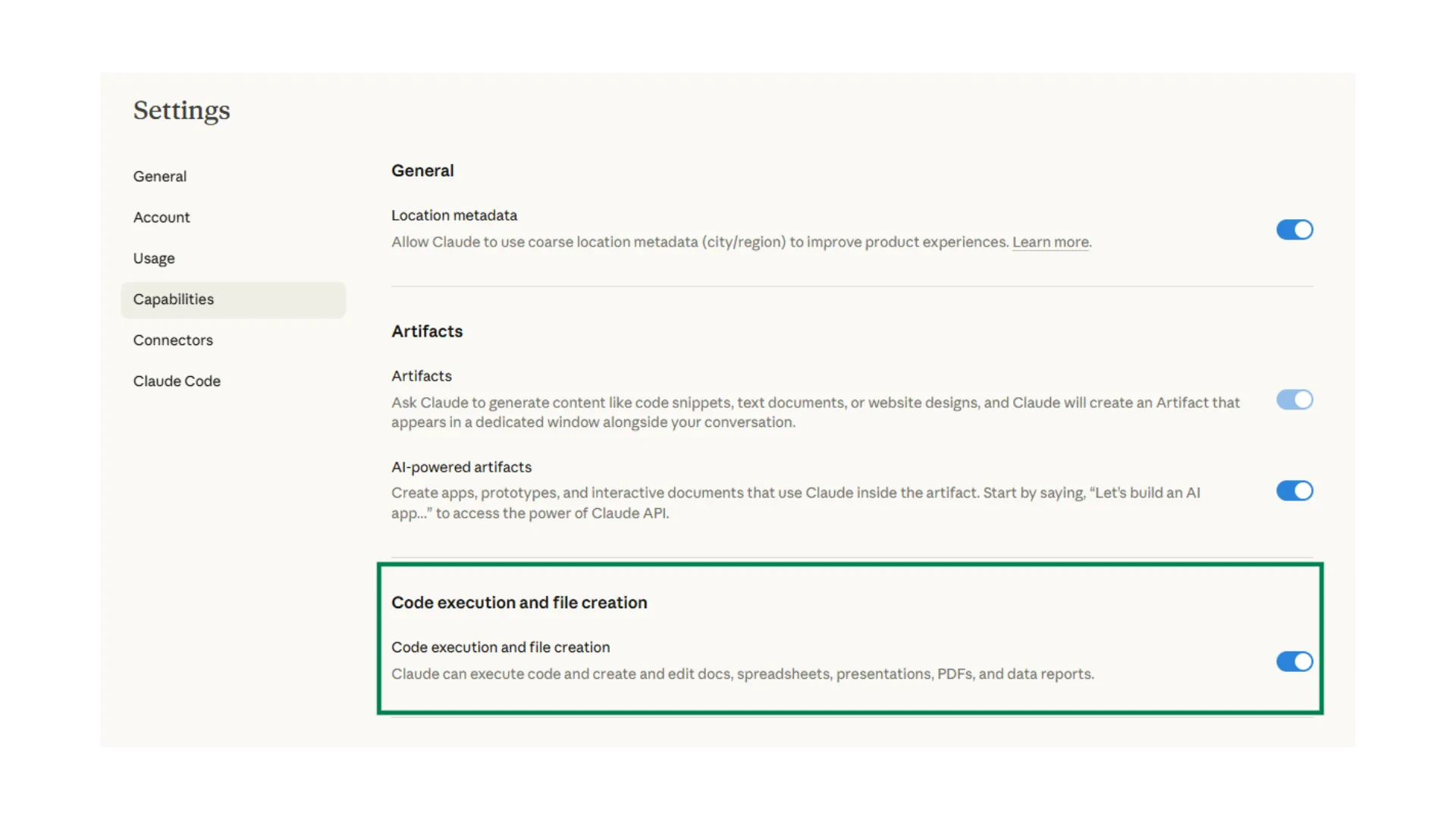
File types Claude can produce
Word files
Formatted documents including reports, proposals, guides, and other written content. Claude outputs a standardised layout, so you will need to manually adjust if you need a more specific design.
PowerPoint files
Slide decks with organised content, readable layouts, and decent creative controls. Claude can build initial drafts for you to refine.
Excel files
Spreadsheets with working formulas, charts, and clear formatting. This is where Claude is particularly strong. Great for financial models, data dashboards, and analysis templates.
Structured exports
For developers, you can build JSON, XML, or other formats for technical workflows and system integrations.
Claude for data analysis
Claude is very strong with data analysis, being able to run calculations and scripts to collect insights from your data. This is a direct result of Claude’s strength in software development and coding tasks.The Excel Add-on
Claude can be added directly into Excel as an easy-to-use assistant that helps you understand, clean, and analyse spreadsheets. Once you have this set up, prompt Claude like you would in a normal chat. While this software is still in beta, you can summarise data, gather insights, create pivot tables, and add in formulas, rows, and columns.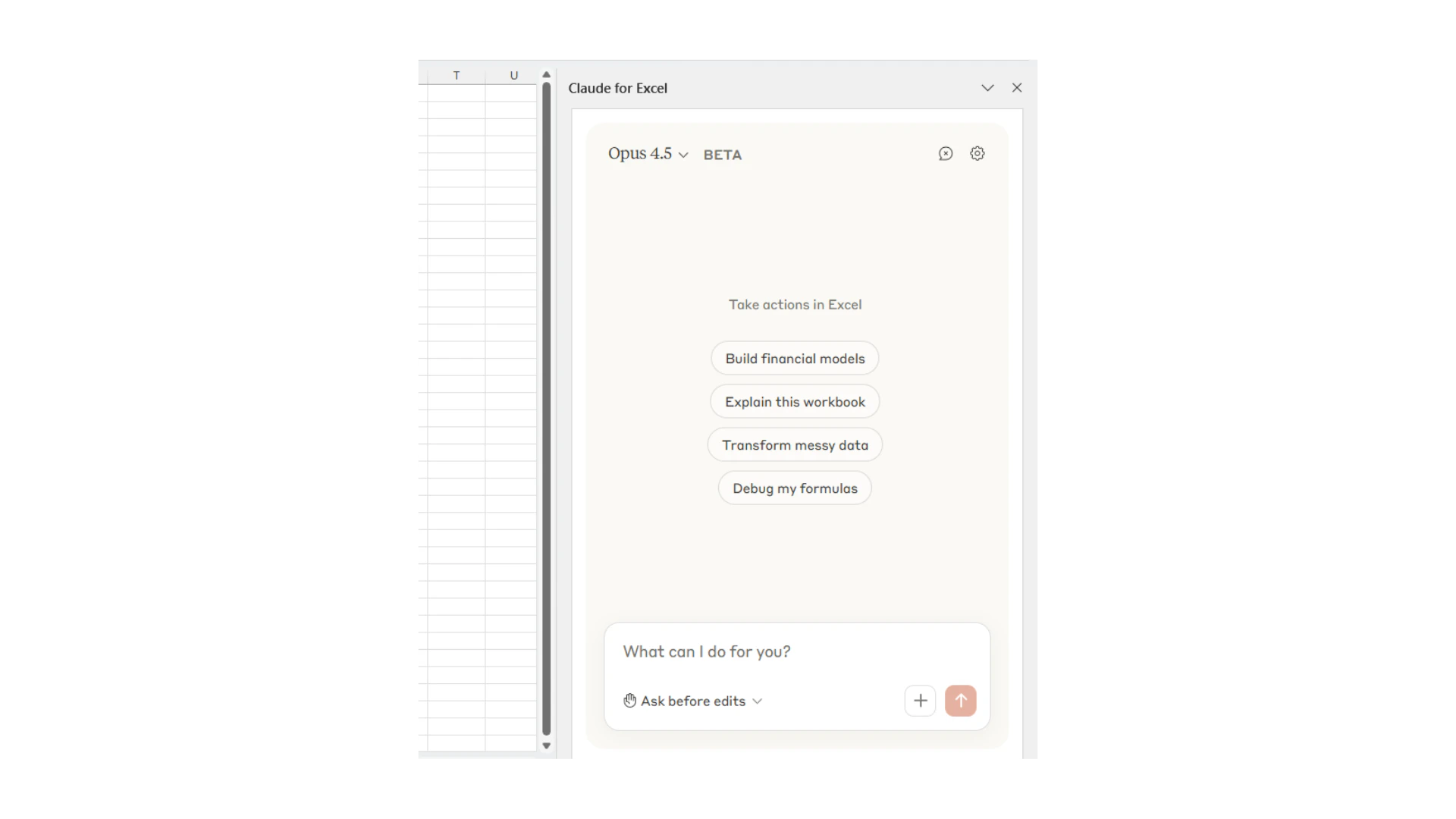
Uploading Excel or CSV files into Claude chats
After enabling “Code execution and file creation” in Settings, you will be able to upload both Excel and CSV files. This allows Claude to inspect your data, run code, generate insights, and build visualisations.Explore
Gather insights, spot trends, and create visualisations from your data.
Get feedback
Ask Claude to review your workbook formulas and setup.
Clean data
Use Claude to analyse and clean your dataset before further work.
Limitations of Claude with Excel
Quick checkpoint (you are done when…)
Add context
You uploaded a file or pasted content into a Claude chat
Use Projects
You can explain what a Project is and when to use one
Connect tools
You understand how Connectors give Claude access to your platforms
Extend thinking
You know when to turn on Extended thinking or Research for deeper analysis
Ready to practice?
Complete the mini challenge by building a prompt with real context