

Copilot in Excel offers a broad range of features that allow you to analyse data, manipulate spreadsheets, visualise information, and solve complex problems. Until recently, these functionalities have been quite limited. This guide walks you through five distinct approaches including the latest releases: Copilot Chat, App Skills, Agent Mode and =Copilot Function.
Introduction
The best results will come when you use Copilot as an Excel assistant designed to increase speed and efficiency while you focus on assessing the accuracy and thought process of Copilot. This collaborative relationship will yield increased productivity and efficiency gains for most Excel tasks, freeing you to tackle more complex problems.Standard Copilot Chat in Excel
Copilot Chat enables you to interact with your Excel workbook and query its data through a chatbot interface. Consider it a conversation with your spreadsheet where you can ask questions and receive answers.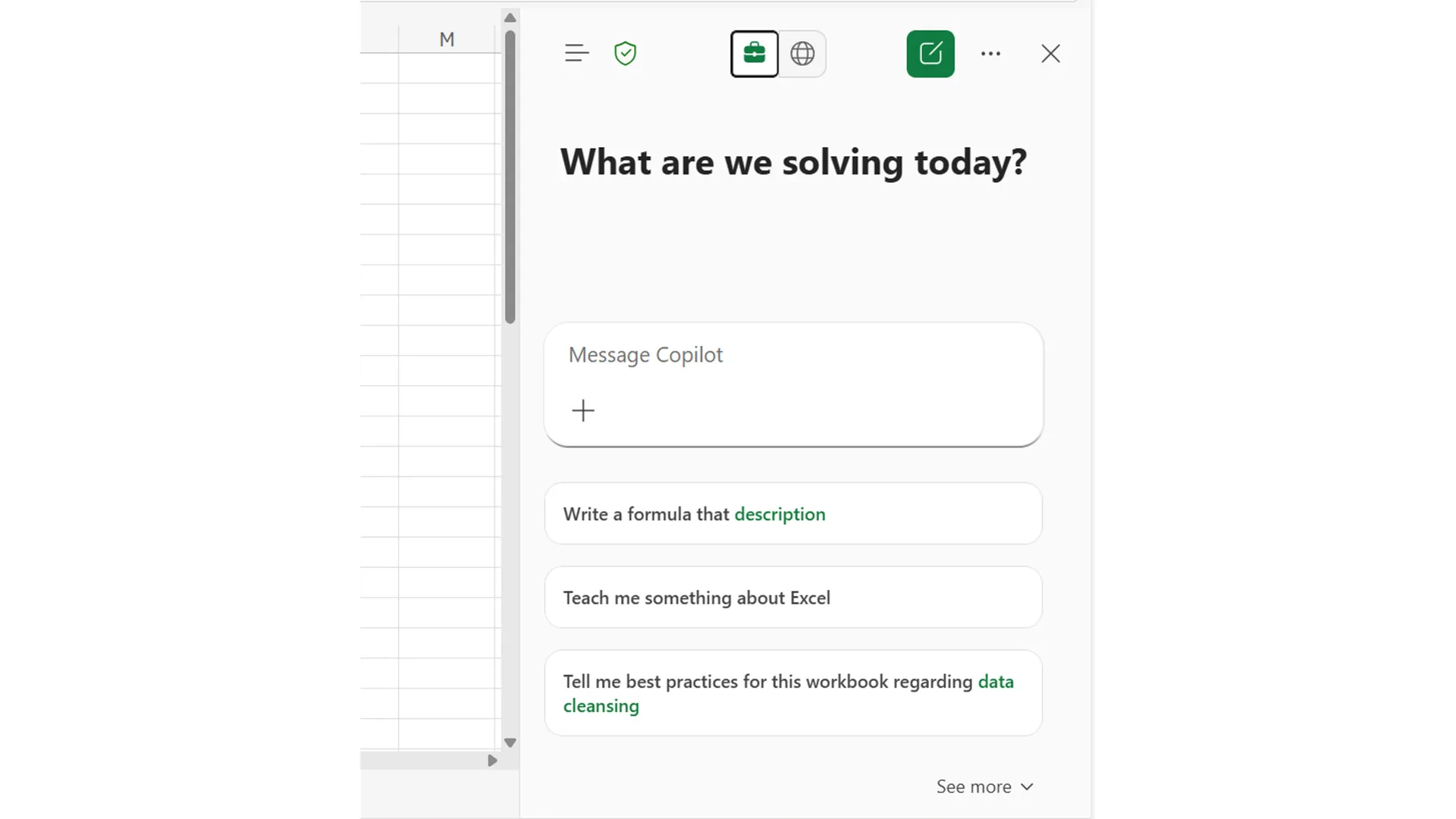
Best practices
Copilot App Skills
App Skills enables Copilot to move from reading your data to actively making changes. This feature allows Copilot to edit your spreadsheet, create visualisations or run calculations. You can access App Skills by clicking on the down arrow under the Copilot button.
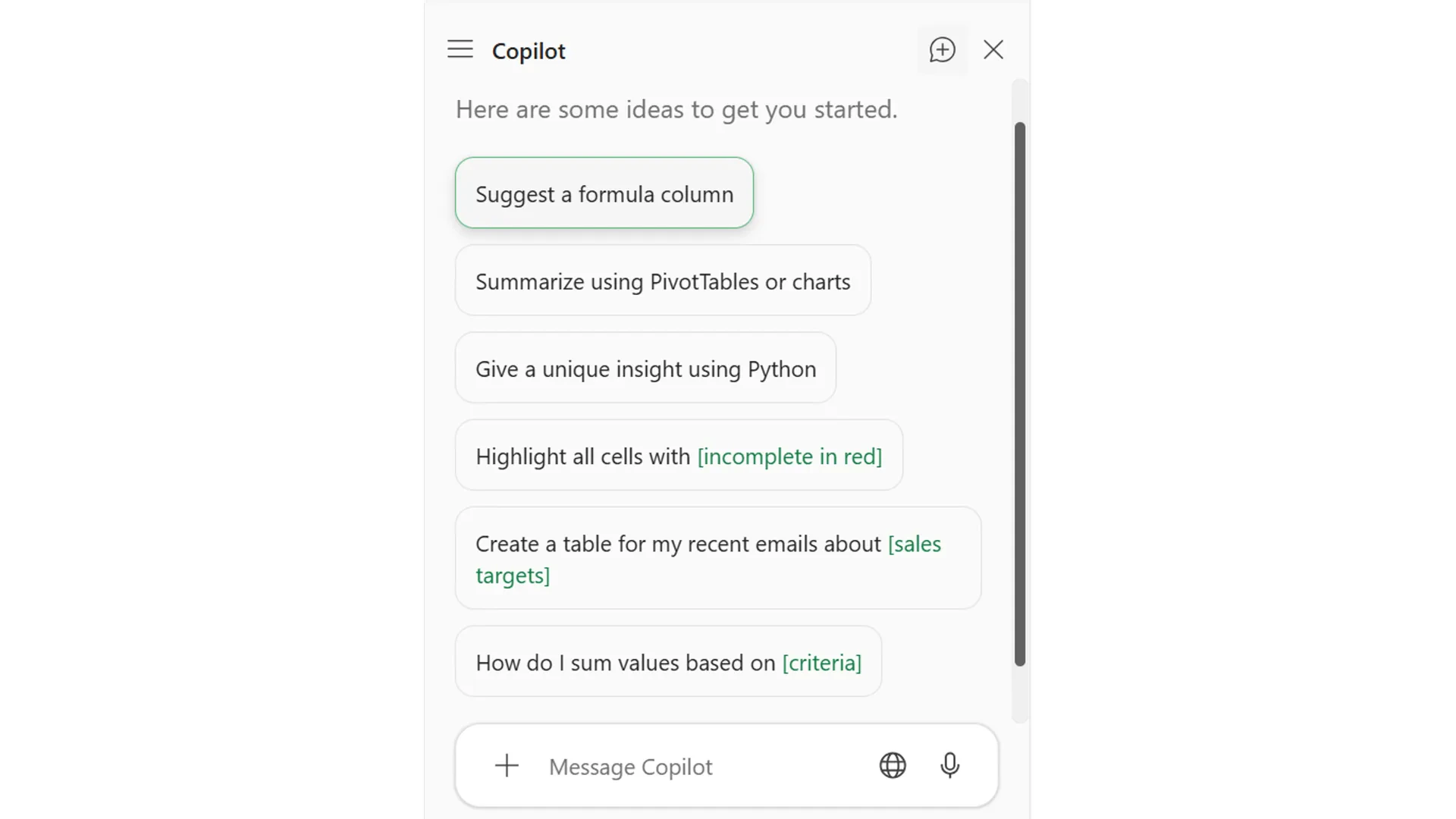
Once open, the App Skills panel appears on the right side of the screen, looking slightly different to the Copilot Chat box. From here you can select from suggested prompts or type your own.
Best practices
Excel Agent Mode
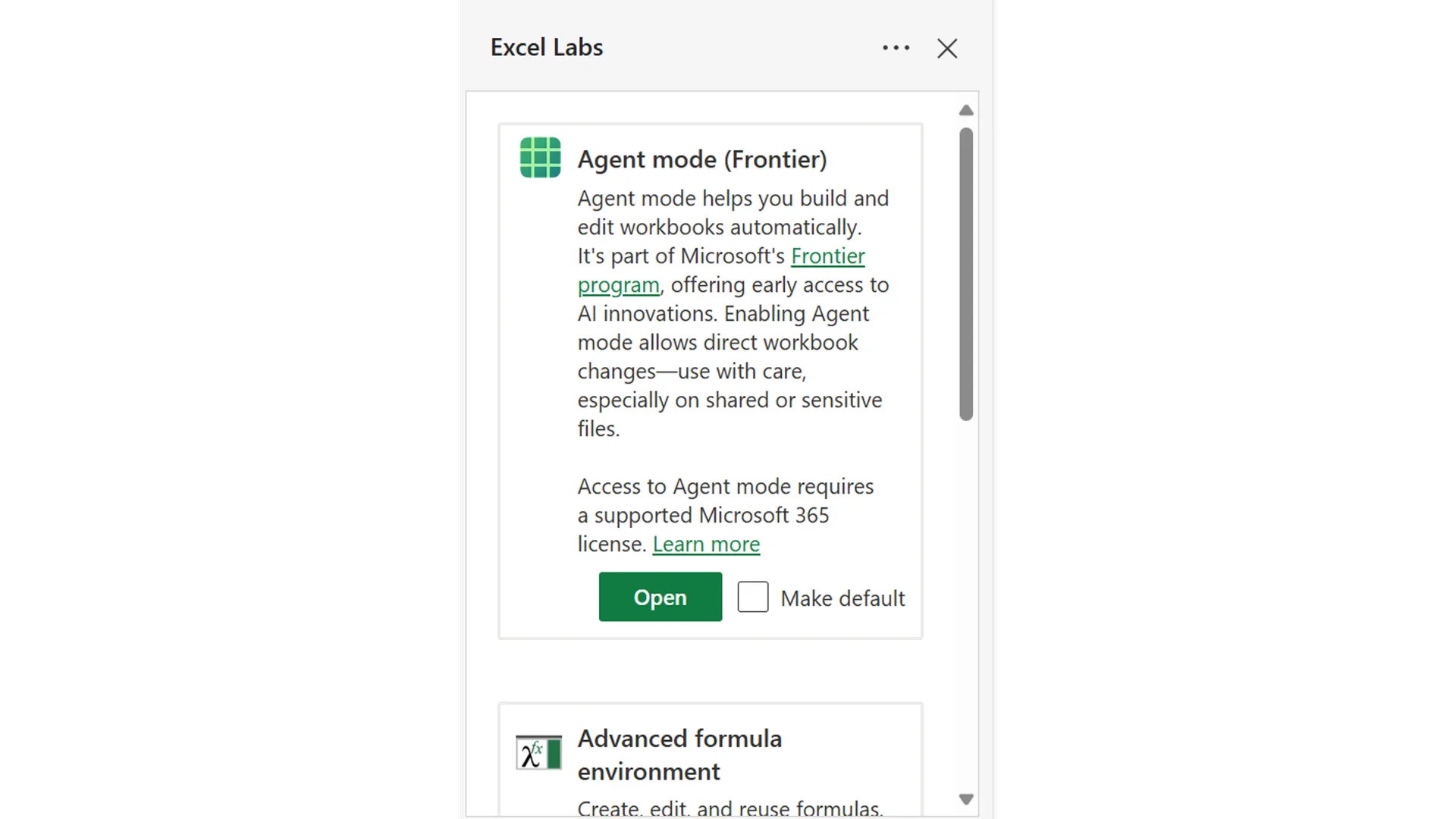
Agent Mode is the most powerful application of Copilot inside of Excel. While App Skills handles general data analysis well, it may produce unreliable results on highly complex questions or tasks. This is where Agent Mode can be helpful. Agent Mode is a specialist data analyst tool that is capable of spending several minutes solving complex problems, and correcting mistakes it produces. As shown below, Agent Mode is a leading data analytics tool that’s able to deliver near human grade accuracy in highly complex tasks.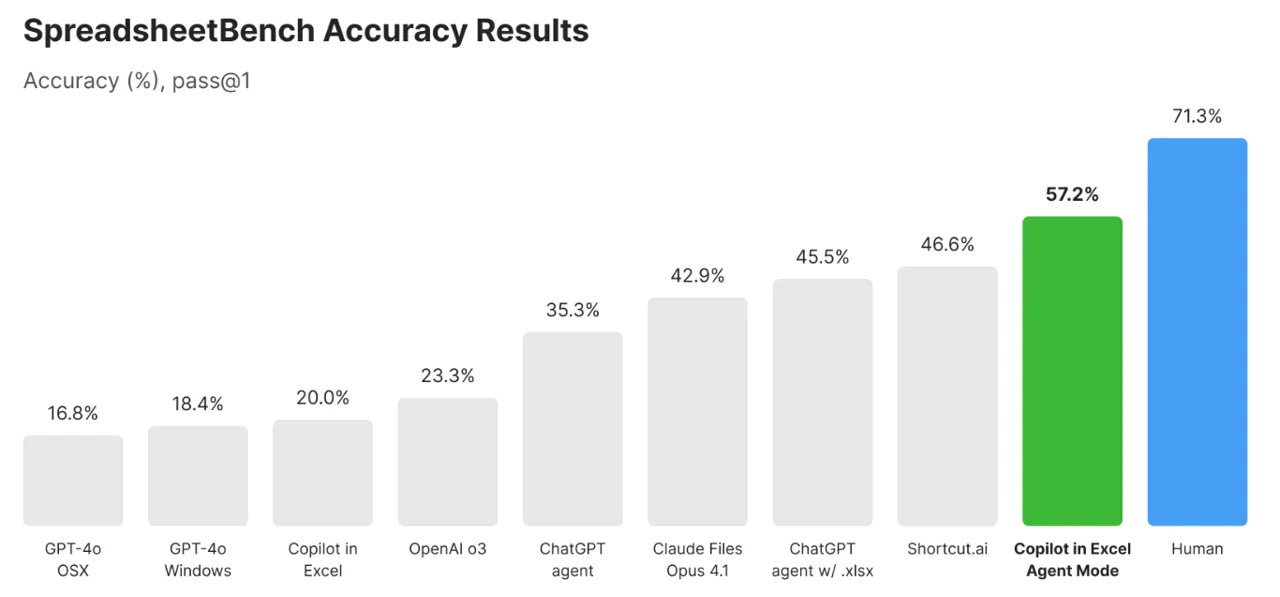
Best practices
The =Copilot function
The “=Copilot()” function brings AI into individual Excel cells. The function is best for tasks like summarising lengthy text, generating sample data, and creating short descriptions. This tool should not be used for extensive data analysis, however, can be used to interpret basic insights from a data set.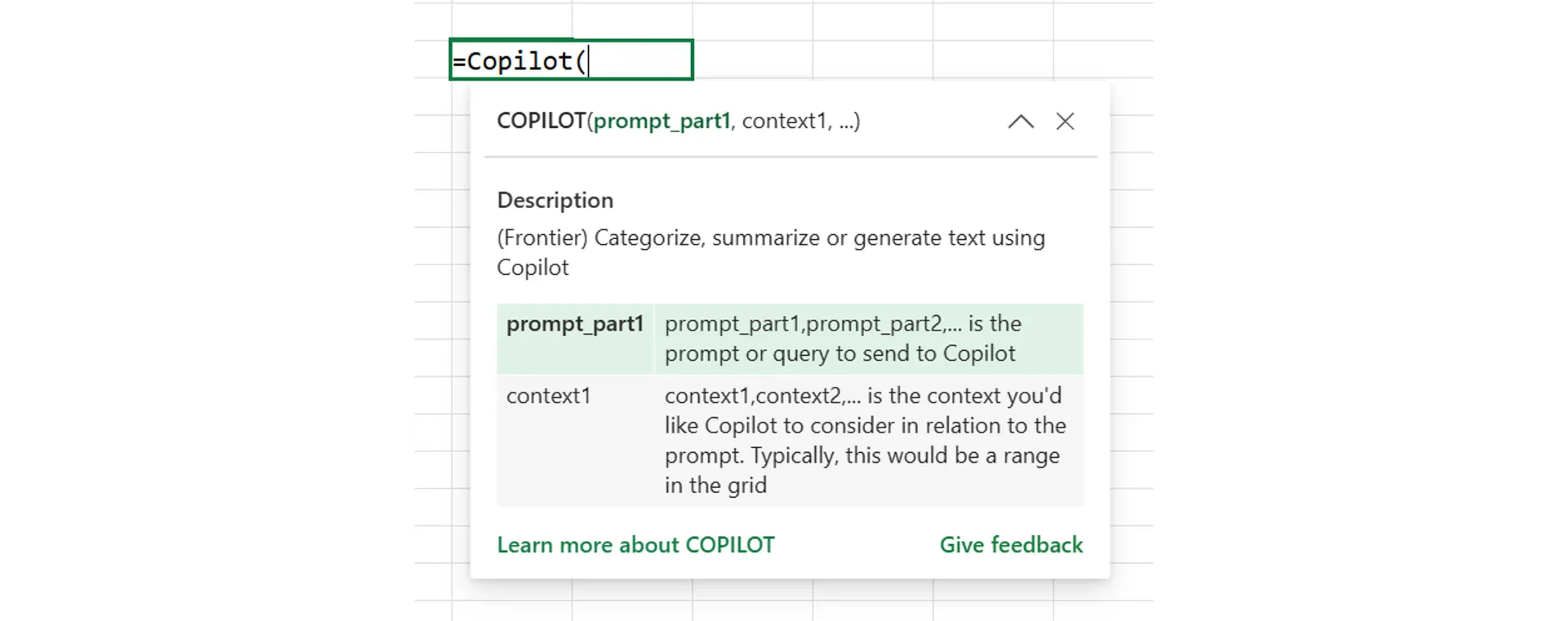
Example prompts in practice
Quick reference
Traditional Copilot Chat
Use for: Simple questions, summaries, general overviews, simple data questions.
Tips:
Tips:
- Works best with tables (the Excel table function)
- Keep your prompts short and specific
- This can’t edit your Excel workbook
Excel App Skills
Use for: Editing, formatting, visualising, and automating basic tasks. This is for when you want to use Copilot to make changes within your Excel workbook.
Tips:
Tips:
- One task per prompt
- Reference exact cells/sheets
- Undo with Ctrl+Z
Excel Agent Mode
Use for: Advanced data analysis and workbook builds. This will be Copilot’s most accurate and powerful Excel functionality but is still in early phases currently.
Tips:
Tips:
- Use a copy of your file
- Check results manually
- Requires Excel Labs Add-in
- Undo supported (Ctrl+Z)
=Copilot Function
Use for: Cell level AI tasks like summarizing information, creating descriptions, or generating sample data.
Examples:
Examples:
- =Copilot(“Create a sample sales table”)
- =Copilot(“Summarize feedback trends”, C2:C8)
Tip: - Use for light insights, not full analysis