

Give Copilot what it needs to help you
Every time you start a new chat in Copilot, you are starting from scratch. Copilot does not remember your last conversation, your project files, or your preferences. It only knows what you tell it, right now, in this chat. This is what context means. Context is the background information you give Copilot so it can produce a useful response. The more relevant context you provide, the less you need to fix afterwards. Manually adding context for every new chat takes effort. Copilot has two features that help you build context in, so you spend less time setting up and more time getting results. This page will show you how to:Understand context
Know what Copilot needs from you to produce useful output
Use Notebooks
Build a curated knowledge base from your files
Use Pages
Keep conversational context as you iterate on a draft
Choose the right feature
Pick Notebooks or Pages based on your task
Why context changes everything
Without context, Copilot relies on general knowledge. With context, it works from your specific documents, data, and situation. Here is the difference in practice:Without context
“Write me a project update.”Copilot guesses the format, tone, and content. You spend time rewriting most of the output.
With context
“Based on the three status reports I uploaded, write a project update for our steering committee. Use a professional tone and keep it under 300 words.”Copilot pulls from your actual data and delivers something close to ready.
How context works in Copilot
Think of giving Copilot context the same way you would brief a team member on a task. A good brief tells them what to do, when to do it, and how to do it. The same structure applies to working with AI.What
What task do you need done?“Summarise these three reports into a single briefing document.”
When
When or under what conditions should this happen?“Before my steering committee meeting on Friday.”
How
How should Copilot approach it?“Use bullet points, keep it under one page, highlight risks in bold.”
Where Copilot gets its context from
Copilot can pull context from several sources depending on where you are working. Understanding this helps you choose the right starting point for your task.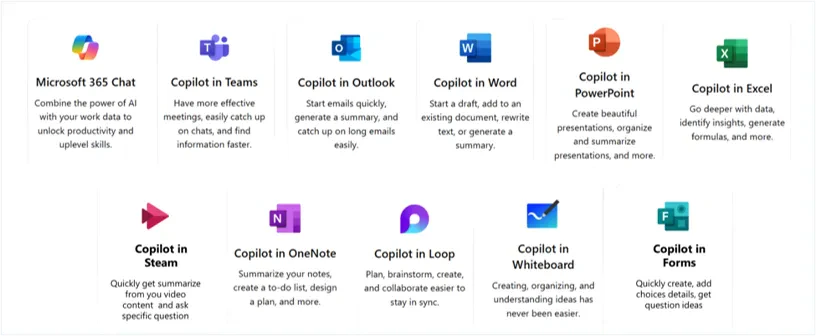
Copilot Chat
When you use the main Copilot Chat, it draws from the web and your Microsoft 365 data (emails, files, meetings, chats) depending on whether you toggle Work or Web mode. Use the ”/” key in the prompt box to reference specific files, emails, meetings, Teams chats, or Teams channels directly.
Copilot in Apps
When you open Copilot inside Word, Excel, PowerPoint, Outlook, or OneNote, it automatically understands the content of the file or email you have open. This means your open document becomes the context, no uploading required.
Create a curated knowledge base with Notebooks
The goal
Get fast, focused answers from a specific set of documents without having to copy-paste or re-upload files for every prompt.What is a Notebook?
A Notebook is a private workspace where you add up to 20 files. Copilot will only use those sources to answer your questions. The context is built in for the entire session, so every follow-up prompt stays grounded in your documents.Summarise reports
Upload multiple project reports and ask Copilot to pull out key themes, risks, or action items across all of them at once.
Build onboarding guides
Add your internal policies, process documents, and team handbooks. Ask Copilot to create a new-starter guide from those sources.
Create Q&A resources
Upload policy files and ask Copilot to generate a list of frequently asked questions with answers drawn directly from the documents.
How to create a Notebook
1
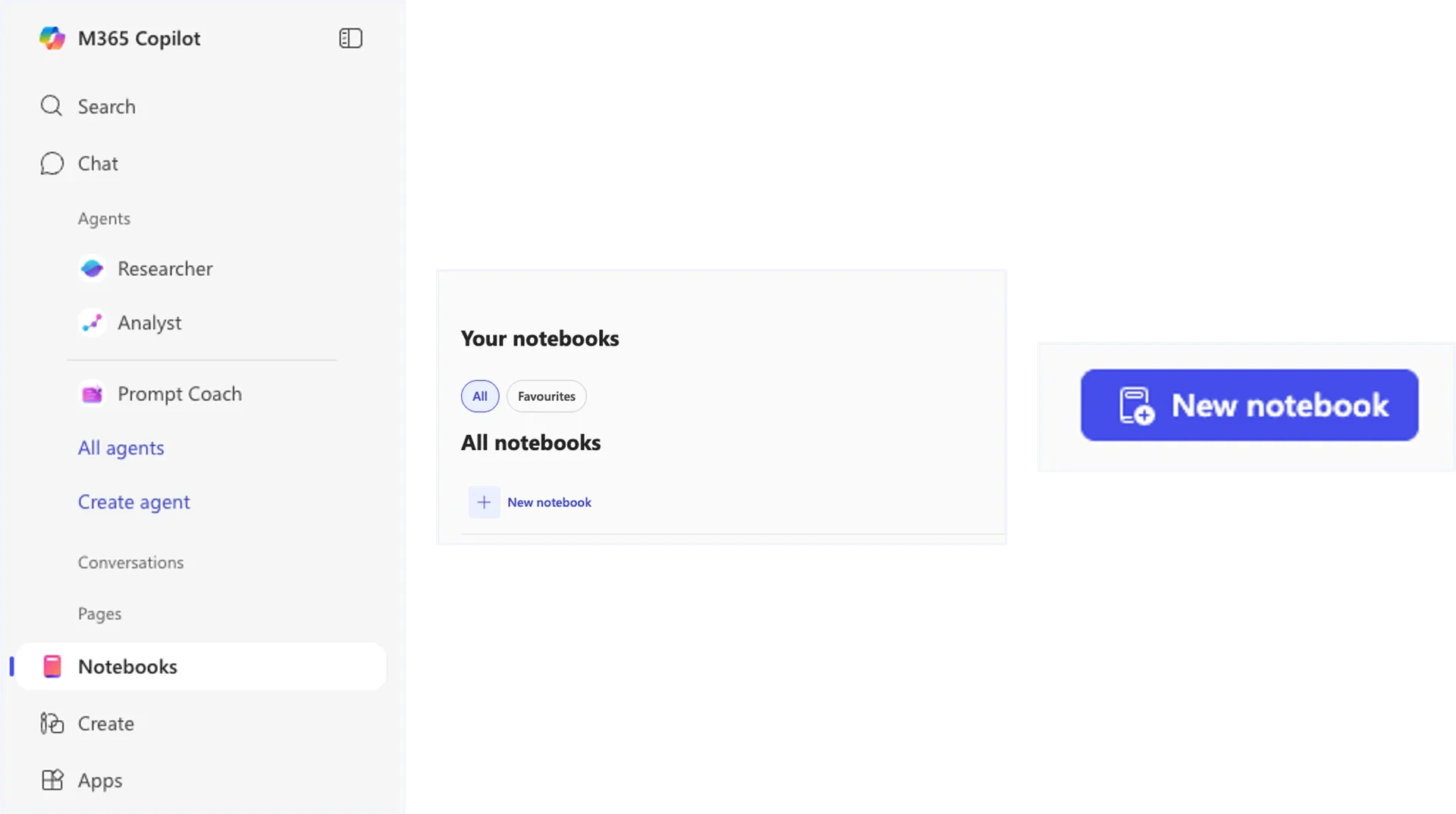
Navigate to Notebooks
Open Copilot and select “Notebooks” from the left-side panel.
2
Create a new notebook
Click the “New notebook” button in the top right corner.
3
Name it and add files
Give it a clear name that reflects the project or topic. Upload the relevant files (PDFs, Word docs, PowerPoints, spreadsheets) and click “Create”.
4
Start prompting
Type your questions in the prompt box. Copilot will only reference the files you attached, nothing else.
Audio Overview within Notebooks
This feature creates a spoken summary of all the reference documents attached to your Notebook. It is useful when you need a quick briefing and do not have time to read through everything.1
Open the audio overview
Inside a notebook with references attached, click the “Get audio overview” button next to the notebook title.
2
Choose your settings
Select your preferred format (Narration or Dialogue), style, and duration.
3
Generate and review
Click “Generate audio”. Listen to the preview, then choose “Keep it” or save to OneDrive from the three-dot menu.
Step-by-step: Creating an audio overview
Step-by-step: Creating an audio overview
The “Get audio overview” button is located on the main screen of a notebook, directly adjacent to the notebook title. This feature is only available when you have already attached reference documents.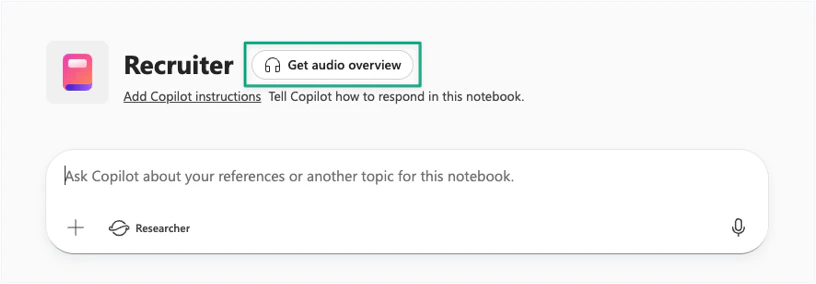
Step-by-step: Selecting audio configurations
Step-by-step: Selecting audio configurations
The panel offers options for format, style, and length. You can also provide specific instructions via prompts to adjust the output. Generate the initial audio without custom instructions first to set a baseline, then adjust from there.
Step-by-step: Previewing the audio
Step-by-step: Previewing the audio
The generated audio appears at the bottom right of the interface. You can play it directly from there.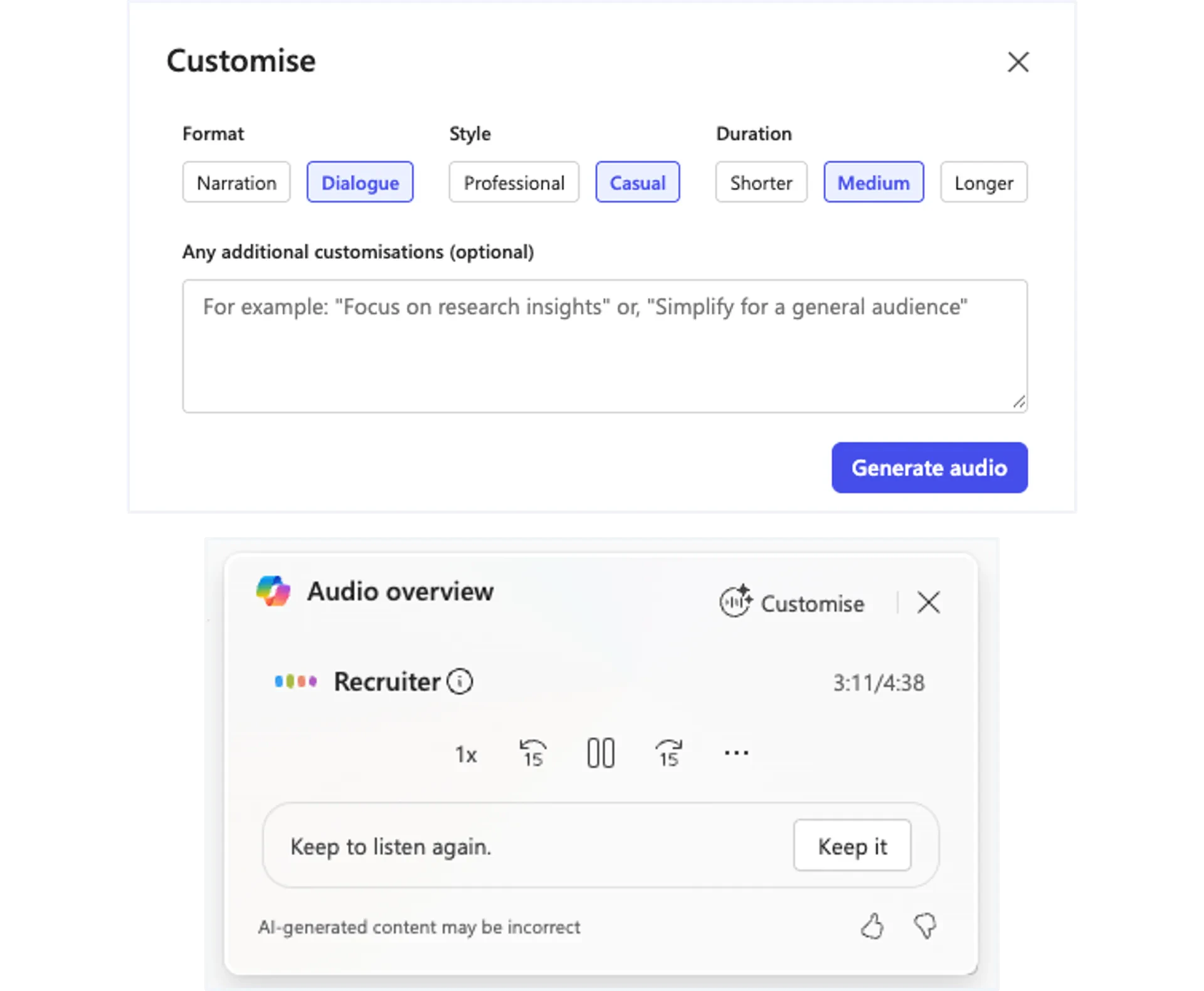
Step-by-step: Saving and regenerating
Step-by-step: Saving and regenerating
Only one audio overview is allowed per notebook at a time. Use the “Keep it” button to save it to the project, or select “Save to OneDrive” from the three-dot menu. To regenerate, click “Customise” to return to the settings panel.
Maintain conversational context with Pages
The goal
Iterate on a first draft with follow-up prompts, without having to re-explain what you have already written.What is a Page?
A Page turns a chat response into a simple, editable document. The chat and the draft sit side-by-side, so follow-up prompts stay grounded in what is already on the Page. This means Copilot remembers the content you are building on as you refine it.Draft and refine
Start with a rough output from chat, move it to a Page, then use follow-up prompts to adjust tone, add sections, or shorten the content.
Collaborate with others
Share the Page with team members for real-time editing. Unlike Notebooks, Pages are designed for collaboration.
Move to Word or PowerPoint
Once your draft is ready, open it in Word for final formatting. You can also ask Copilot Pages to create a PowerPoint presentation directly from the Page content.
How to create a Page
There are two ways to create a Page:From a chat response
Locate the pencil icon at the bottom of any chat response. Hover until “Edit in Pages” appears, then click to move the content into a new Page.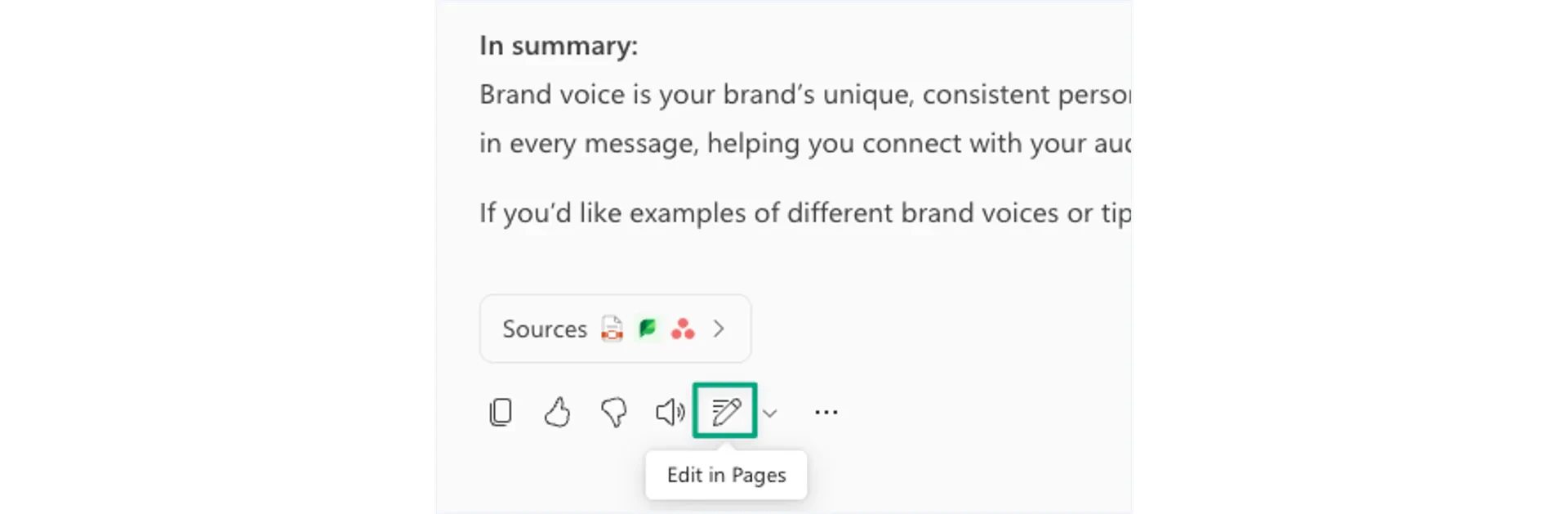
From the sidebar
Open the “All Pages” section in the Pages dropdown on the sidebar. Click the option in the upper-right corner to start a blank Page.
The Pages interface
The interface displays two main sections: a chat panel on the left and your content Page on the right. Questions asked in the chat are grounded in the content shown on the Page. You can add any chat response to the Page by clicking the plus icon underneath it.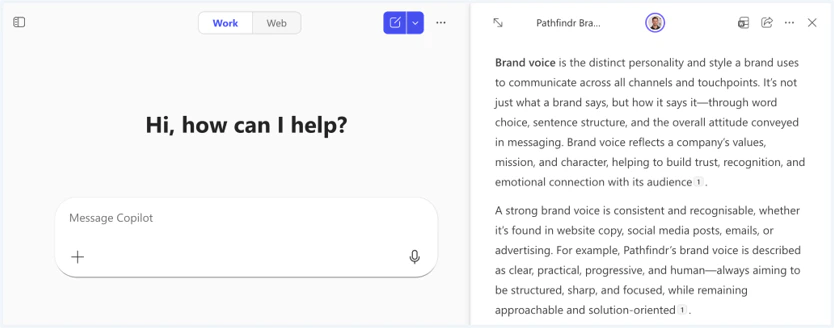
Slash commands
Type ”/” or click the plus icon inside the Page to access formatting options, add content blocks, insert graphs, and more.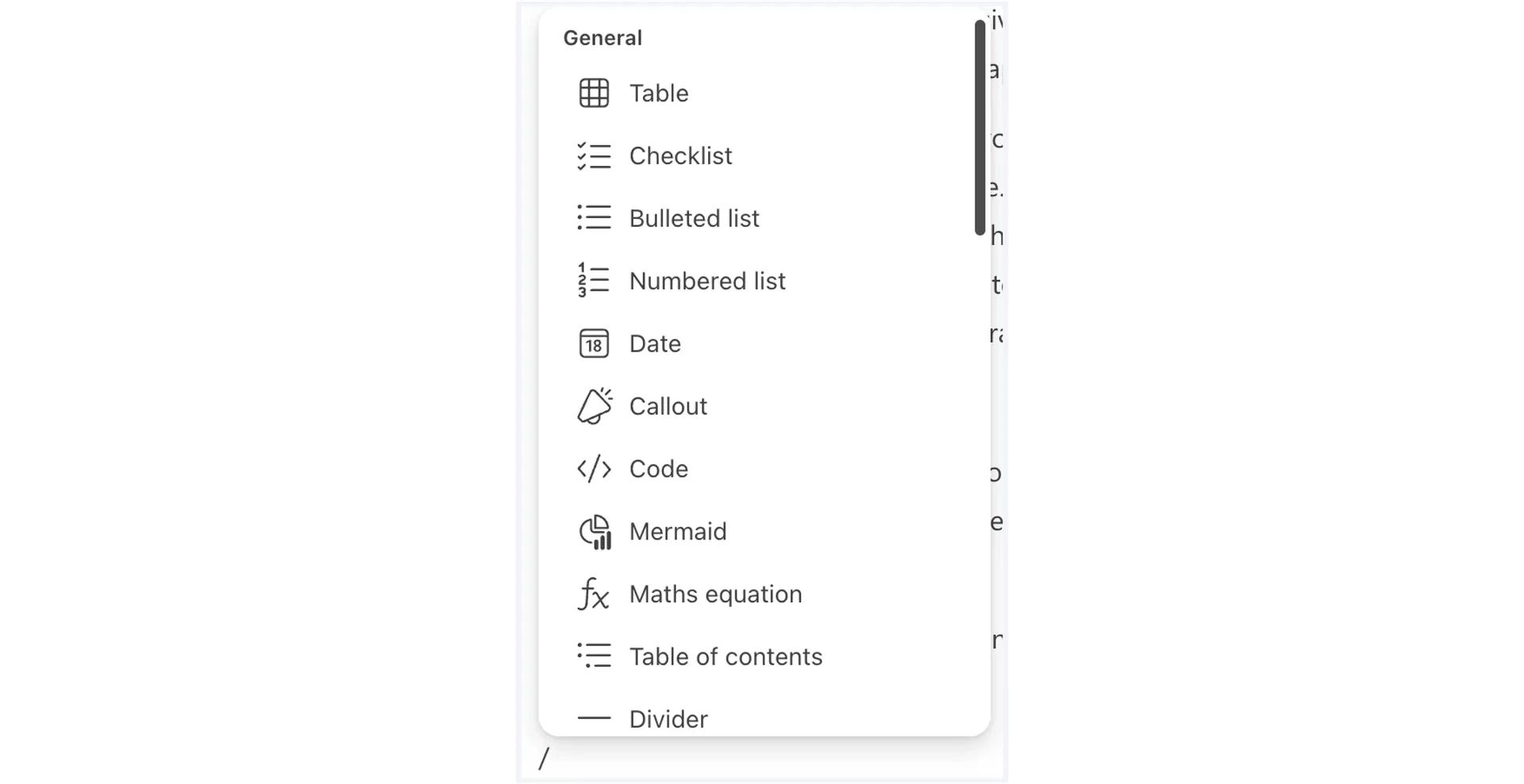
Polish in Word
When your draft is ready, click the icon in the upper right corner of the Page to open it in Word for final formatting and polishing.
Notebooks vs Pages: which one do I use?
Choosing the right feature depends on your task. Use the guide below to decide.Copilot Notebooks
Use for: Long-term projects that require referencing many different sources to get focused answers.How it works: Acts as a container for your files (docs, PDFs, spreadsheets). All prompts are automatically grounded in this curated set of documents.Sharing: Now supports sharing and co-authoring via OneNote.Think of it as: Your project filing cabinet that Copilot can search through.
Copilot Pages
Use for: Quick, single outputs like drafting an email, writing a brief, or organising ideas from a chat before moving to Word.How it works: Turns a chat response into an editable document. Follow-up prompts reference the content on the Page.Sharing: Designed for real-time collaboration with colleagues.Think of it as: Your scratch pad that keeps Copilot in the loop as you refine.
What file types can I upload?
Limits and capabilities change regularly and may differ from what is stated above. Check your admin for the latest details relevant to your organisation.
Quick checkpoint (you are done when…)
Understand context
You can explain why Copilot needs context to give useful answers
Use Notebooks
You created a Notebook and asked questions against your uploaded files
Use Pages
You moved a chat response to a Page and used follow-up prompts to refine it
Choose the right feature
You can explain when to use a Notebook vs a Page
Ready to practice?
Complete the mini challenge by building a Notebook or Page with your own work content