

Getting started
Have the right permission settings
Starting off you want to make sure IT has given you the following permission settings:Required permissions checklist:
- Report reader
- AI Administrator
- Insights Analyst
- Insights Administrator
Minimum for basic usage reports: Reports Reader or AI Administrator.Full access to all dashboards: Global Administrator + Insights Administrator + Insights Analyst.
Microsoft 365 Copilot Usage Reports
1
Sign in to Admin Centre
Once you have the right permission settings go through Microsoft 365 Copilot Usage Reports in the admin centre. Navigate to this link to sign in to admin centre: Click here.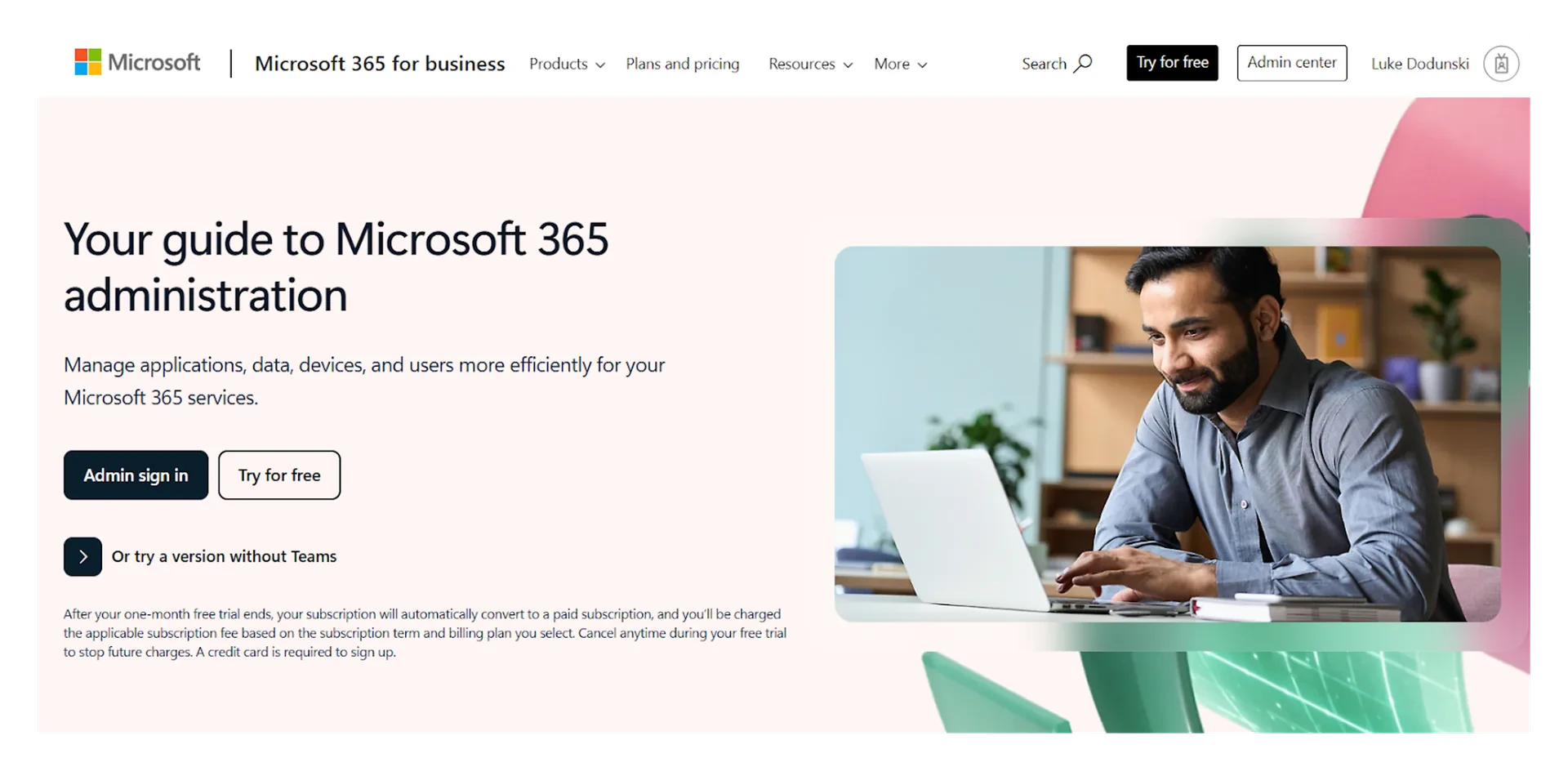
2
Navigate to Overview
Once in admin centre navigate to Copilot, then choose Overview. Click here for detailed overview.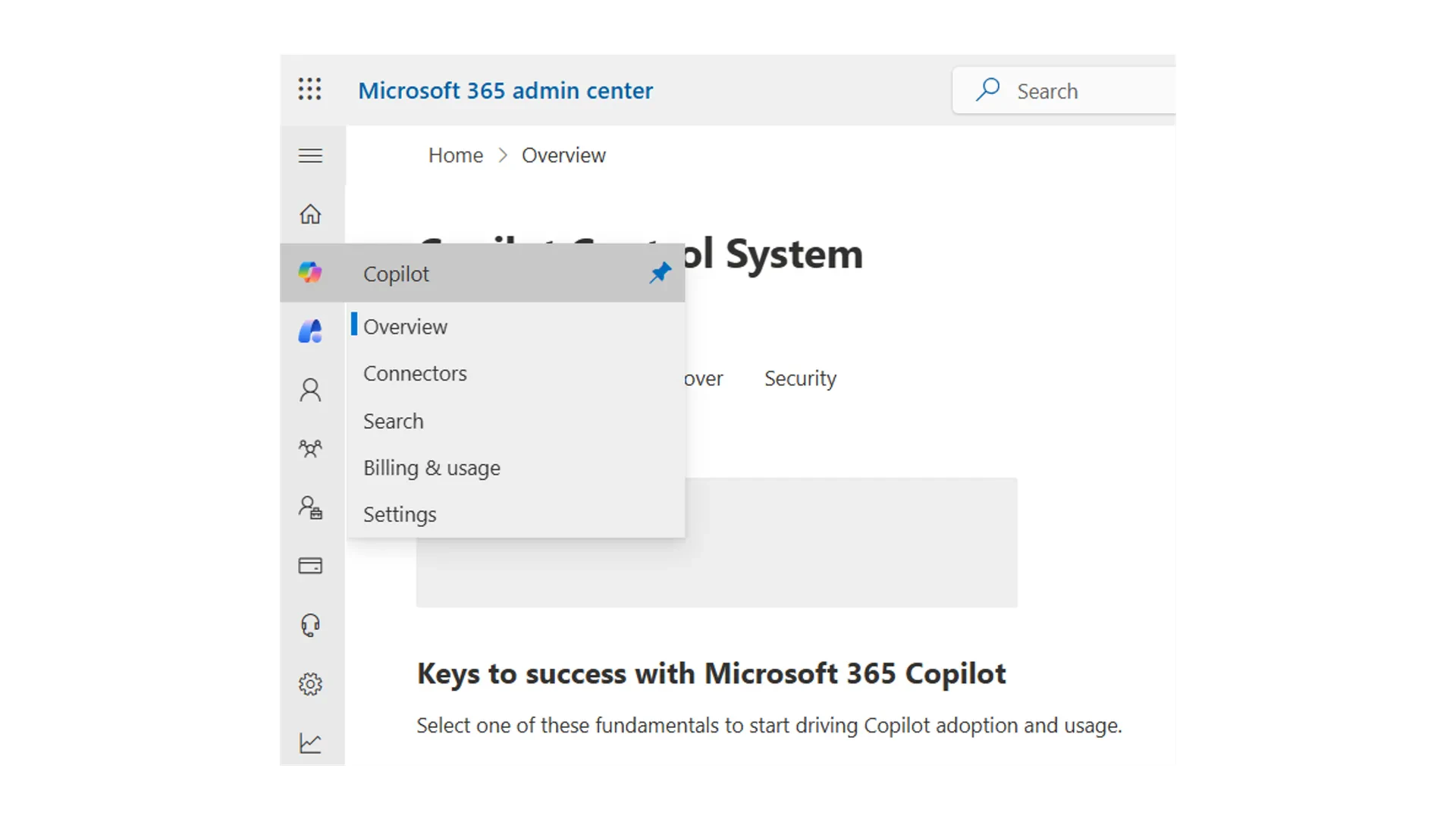
What should you start measuring
Within the Microsoft 365 Copilot Usage Reports (Admin Center) we would recommend starting to understand the following measures:Enabled Users
Total number of unique users with Copilot licenses.
Active Users
Number of enabled users who initiated a Copilot feature in any Microsoft 365 app.
Active Users Rate
Ratio of active users to enabled users.
Total Prompts Submitted
Number of prompts sent to Copilot Chat.
Active Agent Users
Users who interacted with custom agents built by your organization.
Five best practice tips for the Usage Reports
1
Start with Active Users and Rate
Focus on these first because they show real adoption and engagement versus license assignment.
2
Monitor Trends Over Time
Use 30 or 90-day views to spot momentum and seasonal patterns.
3
Drill into Prompt Volume
High prompt counts indicate deeper usage; low counts suggest training gaps.
4
Validate License Readiness
Check Enabled Users regularly to ensure all intended users are provisioned.
5
Combine with Viva Insights for Context
Usage alone does not show impact; pair with productivity benchmarks for richer insights.
Advanced reporting options beyond Admin Center
To move beyond the basic Microsoft 365 Copilot Usage Reports in the Admin Center and get advanced reporting and insights, here are your options:Enable Copilot Dashboard in Viva Insights
Enable Copilot Dashboard in Viva Insights
- Provides richer organizational insights like productivity benchmarks, collaboration patterns, and adoption trends by department.
- Requires Insights Premium license and admin permissions.
Use Power BI Advanced Reporting
Use Power BI Advanced Reporting
- Connect Copilot usage data to Power BI templates for custom dashboards.
- Allows segmentation by role, geography, and app usage.
- Requires Power BI Pro and access to Microsoft Graph data.
Export Data via Microsoft Graph
Export Data via Microsoft Graph
- Pull raw usage data for deeper analysis or integration with enterprise BI tools.
- Requires Graph API permissions and developer support.
Click here to learn more about accessing advanced reporting and Viva Insights.